Quick answer
Mouse grips are adhesive pads that add texture and thickness to your mouse's contact points, improving control when your hands sweat or the shell feels slippery. Choose a material and shape that match your grip style, clean the surface thoroughly, and apply once with firm, even pressure. Replace grips every 3–5 months to avoid adhesive residue.
If your mouse slips at the worst moment, the problem is often the surface, not your aim. Mouse grips explained simply: they are adhesive pads that add texture and thickness where your fingers and palm contact the mouse, giving you more consistent control without changing your mouse.
This guide covers the main gaming mouse grip tape types, how mouse grip materials differ, and a step-by-step process for how to apply mouse grips so they stay put. You will also find practical checkpoints to avoid the mistakes that cause peeling, poor adhesion, and wasted grips.
What mouse grips actually change
Grips change the feel of your mouse in three ways: texture, thickness, and contact area. Texture gives your fingers something to push against, which helps when your hands are sweaty or the shell is glossy. Thickness can subtly fill out a mouse that feels too narrow or too flat for your hand. Contact area is about placement: pads on the main buttons, sides, and palm rest let you apply force without squeezing harder.
They do not change sensor performance, weight, or shape. If a mouse is fundamentally too small or too large, grips can only partially compensate. Think of them as a fit and control upgrade, not a shape replacement. That is why choosing the right material and placement matters more than buying the thickest or most aggressive texture available.
- Check your current contact points: where do your fingers naturally rest?
- If your hands stay dry, a smoother material may feel better than a rough one.
- If the mouse feels too narrow, a slightly thicker grip can help; if it feels too wide, thinner is better.
Gaming mouse grip tape types: shapes and coverage
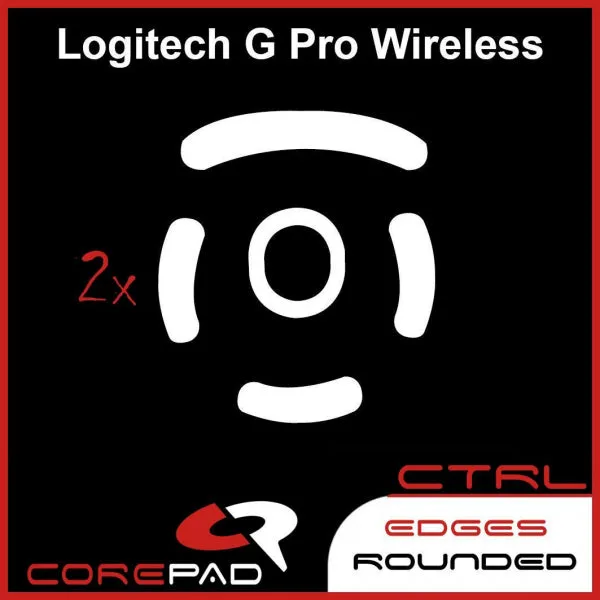
Grip tape for a gaming mouse generally comes in three coverage levels: button grips, side grips, and full sets. Button grips cover the left and right click areas, which is where many players lose control during rapid clicking. Side grips cover the thumb and ring-finger contact zones, improving lift-off and stability. Full sets include both plus palm or rear coverage for players who want maximum texture.
Pre-cut sets are shaped for a specific mouse model, so they fit cleanly without trimming. Universal sheets let you cut your own shapes, which is useful for unusual shells but takes more patience. If you want a predictable result, start with a pre-cut set for your exact model. If your mouse is not listed, a universal sheet is the practical fallback.
- Button grips: best for players who lose grip during fast clicks.
- Side grips: best for low-sensitivity players who lift and reposition often.
- Full sets: best for sweaty hands or glossy shells that feel slippery everywhere.
Mouse grip materials: what to expect
Most grips use a rubberized or polymer surface over an adhesive backing. Softer materials feel cushioned and absorb sweat well, but they can wear faster and collect dust. Firmer materials feel more like the mouse shell and tend to last longer, though they offer less cushioning. Some grips use a textured pattern to channel moisture away; others rely on a smooth, tacky surface.
There is no single best material. The right choice depends on your hand moisture, how hard you grip, and whether you prefer a soft or firm feel. A useful approach is to match material to conditions: if you play in a warm room or your hands sweat heavily, prioritize moisture management and replaceability. If you play in a cool, dry environment, a firmer material may feel more precise.
- Soft grips: more cushion, more sweat absorption, shorter lifespan.
- Firm grips: more durable, closer to the original shell feel.
- Textured grips: better for sweaty hands but harder to clean.
How to apply mouse grips: step-by-step
Installation is straightforward, but preparation decides whether the grips stay on. Work on a clean, well-lit surface and keep the adhesive backing clean until the moment you press it down. If you rush this step, you will likely trap dust or misalign the pad, and repositioning weakens the adhesive.
Once applied, give the adhesive time to bond before heavy use. A common mistake is testing the grip immediately with intense play, which can shift the pad before it has set. Follow the steps below and use the checkpoints to catch problems early.
- Do not touch the adhesive side with your fingers; oils reduce stickiness.
- If you must reposition, lift slowly and avoid stretching the material.
Mouse grip installation steps
- Clean the mouse surface: Wipe the areas where the grips will go with isopropyl alcohol and let them dry completely. Common mistake: skipping this step or using a household cleaner that leaves residue, which prevents the adhesive from bonding. Checkpoint: the surface should be dry and free of oil or dust before you continue.
- Test-fit the grips before peeling: Place the grips on the mouse without removing the backing to confirm orientation and coverage. Common mistake: peeling the adhesive first and then discovering the shape is rotated or on the wrong side. Checkpoint: every pad should sit flat and align with the mouse edges without overlapping buttons.
- Peel and place with even pressure: Remove the backing from one grip at a time and press it down starting from the center, working outward to push out air. Common mistake: pressing only the edges, which leaves trapped air and causes peeling later. Checkpoint: run your finger across the pad; there should be no raised bubbles or loose corners.
- Let the adhesive set before playing: Wait at least 30 minutes, and ideally a few hours, before intense use. Common mistake: jumping straight into a match, which can shift the grips before the adhesive has fully bonded. Checkpoint: after the first session, press the edges down again to reseat any lifted areas.
- Plan replacement before removal: Mark a reminder to replace grips every 3–5 months, as recommended for Corepad Grips. Common mistake: leaving grips on until they curl, which makes removal messier and increases the chance of adhesive residue. Checkpoint: if a grip feels smooth or starts lifting, replace it rather than pressing it back repeatedly.
Products that support a better grip setup
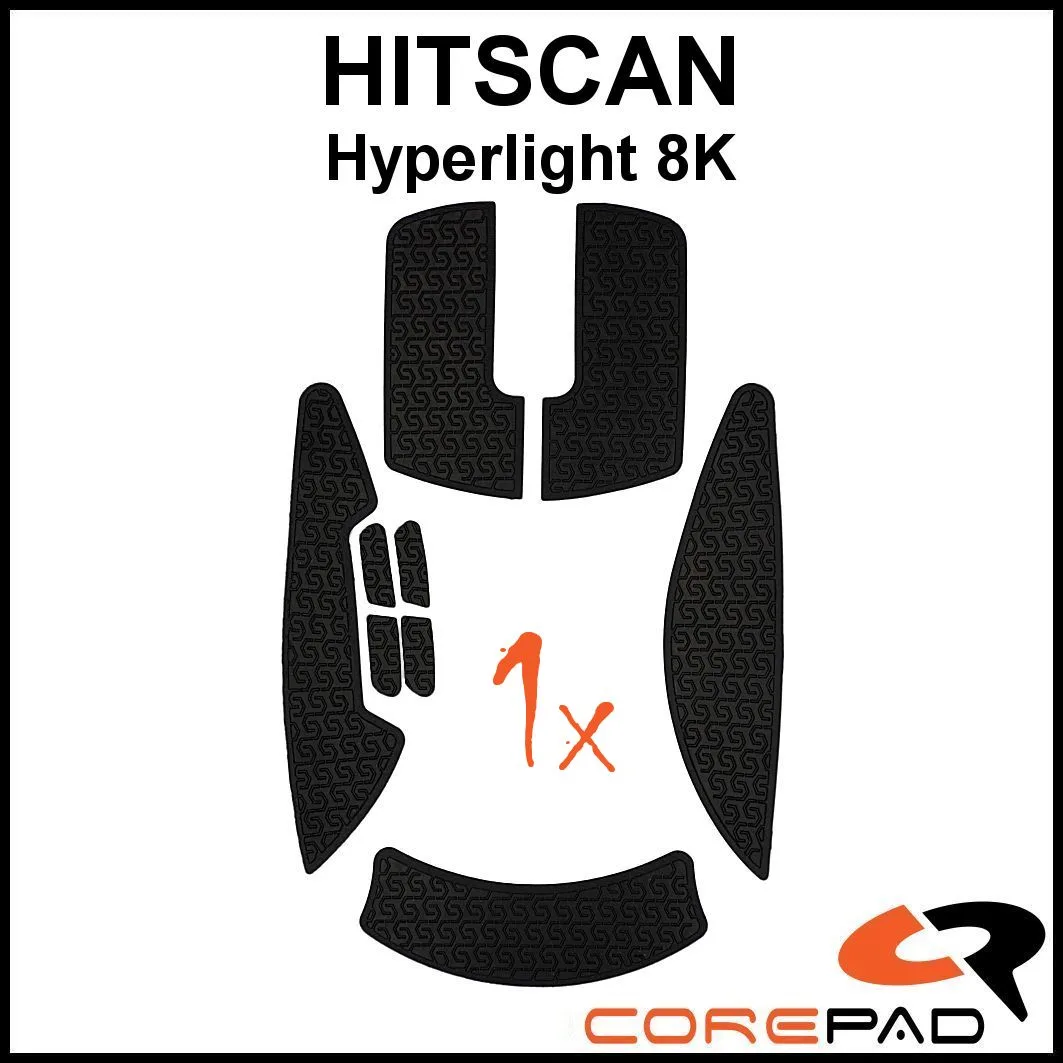
- Corepad Grips - HITSCAN Hyperlight 8K: Corepad recommends replacing grips every 3–5 months to avoid potential issues with adhesive removal from your mouse. Planning replacement intervals protects your mouse's finish and keeps grip performance consistent.
- X3 CrazyLight Medium Gaming Mouse: The X3 CrazyLight is an ultra-lightweight gaming mouse at 46g with a hybrid ergonomic design and 8K polling rate. A very light mouse can be harder to control if your grip slips; adding grips can improve stability without adding meaningful weight.
- JX2 [White Flames] eSports Cloth Mousepad: The JX2 [White Flames] is an eSports cloth mousepad from The Masterpiece, offered in a Standard variant under SKU MSTRPC-JX2-WF. Grip and glide work together; a consistent cloth surface complements the control that grips provide.
Mouse grips are a small upgrade with a noticeable effect on control, especially if your hands sweat or your mouse shell feels slick. Match the type and material to your grip style, follow the installation steps, and replace them on schedule. If you are unsure where to start, a pre-cut set for your mouse model removes the guesswork.
![JX2 [White Flames] eSports Cloth Mousepad](https://xilands.com/api/media/sync/c1/c1d004141cc0e1cc2c4b1fdbfe729069638ee9a636bb28306015c001e18f3ee7.webp)