Quick answer
Most NZXT F140Q fan noise comes from three things: a mounting screw that is too tight or too loose, a PWM curve that keeps the fan at high RPM for no reason, or a cable or dust filter touching the blades. Tighten screws until they just stop, set a gentle fan curve, and clear anything near the blades. If the noise continues after those steps, the bearing or motor is the likely cause and replacement is the next option.
What the noise is telling you
A fan is a mechanical device, so every noise has a physical source. The F140Q uses fluid dynamic bearings and PWM control to keep operation quiet, but that only helps when the fan is mounted correctly and controlled properly. A steady hum that gets louder with speed is usually airflow or bearing noise. A rhythmic rattle that follows blade rotation is usually contact or debris. A vibration you feel through the case is usually mounting or resonance.
Before you change any settings, listen with the case side panel off and the PC idle. If the noise is present at idle, the fan curve is not the cause. If it only appears under load, the curve or a nearby heat source is more likely. This one test narrows the problem faster than swapping parts.
Check mounting screws and contact points first
Over-tightened screws distort the fan frame and pull the blades closer to the housing. Under-tightened screws let the frame vibrate against the case. Both create noise that sounds like a defect but is really an installation issue. Loosen all four screws, then tighten them in a cross pattern until they are snug, not forced.
If the fan is mounted against a dust filter, a radiator, or a perforated panel, make sure nothing protrudes into the blade path. A single cable tie or a stiff fan cable touching the frame can transmit vibration into the case and make the whole build louder. Route cables away from the fan and use the rubber corners or mounting grommets if your case has them.
Set a fan curve that matches how you use the PC
The F140Q responds to PWM control, so the curve in your BIOS or NZXT CAM decides how fast it spins at each temperature. A curve that jumps from low to high RPM creates a hum that comes and goes, which is more noticeable than a steady speed. Flatten the curve in the normal temperature range and let the fan ramp up only when the CPU or GPU actually gets hot.
If you use the F140Q as an intake or exhaust case fan, it does not need to react to CPU temperature. Tie it to a case or motherboard sensor instead, and set a minimum speed that keeps air moving without being audible. If you use it on a radiator, keep a slightly higher minimum so the radiator still gets airflow, but avoid a curve that spikes during short temperature bursts.
Separate airflow noise from mechanical noise
Airflow noise is a whoosh that rises and falls with fan speed. Mechanical noise is a rattle, tick, or grind that stays consistent at a given RPM. You can test the difference by setting the fan to a fixed speed in CAM or BIOS and listening. If the noise disappears at low fixed speed and returns at high fixed speed, it is airflow or bearing related. If it is present at every speed, it is mechanical.
A common mistake is adding more fans to fix a noise problem. More fans can move the same air at lower individual speeds, which often reduces noise, but only if the case has enough open area for that air to leave. In a restrictive case, extra fans just add turbulence. The H9 Flow RGB uses perforated panels and angled fans to help air move through, while the H7 Flow RGB adds bottom-mounted fan support for direct GPU cooling. Both designs give you more places to move air quietly, but they still need a sensible fan curve.
Noise diagnosis: symptom, cause, action, stop point
- Steady hum that rises with speed: Usually airflow moving through a filter, radiator, or narrow opening, or normal bearing noise at higher RPM. Set a fixed lower speed and listen. If the hum drops to an acceptable level, adjust the fan curve instead of replacing the fan. If the hum remains at the lowest usable speed, the bearing is the likely source and replacement is reasonable.
- Rhythmic rattle or ticking: Usually a cable, dust filter, or case panel touching the blades, or a screw that is too tight and distorting the frame. Power down, remove the fan, inspect the blade path, and remount with snug screws in a cross pattern. If the rattle continues with the fan outside the case, the fan itself is the cause. Stop troubleshooting the case and replace the fan.
- Vibration you feel through the case: Usually resonance between the fan frame and a thin panel, or a fan mounted without rubber isolation. Try moving the fan to a different mounting position, adding rubber grommets, or changing the fan speed slightly to break the resonance. If vibration continues after remounting and speed changes, the fan balance is the issue. A replacement is the practical next step.
- Noise only under load: Usually a fan curve that spikes with short temperature bursts, or a fan reacting to the wrong sensor. Move the F140Q to a case or motherboard sensor and flatten the curve in the normal temperature range. If the noise is still intrusive under sustained load, check whether the case has enough open airflow. A case with better ventilation may solve it without new fans.
Product facts that affect noise
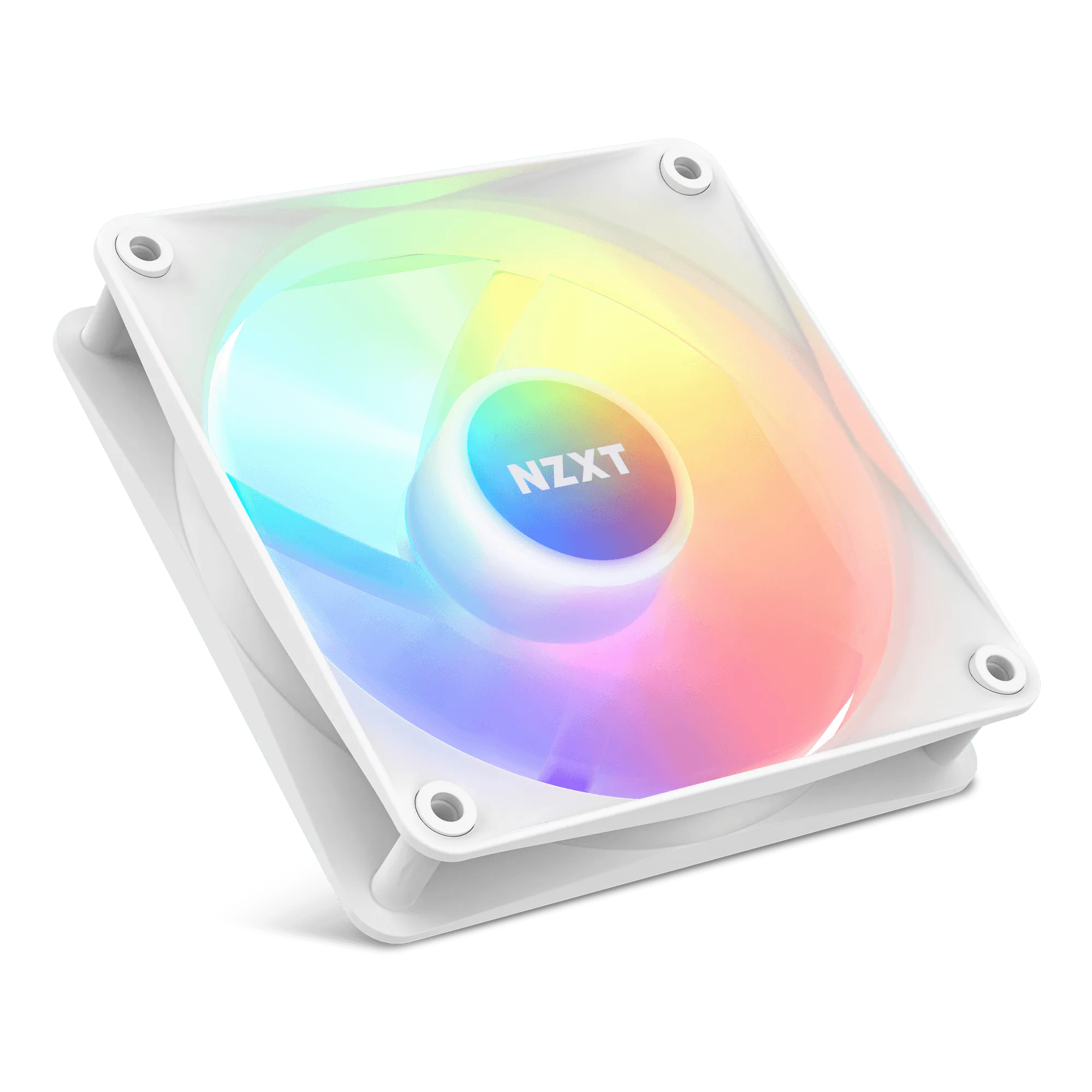
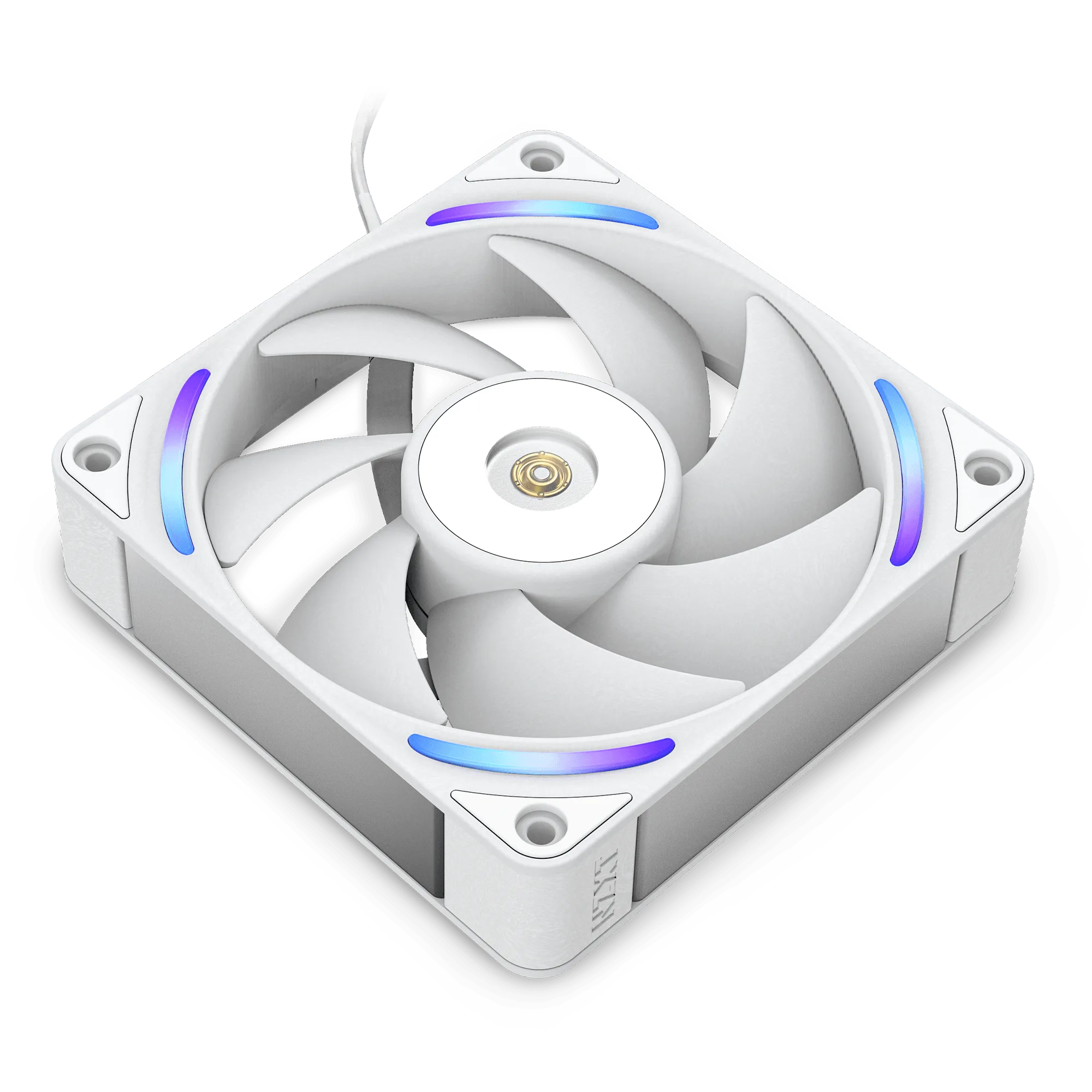
- F140Q: NZXT Quiet Airflow Fans use fluid dynamic bearings and PWM control, with nine sickle-style blades and a chamfered frame that concentrates air. Fluid dynamic bearings are designed for low noise over long periods, and PWM lets you set a speed that stays below the noise threshold. The blade and frame design means the fan can move useful air at lower RPM, so you do not need to run it at full speed.
- H9 Flow RGB: The H9 Flow RGB is a dual-chamber mid-tower with perforated panels, angled fans, and ample fan and radiator support. A case with more open airflow lets your F140Q run at lower speeds for the same cooling, which directly reduces fan noise. The dual-chamber layout also keeps cables away from the main airflow path, lowering the chance of a cable touching a blade.
- H7 Flow RGB: The H7 Flow RGB supports three bottom-mounted 120 mm fans for direct GPU cooling while keeping a narrow mid-tower footprint, and includes an F360 RGB Core single-frame fan. Bottom-mounted fans can cool the GPU without making the top and rear fans work as hard. If your F140Q noise appears mainly during gaming, adding directed airflow near the GPU may let you lower the overall fan curve.