Quick Answer
Charge the battery, attach a lens, insert a fast SD or CFexpress card, then walk through the Setup and Shooting menus to match your workflow.
Why Menu Setup Matters for High-Resolution Bodies
The S1RII is built for high-resolution artistic work. Its 44.3-megapixel sensor and advanced processing demand careful initial configuration to avoid slowdowns or missed shots. A few menu choices right out of the box can save you time in the field.
First Setup Steps
- Charge and Insert the Battery: Use the supplied charger to fully charge the battery before first use. Insert it into the compartment until it clicks. A partially charged battery can cause unexpected shutdowns during menu setup.
- Mount a Lens and Format a Card: Align the lens mount index (red dot) and twist until it locks. Insert a UHS-II SD or CFexpress card into slot 1. Navigate to Setup > Format and format the card in-camera. Formatting in-camera avoids file-system errors that can corrupt clips. Always format cards in the camera, not on a computer, for maximum reliability.
- Set Date, Time, and Time Zone: Go to Setup > Clock Set. Enter your current date, time, and time zone. Skipping this step will mis-tag every photo and video you take, making organization difficult later.
- Choose File Format and Image Quality: In the Rec (Shooting) menu, set File Type to RAW + JPEG or RAW only for maximum editing flexibility. For JPEG, select the highest quality (Fine). If you only need small files for quick sharing, JPEG Standard is acceptable, but you lose the raw editing headroom. RAW files give you the most latitude for high-resolution edits; JPEG-only limits your ability to recover detail.
- Configure Autofocus Mode: In the Rec menu, set AF Mode to 225-Area or Zone for general shooting. For portraits, switch to Face/Eye Detection. Leaving the default (Multi) can cause the camera to lock onto the background instead of your subject. Check AF Mode before every shoot; it's the most common reason for missed focus.
- Review and Customize Function Buttons: Go to Custom > Button Settings. Assign frequently used functions (like ISO, White Balance, or Exposure Compensation) to Fn buttons. The default layout works, but personalizing it speeds up your workflow significantly. Spend five minutes on button customization now to avoid diving into menus during a shoot.
Product Used in This Guide
-
PANASONIC LUMIX S1RII Full Frame Mirrorless Camera: The LUMIX S1RII is designed to be the ideal partner for creators who wish to pursue high-resolution artistic expressions. This means its default menu settings prioritize image quality and flexibility, so you'll want to adjust things like file format and AF mode to match your shooting style.
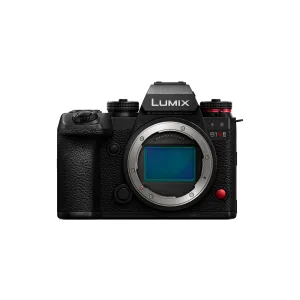
PANASONIC LUMIX S1RII Full Frame Mirrorless Camera