![RS7 V2 Aluminum Hall Effect Keyboard [Shadow Gleam]: Features and Setup](https://xilands.com/api/media/sync/de/de7d428ee03fdddc6525b7150c5bbc8f59549af735e82783118ffe5ed1026a3b.webp)
Quick answer
Set up the RS7 V2 Aluminum Hall Effect Keyboard in this order: unbox and inspect, plug in and confirm detection, install the software, set actuation and rapid trigger, configure lighting, then fine-tune per game. The biggest mistake is cranking actuation to the lowest value on day one, which causes accidental inputs before your fingers learn the new travel.
The RS7 V2 Aluminum Hall Effect Keyboard in Shadow Gleam is a board you can use out of the box, but the setup order matters more than most people expect. Hall effect switches read magnetic travel instead of a physical contact, so the values you set in software change how the keyboard feels far more than a firmware update ever would.
This guide walks through a clean first-time setup in the order that avoids rework. It also covers the Shadow Gleam finish, why an aluminum case changes the way you should handle the board, and which mistakes send people back to the software for a second pass. If you also use grip tape or aftermarket skates on your mouse, the same logic applies: change one variable at a time.
What the RS7 V2 and Shadow Gleam finish bring to a desk
Hall effect switches use magnetic field readings rather than metal contacts, which is what allows adjustable actuation points and rapid trigger behavior. On a keyboard like the RS7 V2, that means you can decide how far a key travels before it registers, instead of accepting a fixed mechanical actuation point. The tradeoff is that the board depends on software to feel right, so a rushed setup leaves performance on the table.
The Shadow Gleam finish is a cosmetic option, so treat it as a look decision rather than a performance one. An aluminum case generally adds rigidity and a different acoustic character than plastic, but it also holds more weight on the desk. If you move your keyboard often or use a small desk mat, plan where it lives before you commit to a spot.
- Confirm your board variant and finish before downloading software, since regional firmware can differ.
- Keep the original packaging for the first month in case you need to swap the unit.
Step 1: Unbox and inspect before powering on
Lay out the keyboard, cable, and any accessories on a clean surface and check the aluminum frame for shipping marks. Press a handful of keys across the board to feel for consistent travel before any software is involved. This gives you a baseline, so if a key feels different later you know whether it changed or was always that way.
Common mistake: plugging in immediately and skipping the visual check. Scratches or a bent frame are much harder to claim once the board has been used, and a quick inspection takes under a minute. Note the serial number while the box is still open.
- Check the USB connector and cable for kinks before the first connection.
- Photograph the board and packaging if you spot anything unusual.
Step 2: Connect directly and confirm detection
Plug the RS7 V2 into a rear motherboard port rather than a front-panel hub or unpowered dock. Aluminum boards with per-key lighting can draw more current than a hub reliably supplies, and an underpowered connection shows up as dropped keys or flickering lighting. Wait for the operating system to finish detecting the device before opening any configuration tool.
Common mistake: troubleshooting in software when the real problem is the port. If the keyboard is not detected, try a different rear port and a different cable before touching drivers. Once detection is stable, note which port works so you can return to it after cleaning or transport.
- Avoid USB hubs for the initial setup, even powered ones.
- Test in a plain text editor first to confirm every key registers.
Step 3: Install software and update firmware once
Install the official configuration software for your exact model, then check for a firmware update before you build any profiles. Updating first prevents the annoyance of rebuilding settings after a firmware change resets defaults. Let the update finish completely and do not unplug the keyboard mid-flash.
Common mistake: installing a generic or older utility that recognizes the board but not all of its features. If a setting you expect is missing, verify you have the correct software version for the RS7 V2 rather than assuming the feature does not exist. Keep the software running in the background while you tune.
- Create one profile named after your main game and one neutral profile for typing.
- Export or screenshot your settings once they feel right.
Step 4: Set actuation and rapid trigger deliberately
Start with a moderate actuation point and use the board for a full session before lowering it. Hall effect keyboards let you register a press earlier in the travel, but going too shallow causes accidental inputs when your fingers rest on keys. Raise the value if you see stray characters, lower it gradually if you want faster response.
Rapid trigger settings deserve the same patience. Enable them on movement keys first, test in a practice range, then extend to other keys. Common mistake: applying aggressive values across the whole board at once, which makes typing feel unstable and hides which setting actually helped.
- Change one value per session so you can attribute the difference.
- Keep a typing profile with more conservative values for work or chat.
Step 5: Configure lighting, then verify the whole board
Set your lighting after the performance settings, because brightness and effects are the easiest thing to adjust later. On an aluminum case, brighter effects reflect more off the frame, so a slightly lower brightness often looks cleaner than maximum. Save the profile to the keyboard if onboard storage is available.
Finish with a full-board test: open a key tester or a text document and press every key, including modifiers. This catches a key you may have assigned to a layer or disabled by accident. Common mistake: testing only the keys you use most and discovering a dead assignment mid-match.
- Match lighting to your desk setup rather than maxing brightness.
- Re-test after every profile change, not just at the end.
Keeping it clean without disturbing the setup
Dust and skin oils are the main long-term issues for any keyboard, and an aluminum top plate shows smudges more than textured plastic. Wipe the frame with a dry microfiber cloth and use a soft brush between keycaps rather than compressed air, which can push debris deeper into the switch area. Unplug the board before any deeper cleaning.
If you use grip tape on your mouse, the same replacement rhythm applies to consumable accessories. Corepad notes that grips should be replaced every three to five months to avoid adhesive issues on the mouse surface. Keyboard switches are not consumable in the same way, but keeping the board clean protects the feel you tuned.
- Clean the frame weekly and do a deeper pass monthly.
- Recheck actuation settings after any firmware or software update.
Setup checklist in order
- Inspect before powering on: Check the aluminum frame and press keys across the board to establish a baseline feel. Any shipping damage is easiest to report before first use.
- Connect to a rear USB port: Skip hubs and front-panel ports for the first connection, then confirm every key registers in a text editor. If detection fails, change the port before changing drivers.
- Update firmware before building profiles: Install the correct software for the RS7 V2 and complete any firmware update first. Updating later can reset the settings you just built.
- Tune actuation gradually: Start moderate, play a full session, then lower the value in small steps if you want faster response. Stray inputs mean you went too shallow, not that the board is faulty.
- Add rapid trigger to movement keys first: Enable it on a few keys, test in a practice range, then expand once it feels stable. Board-wide aggressive values make typing unpredictable.
- Set lighting last and save the profile: Adjust brightness and effects after performance settings, then store the profile onboard if supported. Finish with a full-board key test including modifiers.
Related gear that pairs well
- Corepad Grips - Pwnage Trinity CF 8K: Corepad recommends replacing these grips every 3-5 months to avoid adhesive issues when removing them from the mouse. If you tune a keyboard for consistency, worn grips on your mouse introduce the same kind of variable, so a replacement schedule keeps both inputs predictable.
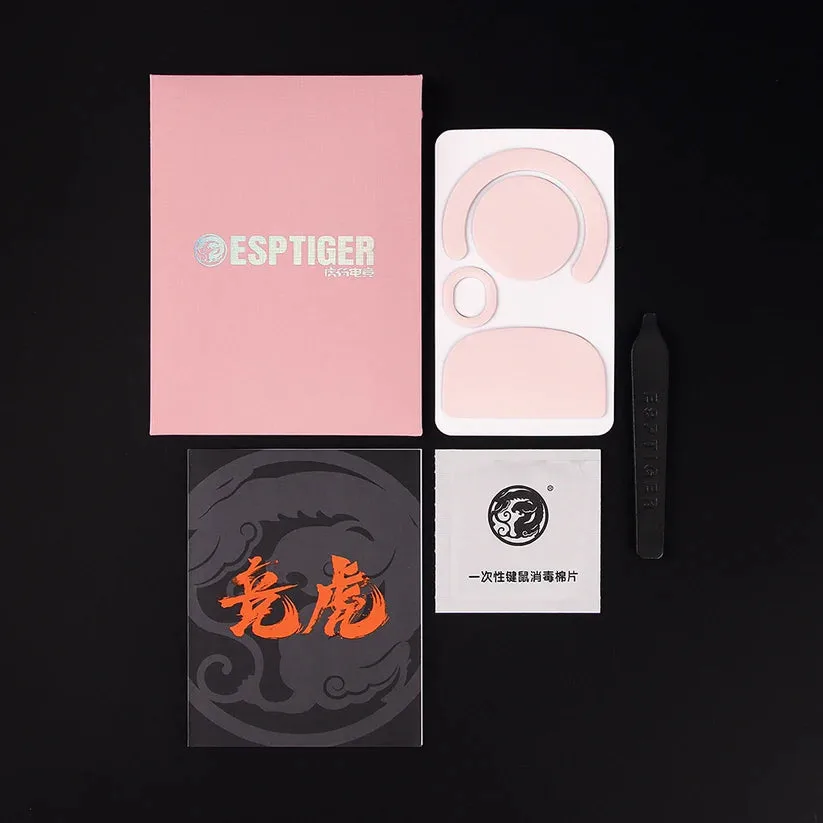
- Esports Tiger YanZi Q - Logitech G Pro X Superlight: The YanZi Q series uses high-purity PTFE with an added soundproofing and shock-absorbing layer, which reduces the collision sound on hard mousepads such as glass, resin, or metal. A quieter mouse pairs naturally with a keyboard you have tuned for precise, low-travel inputs, especially in a shared room or on a hard surface.
The RS7 V2 Aluminum Hall Effect Keyboard rewards a patient first setup more than most boards. Get detection and firmware right, tune actuation in small steps, and keep a conservative typing profile alongside your game profile. Do that once, and the Shadow Gleam finish is the only thing you will think about afterward.