Quick Answer
The Simagic P-APS power supply provides dedicated, stable power to high-draw accessories like haptic pedal reactors, LED modules, and heel-stops. This guide walks you through connecting it to your P1000 or P2000 pedals and the Haptic Control Box (HCB-P2000) in a few straightforward steps.
Why a Dedicated Power Supply Matters for Haptic Modules
Haptic pedal reactors and LED modules draw more current than a standard USB port can reliably deliver. The P-APS is engineered specifically for Simagic accessories, providing clean power that prevents flickering LEDs, weak haptic feedback, or intermittent disconnects. If you've added multiple modules to your P1000 or P2000 pedals, the P-APS ensures everything runs at full performance without overloading your PC's USB bus.
Simagic P-APS Power Supply Installation Steps
- Identify Your Components: Before starting, confirm you have the P-APS power supply unit, the appropriate power cable for your region, and the accessories you intend to power (e.g., Haptic Pedal Reactors, LED module, Heel-Stop). The P-APS is compatible with P1000, P1000-F, P1000i, P2000 pedals, and the TB-RS base. Check that your pedal model is listed in the compatibility notes—older or third-party pedals may not work without an adapter.
- Connect the P-APS to Your Pedals: Locate the dedicated power input port on your Simagic pedal base (often marked or near the USB connection). Plug the P-APS output cable firmly into this port. Do not force the connector—it should click into place without excessive pressure. A loose connection here is the most common cause of intermittent power loss; ensure it's fully seated.
- Wire Your Haptic Control Box (HCB-P2000): If you are using the Haptic Control Box, connect its power input cable to the P-APS output. Then connect the Haptic Pedal Reactor cables to the HCB-P2000. The P-APS can power the HCB-P2000 and multiple reactors simultaneously without needing an extra power source. Common mistake: plugging the HCB-P2000 into a USB port instead of the P-APS—this can cause the haptic motors to feel weak or not respond at all.
- Connect LED Modules and Heel-Stops: For LED modules and Sim Ray Heel-Stops, connect their power cables directly to the remaining P-APS output ports (if available) or to a daisy-chain port on the pedal base. The P-APS is designed to handle the combined load of these accessories. Avoid using Y-splitters or third-party adapters—the P-APS is calibrated for the exact power needs of Simagic accessories.
- Power On and Test: Plug the P-APS into a wall outlet using the included power cable. Turn on your PC and launch your sim racing software. Check that LED modules light up steadily, haptic reactors respond to in-game events, and heel-stops function without delay. If any accessory fails, inspect the cable connections first. If an LED flickers or a haptic motor feels weak, the most likely fix is reseating the cable at both the accessory and the P-APS end.
Product Facts
-
Simagic P-APS Accessories Power Supply – Power Unit for Haptic, LED & Heel-Stop Modules: The Simagic P-APS Accessories Power Supply is built to deliver reliable, clean power to multiple high-draw accessories at once, including Haptic Pedal Reactors, Sim Ray Heel-Stops, LED modules, and the Haptic Control Box (HCB-P2000). This means you can power all your add-ons from one source, avoiding the instability and cable clutter of separate USB-powered adapters.
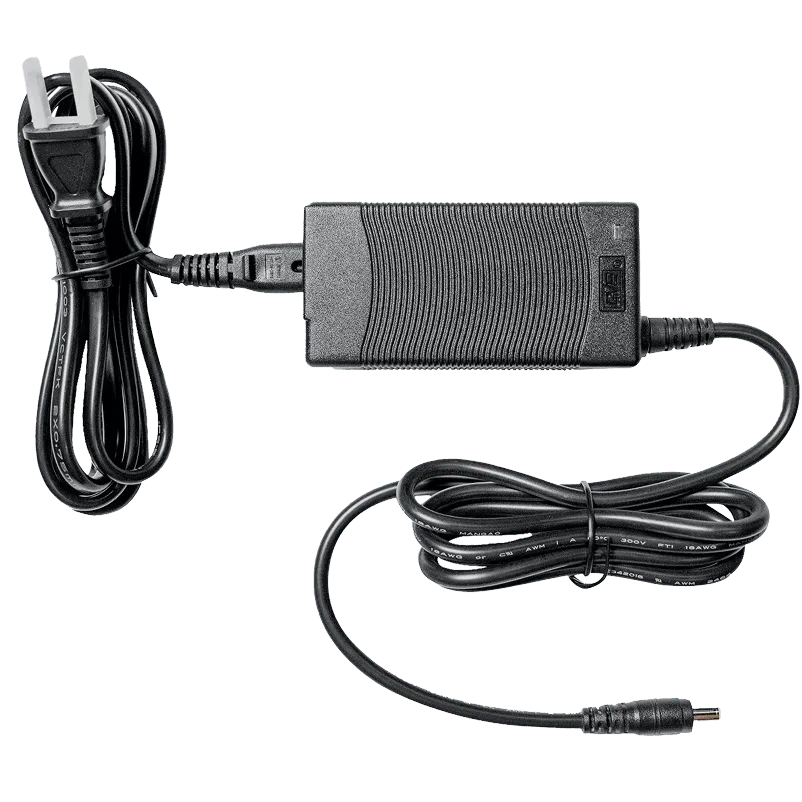
Simagic P-APS Accessories Power Supply – Power Unit for Haptic, LED & Heel-Stop Modules