Quick answer
Power the dock off, wipe the dock and robot contacts with a dry microfiber cloth, check the cord and adapter for damage, then confirm the dock sits level on a hard surface with clear space in front. If the robot still will not charge, test a known-good UL Certified adapter of the same 5V / 2000mA output before assuming the dock has failed.
Why dock charging fails more often than the robot does
Most charging complaints trace back to the dock end of the connection, not the vacuum. Dust films the metal contacts, the robot nudges the dock slightly out of position, or a cord gets pinched behind furniture. None of those show up as a dramatic failure; the robot simply parks and never tops up.
Work through the steps below in order. Each one is cheap and reversible, so you rule out the simple causes before spending money on a replacement dock or adapter.
Match the adapter to the dock before you buy
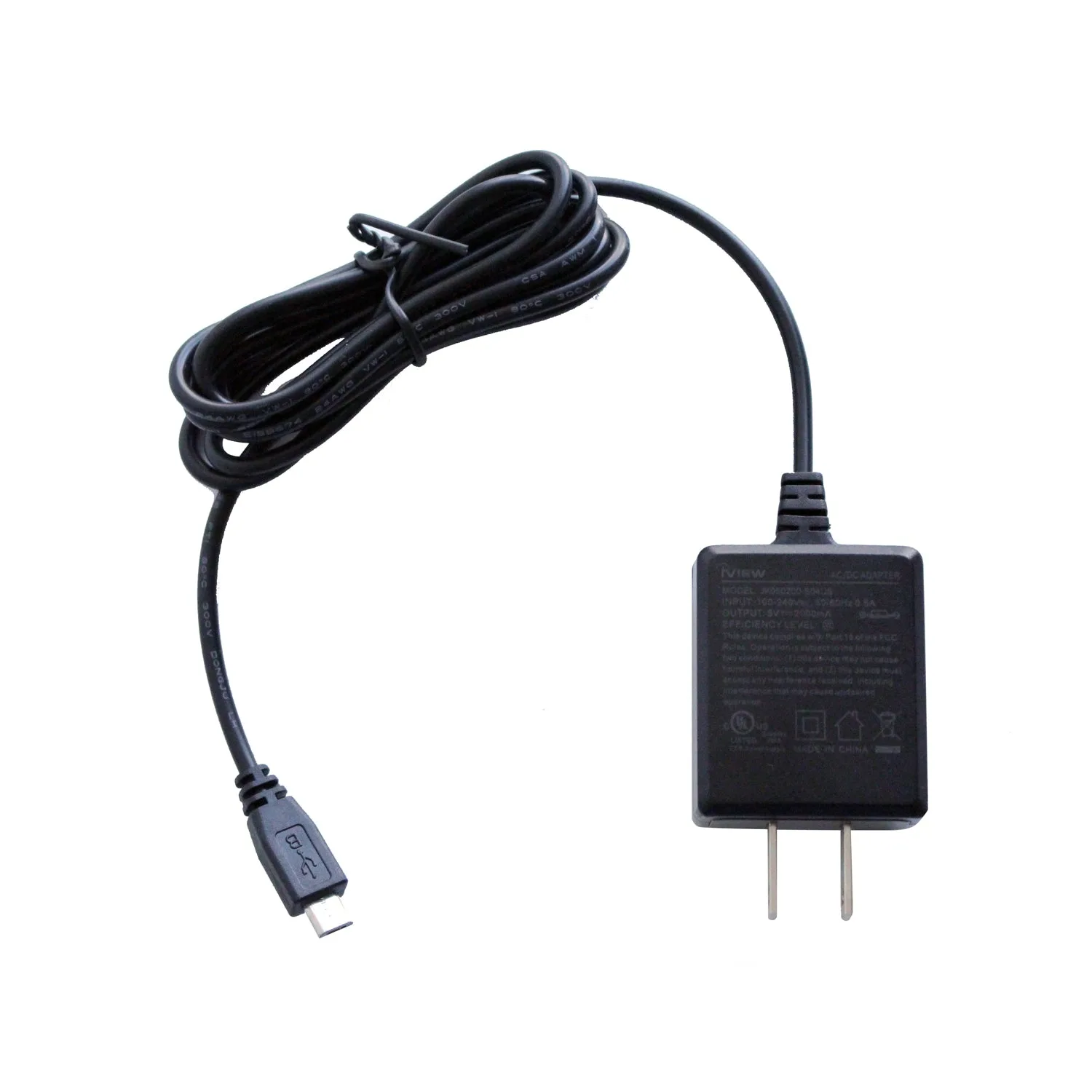
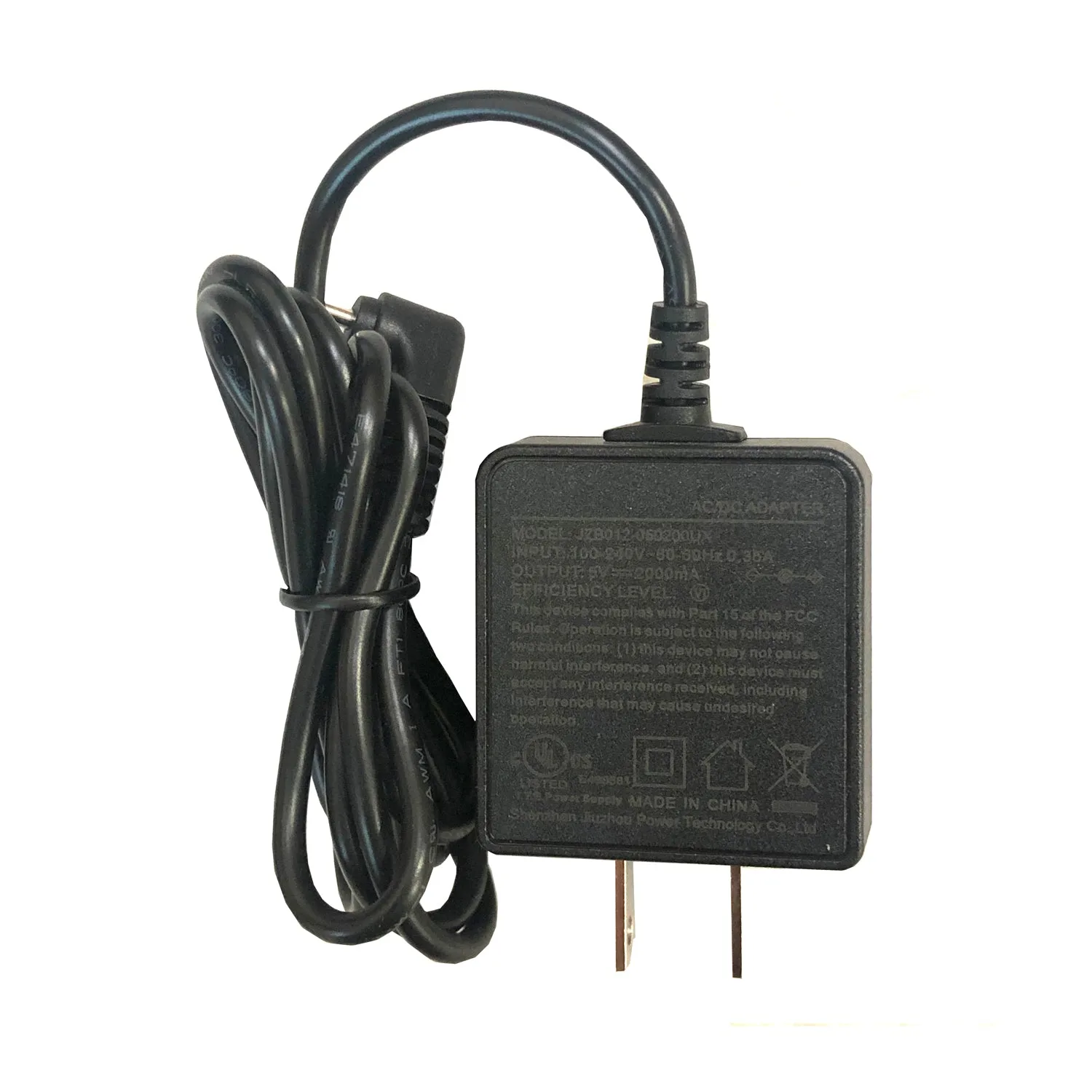
Replacement adapters are not interchangeable just because the plug fits. Voltage, current, and certification all matter. A 5V / 2000mA UL Certified adapter such as the Magnus III Charger is the correct class of part for compatible iView electronics, and the 776TPC / 788TPC / 777TPCII / Cyber PC Charger covers a different set of model numbers at the same 5V / 2000mA output.
Check the label on your existing adapter first. If the output does not match, do not substitute a higher-current phone charger and hope for the best.
Placement rules that prevent repeat charging errors
The dock needs a level, hard surface. Carpet lets the robot ride up slightly, so the contacts meet at an angle and charging becomes intermittent. Keep the dock away from direct sun, heat vents, and the edge of a stair landing where a bump can shift it.
Leave the approach path clear. Cables, rug fringe, and chair legs in front of the dock cause the robot to approach off-center, which is one of the most common reasons a dock stops charging reliably after weeks of working fine.
Dock care steps
- Power down and unplug the dock: Switch off the robot and pull the adapter from the wall before touching any metal. Mistake to avoid: wiping contacts while the dock is live, which risks a short if moisture is present. Checkpoint: the dock light should be off before you clean.
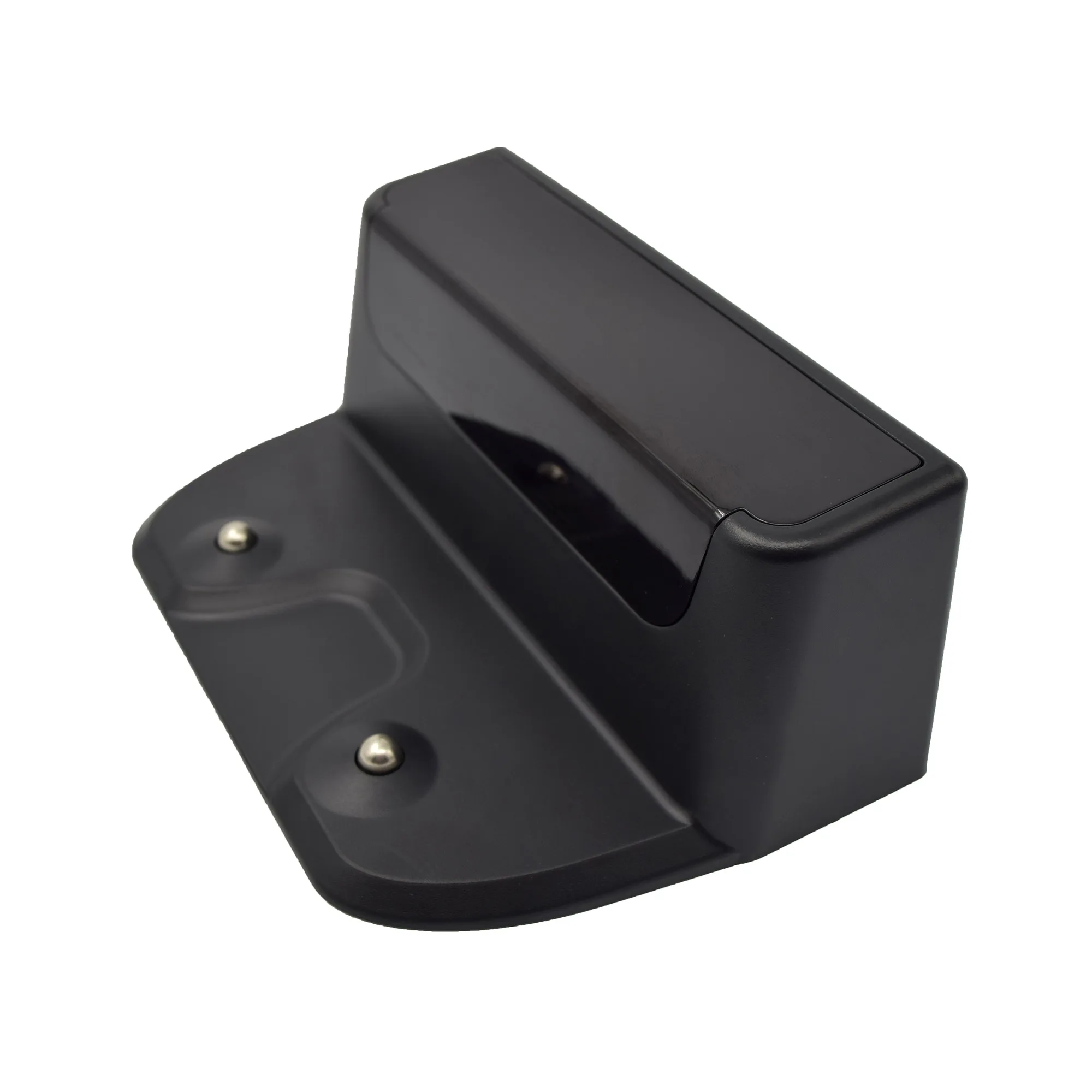
- Clean the dock and robot contacts: Use a dry microfiber cloth on the dock pins and the matching pads underneath the robot. For stubborn film, dampen the cloth very slightly and dry immediately. Mistake to avoid: spraying cleaner directly onto the contacts or using abrasive pads. Checkpoint: contacts should look shiny metal, not dull or blackened.
- Inspect the cord and adapter: Run the full length of the cord through your hands and look for kinks, chew marks, or a bent barrel plug. Check the adapter label for output. Mistake to avoid: taping over exposed wire instead of replacing the adapter. Next step: if the cord is damaged, replace it with a matching 5V / 2000mA UL Certified adapter.
- Reposition the dock: Set the dock on a hard, level floor with clear space in front and no direct heat nearby. Press it flat so it does not rock. Mistake to avoid: leaving the dock on thick carpet or against a wall the robot must scrape past. Checkpoint: the dock should not move when you press a finger on one corner.
- Test a manual docking: Place the robot on the dock by hand and watch for the charging indicator. If it lights, let it charge for ten minutes and confirm the percentage rises. Mistake to avoid: judging success from the light alone without checking the battery level. If the level does not rise, the issue is likely the adapter or the robot's charge port, not the dock.
- Swap the adapter to isolate the fault: Try a known-good adapter with the same 5V / 2000mA output and UL certification. If charging resumes, the original adapter was the problem. Mistake to avoid: using an adapter with a different voltage or current rating just because the plug fits. Verdict: dock replaced only after the adapter swap fails to fix it.
Dock and adapter facts worth knowing
- Smart Vacuum Charging Dock: The iView Smart Vacuum Charging Dock is a compact dock designed to power and store compatible robotic vacuums between cleanings, with simple setup. A dedicated dock keeps the robot off the floor and in one predictable spot, which makes contact cleaning and placement checks part of a normal routine rather than a repair job.
- Magnus III Charger - 5V / 2000mA, UL Certified Replacement AC/DC Adapter: The Magnus III Charger is a UL Certified 5V / 2000mA AC/DC adapter. Matching output and certification is the safe way to replace a damaged charging cord without guessing whether an unlisted adapter will work.
- 776TPC / 788TPC / 777TPCII / Cyber PC Charger - Affordable 100 - 240V, 50/60Hz 0.5A Input, 5V/2000mAh Output, UL Certified Replacement AC/DC Adapter: The 776TPC / 788TPC / 777TPCII / Cyber PC Charger accepts 100-240V, 50/60Hz 0.5A input and outputs 5V / 2000mA, and is UL Certified. The wide input range means the same adapter works on different household voltages, so you can replace a failed cord while traveling or after a move.