Quick answer
The Satechi Thunderbolt 5 CubeDock with built-in NVMe SSD enclosure lets you transfer files at up to 40 Gbps while charging your laptop and driving 8K displays—all through one cable.
Why Thunderbolt 5 matters for SSD speed
Thunderbolt 5 doubles the bandwidth of Thunderbolt 4, which directly benefits an integrated SSD enclosure. Instead of sharing bandwidth with other peripherals, the NVMe drive gets a dedicated high-speed lane, reducing bottlenecks during large file transfers or video editing.
The trade-off: Thunderbolt 5 docks are currently more expensive than Thunderbolt 4 models, and your host device must support Thunderbolt 5 to unlock full speed. If you're on an older Mac or PC, the dock will fall back to Thunderbolt 3 or 4 speeds.
How to set up and optimize your Thunderbolt 5 dock with SSD enclosure
- 1. Install the NVMe SSD: Power off the dock, remove the bottom panel, and insert your M.2 NVMe SSD into the slot. Secure it with the screw provided. Common mistake: using a SATA M.2 drive—this enclosure supports NVMe only.
- 2. Connect the dock to your computer: Use the included Thunderbolt 5 cable to connect the dock to your laptop or desktop. The dock will automatically power on and begin charging your device (up to 140W). Check that your system recognizes the dock in System Information (macOS) or Device Manager (Windows). If the dock isn't detected, try a different Thunderbolt port or cable—some USB-C cables lack Thunderbolt support.
- 3. Format the SSD for your OS: Open Disk Utility (macOS) or Disk Management (Windows). Format the drive as APFS (macOS) or exFAT (cross‑platform) for best performance. Common mistake: forgetting to format—a new SSD appears uninitialized until you do.
- 4. Run a speed test: Use a free tool like Blackmagic Disk Speed Test (macOS) or CrystalDiskMark (Windows). Expect read/write speeds of 3000–7000 MB/s depending on your SSD model. If speeds seem low, confirm you're using a Thunderbolt 5 port and cable. If you're on a Thunderbolt 4 or USB4 host, speeds will cap at around 3000 MB/s—that's normal.
- 5. Organize your workflow: Move your working files (video projects, large databases, VM images) to the SSD enclosure. Keep the dock connected so you also get display output and peripheral ports. Common mistake: using the SSD for Time Machine backups—it's overkill; use a slower HDD or cloud service instead. For best performance, avoid daisy‑chaining multiple high‑bandwidth devices through the same Thunderbolt cable.
Product at a glance
-
Thunderbolt 5 CubeDock™ with SSD Enclosure: The Satechi Thunderbolt 5 CubeDock features a built-in NVMe SSD enclosure, 140W laptop charging, and multi-display support up to 8K. You get fast external storage and desktop connectivity in one compact aluminum hub, ideal for creative pros and power users.
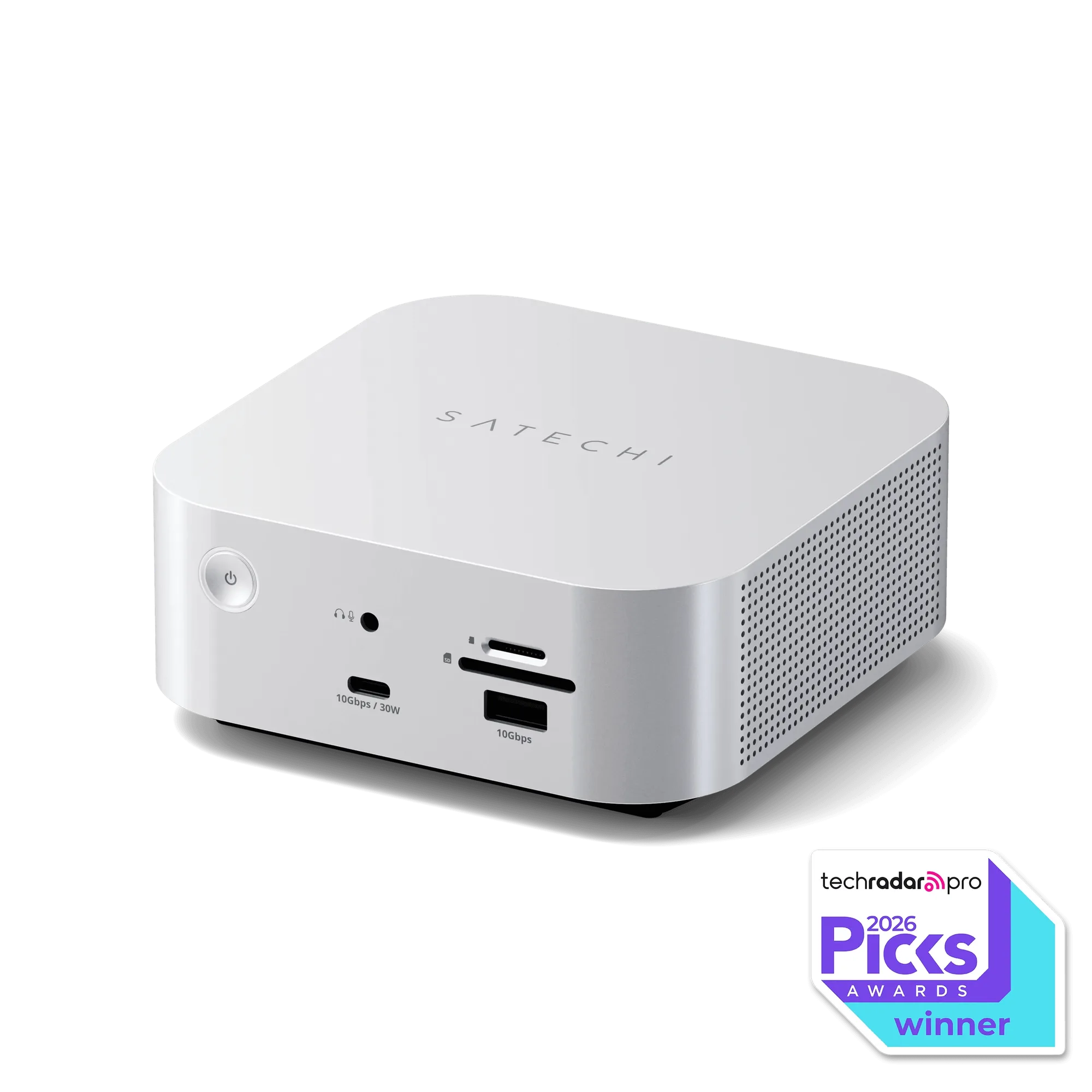
Thunderbolt 5 CubeDock™ with SSD Enclosure