Quick Answer
For reliable on-set monitoring, attach your tablet to a sturdy clamp like the Promaster Dovetail Tablet Clamp XL and mount it to your tripod or rig. Follow the steps below to get a secure, comfortable viewing setup.
Why Use a Tablet Clamp for Monitoring
Using a tablet as a monitor gives you a large, bright screen for framing and focus checks without investing in a dedicated field monitor. A tablet clamp lets you position that screen exactly where you need it, whether you're shooting interviews, product videos, or run-and-gun footage.
The key is choosing a clamp that opens wide enough for your tablet. Many standard clamps max out at 7 or 8 inches, which leaves larger tablets unsupported. The Promaster Dovetail Tablet Clamp XL opens to nearly 10 inches, so it handles most tablets on the market with room to spare.
Trade-offs: Clamp Size vs. Portability
A larger clamp like the XL version gives you more flexibility with tablet sizes, but it's also bulkier. If you only use a small tablet, a compact clamp might be easier to pack. However, the extra size often pays off when you need to switch between tablets or add a sun hood later.
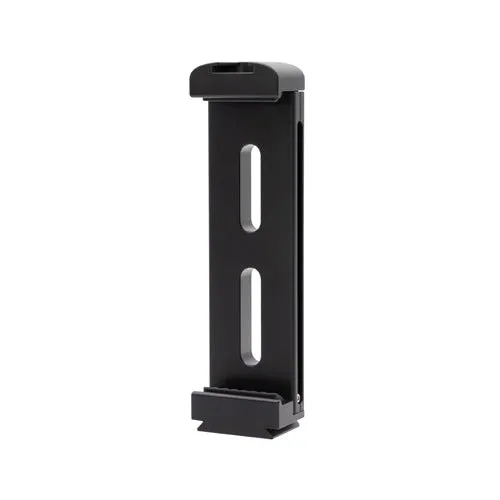
The Promaster clamp also offers multiple mounting options: two ¼”-20 threaded ports for tripods, flex arms, or studio clamps, plus an integrated Arca-compatible dovetail foot. That flexibility means you can adapt your setup without buying extra adapters.
Step-by-Step Setup for On-Set Tablet Monitoring
- Step 1: Choose Your Mounting Point: Decide whether to attach the tablet clamp to a tripod, a flex arm, or a studio clamp. For most video work, a tripod or flex arm gives you the easiest adjustment. Use the ¼”-20 threaded port or the dovetail foot on your clamp to secure it. Check that your tripod head or arm has a ¼”-20 screw or an Arca-compatible plate before you start.
- Step 2: Open the Clamp and Insert the Tablet: Loosen the clamp's adjustment knob, open the jaws wide enough to fit your tablet, and slide the tablet in. Make sure the tablet sits flat and the clamp grips the edges evenly. Tighten the knob just enough to hold the tablet firmly without over-tightening. Avoid over-tightening, which can damage the tablet's frame or crack the screen.
- Step 3: Adjust Viewing Angle and Position: Position the tablet at eye level or just below, tilted toward you for a clear view. If you're using a flex arm, lock the arm in place. For tripod mounting, adjust the head's tilt and pan to get the right angle. Make sure the tablet doesn't block your camera controls or the viewfinder.
- Step 4: Secure Cables and Power: Route any HDMI or power cables so they don't pull on the clamp or tablet. Use a cable relief or a simple loop around the tripod leg to prevent accidental disconnects. Confirm the tablet's battery is charged or connected to a power source. A cable that tugs on the tablet can cause the clamp to shift during shooting.
- Step 5: Test the Setup Before Shooting: Move the camera and tablet through their ranges of motion to ensure nothing loosens. Check that the tablet stays in place when you tilt the tripod head. If the clamp slips, tighten it a bit more or reposition the tablet's weight. Always do a quick shake test before rolling—better to fix a loose clamp now than mid-take.
Product Spotlight
-
Promaster Dovetail Tablet Clamp XL: The Promaster Dovetail Tablet Clamp XL has an opening size of nearly 10 inches and includes two ¼”-20 threaded ports plus an integrated Arca-compatible dovetail foot. This lets you securely mount most large tablets and attach the clamp to a tripod, flex arm, or studio clamp without needing extra adapters.
Promaster Dovetail Tablet Clamp XL