Quick answer
Most Wi-Fi cameras drop offline because of weak 2.4 GHz signal at the mounting spot, a router that hands out a new IP address on every reboot, or a power adapter that browns out in cold or hot weather. Fix the signal path first, then pin the camera to a static IP or DHCP reservation, and only then consider replacing hardware. If the camera still drops after those three steps, the fault is usually in the camera's radio or your router's band steering, not in your app settings.
Start with the symptom, not the app
Before you touch a setting, write down what actually happens. A camera that vanishes for 30 seconds and returns is a different problem from one that stays offline until you unplug it, and both differ from a camera that records fine but will not stream live. Note the time of day, the outside temperature, and whether other devices on the same network also hiccup. That single note eliminates half the guesswork.
Check the router's client list while the camera is missing. If the camera still appears as connected, the problem is upstream (app, cloud, or your phone's network). If it has disappeared entirely, the camera lost its association with the access point. This one check decides whether you troubleshoot the camera or the router.
Weak 2.4 GHz signal at the mounting point
Most budget and mid-range cameras run on 2.4 GHz only, and that band loses strength fast through brick, foil-backed insulation, and metal siding. A camera that worked on a windowsill can fail the moment you mount it under an eave. Test with the camera in place, not on your desk. If the signal drops below roughly half strength at the mount, no app setting will save it.
Move the router, add a mesh node, or bring the camera closer. If you cannot do any of those, a powerline or MoCA adapter with an access point at the far end is more reliable than a repeater, because a repeater halves throughput and often adds its own dropout pattern.
IP address conflicts and DHCP churn
Routers lease addresses for a set time and reassign them on reboot. When a camera and another device land on the same address, the camera drops and reconnects in a loop. The fix is a DHCP reservation in the router, keyed to the camera's MAC address, or a static IP set inside the camera. Do one or the other, never both, or you create a new conflict.
While you are in the router, turn off band steering or "smart connect" for the camera's SSID. Band steering pushes dual-band devices to 5 GHz, and a 2.4 GHz-only camera can be left stranded mid-handoff. A dedicated 2.4 GHz SSID for smart home gear removes this failure mode entirely.
Power, heat, and weather
A camera that goes offline on hot afternoons or cold nights is usually a power problem. Cheap USB adapters sag under load, and long thin cables drop voltage before it reaches the camera. Swap in a known-good adapter with at least the rated amperage, and shorten the cable run. If the camera is outdoors, confirm the adapter is rated for the temperature range you actually see, not the range on the marketing page.
Overheating is the other half of this. Cameras in direct sun with no airflow will thermally throttle and drop their radio. A small shade or a repositioned mount often fixes a dropout that no network change ever touched.
Firmware, SD cards, and cloud limits
A failing microSD card can hang the camera's file system and take the network stack down with it. Pull the card, format it in a computer, and test for a week without it. If the dropouts stop, replace the card with a high-endurance model rated for continuous write. Firmware matters too: check the manufacturer's release notes rather than updating blindly, since some updates change Wi-Fi behavior.
If your camera only drops when you open the live view, you may be hitting a cloud stream limit or an upload bandwidth ceiling. Lower the stream resolution or bitrate and test again. That is a service limitation, not a hardware fault.
When to stop troubleshooting and change hardware
Stop when you have moved the camera to a known-good spot near the router, pinned its IP, replaced the power adapter, and removed the SD card, and it still drops. At that point you are choosing between a new camera and a new router, and the cheaper test is to borrow a different camera and mount it in the same place for a week. If the borrowed camera is stable, replace yours. If it also drops, the network is the problem.
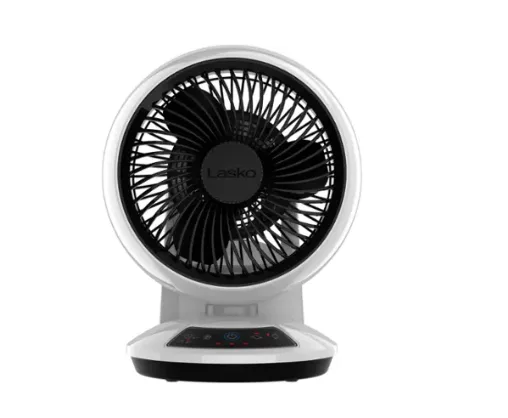
If you are already shopping for a replacement, decide whether you need a camera or just better air movement and lighting in the same room. A table fan with real oscillation can fix a hot corner that was cooking your camera, and a light bar can replace a camera-mounted floodlight you were relying on for night visibility. Neither is a network fix, but both solve the room-level problems people mistakenly blame on Wi-Fi.
Diagnosis table: match the symptom to the fix
- Drops for seconds, returns on its own: Usually a weak 2.4 GHz signal or a brief band-steering handoff. Move the camera or the access point, and give the camera its own 2.4 GHz SSID. If it still blips after both changes, the camera's radio is suspect.
- Offline until you unplug and replug it: Points to a power adapter sagging under load or a firmware hang. Swap the adapter for one with the rated amperage and shorten the cable. Two clean weeks on a new adapter means you fixed it; a repeat means a firmware or hardware fault.
- Offline only at certain times of day: Heat, direct sun, or a scheduled router reboot. Shade the camera, check the adapter's temperature rating, and move the router's reboot window. If the timing tracks temperature and not the clock, treat it as a thermal problem.
- Records locally but will not stream live: Cloud stream limit or upload bandwidth ceiling, not a Wi-Fi fault. Lower resolution or bitrate and retest. No amount of router tuning fixes a service cap.
- Still drops after all four checks: Borrow a different camera and mount it in the same spot for a week. Stable borrowed camera means replace yours; the same dropouts mean the network is the cause. This is your stop point. Stop adjusting settings and start choosing hardware.
Gear that helps when the room, not the network, is the problem
- Lasko - Whirlwind Orbital Motion Air Circulator Fan with Timer and Remote Control - White: The Lasko Whirlwind Orbital Motion Air Circulator Fan uses Airwave Dual Axis Oscillation Technology to pivot up or down and oscillate left to right, with a CFM of 350 and airflow up to 17.6 feet per minute. If your camera or router sits in a hot, still corner, moving air reduces thermal throttling and the dropouts that come with it. The dual-axis motion covers a shelf or cabinet area rather than one narrow line.
- Xtreme Party Light Show Projector, Use With 5V USB Adapter: The Xtreme Party Light Show Projector offers 16 static and 4 dynamic color lighting settings with dimmable LED effects controlled by an included remote, and can be placed horizontally or vertically. Useful when you were counting on a camera's built-in floodlight for night visibility and it keeps cutting out. A separate dimmable light source keeps the area lit even when the camera is offline, and the horizontal or vertical placement lets it fit the same mount area.