Quick Answer
If your DIY keyboard kit won't turn on, start by checking the USB cable and port, then verify the PCB connections and switch seating. If those are fine, the issue is likely QMK firmware—reflash the board using QMK Toolbox. Most power failures are caused by a loose cable or a forgotten ground connection.
Check the Cable and Power Source First
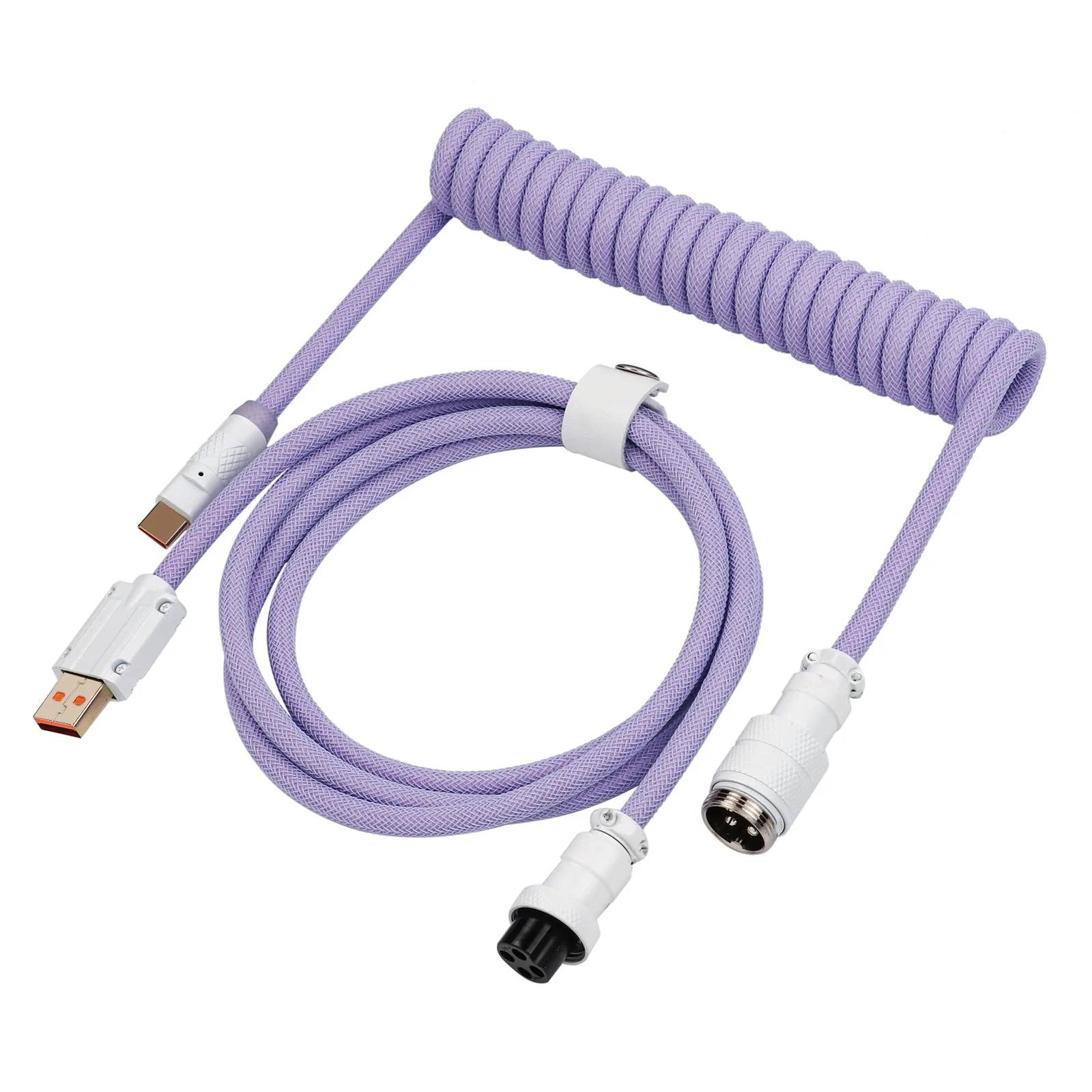
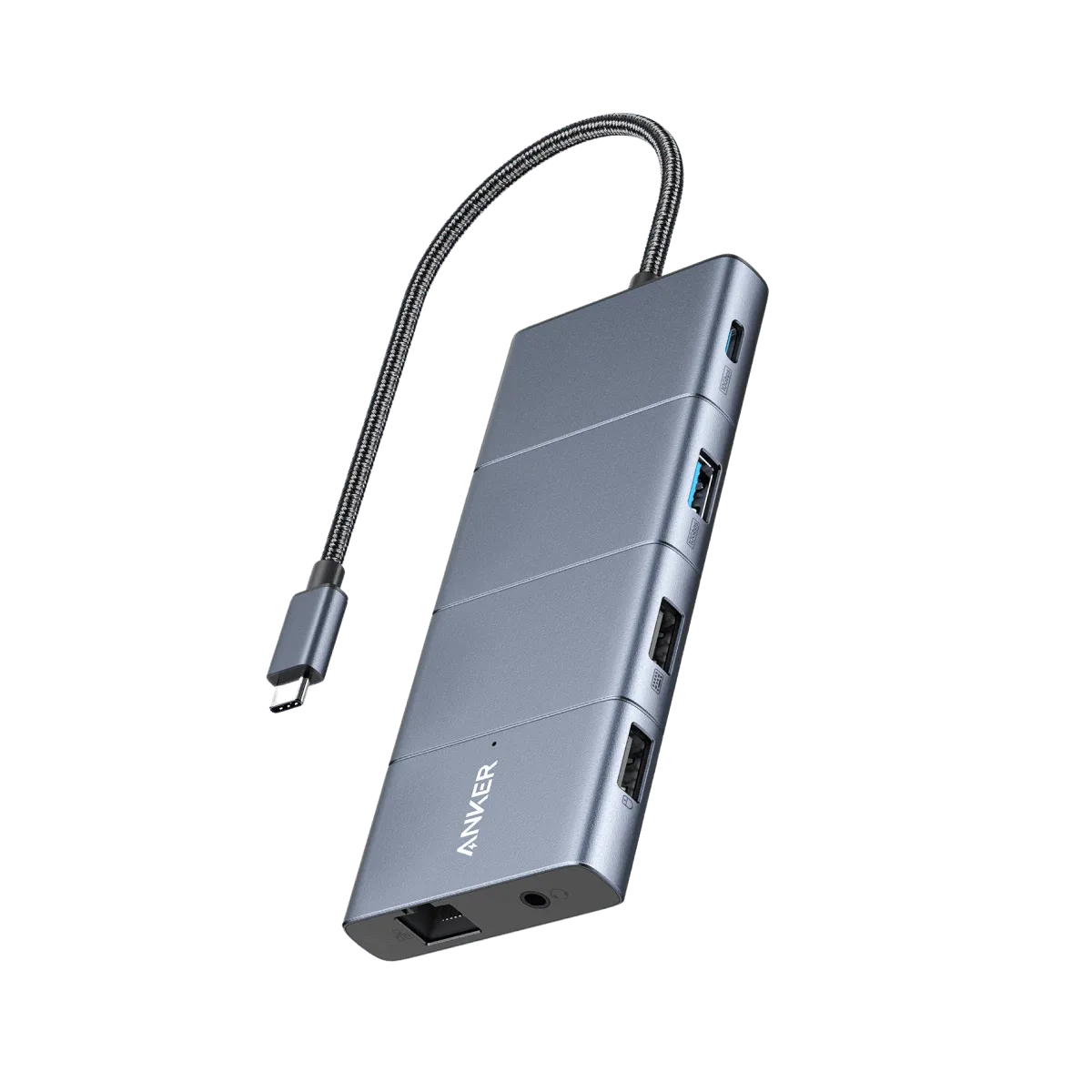
A surprising number of keyboard power issues come down to the cable. Use a known-working USB-C cable and plug directly into your computer's port—avoid hubs or extension cables initially. If your kit uses a detachable cable like the EPOMAKER MIX Pro Cable, reseat both ends firmly. The 4-pin aviator connector can sometimes be slightly loose, so give it a gentle push to ensure full contact.
Inspect the PCB and Connections
With the cable confirmed good, remove the keycaps and look at the PCB. Check that all switch pins are fully inserted into the hotswap sockets or soldered properly. A single bent pin can cause a short that prevents the board from powering on. Also verify that any JST or ribbon cables connecting the PCB to the USB port are seated flush—these often come loose during shipping or assembly.
Reflash the QMK Firmware
If power and connections check out, the problem is almost certainly firmware. DIY kits often ship with a test firmware or none at all. Download the correct .hex or .bin file for your PCB from the manufacturer's site, open QMK Toolbox, put the board into bootloader mode (usually by holding the reset button on the PCB while plugging in), and flash the firmware. This step resolves most 'no power' symptoms because the microcontroller simply has no instructions to run.
Diagnosis: Step-by-Step Troubleshooting
- Symptom: No LEDs, no response when plugged in: Likely cause: No power reaching the PCB. Check USB cable, port, and any detachable connectors. Also verify the PCB is not shorting against the case. If a known-good cable and direct port don't work, move to the next step.
- Symptom: LEDs flicker briefly then go dark: Likely cause: Insufficient power or a short circuit. Remove all switches and test the PCB bare. If it stays on, one switch is causing a short. Reinstall switches one by one. Stop and inspect each switch for bent pins before reinstalling.
- Symptom: Board is detected by computer but no keys register: Likely cause: Firmware is missing or corrupted. Flash the correct QMK firmware using QMK Toolbox. If the board still doesn't respond, the microcontroller may be defective. If reflashing doesn't work, contact the manufacturer for a replacement PCB.
Product Facts
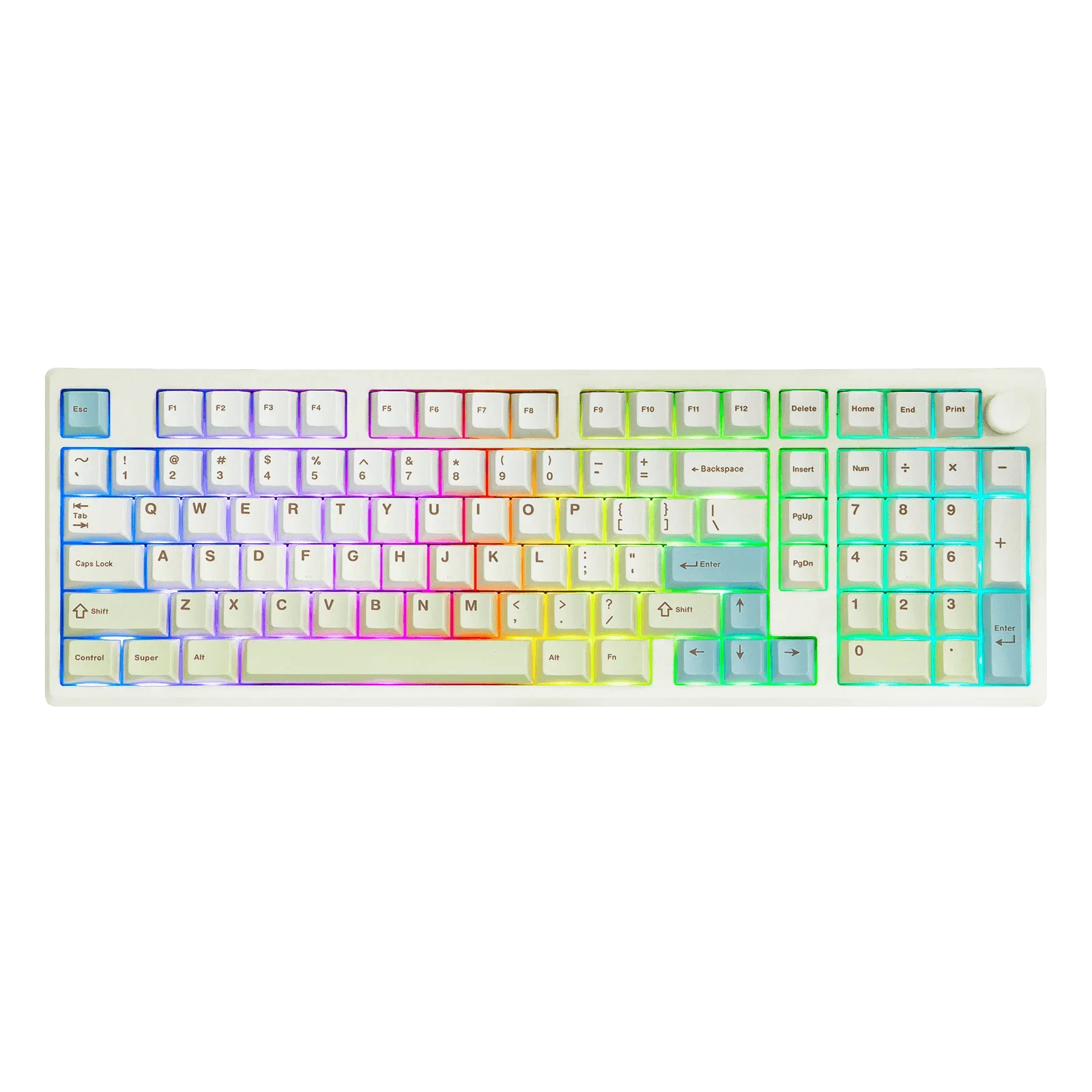
- EPOMAKER Galaxy100 Lite: New Design, New Experience. Introducing the upgraded color schemes to the Galaxy100 aluminum keyboard, with all excellent features retained but in refreshing new styles. If you're troubleshooting a Galaxy100 Lite, the aluminum casing can sometimes cause grounding issues if the PCB isn't properly isolated. Check that the board isn't shorting against the case.
- EPOMAKER MIX Pro Cable: Upgraded Coiled Cable. Experience the next level of connectivity with the upgraded EPOMAKER MIX Pro Keyboard Cable. Built upon the success of its predecessor, this cable takes your keyboard experience to new heights with its enhanced features and performance. A high-quality cable like the MIX Pro reduces the chance of power delivery issues. If you're using a generic cable and your kit won't turn on, swapping to a known reliable cable is a quick diagnostic step.