Quick answer
If your HDMI cable isn't carrying a 4K signal, the most likely reason is that it doesn't meet the bandwidth requirements for 4K at 60Hz. Check your cable's specifications: it should be labeled High-Speed HDMI or Premium High-Speed HDMI. If it's an older Standard HDMI cable, replace it with an HDMI 2.0 cable like the RitzGear 4K HDMI Cables.
How to check if your cable is the problem
Start by testing your 4K source (streaming stick, game console, Blu-ray player) with a different HDMI cable that you know works at 4K. If the new cable works, your original cable is the bottleneck. If the problem persists, the issue may be with your TV's HDMI port or the source device. Try a different port on the TV, and make sure the source device is set to output 4K in its display settings.
What to look for in a replacement cable
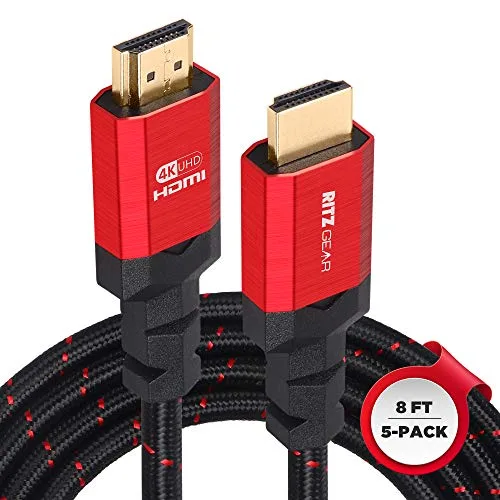
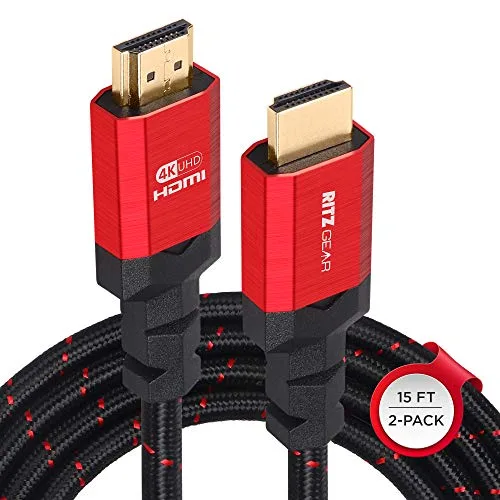
To reliably support 4K at 60Hz, you need a High-Speed HDMI cable that supports 18Gbps bandwidth. Look for cables that explicitly state HDMI 2.0 compatibility, 4K at 60Hz, and 18Gbps. The RitzGear 4K HDMI Cables meet these specs with braided nylon jackets and gold-plated connectors for a secure fit. They also support 3D, 2160p, 1080p, and Ethernet, so they'll work with current and older gear.
Diagnosis: Is your HDMI cable the culprit?
- Symptom: Your TV or monitor displays a black screen, flickers, or automatically drops to 1080p when you try to watch 4K content. Check the cable first—it's the most common cause.
- Likely cause: Your HDMI cable is a Standard HDMI (Category 1) cable that lacks the bandwidth for 4K at 60Hz. Older cables may only support 1080p. Look for 'High-Speed' or 'Premium High-Speed' on the cable jacket.
- Corrective action: Replace the cable with an HDMI 2.0 cable that supports 18Gbps and 4K at 60Hz. The RitzGear 4K HDMI Cables are a reliable choice. If the new cable works, the problem is solved. If not, test a different HDMI port or source device.
Cables that fix the 4K problem
- RitzGear 4K HDMI Cables | 2-Pack of 15 Ft. High-Speed 18Gbps HDMI 2.0 Connectors | Durable Braided Nylon, Gold Plating, 4K @ 60Hz Ultra HD, 3D, 2160p, 1080p & Ethernet Support for TV, Laptop & Gaming: RitzGear 4K HDMI Cables 2-Pack of 15 Ft. High-Speed 18Gbps HDMI 2.0 Connectors with Durable Braided Nylon, Gold Plating, 4K @ 60Hz Ultra HD, 3D, 2160p, 1080p & Ethernet Support. If you need longer runs to connect a projector or a wall-mounted TV, this 2-pack gives you two 15-foot cables that handle 4K at 60Hz without signal degradation.
- Ritz Gear 4K HDMI Cables | 5-Pack of 8 Ft. High-Speed 18Gbps HDMI 2.0 Connectors | Durable Braided Nylon, Gold Plating, 4K @ 60Hz Ultra HD, 3D, 2160p, 1080p & Ethernet Support for TV, Laptop & Gaming: Ritz Gear 4K HDMI Cables 5-Pack of 8 Ft. High-Speed 18Gbps HDMI 2.0 Connectors with Durable Braided Nylon, Gold Plating, 4K @ 60Hz Ultra HD, 3D, 2160p, 1080p & Ethernet Support. For setups with multiple devices (cable box, game console, streaming stick), this 5-pack provides a cost-effective way to upgrade all your connections at once.