Quick Answer
Set up your AirTag Leather Keychain by inserting the AirTag, choosing the right attachment, and pairing it with your iPhone. Follow the steps below to avoid common mistakes.
Why Choose a Leather Keychain for Your AirTag
A leather keychain protects your AirTag from scratches and adds a touch of style. The full-grain leather construction is durable and develops a unique patina over time, making it a practical and attractive accessory.
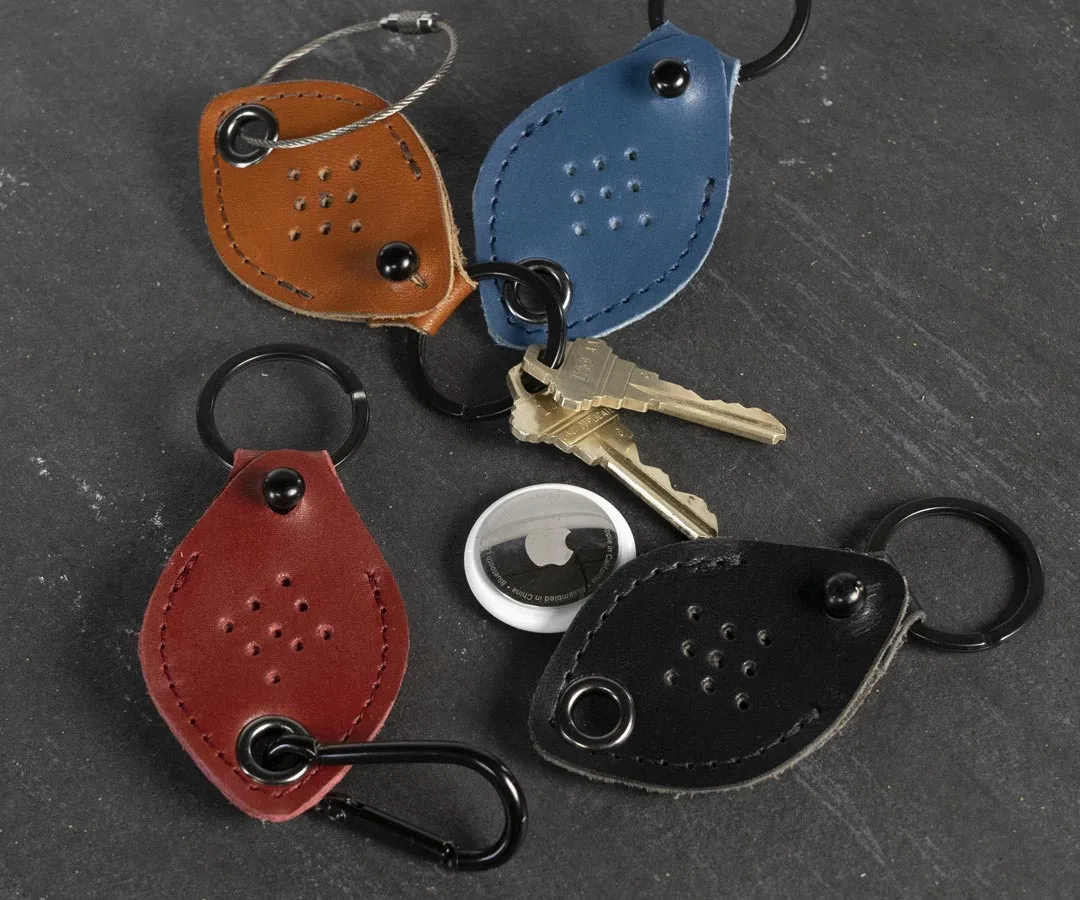
The AirTag Leather Keychain from Waterfield Designs includes a carabiner or steel wire ring, so you can attach it to keys, bags, or even a pet collar. This flexibility makes it a versatile choice for everyday carry.
Understanding the Perforation Design
The smartly-designed perforation on the keychain allows the AirTag's speaker to beep clearly, so you can locate it easily when using the Find My app. This design ensures that the leather doesn't muffle the sound, which is a common issue with some cases.
When inserting the AirTag, make sure the speaker side aligns with the perforation. This ensures you can hear the beep when you need it.
Step-by-Step Setup Guide
- Insert the AirTag: Place your AirTag into the leather keychain, ensuring the speaker side aligns with the perforation. Press firmly until it snaps into place. Check that the AirTag is seated securely and the speaker is not covered.
- Choose Your Attachment: Select either the carabiner or steel wire ring (both included) based on what you'll attach it to. For keys, the wire ring is more secure; for bags, the carabiner is easier to clip. Consider the weight and movement of the item to prevent accidental detachment.
- Attach to Your Item: Clip or thread the keychain onto your keys, bag loop, belt loop, or pet collar. Ensure it's firmly attached and won't snag on clothing or objects. Test the attachment by giving it a gentle tug to confirm it's secure.
- Pair with Your iPhone: Bring your iPhone near the AirTag, tap Connect, and follow the on-screen instructions to name it. This step is essential for tracking via the Find My app. If you don't see the Connect prompt, make sure Bluetooth is on and your iPhone is updated.
- Test the Sound: Use the Find My app to play a sound on the AirTag. Verify you can hear the beep through the perforation. If not, reposition the AirTag. This confirms the speaker is not blocked and your setup is complete.
Product Details
-
AirTag Leather Keychain: The full-grain leather AirTag Keychain keeps your AirTag discreetly hidden and the smartly-designed perforation lets you hear it beep. This means you can attach the keychain to your keys or bag without worrying about muffling the AirTag's sound, so you can find it quickly.
AirTag Leather Keychain