Quick answer
Pair your Bluetooth Battery Cube by moving the switch to BLUETOOTH, opening the Circuit Cubes App, and tapping the Bluetooth icon. Keep your device within about 30 feet (9 meters) of the cube for a stable connection.
Understanding Bluetooth range and interference
The Bluetooth Battery Cube uses standard Bluetooth Low Energy (BLE), which typically works up to about 30 feet (9 meters) in open space. Walls, metal objects, and other wireless devices can reduce that range significantly.
If your build stops responding, move your phone or tablet closer to the cube before assuming the battery is dead. The cube's LED behavior gives you clues: a steady green LED means it's powered on, while a flashing blue LED means it's waiting to pair.
Step-by-step pairing guide
- 1. Slide the switch to BLUETOOTH: Move the switch on the Bluetooth Battery Cube to the BLUETOOTH position. The LED will flash blue, indicating the cube is discoverable. If the LED doesn't flash blue, the battery may be low. Try charging the cube first.
- 2. Open the Circuit Cubes App: Launch the Circuit Cubes App on your phone or tablet. Tap the Bluetooth icon in the upper right corner of the screen to open the Bluetooth screen. Make sure your device's Bluetooth is already turned on in system settings, or the app won't find the cube.
- 3. Select your cube from the device list: The app will scan for nearby Bluetooth cubes. Tap the name of your Bluetooth Battery Cube when it appears. The LED will stop flashing and stay solid blue when paired. If the cube doesn't appear, move closer (within 10 feet) and try again. Other Bluetooth devices nearby can cause interference.
- 4. Test the connection with a build: Attach motors or LEDs to the cube and use the app to control them. If the build responds, you're all set. If not, check that all connections are secure and the cube is still paired. A common mistake is leaving the switch in ON instead of BLUETOOTH—the cube will power the build but won't respond to the app.
Product facts
-
Bluetooth Battery Cube: The switch on the Bluetooth Cube has 3 positions: ON, OFF, and BLUETOOTH. Move it to ON and the LED turns green; move it to BLUETOOTH and the LED flashes blue waiting to pair. You don't need to keep the cube in Bluetooth mode when you're just powering a simple build—switching to ON saves battery and avoids accidental disconnections.
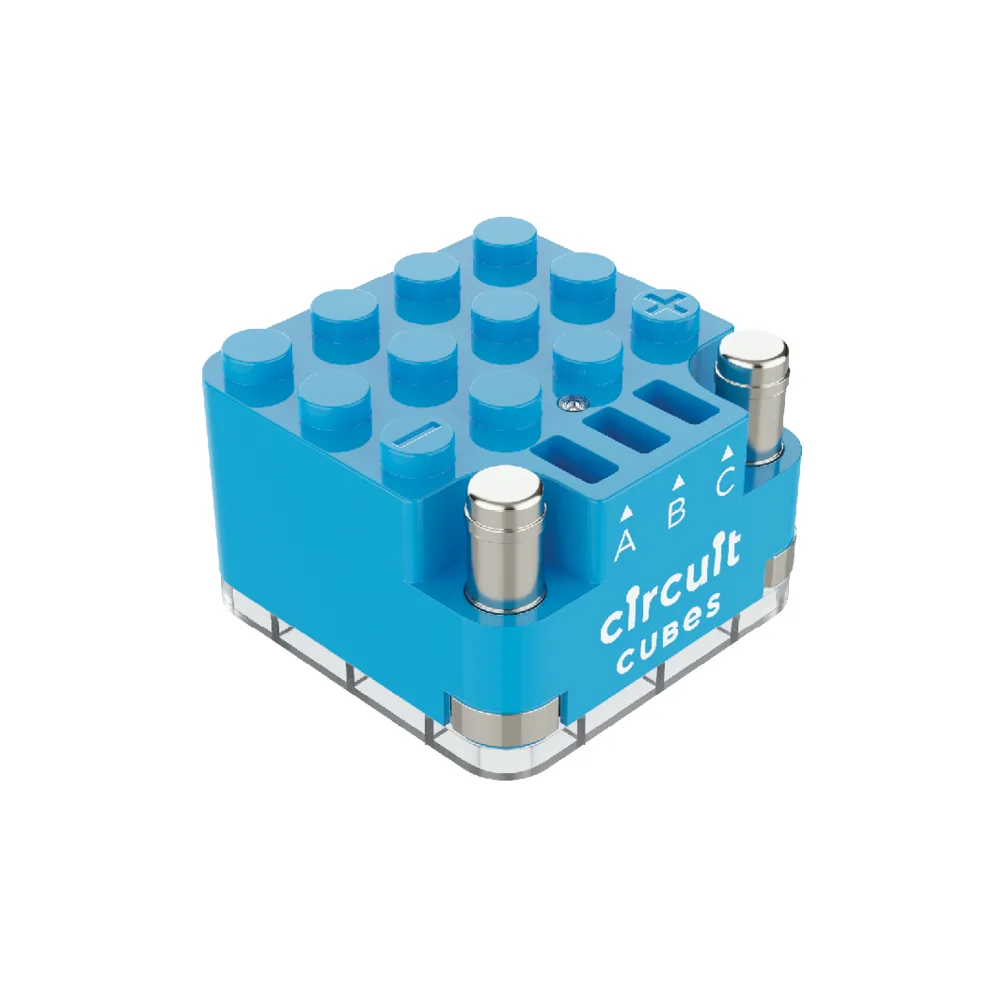
Bluetooth Battery Cube