Quick answer
Most PIXMA TR160 problems stem from paper handling, ink levels, or wireless connections. Follow the diagnosis steps below to identify the cause and apply the fix; if the issue persists after these steps, contact Canon support.
Why the PIXMA TR160 is prone to these issues
The PIXMA TR160 is a compact wireless mobile printer designed for portability, with a removable battery and USB charging. Its small size means paper path and connectivity issues can appear more frequently than with larger office printers, especially when used in varied environments.
Many reported problems are not hardware failures but simple user errors or environmental factors. Understanding the root cause helps you avoid unnecessary service calls.
When to stop troubleshooting and seek help
If you've tried the corrective actions and the problem persists, further DIY attempts may cause more harm. For instance, if the printer still won't print after checking ink and connections, or if paper jams recur after clearing the path, stop and contact Canon support.
Also, if you notice unusual noises, burning smells, or visible damage, do not continue troubleshooting. These signs indicate a hardware issue that requires professional attention.
Diagnosis and fixes for common PIXMA TR160 problems
- Paper jam: Symptom: Paper is stuck or won't feed. Likely cause: Misloaded paper, foreign objects, or worn rollers. Corrective action: Turn off the printer, unplug it, and gently remove any jammed paper from the rear or front access. Check that the paper guides are snug and the paper is not curled or damp. Restart and try a single sheet. If jams recur frequently, inspect the rollers for debris or damage; if damaged, stop and contact support.
- Printer won't print: Symptom: Print job sent but nothing comes out. Likely cause: Low ink, paused queue, or connection issue. Corrective action: Check ink levels via the printer status monitor. Ensure the printer is online and not paused in the print queue. For wireless, confirm the printer and device are on the same network. Restart both the printer and your device. If the printer still won't print after these checks, try a USB connection if available; if that fails, contact support.
- Wireless setup failure: Symptom: Cannot connect to Wi-Fi. Likely cause: Wrong network, weak signal, or router settings. Corrective action: Use the 1.44-inch OLED display to re-run wireless setup. Move the printer closer to the router, and ensure you're entering the correct password. Restart the router and printer, then retry. If setup still fails, check if your router blocks new devices; if so, consult your router manual or contact support.
About the PIXMA TR160
-
PIXMA TR160: The PIXMA TR160 is a wireless mobile printer with a removable battery and USB charging. Its portability means you may use it in different locations, so wireless and power issues can arise from changing environments—checking the battery and connection is a logical first step.
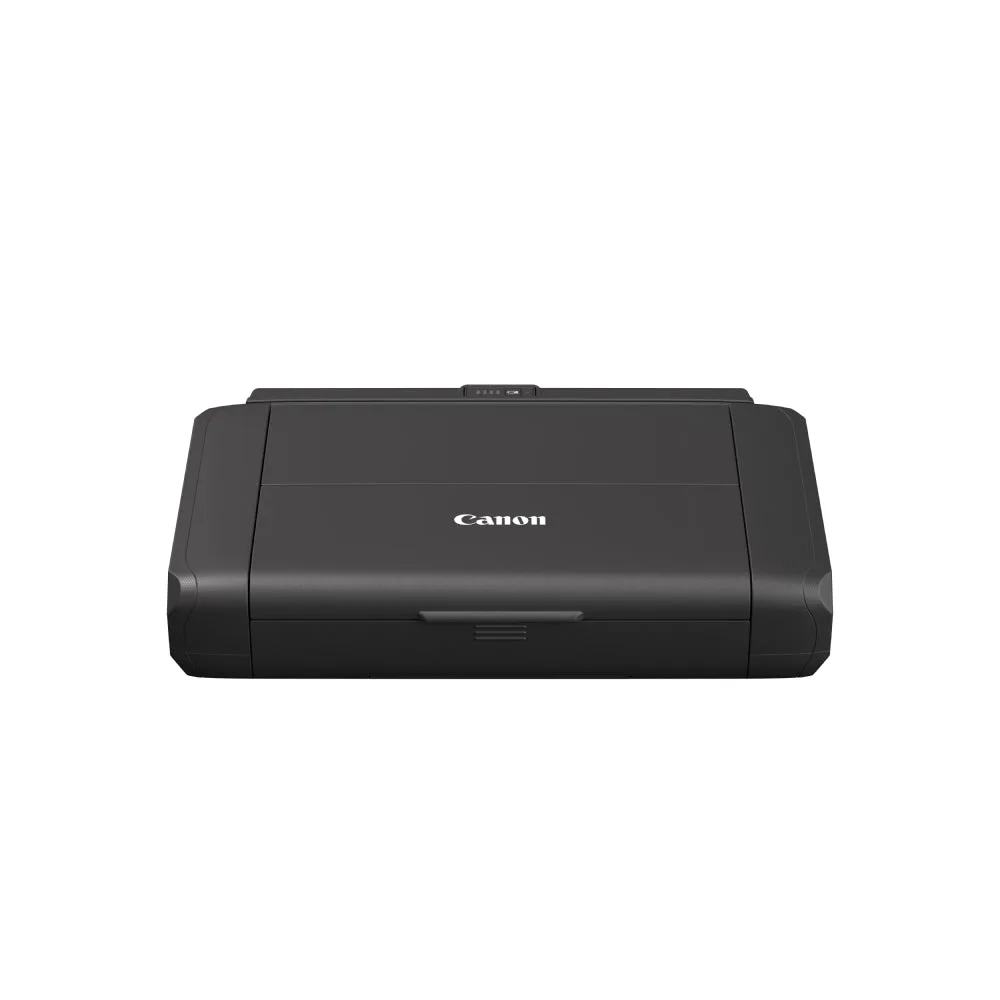
PIXMA TR160