Quick answer
Most film scanner issues come down to dirty optics, outdated software, or incorrect settings. Start by cleaning the scanner glass and checking your driver version.
Why dedicated scanners still have problems
Even high-resolution scanners like the Plustek OpticFilm 8200i Ai, with its 7200dpi sensor and built-in color calibration, can produce poor results if the film is dusty or the software is misconfigured. The Plustek Film 8100 shares the same resolution but lacks infrared dust removal, so it is more prone to visible dust and scratches on scans.
Software conflicts are another common culprit. SilverFast, included with both models, requires proper installation and driver matching. If you recently updated your operating system, the scanner driver may need reinstallation.
Diagnosis steps
- Symptom: Blank or all-white scan: Likely cause: The scanner lamp is not turning on or the film is not positioned correctly. Action: Open the scanner lid, check that the lamp illuminates when scanning. Ensure the film is flat and centered in the film holder. If the lamp does not light, contact support for a hardware replacement.
- Symptom: Streaks or lines across the image: Likely cause: Dust or debris on the scanner glass or film. Action: Use a microfiber cloth and lens cleaning solution to gently clean the scanner glass and the film holder. For the Plustek OpticFilm 8200i Ai, the infrared dust removal can hide these streaks in software, but physical cleaning is still best. If streaks persist after cleaning, calibrate the scanner using the built-in calibration target in SilverFast.
- Symptom: Software crashes or freezes during scan: Likely cause: Outdated driver or incompatible software version. Action: Uninstall SilverFast and the scanner driver, restart your computer, then download and install the latest driver and SilverFast version from the Plustek support site. If the crash continues, try scanning with a different application (like VueScan) to isolate the issue.
- Symptom: Colors look wrong or faded: Likely cause: Incorrect color profile or film type setting. Action: In SilverFast, select the correct film type (negative, slide, black and white) and run the automatic color restoration feature. For the OpticFilm 8200i Ai, enable the built-in color calibration. If colors still look off, manually set the white balance using a neutral area of the image.
Product facts
-
Plustek OpticFilm 8200i Ai Film Scanner: 7200dpi 48-Bit color depth with integrated infrared dust and scratch removal The infrared channel automatically detects and removes dust and scratches during scanning, saving you manual editing time.
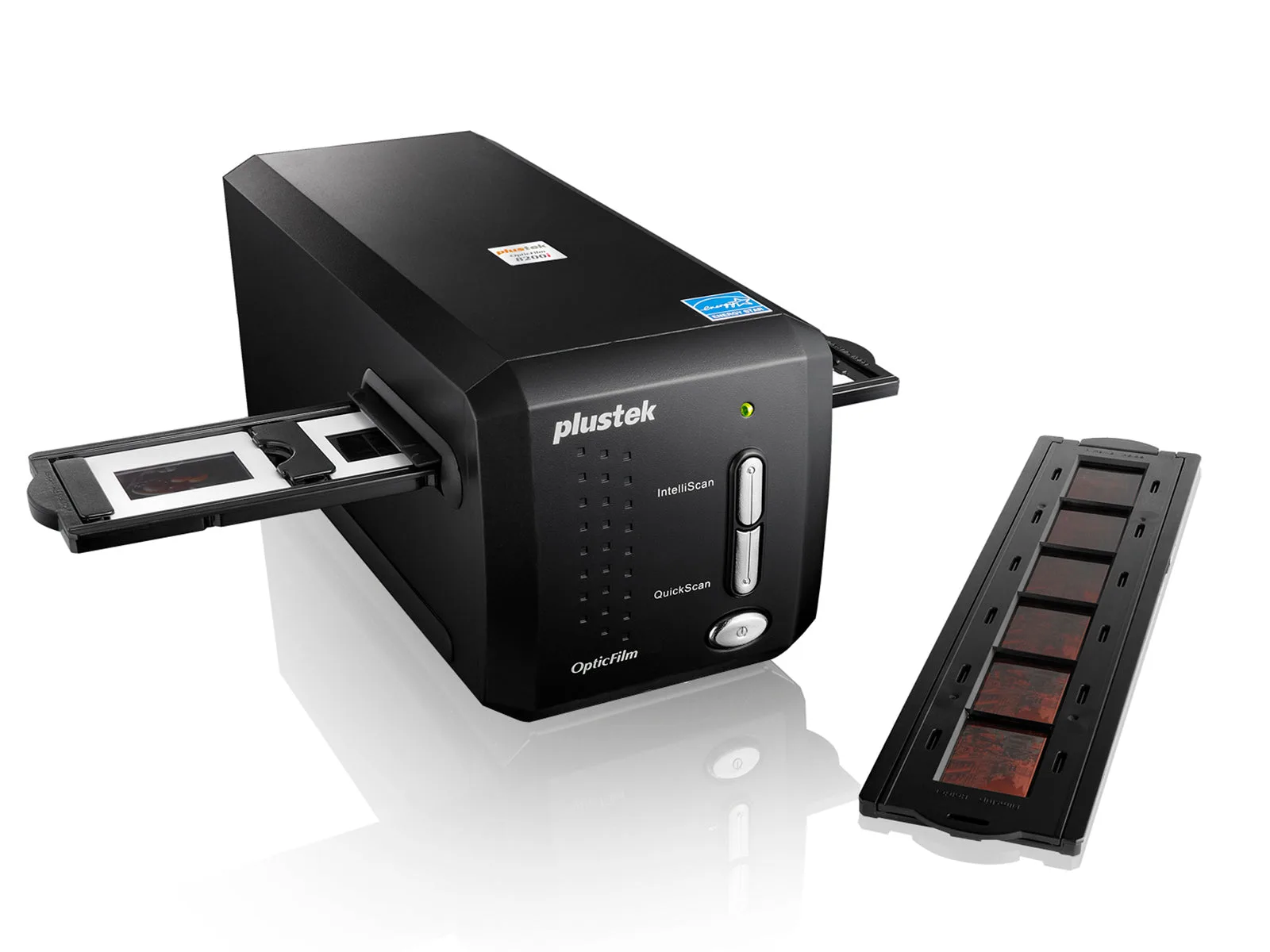
Plustek OpticFilm 8200i Ai Film Scanner
-
Plustek Film 8100 Film Scanner: 7200dpi resolution scanning for color negative, black and white negative, slides, reversal film and Kodakchrome film If you scan without the infrared channel, you must manually clean the film before scanning to avoid visible dust and scratches in your scans.
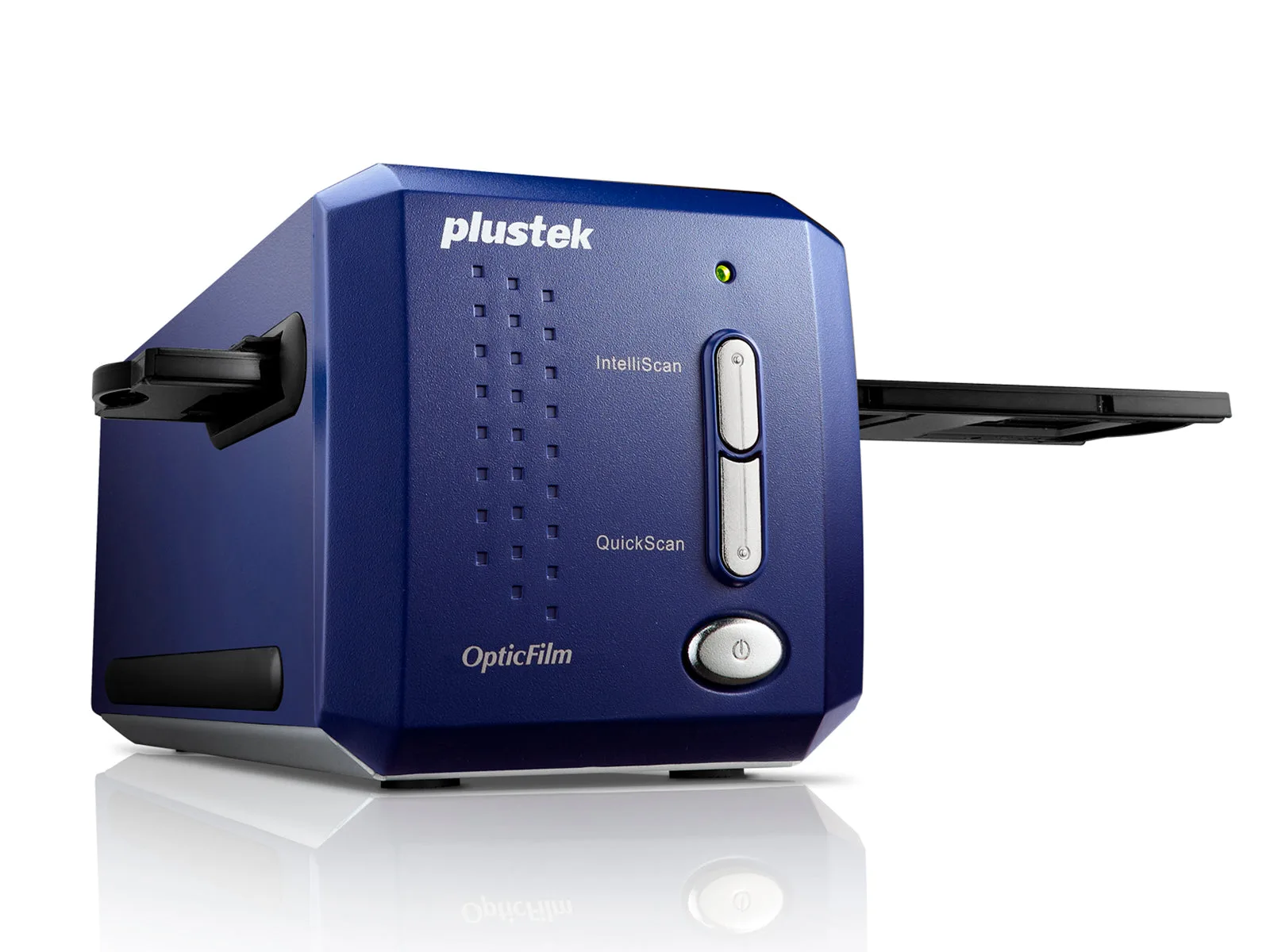
Plustek Film 8100 Film Scanner