Quick answer
Pair the Hobolite Pro Wireless Control Panel with your Hobolite Pro light by powering on both devices and pressing the sync button on the panel and the light within 10 seconds. Then use the panel's dial to adjust brightness and color temperature remotely.
Before you start: what the control panel does and doesn't do
The Hobolite Pro Wireless Control Panel is a dedicated remote for Hobolite Pro continuous lights. It lets you adjust brightness and color temperature without walking to the fixture. It does not control other brands or older Hobolite models, and it requires line-of-sight or close-range wireless communication. The panel runs on two AAA batteries (not included), so keep spares handy during long shoots.
Hobolite Pro Wireless Control Panel setup steps
- Insert batteries and power on the panel: Open the battery compartment on the back of the Hobolite Pro Wireless Control Panel and insert two fresh AAA batteries with correct polarity. Press and hold the power button until the screen lights up. Common mistake: using old or mismatched batteries can cause intermittent connection or a blank screen. Always test with new batteries before a shoot.
- Power on your Hobolite Pro light: Plug in your Hobolite Pro continuous light and switch it on using the main power switch on the fixture. Wait for the light's display to show the home screen. Checkpoint: ensure the light is in a stable position and not in standby mode. A blinking standby indicator means the light is not ready to pair.
- Initiate pairing mode on the panel: On the control panel, press and hold the sync button (usually marked with a wireless icon) for 3 seconds. The panel screen should show a flashing pairing symbol. Common mistake: pressing the sync button too briefly or too many times can skip pairing mode. Hold steadily until the icon appears.
- Initiate pairing mode on the light: On the Hobolite Pro light, press and hold the sync button on the back of the fixture for 3 seconds. The light's display will show a flashing wireless icon. Checkpoint: both the panel and the light must be within 10 feet (3 meters) of each other during pairing. Walls or metal objects can block the signal.
- Confirm the connection: Within 10 seconds of starting pairing on the light, the control panel screen should show a solid wireless icon and the light's current brightness level. Test by turning the panel's main dial to adjust brightness up and down. Common mistake: if the connection fails, repeat steps 3 and 4. Power cycling both devices often resolves persistent pairing issues.
- Adjust settings remotely: Use the panel's dial to change brightness (0-100%) and the mode button to switch to color temperature control (2700K-6500K). The light responds in real time. Checkpoint: the panel only controls one light at a time. To control multiple Hobolite Pro lights, you need separate panels or use the light's onboard controls for the others.
Product used in this guide
-
Hobolite Pro Wireless Control Panel: The Hobolite Pro Wireless Control Panel is a dedicated accessory for Hobolite Pro lighting systems, designed for convenient remote adjustment of your video lighting setup. It saves time on set by letting you tweak light settings from the camera position, reducing interruptions to your shooting flow.
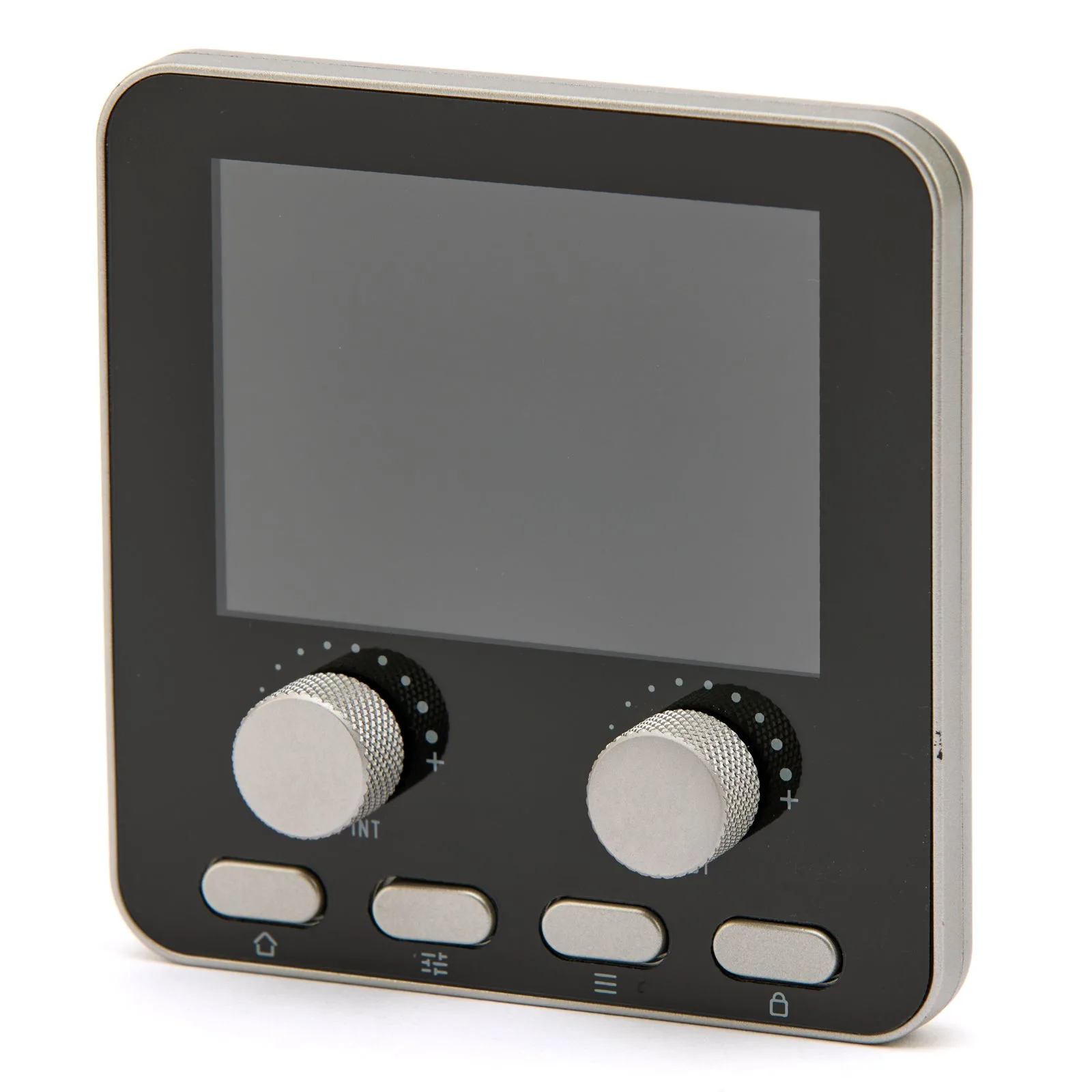
Hobolite Pro Wireless Control Panel