Quick answer
Start with a clean, well-exposed photo, add one holiday overlay that matches the mood, then adjust opacity and blend mode so the overlay supports the subject instead of covering it. Use the same overlay style across cards, mini sessions, and client gifts to build a cohesive set. Check every image at 100% zoom before exporting.
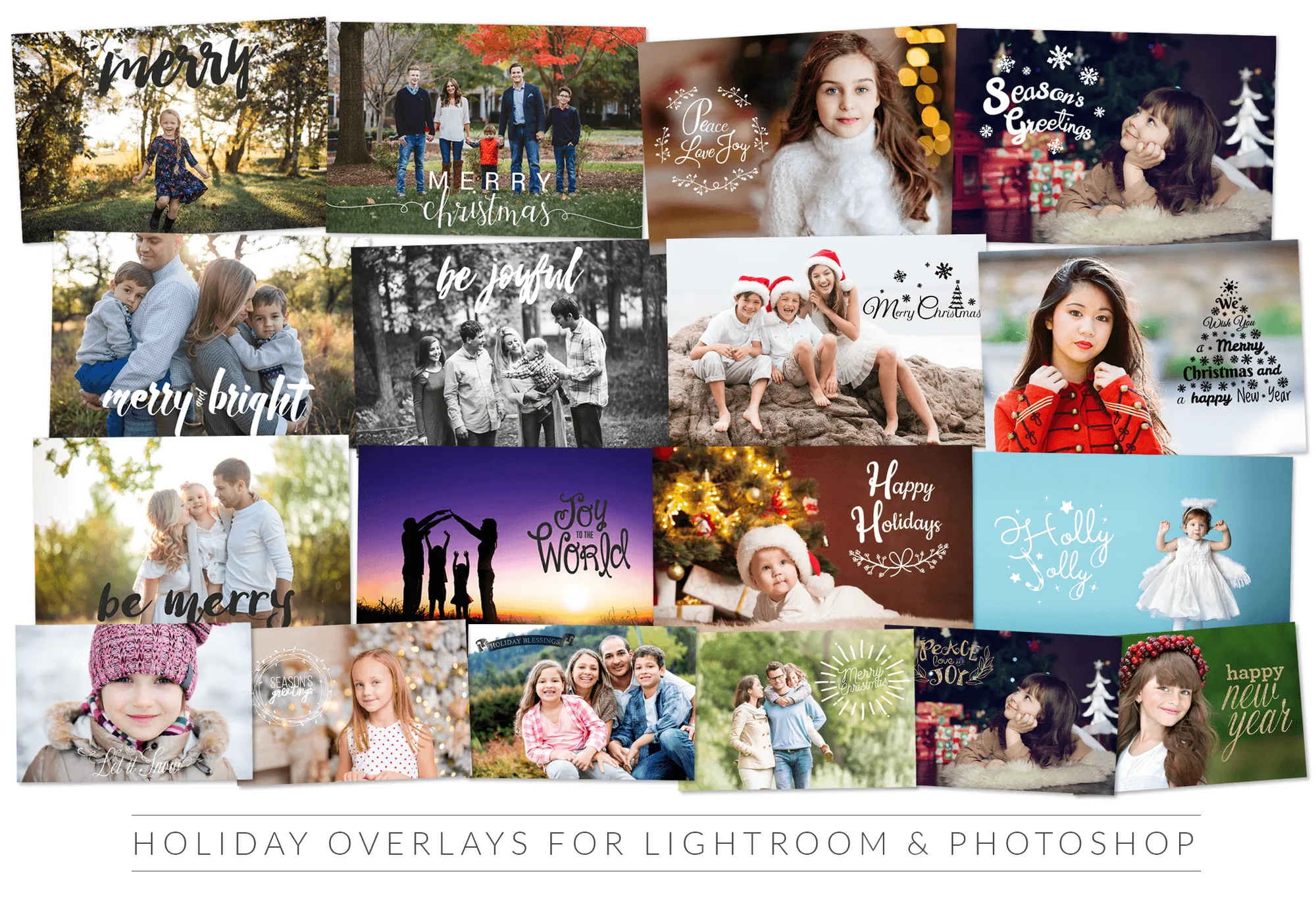
Choose the right overlay for the final product
Before you edit, decide where the image will live: a printed card, a mini session gallery, or a client gift. A busy overlay with many elements can look cluttered on a small card, while a subtle border or corner accent may disappear in a large print. For cards, look for overlays with clear shapes and enough contrast to read at 5x7 inches. For mini sessions, a consistent overlay applied across the whole gallery creates a branded look. For client gifts, a single strong overlay on a hero image often works better than a full set of heavily edited photos.
Prepare the base photo before adding overlays
Overlays cannot fix a photo with blown highlights or heavy color casts. Start by correcting exposure, white balance, and contrast in Lightroom or Camera Raw. If you plan to use a holiday overlay with warm tones, avoid cooling the base image too much, or the overlay will look disconnected. For winter photo overlays, a slightly cooler base can help snow and frost elements feel natural. Save this corrected version as your working file so you can return to it if an overlay experiment goes wrong.
Apply and blend the overlay without losing the subject
Place the overlay on a new layer above your photo. Try blend modes like Screen for light effects such as snow or bokeh, and Multiply for darker elements like pine branches or text. Reduce opacity until the overlay enhances the scene without hiding faces. If the overlay covers a key area, add a layer mask and paint with a soft brush to bring the subject back. This step is where most edits succeed or fail: always check the eyes and expression first.
Adapt the same overlay for cards, minis, and gifts
Once you have a blend you like, save it as a preset or copy the layer settings. For cards, crop to the final aspect ratio before fine-tuning the overlay position, because a crop can change where the overlay sits. For mini sessions, apply the same overlay to each image but vary the opacity slightly to match different lighting. For client gifts, consider adding a small text layer with the family name or the year, but keep it simple so the photo remains the focus.
Export with the right settings for each use
Cards and gifts usually need sRGB color space and high resolution, while mini session galleries can be smaller for web sharing. Check that the overlay does not introduce banding or artifacts when saved as a JPEG. If you are sending files to a print lab, ask for their preferred color profile and embed it. For social media, export a separate web-sized version with sharpening for screen.
Step-by-step holiday overlay workflow
- Select and prepare the base photo: Pick an image with clean exposure and minimal distractions. Correct white balance and contrast before adding any overlay. Checkpoint: If the base photo needs heavy correction, fix it first or the overlay will amplify the problem.
- Add the overlay on a new layer: Place the overlay above the photo and experiment with blend modes like Screen or Multiply. Start at 100% opacity to see the full effect. Common mistake: Leaving the overlay at full opacity and covering the subject's face.
- Adjust opacity and mask: Lower opacity until the overlay feels integrated. Use a soft brush on a layer mask to reveal important details like eyes and hands. Checkpoint: Zoom to 100% and check for halos or harsh edges around the subject.
- Save your settings as a preset: Once you have a blend you like, save the layer settings or create a preset so you can apply the same look to other images in the set. This keeps your mini session gallery consistent and saves time.
- Export for the intended use: For print, use sRGB and high resolution. For web, export a smaller file with screen sharpening. Always check the final file before sending to a client or lab. Common mistake: Forgetting to convert to the correct color profile for print, which can shift colors.
Product facts
- 22 Holiday Overlays for Lightroom & Photoshop: 22 Holiday Overlays for Lightroom & Photoshop includes 22 overlays, each with one or more color variations, and works with Photoshop 2022, Photoshop Elements 11-22, and Lightroom Classic. The color variations let you match different holiday palettes without buying multiple packs, and the software compatibility covers most common editing setups.
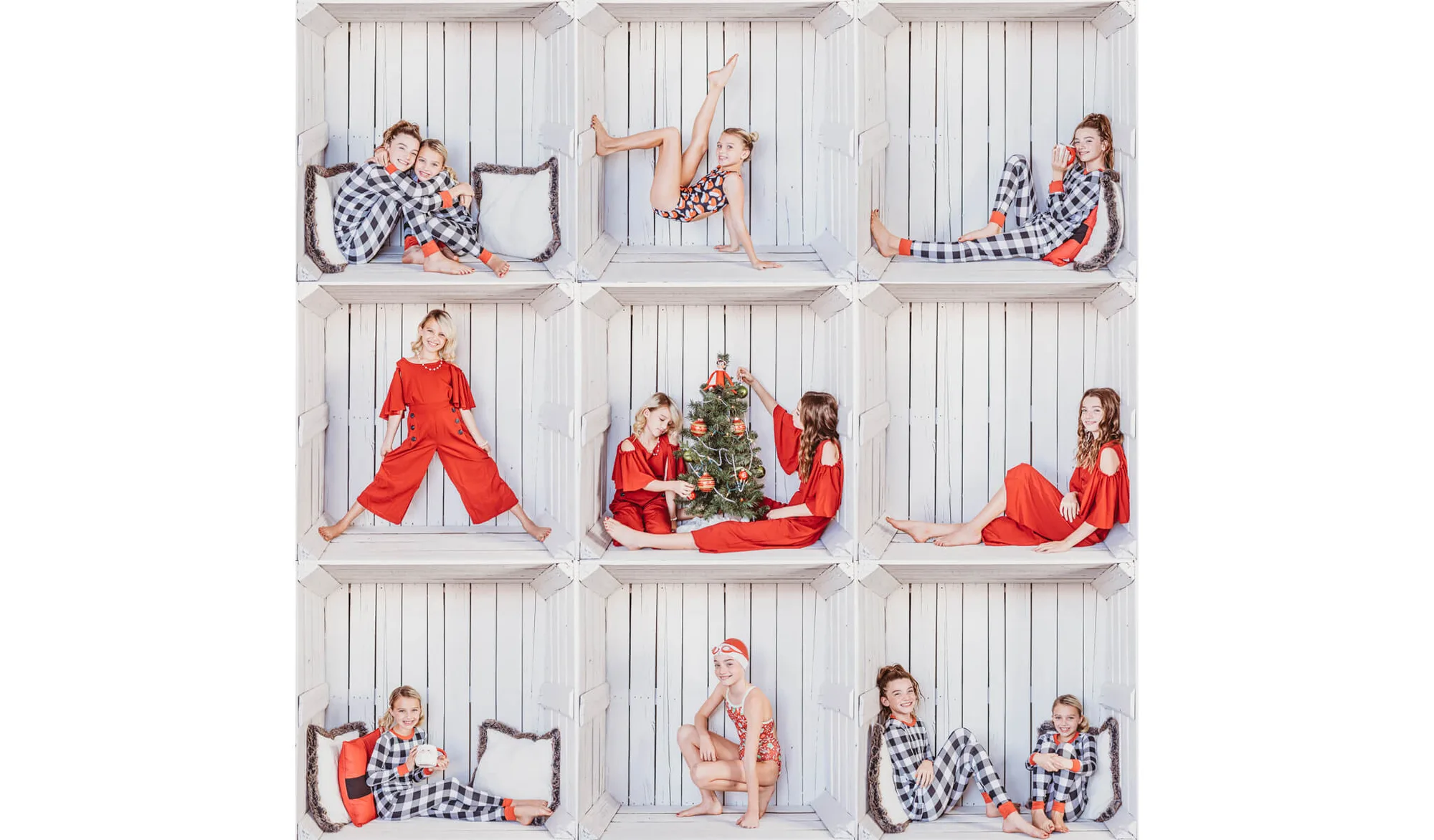
- In The Box Photoshop Templates (10): In The Box Photoshop Templates (10) is a collection of 10 templates that composite people or pets into box scenes, suitable for family, holiday, classroom, children's, pet, couples, and product photos. These templates offer a structured way to create themed images for cards or gifts, especially when you want a consistent look across multiple subjects.
- Falling Leaves Overlays & Actions Collection: Falling Leaves Overlays & Actions Collection includes fall leaf overlays created from real leaves, grouped leaf overlays, and actions to resize, rotate, and colorize the leaves. The actions speed up customization, making it easier to adjust leaf placement and color for different holiday or seasonal projects.