If you've ever felt your M64 controller isn't responding as crisply as it should—whether you're missing jumps in platformers or overshooting in racing games—calibration might be the answer. Over time, analog sticks can develop drift, dead zones can feel off, and sensitivity may not match your play style. Calibrating your M64 controller ensures every input is translated accurately, giving you the edge in competitive and casual gaming alike.
In this guide, we'll walk you through the entire calibration process, from understanding what calibration actually does to fine-tuning dead zones and sensitivity. We'll also share tips on how to test your setup and troubleshoot common issues. Whether you're a seasoned retro gamer or new to the M64, this step-by-step tutorial will help you get the most out of your controller.
Why Calibrate Your M64 Controller?
Calibration is the process of teaching your controller's analog stick and buttons to recognize their full range of motion and neutral positions. Over time, wear and tear, dust, or even factory variances can cause the stick to register inputs when it's not being touched—a problem known as 'drift.' Calibration resets the center point and ensures that pushing the stick fully in any direction produces a corresponding full input in the game.
Beyond fixing drift, calibration lets you adjust sensitivity and dead zones to match your personal preference. A larger dead zone means you have to move the stick further before the game registers an input, which can prevent accidental movements. A smaller dead zone offers quicker response but may be more prone to jitter. Sensitivity controls how much the in-game character or camera moves relative to the stick's physical movement. Tuning these settings can dramatically improve your aim, movement precision, and overall enjoyment.
- Fixes analog stick drift that causes unwanted movement.
- Allows you to set a comfortable dead zone to avoid accidental inputs.
- Adjusts sensitivity to your preferred response curve.
- Improves accuracy in fast-paced games and precise platforming.
Step-by-Step M64 Controller Calibration
Before you begin, ensure your M64 console is powered on and your controller is connected. You'll need access to the system's settings menu, which is typically accessible from the main dashboard. Navigate to 'Controller Settings' or 'Accessories' and select 'Calibrate.' If your console doesn't have a built-in calibration wizard, you may need to use a compatible game or a third-party tool—but most M64 systems include this feature.
Once in the calibration screen, follow the on-screen instructions. Usually, you'll be prompted to rotate the analog stick in a full circle several times to map its range. Then, you'll be asked to release the stick to its neutral position. After that, you can fine-tune dead zone and sensitivity sliders. Some systems also allow you to calibrate the D-pad and trigger buttons. Take your time to ensure each step is done accurately.
- Rest your controller on a flat surface during calibration to avoid unintended movement.
- Rotate the analog stick slowly and steadily to get the most accurate mapping.
- If prompted, set dead zone to a small value (e.g., 10%) and increase if you experience drift.
- Test different sensitivity levels in a game to find what feels best.
How to Set the Ideal Dead Zone
Dead zone is the area around the stick's center where no input is registered. A properly set dead zone prevents drift and accidental movements. If your character moves on their own or you see slight camera panning, your dead zone is too small. Increase it in small increments (e.g., 5%) until the issue stops. Conversely, if you feel like you have to move the stick too far before anything happens, reduce the dead zone.
For most players, a dead zone of 10-15% works well, but this can vary depending on the game and your personal preference. In games that require fine aiming, like first-person shooters, a smaller dead zone might be preferable, but you risk drift. In platformers like Earthworm Jim, a slightly larger dead zone can prevent accidental moves during precise jumps. Experiment with different settings to find the sweet spot.
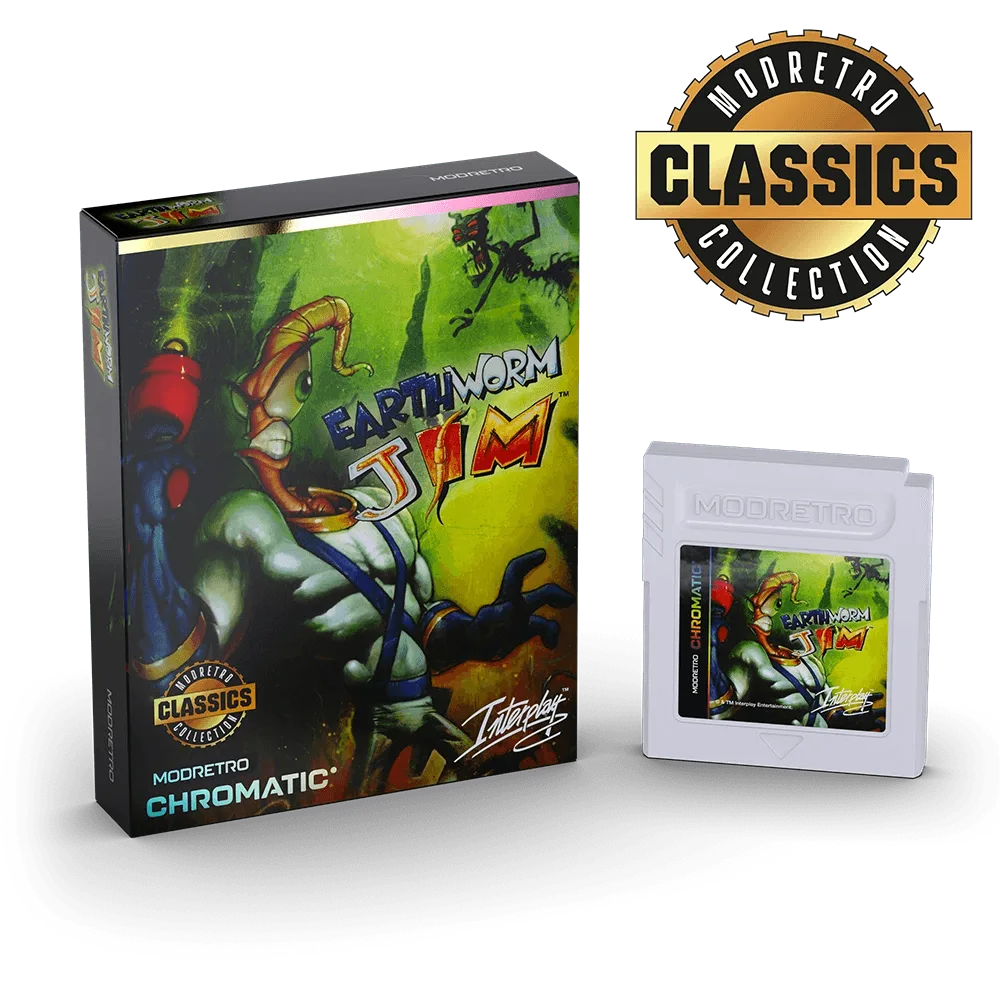
Earthworm Jim
- Start with a 10% dead zone and adjust based on observed drift.
- Increase dead zone in 5% increments if drift persists.
- Decrease dead zone if you need faster response and have a well-maintained stick.
- Remember that dead zone settings are saved per controller profile.
Tuning Sensitivity for Your Play Style
Sensitivity determines how much the game's camera or character moves relative to the stick's movement. High sensitivity means small stick movements result in large in-game movements, which is great for quick turns but can be hard to control. Low sensitivity offers more precision but requires larger stick movements, which can be sluggish in fast-paced situations.
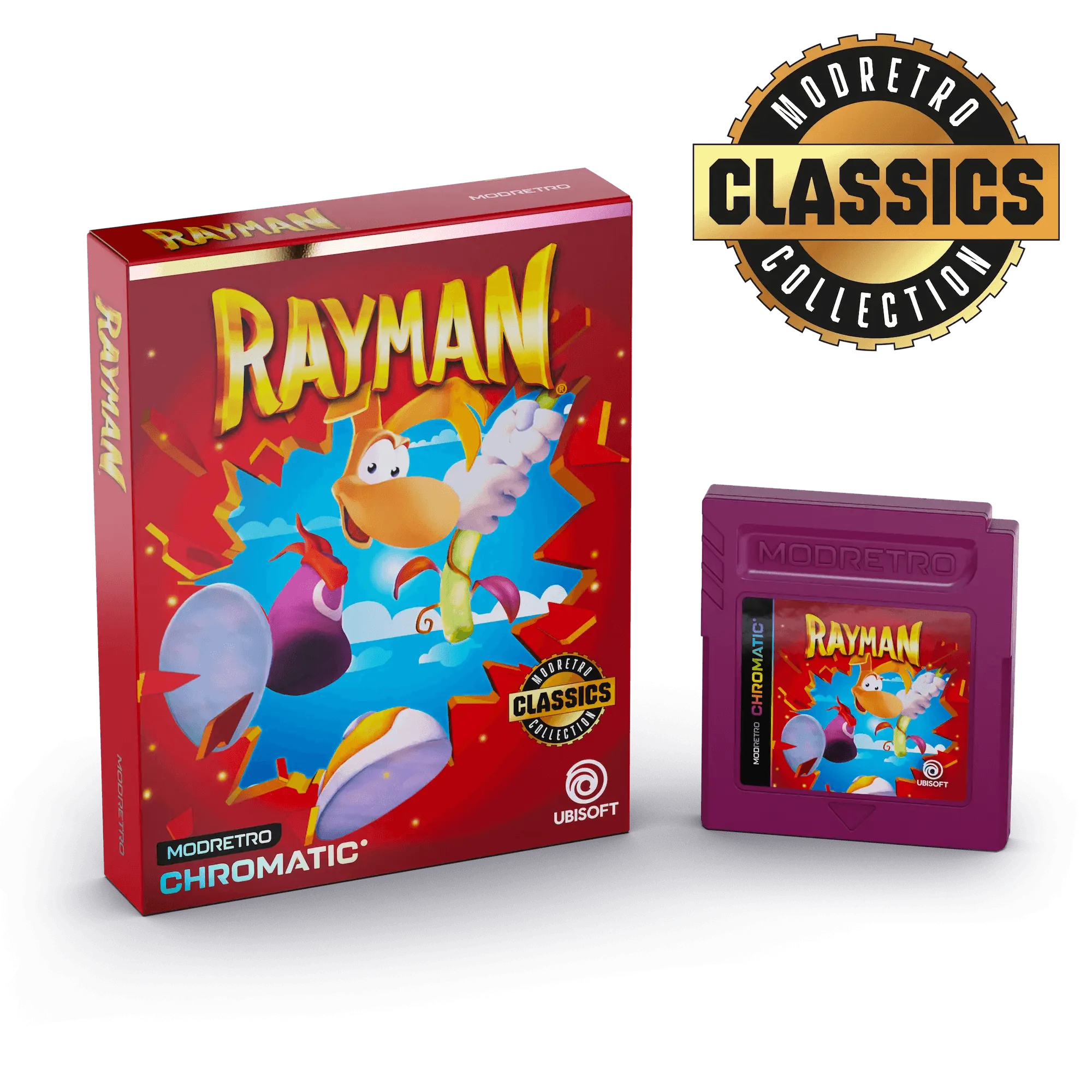
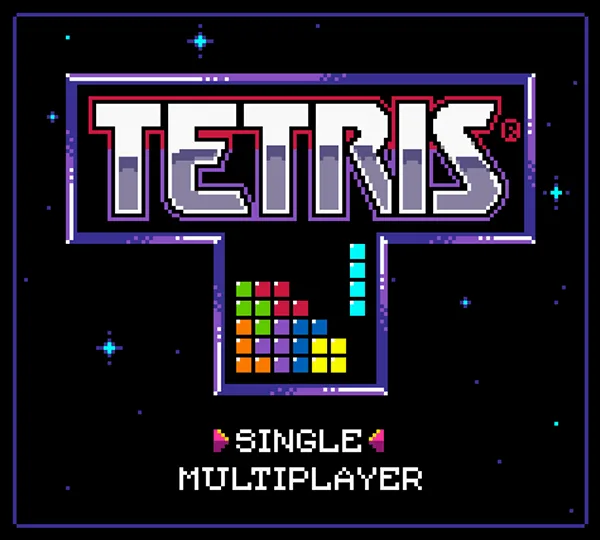
To find your ideal sensitivity, start at the default and play a few minutes. If you find yourself overshooting targets or spinning too quickly, lower it. If you have to push the stick all the way to the edge to turn, increase it. Many games have their own sensitivity settings, so you may need to adjust both the controller and in-game settings. For example, in a game like rayman-2-35be2ab6fb57ea4c499d7bc8-591275">Rayman 2 Forever, you might want higher sensitivity for camera control, while in a puzzle game like Tetris, you might prefer lower sensitivity for precise piece placement.
- Adjust sensitivity in small increments (e.g., 10%) to avoid drastic changes.
- Test in a game with varied movement, like a platformer or shooter.
- Consider using different profiles for different game genres.
- Remember that sensitivity is a personal preference—what works for others may not work for you.
Testing Your Calibration
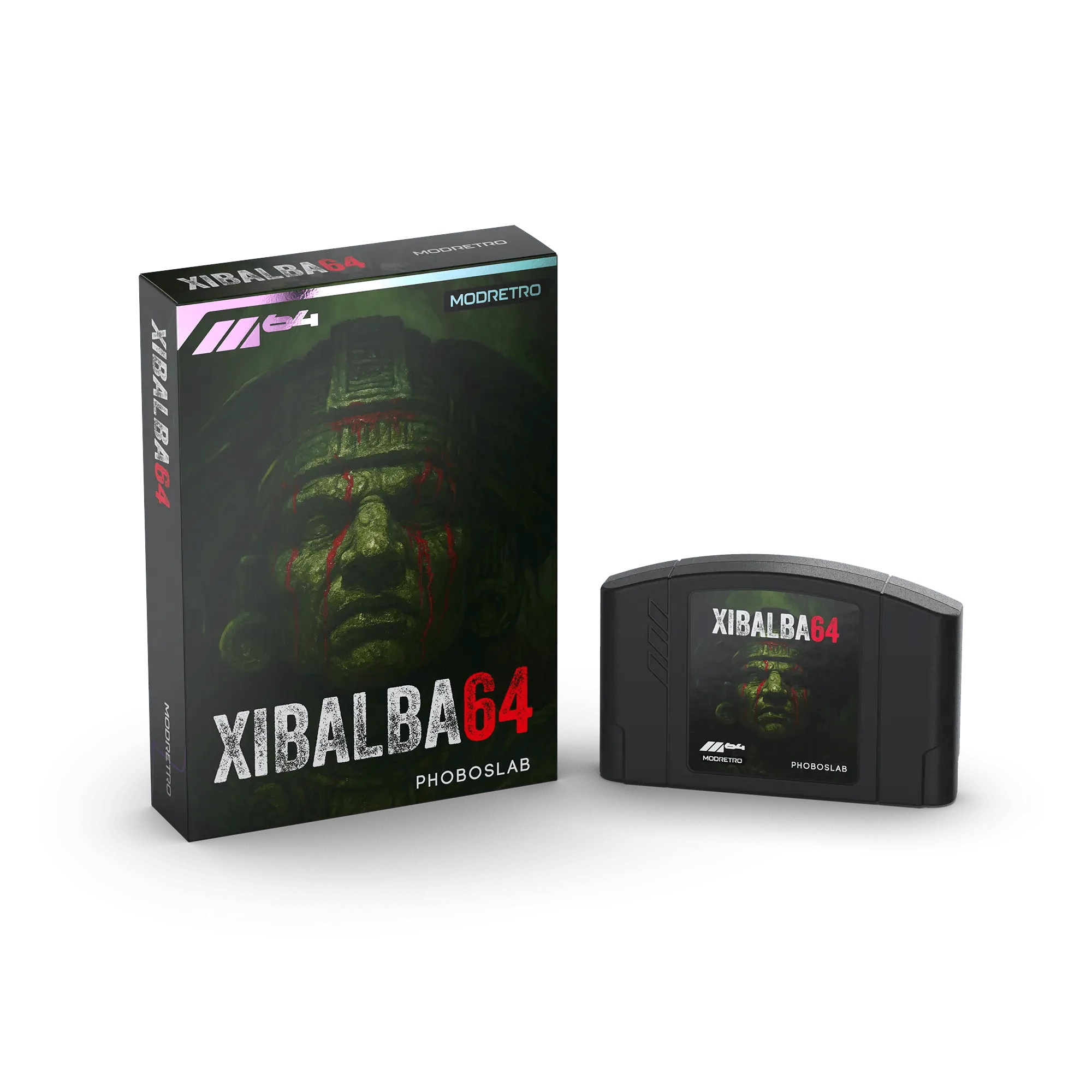
After calibrating, it's crucial to test your controller in a real game. Choose a title that requires precise input, such as a platformer or a shooter. In Earthworm Jim, try making tight jumps and aiming the gun accurately. In Xibalba 64, test your ability to navigate tight corridors and aim at enemies. If you notice any drift or unresponsiveness, go back to the calibration menu and adjust accordingly.
Also, test the full range of motion by slowly moving the stick in a circle and observing the on-screen response. If the movement is jerky or has dead spots, you may need to recalibrate or consider cleaning the analog stick. Some controllers also allow you to test button inputs; ensure all buttons respond correctly.
- Play for at least 10 minutes to notice any subtle issues.
- Test both slow and fast stick movements.
- Check for drift by leaving the stick untouched and observing if the game character moves.
- If issues persist, consider cleaning the analog stick or contacting support.
Troubleshooting Common Calibration Issues
If your controller still behaves erratically after calibration, there are a few common issues to check. First, ensure the controller is fully charged or has fresh batteries, as low power can cause erratic behavior. Second, check for any physical obstructions or debris around the analog stick that might interfere with movement. Gently clean around the stick with a cotton swab and isopropyl alcohol if needed.
If drift persists, you may need to recalibrate multiple times or reset the controller to factory settings. Some M64 controllers have a reset button on the bottom; press it with a paperclip to restore defaults. If the problem is hardware-related, it might be time to consider a replacement. For casual gamers, a standard controller might be fine, but for competitive play, you might want to invest in a high-quality option.
- Check battery level and replace if low.
- Clean the analog stick and surrounding area with a dry cloth or alcohol wipe.
- Reset the controller to factory settings and recalibrate.
- If issues persist, consider hardware replacement.
Calibrating your M64 controller is a simple yet powerful way to enhance your gaming experience. By adjusting dead zones and sensitivity, you can eliminate drift and achieve precise, responsive input tailored to your style. Regular calibration, especially after heavy use, ensures your controller stays in top shape. If you're looking for a new controller or want to expand your M64 library, be sure to check out our selection of M64 controllers and games like Xibalba 64 and Earthworm Jim to put your newly calibrated controller to the test.