Quick Answer
Most Wi-Fi mesh problems come down to placement, interference, or outdated firmware. Start by repositioning nodes and checking for obstacles, then update firmware and adjust channel settings.
Why Mesh Networks Fail
Mesh systems are designed to eliminate dead zones, but they can still suffer from slow speeds or disconnections. Common reasons include improper node placement, too many walls between nodes, or interference from other electronics.
Another frequent issue is using the wrong backhaul method. Some mesh systems, like the TP-Link Deco W7200, support Ethernet backhaul, which can significantly improve performance if you wire the nodes together.
Placement and Interference
Node placement is critical. Each node should be within range of the main router, but not too close. Avoid placing nodes near metal objects, microwaves, or cordless phones, as these can cause interference.
If you have a large home, consider a system with more coverage, like the ROCK AX1800 3-pack, which covers up to 6,000 sq. ft. But remember, coverage claims are based on optimal conditions; walls and floors reduce effective range.
Firmware and App Settings
Many mesh issues are resolved with firmware updates. Check your mesh app for updates regularly, and enable automatic updates if available.
Also, review your app's settings. Some systems have features like band steering or QoS that can cause devices to drop if misconfigured. Try disabling these temporarily to see if stability improves.
Diagnosis and Fixes
- Symptom: Device keeps disconnecting: Likely cause: Node placement or interference. Move the node closer to the affected device and away from obstacles. If the problem persists, try changing the Wi-Fi channel in the app. If moving the node doesn't help, test with a different device to isolate the problem.
- Symptom: Slow speeds in certain rooms: Likely cause: Weak signal between nodes. Ensure nodes are within range of each other, ideally with a clear line of sight. If your system supports Ethernet backhaul, consider wiring the nodes. If speeds remain slow, try moving the node to a more central location.
- Symptom: Whole network drops: Likely cause: Firmware bug or router overload. Reboot the main router and all nodes. Check for firmware updates in the app. If the issue persists, reset the system to factory defaults and set it up again. If a factory reset doesn't fix it, contact your ISP or consider replacing the system.
Products That Help
-
TP-Link Tri-Band Wi-Fi 6 Mesh Router System | 2- Mesh Routers | Coverage up to 5,500 sq. ft. | Deco W7200 (2-Pack): The TP-Link Deco W7200 is a tri-band Wi-Fi 6 mesh system that covers up to 5,500 sq. ft. and supports Ethernet backhaul. Tri-band design and Ethernet backhaul give you more options to improve speed and stability in larger homes.
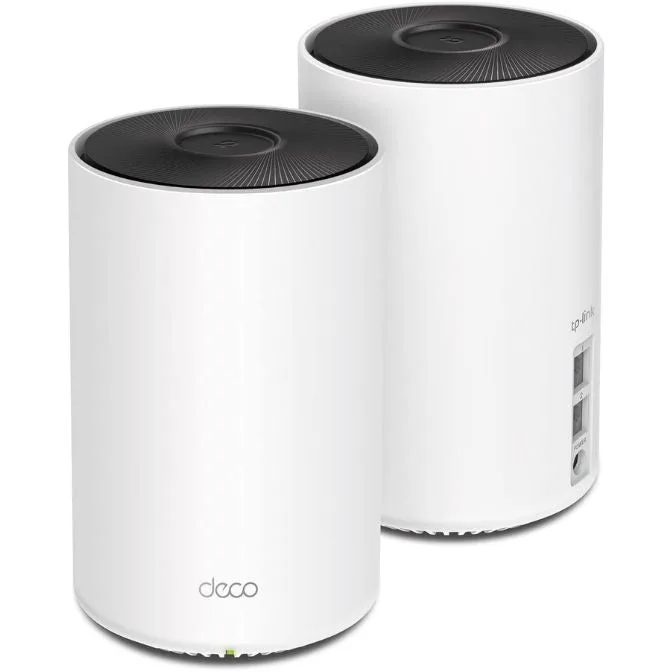
TP-Link Tri-Band Wi-Fi 6 Mesh Router System | 2- Mesh Routers | Coverage up to 5,500 sq. ft. | Deco W7200 (2-Pack)
-
Dual-Band AX1800 WiFi 6 Mesh Wi-Fi System | Replaces Routers and Extenders | Covers up to 6,000 sq.ft. | 2 Gigabit Ports per Unit, Supports Ethernet Backhaul | (3-Pack): The ROCK AX1800 Wi-Fi 6 mesh system covers up to 6,000 sq. ft. and supports up to 120 devices. If you have many devices, this system's capacity helps prevent slowdowns and disconnections.
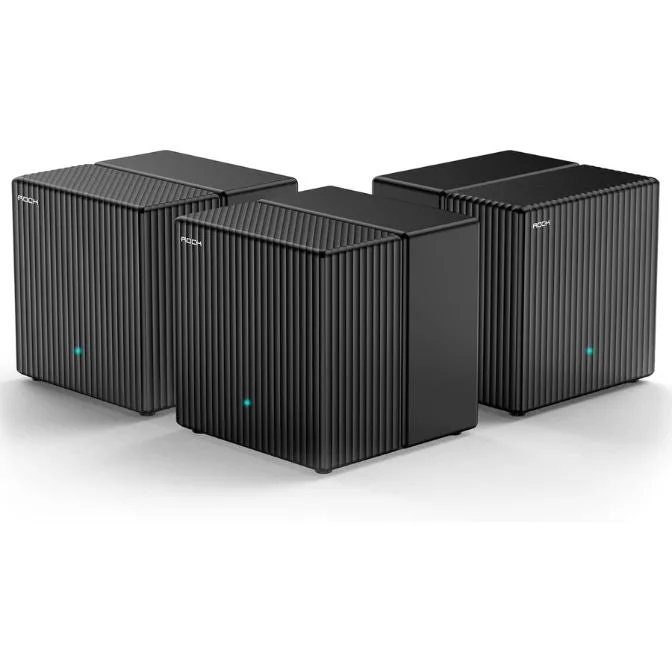
Dual-Band AX1800 WiFi 6 Mesh Wi-Fi System | Replaces Routers and Extenders | Covers up to 6,000 sq.ft. | 2 Gigabit Ports per Unit, Supports Ethernet Backhaul | (3-Pack)
-
Google Nest WiFi Pro - Wi-Fi 6E - Reliable Home Wi-Fi System with Fast Speed and Whole Home Coverage - Mesh Router - Lemongrass: The Google Nest WiFi Pro is a Wi-Fi 6E mesh router that provides fast speeds and whole-home coverage. Wi-Fi 6E adds a 6 GHz band, which can reduce interference and improve performance for newer devices.