Quick answer
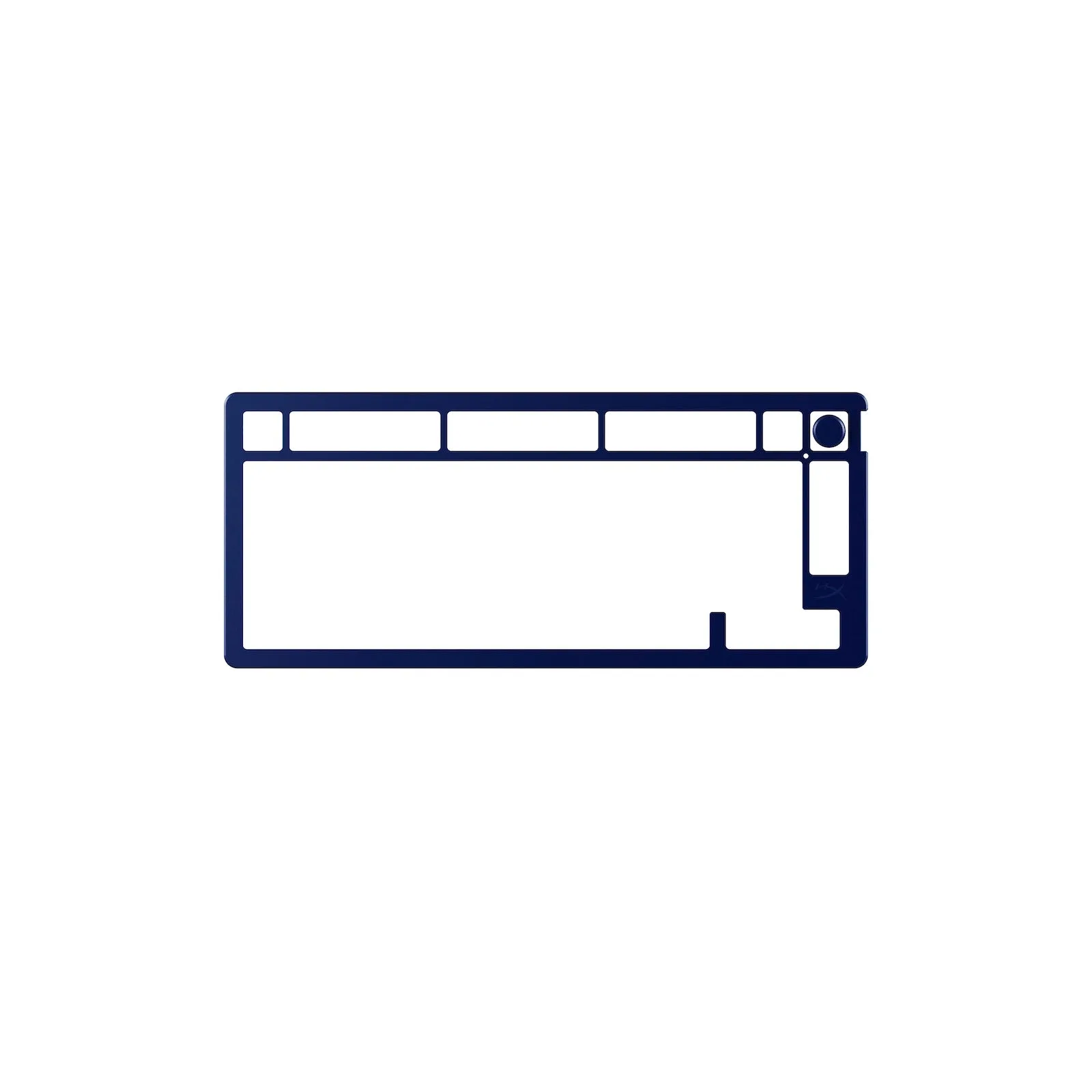
Replacing the top plate on your HyperX Alloy Rise 75 is a snap-in job: the plate is magnetic and requires no tools. Just lift the old plate off, align the new one, and press it down until it seats. Each HyperX Alloy Rise 75 Top Plate also comes with a matching rotary knob, so you can swap both in one go for a coordinated look.
Why swap the top plate instead of the whole keyboard
A top plate is the frame that surrounds your keycaps and sits above the switches. Changing it gives your keyboard a fresh color or finish without touching the switches, keycaps, or internal electronics. For the Alloy Rise 75, this is a practical alternative to buying a second keyboard or installing a full keycap set, especially if you already like how the board types. The HyperX Alloy Rise 75 Top Plate is designed as a direct fit for that model, so you are not trimming, bending, or forcing anything into place.
What you need before you start
You do not need a screwdriver, pry tool, or keycap puller for this job. The plate attaches magnetically, and the rotary knob is included with the plate. Work on a clean, flat surface with good light so you can see the alignment tabs and the knob stem. If your keyboard is plugged in, unplug it or switch it off first; this avoids accidental key presses while you work and keeps the board still.
Step-by-step: replacing your Alloy Rise 75 top plate
- Power down and clear the deck: Unplug the USB cable or turn the keyboard off, then remove anything sitting on or around the board. You do not need to remove keycaps for a top plate swap. Common mistake: trying to pry the plate up while the keyboard is powered. If the board is on, a stray keypress can interrupt the process and you may knock the plate out of alignment.
- Lift the old plate straight up: Grip the edges of the existing top plate and lift it evenly. Because it is magnetic, it should release with light, steady pressure rather than a sharp tug. Checkpoint: if the plate feels stuck, stop and check that you are lifting the plate itself and not the keyboard chassis. Forcing it can bend the frame.
- Align the new plate before setting it down: Hold the new HyperX Alloy Rise 75 Top Plate above the keyboard and line up its openings with the switch clusters and the rotary knob position. Lower it straight down so the magnets can engage. Common mistake: dropping one side in first. Angling the plate can cause it to sit unevenly, and the magnets may grab in the wrong position.
- Press down until it seats: Once aligned, press gently around the perimeter. You should feel the plate settle flat against the keyboard with no rocking or gaps. Checkpoint: run a finger along the edges. Any lift or wobble means the plate is not fully seated; lift it and realign.
- Swap the rotary knob: Pull the original knob straight up and press the matching knob from the new plate kit onto the stem. It should slide on with light pressure and sit flush. Common mistake: twisting the knob while installing. Pull and push straight to avoid stressing the stem.
- Test fit and function: Reconnect the keyboard, turn it on, and press a few keys around the edges and center. Rotate the knob to confirm it turns smoothly and registers. If a key feels blocked or the knob binds, power down and reseat the plate. Do not force a keypress through a misaligned plate.
The parts involved
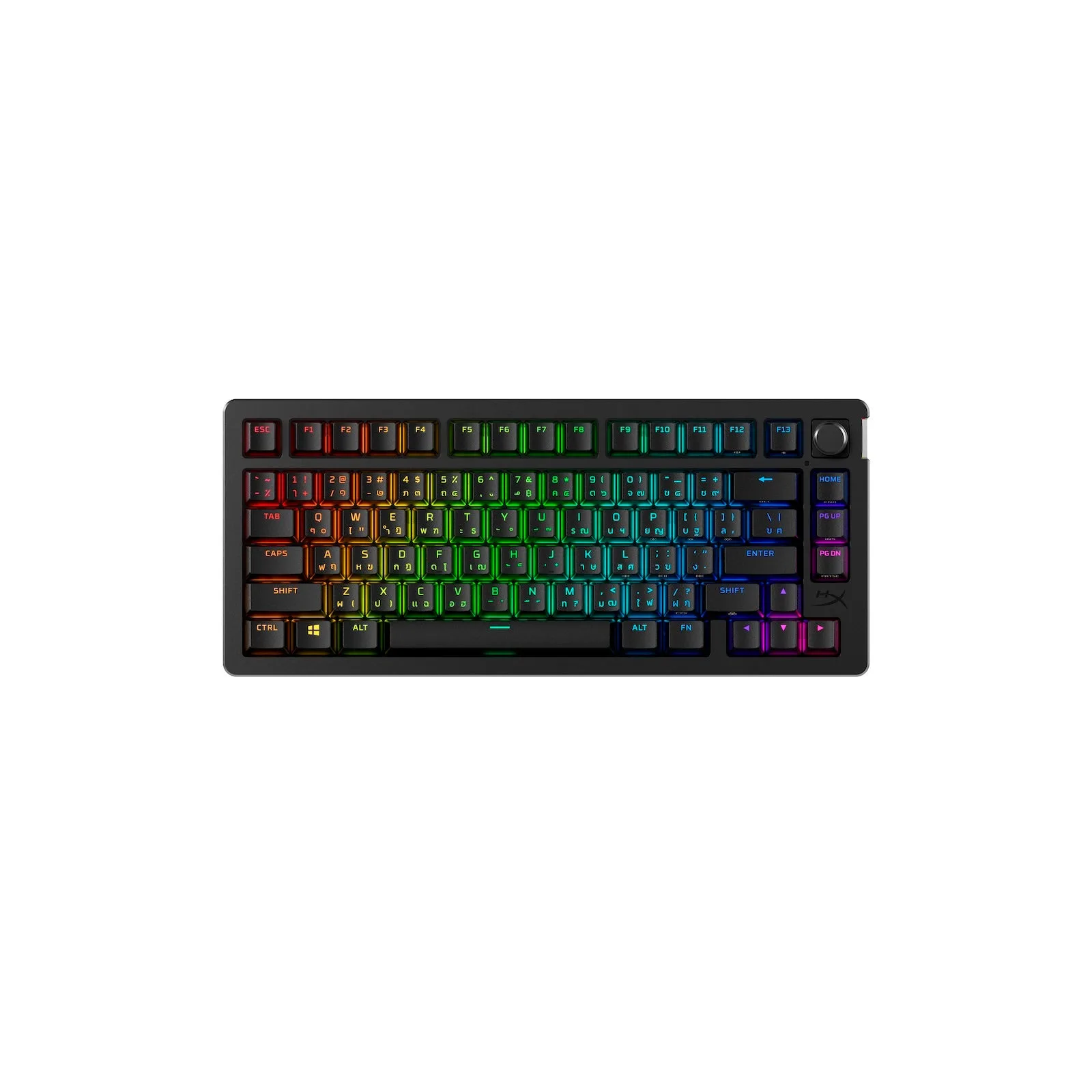
- HyperX Alloy Rise 75 Top Plate: Magnetic top plates that snap into place with no tools required, available in bold, vibrant colors, and each includes a matching rotary knob. You get a full cosmetic change in one purchase, and the included knob means you do not have to buy a separate accessory to match the new plate.
- HyperX Alloy Rise 75 Wireless - Gaming Keyboard: The HyperX Alloy Rise 75 Wireless is a dual-wireless gaming keyboard with up to 80 hours of battery life with backlighting on, or up to 1500 hours with backlighting off. If you are customizing this board, knowing the battery figures helps you plan when to do the swap and how to test the lighting afterward without draining the battery unnecessarily.