Quick answer
You can scan old shoebox photos yourself using a flatbed scanner, a clean workspace, and a few minutes per print. For large or fragile collections, consider a professional service like Austin Camera's "Shoebox" Photo Scanning.
Why scan at home vs. using a service?
Scanning at home gives you full control over cropping, color correction, and file naming. It works best for small batches (under 50 prints) and when you have a decent flatbed scanner with a document feeder. The trade-off is time: each print takes a minute or more to scan, clean, and save.
For large collections (hundreds of prints) or fragile originals, a service like Austin Camera's "Shoebox" Photo Scanning can be faster and more consistent. They handle high-resolution scanning, archival-quality files, and return your photos unscathed.
What you need to get started
A flatbed scanner with at least 300 DPI optical resolution (600 DPI is better for small prints). Avoid all-in-one printers with scan functions—they often compress images. Use a microfiber cloth to clean the scanner glass, and keep a can of compressed air handy for dust.
Organize your photos by size and orientation before you start. This prevents jams and makes batch scanning easier. Handle prints by the edges to avoid fingerprints and scratches.
How to scan your shoebox photos at home
- Prepare your workspace: Lay out your photos on a clean, dry table. Group them by size and orientation. Wash your hands and wear cotton gloves if possible. Clean the scanner glass with a microfiber cloth. Dust and fingerprints are the most common source of visible artifacts in home scans.
- Set scanner software to 300 DPI minimum: Open your scanner software and set resolution to 300 DPI for 4x6 prints or 600 DPI for smaller prints (like 3x5). Choose JPEG with high quality or TIFF for archival use. Disable any automatic color correction or sharpening—you can adjust later in editing software. 300 DPI is enough for sharing online; 600 DPI gives you room to crop and print later.
- Scan one photo at a time (or use a document feeder carefully): Place the photo face-down on the glass, aligned with the edge. Press scan and wait for the preview. If your scanner has a document feeder, test with one photo first to avoid jams. For curled prints, place a clean book on top of the scanner lid to flatten them. Never force a curled photo into a feeder—it can tear the emulsion.
- Save and name files immediately: After scanning, save the file with a descriptive name like "Grandma_1985_Birthday.jpg". Create folders by year or event. Back up the folder to an external drive and a cloud service. A consistent naming convention now saves hours of searching later.
- Review and clean up scans: Open each scan in basic photo editing software. Crop edges if needed, adjust exposure, and remove dust spots using a clone stamp tool. Avoid over-sharpening—it adds noise. Save the edited version as a separate file to preserve the original scan. Keep the unedited scan as a digital negative; you can always re-edit later.
Product fact
-
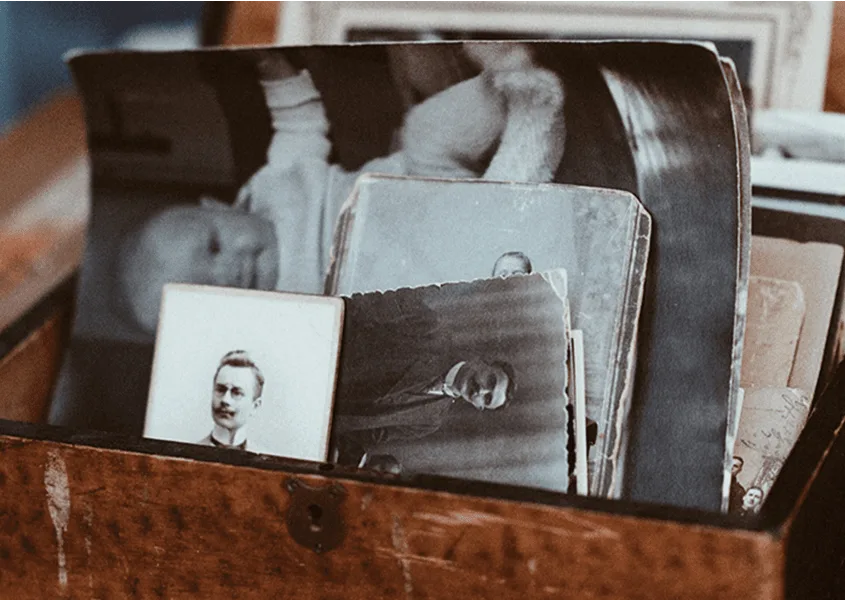
"Shoebox" Photo Scanning: Austin Camera's "Shoebox" Photo Scanning service can scan from one print to thousands at high resolution, saved on CD or via Dropbox link. If you have more than 50 prints or fragile originals, this service saves hours of manual work and ensures consistent archival-quality scans.
"Shoebox" Photo Scanning