Quick Answer
Set up your refurbished iMac by first checking the hardware, then powering on and following the on-screen setup assistant. Use Migration Assistant to transfer data from your old Mac, and finish by updating macOS and signing in to your Apple ID.
Why a Refurbished iMac Needs a Different Setup
A refurbished iMac, like the 2021 Apple iMac with M1 chip, may have been previously used or restored. Even if it looks clean, it's wise to verify the hardware and software before you start using it. This ensures you get a reliable machine and can spot any issues early.
The M1 chip in the 24-inch iMac means the setup process is similar to other modern Macs, but you should still check for any signs of wear or damage that could affect performance or safety.
What to Check Before You Power On
Before plugging in your refurbished iMac, give it a quick physical inspection. Look for scratches, dents, or loose parts. Check the power cable and any included accessories. This is also a good time to confirm you have a stable internet connection and a comfortable workspace.
Step-by-Step Setup Guide
- Unbox and inspect: Carefully remove the iMac from the box and place it on a stable surface. Check for any visible damage, and ensure all accessories (power cord, keyboard, mouse) are present. Plug in the power cable. Take photos of any damage before contacting the seller.
- Power on and initial setup: Press the power button and wait for the setup assistant to appear. Choose your language, region, and connect to Wi-Fi. If you're asked to log in with an Apple ID, you can skip it for now but you'll need it later. If the iMac boots to a login screen instead of setup, it may not have been erased. You'll need to perform a factory reset before continuing.
- Check for a previous owner's data: If the iMac shows a login screen with an unknown user, it hasn't been wiped. To factory reset, restart and hold Command+R to enter Recovery Mode, then use Disk Utility to erase the drive and reinstall macOS. Never skip this step—using a Mac with someone else's data is a privacy risk.
- Set up your user account: Create your local administrator account with a strong password. Set up Touch ID if available (on models with it), and enable FileVault encryption for security. Write down your password and keep it in a safe place.
- Transfer data from your old Mac: If you have an old Mac, use Migration Assistant (in Utilities folder) to transfer files, apps, and settings. Connect both Macs to the same Wi-Fi or use a wired connection for faster transfer. If you don't need old data, skip this step to start fresh.
- Update macOS and install apps: Go to System Settings > Software Update to install the latest macOS updates. Then download your essential apps from the App Store or the web. Restart after major updates to ensure everything runs smoothly.
- Test core functions: Test the display (check for dead pixels), camera, microphones, speakers, and all ports. Open a video call app to verify the camera and mics work. If any hardware fails, contact the seller for a replacement or refund.
Refurbished iMac Facts
-
2021 Apple iMac with Apple M1 Chip with 8-core CPU (24-inch, 16GB RAM, 1TB SSD Storage)- Orange (Refurbished): The 2021 Apple iMac with M1 chip features a 24-inch 4.5K Retina display with P3 wide color and 500 nits brightness. You'll want to check the display for any dead pixels or color issues during your initial setup, since a refurbished unit may have been handled before.
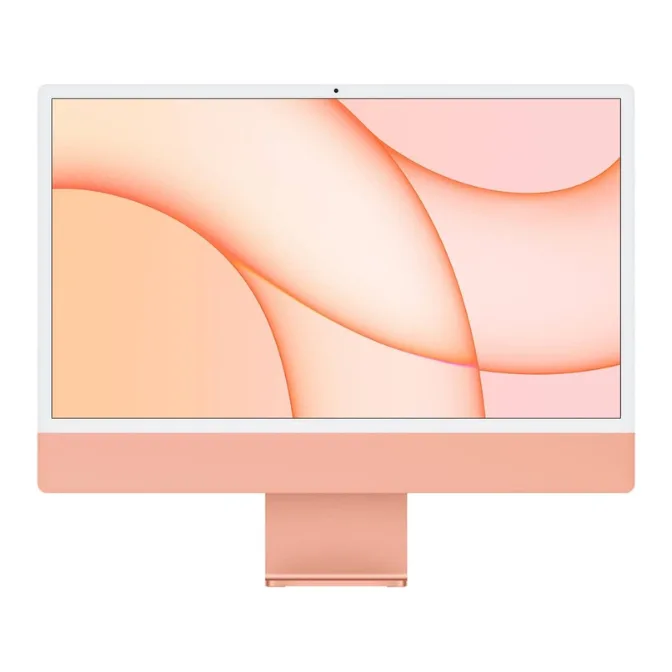
2021 Apple iMac with Apple M1 Chip with 8-core CPU (24-inch, 16GB RAM, 1TB SSD Storage)- Orange (Refurbished)
-
2021 Apple iMac with Apple M1 Chip with 8-core CPU (24-inch, 16GB RAM, 1TB SSD Storage)- Orange (Refurbished): It includes a 1080p FaceTime HD camera and studio-quality mics. These are key for video calls, so test them during setup to ensure they work properly on your refurbished model.