Quick answer
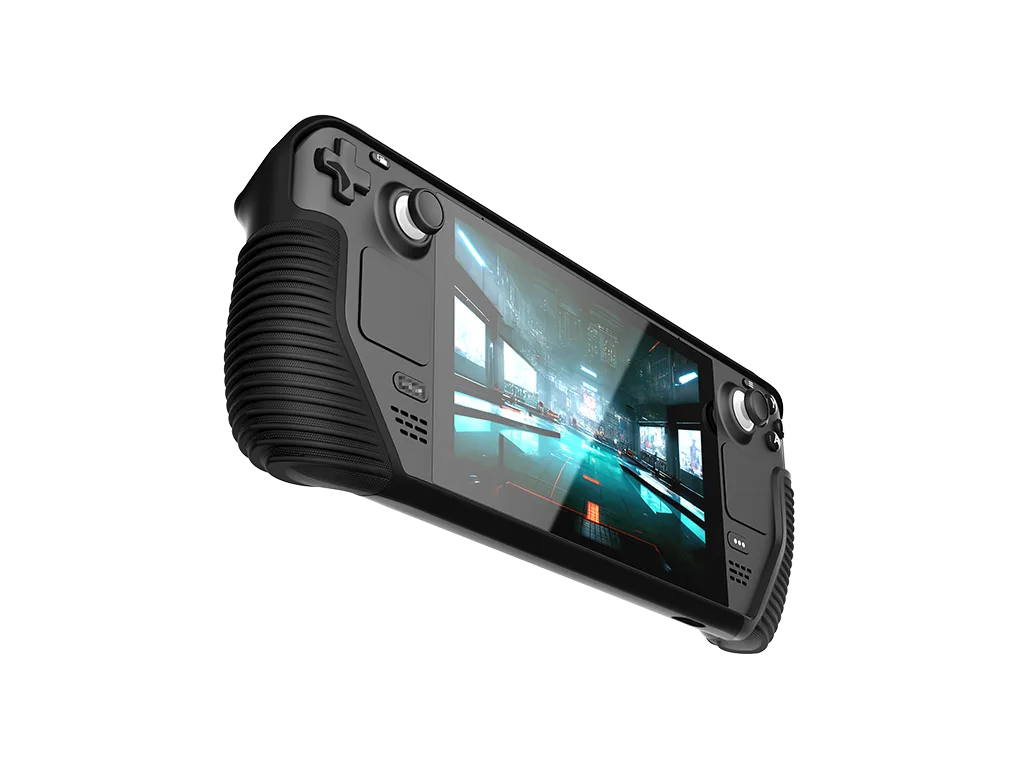
Fit the Armor Case by aligning the top edge first, then pressing the bottom corners until the TPU shell sits flush on all sides. Apply the included screen protector before the case goes on, and use the integrated kickstand for desk play instead of propping the Deck on loose objects. For travel, the shell stays on and the whole unit goes into a padded compartment or a dedicated carry case.
Prep the Deck Before the Shell Goes On
Power the Steam Deck off and unplug anything from the USB-C port. Wipe the back and edges with a dry microfiber cloth so no grit gets trapped between the shell and the chassis, since trapped particles are the main cause of scuffs under a TPU case. If you already use a microSD card, leave it in place; the Armor Case is designed to fit around the Deck without blocking the card slot.
Install the Screen Protector First
The Armor Case ships with a premium screen protector, and it is much easier to apply while the shell is off. Work in a low-dust room, use the included alignment method for your kit, and push bubbles toward the nearest edge with a card. Once the protector is seated, give it a few minutes to settle before handling the Deck again. Applying it after the case is on makes alignment harder and raises the risk of lifting a corner.
Seat the Shell Without Stressing the Corners
Start at the top edge and work downward, pressing one corner at a time rather than forcing the whole shell on at once. You should hear or feel a soft click as each lip clears the chassis. Check that the kickstand hinge moves freely and that the vents and buttons are unobstructed. If a corner will not seat, lift that section and restart rather than pulling hard, which can stretch the TPU.
Build a Storage Routine That Matches How You Play
At home, store the Deck screen-up on a shelf or in a drawer with nothing resting on top of it. The kickstand makes a stable stand for short desk sessions, but fold it back in before you set the Deck down flat so it does not take the weight of the device. For commuting or flights, keep the shell on and place the Deck in a padded sleeve or a hard-shell carry case sized for handhelds. Avoid leaving it in a hot car or in direct sun, since heat is harder on the battery and screen than a short drop.
Step-by-step Armor Case routine
- Power down and clean the Deck: Turn the console off, unplug cables, and wipe the back and edges with a dry microfiber cloth. Checkpoint: no visible dust or grit before you continue.
- Apply the included screen protector: Work in a low-dust space and push bubbles toward the nearest edge with a card while the shell is still off. Mistake to avoid: applying the protector after the case is on, which makes alignment harder.
- Seat the shell top edge first: Press one corner at a time from the top down until each lip clears the chassis and the kickstand moves freely. Mistake to avoid: forcing a corner, which can stretch the TPU.
- Use the kickstand for desk play only: Deploy the integrated kickstand for short desk sessions, then fold it back in before setting the Deck down flat. Checkpoint: vents and buttons stay unobstructed when the stand is open.
- Pack for travel with the shell on: Keep the Armor Case fitted and place the Deck in a padded compartment or a hard-shell carry case sized for handhelds. Mistake to avoid: leaving the Deck in a hot car or direct sun.
Product facts
- Armor Case™ for Steam Deck™: Lightweight TPU shell with drop-tested defense, universal fit across all Steam Deck models including LCD and OLED editions, integrated kickstand, and an included premium screen protector. One case covers either Steam Deck you own, and the bundled protector means you do not need a separate screen accessory before you start using the shell.