So you've got an M64 console and its iconic controller, but you're wondering if you can use that same controller with your PC or other retro consoles. The answer is yes, and it's easier than you think. This guide will walk you through the various ways to connect your M64 controller to different devices, including emulators and original hardware.
Whether you're looking to play classic games on your computer or want to use the M64 controller with another console, we'll cover the essentials: compatibility, adapters, and step-by-step setup. By the end, you'll be ready to enjoy your favorite retro games with the controller you already love.
Understanding M64 Controller Compatibility
The M64 controller is designed primarily for the M64 console, but its classic layout and comfortable grip make it a favorite among retro gamers. The good news is that many third-party adapters and even DIY solutions allow you to use it with other systems. The key is understanding the controller's connection protocol, which is similar to many other retro controllers, making it adaptable.
When it comes to compatibility, the M64 controller can work with PCs, Macs, and even other consoles like the SNES or Sega Genesis with the right adapter. However, not all adapters are created equal. Some offer plug-and-play functionality, while others require additional software. We'll help you choose the right one for your needs.
- Check the controller's connector type (likely USB or proprietary) to determine compatible adapters.
- Research community forums for tested adapter models that work with M64 controllers.
Using M64 Controllers on PC and Emulators
Playing retro games on your PC via emulators is a popular way to enjoy classic titles, and using your M64 controller can enhance the experience. To connect your controller to a PC, you'll typically need a USB adapter. Many adapters are available that convert the M64 controller's signal to USB, which your computer recognizes as a standard gamepad.
Once connected, you can map the controller's buttons in your favorite emulator, such as RetroArch or Dolphin. Most emulators allow you to customize button mappings, so you can set up the M64 controller to mimic the original console layout. This is especially useful for games that were originally designed for the M64, like Traumatarium Penitent or Gravitorque DX.
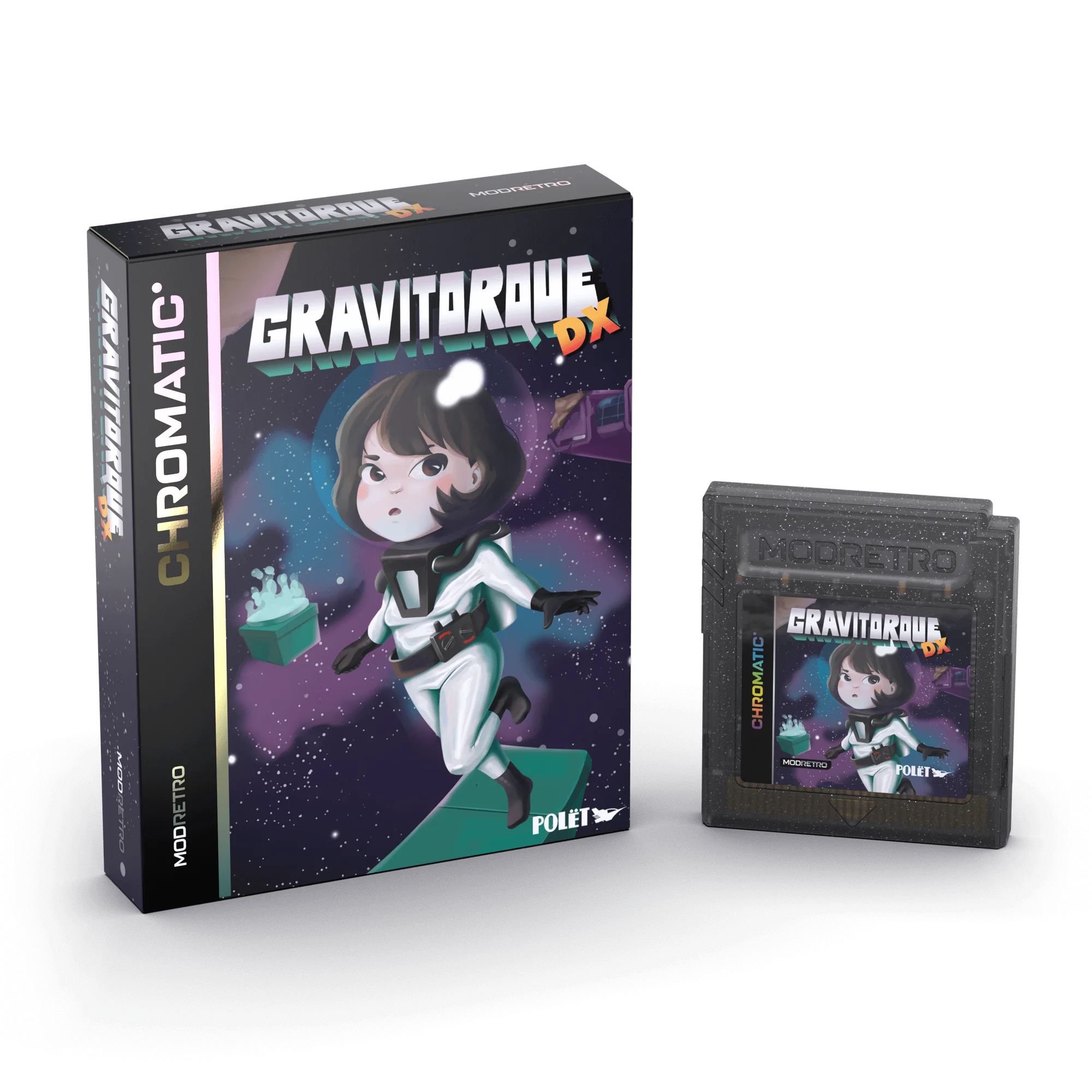
Gravitorque DX
- Install the adapter's drivers if required, then test the controller in Windows' gamepad settings.
- In your emulator, go to input settings and map each button to the corresponding M64 controller button.
- Save your controller profile so you don't have to remap every time.
Connecting M64 Controllers to Other Retro Consoles
If you want to use your M64 controller with original retro consoles like the SNES or Sega Genesis, you'll need a special adapter that converts the M64 controller's signal to the target console's protocol. These adapters are less common but do exist, often from third-party manufacturers. They work by translating the button presses and analog stick movements into signals the other console understands.
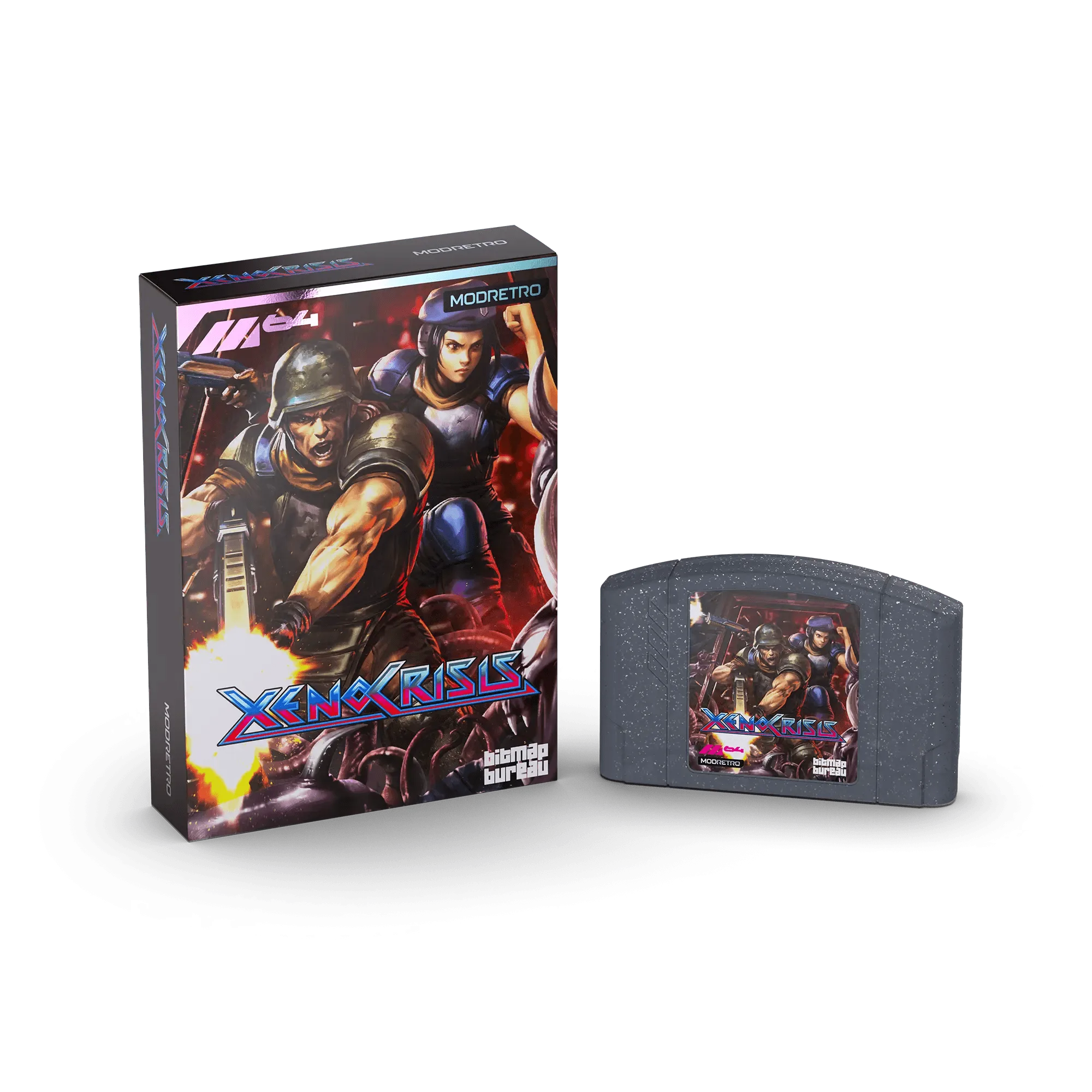
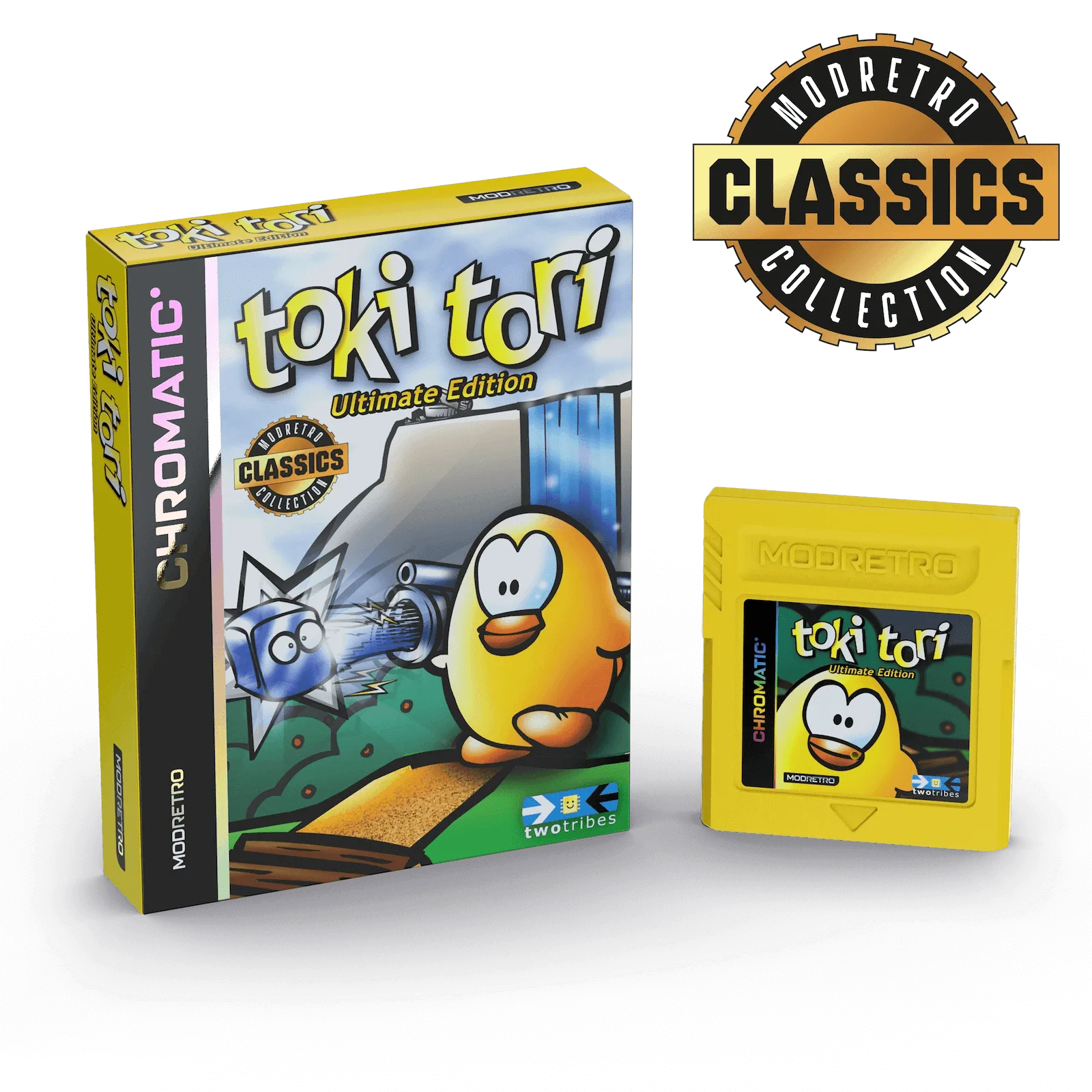
For example, you might find an adapter that lets you use an M64 controller on a SNES to play games like Toki Tori – Ultimate Edition or Xeno Crisis. Keep in mind that not all games will support the analog stick, so you may need to use the D-pad instead. Always check compatibility before purchasing an adapter.
- Look for adapters specifically designed for M64 controller to SNES or Genesis.
- Test the adapter with a game that uses simple controls first to ensure it works.
- Consider using a wireless adapter if you prefer a clutter-free setup.
Tips for a Smooth M64 Controller Setup
To get the most out of your M64 controller on other devices, there are a few best practices to follow. First, always update your adapter's firmware if possible, as this can fix bugs and improve compatibility. Second, make sure your controller is in good condition—clean the contacts and buttons to ensure accurate input.
Also, consider using a controller grip or stand to keep your M64 controller comfortable during long gaming sessions. And if you're using emulators, take advantage of save states and rewind features to make the most of your retro gaming library. With the right setup, you'll enjoy a seamless experience across multiple platforms.
- Keep your controller's cable untangled to avoid disconnections.
- Use a USB hub if you have multiple adapters connected.
- For wireless options, ensure batteries are charged.
With the right adapters and a little setup, your M64 controller can become a versatile tool for retro gaming on PCs and other consoles. Whether you're diving into classic titles or exploring new ones, the M64 controller offers a familiar feel that enhances any gaming session. If you're looking to expand your retro gaming collection, check out the Chromatic Starter Pack for a great entry point into the world of retro gaming.