If you're a retro gaming enthusiast, you know the pain of losing save files. Memory cards are fragile, and the original ones are aging. The MemCard PRO2 is a modern solution that not only replaces your PS1 and PS2 memory cards but also adds features like backup and file management. In this guide, we'll walk you through setting up the MemCard PRO2, managing your saves, and backing them up to your PC.
Whether you're a long-time collector or just getting into retro gaming, understanding how to use the MemCard PRO2 can save you from heartbreak. We'll cover everything from initial setup to advanced tips, so you can enjoy your favorite classics without worry.
What is the MemCard PRO2?
The MemCard PRO2 is a microSD-based memory card adapter that works with both PS1 and PS2 consoles. It replaces the traditional memory card with a slot for a microSD card, allowing you to store hundreds of save files on a single card. It also supports multiple virtual memory cards, so you can have separate cards for different games or profiles.
Unlike the original memory cards, the MemCard PRO2 lets you manage your saves directly from your PC. You can back up, restore, and even transfer saves between different virtual cards. This is a game-changer for retro gamers who want to preserve their progress.
- Compatible with PS1 and PS2 (including slim models)
- Uses a microSD card (not included) for storage
- Supports up to 128 virtual memory cards
- Allows file management via PC using a separate USB reader (sold separately)
Setting Up Your MemCard PRO2
Setting up the MemCard PRO2 is straightforward. First, insert a microSD card into the adapter. Make sure the microSD card is formatted as FAT32. If it's not, you can format it using your PC or a formatting tool. Then, insert the MemCard PRO2 into your PS1 or PS2 memory card slot.
Once inserted, power on your console. The MemCard PRO2 will appear as a standard memory card. You can now use it like a normal memory card, but with the added benefit of having multiple virtual cards. To switch between virtual cards, you can use the button on the adapter or the software on your PC.
- Format your microSD card as FAT32 before use
- Insert the adapter firmly into the memory card slot
- Use the adapter's button to cycle through virtual cards
Managing Saves on PS2 and PS1
With the MemCard PRO2, you can manage your saves directly on the console. You can copy, delete, and move saves between virtual cards just like you would with a standard memory card. This is perfect for organizing your games or creating backups.
For more advanced management, you can connect the MemCard PRO2 to your PC using a compatible USB reader (not included). Once connected, you can browse the virtual cards as folders and copy save files to your computer. This allows you to create backups or even download save files from the internet.
- Use the console's memory card manager to copy saves
- Connect to PC via USB reader to access files
- Always keep a backup of your saves on your PC
Backing Up Your Saves to PC
Backing up your saves is crucial, especially if you have rare or irreplaceable game data. With the MemCard PRO2, you can easily copy your entire virtual card to your PC. Simply connect the adapter to your computer, navigate to the virtual card folder, and copy the files to a safe location.
You can also use the MemCard PRO2 software (if available) to manage your saves more efficiently. Some versions of the adapter come with a companion app that simplifies the process. However, even without the app, you can manually copy files using your operating system's file explorer.
- Create a dedicated folder on your PC for PS2/PS1 saves
- Label your backup folders by game or date
- Consider cloud storage for extra safety
Restoring Saves and Transferring Between Cards
If you ever need to restore a save, simply copy the file back to the appropriate virtual card on the MemCard PRO2. Make sure the file names match the expected format, as some games require specific file names. You can also transfer saves between different virtual cards by copying and pasting within the adapter's storage.
This flexibility is especially useful if you want to share saves between friends or move your progress to a new console. With the MemCard PRO2, you have full control over your save data.
- Always verify save file compatibility before restoring
- Use descriptive names for virtual cards to avoid confusion
- Test restored saves on your console to ensure they work
Tips for PS1 and PS2 Save Management
To get the most out of your MemCard PRO2, here are some practical tips. First, regularly back up your saves to your PC. You never know when a memory card might fail. Second, label your virtual cards clearly, especially if you have many games. Third, keep your microSD card in good condition by avoiding extreme temperatures and static electricity.
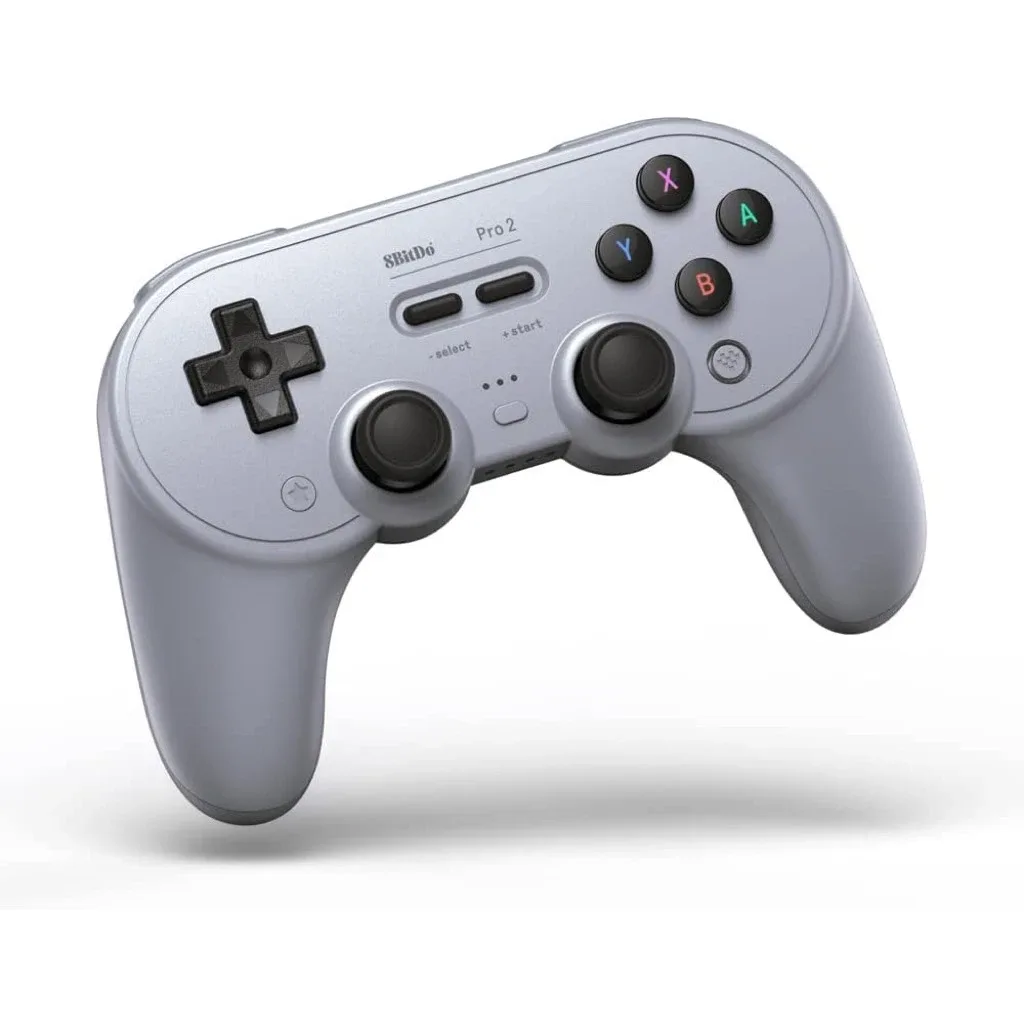
Additionally, consider using the MemCard PRO2 in combination with other retro gaming accessories. For example, if you enjoy playing on multiple consoles, you might also appreciate the 8Bitdo Pro 2 Bluetooth Controller - Gray for a comfortable wireless experience. Or, if you're into fighting games, the 8BitDo M30 2.4G Wireless Gamepad -Black is a great choice for retro titles.
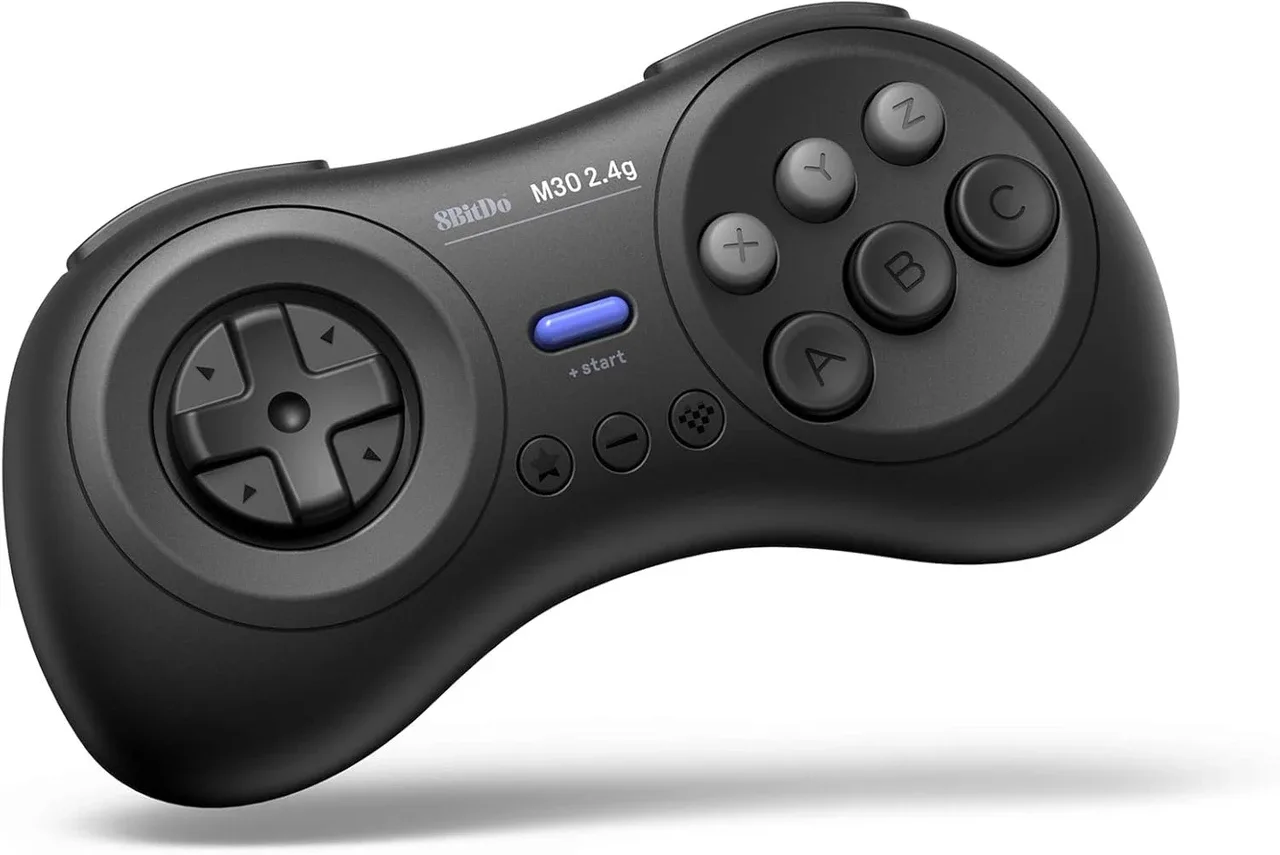
8BitDo M30 2.4G Wireless Gamepad -Black
- Back up your saves at least once a month
- Use a high-quality microSD card for reliability
- Keep your MemCard PRO2 firmware updated if possible
The MemCard PRO2 is an essential tool for any PS1 or PS2 owner who values their save data. With its easy setup, multiple virtual cards, and PC connectivity, you can manage and back up your saves with confidence. Whether you're a casual player or a dedicated collector, this guide should help you get started. For more retro gaming gear, check out our selection of controllers and accessories.