Quick answer
To use the Mobile XR Hub with Audio for travel, connect it to your laptop or phone via USB-C, plug in your XR glasses, attach headphones or a mic, and keep your device powered through the hub's pass-through charging port.
Why the Mobile XR Hub with Audio works well for travel
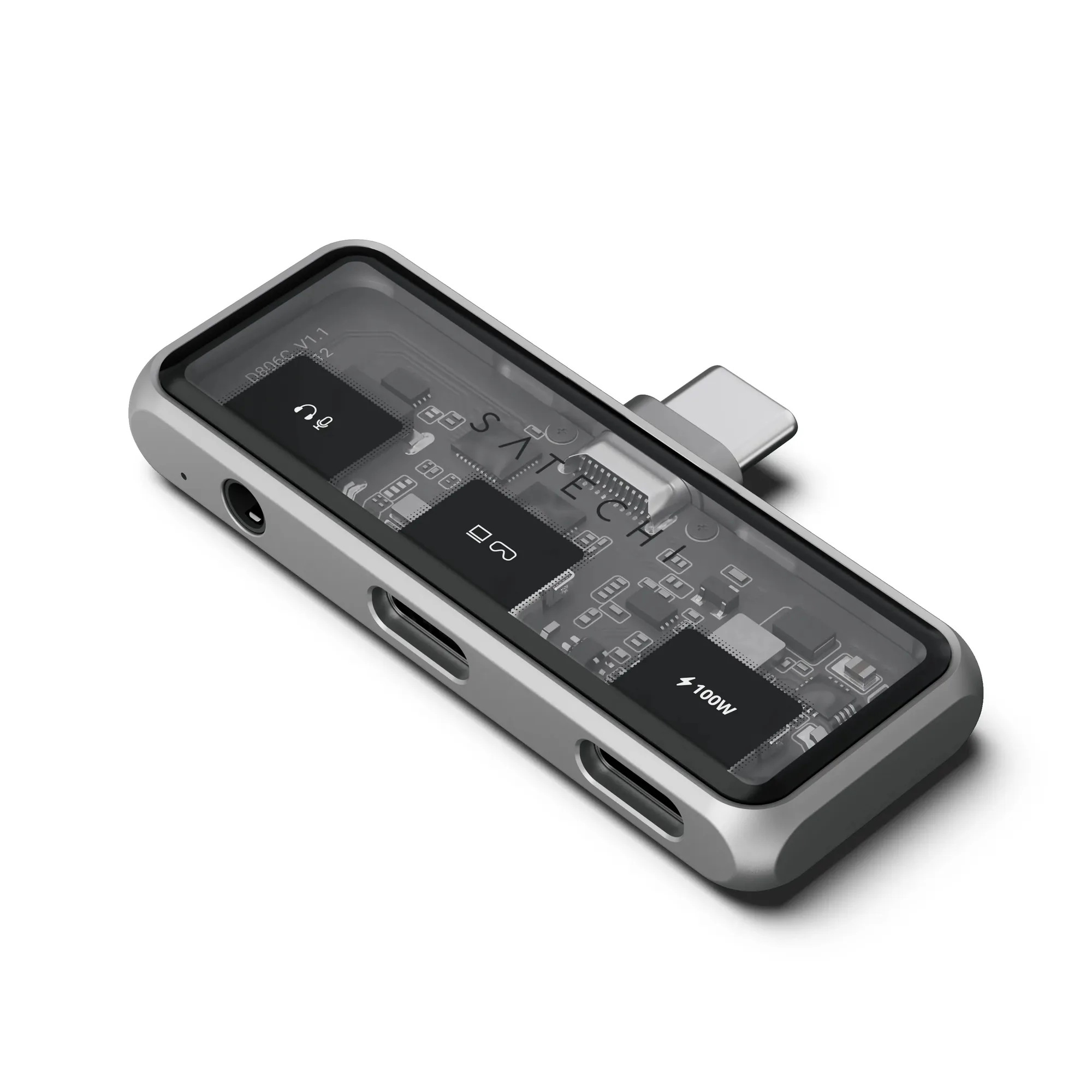
Travel often means limited desk space and fewer ports. The Mobile XR Hub with Audio is pocket-sized, so it fits easily in a laptop bag or carry-on. It combines XR glass support, 4K video output, and audio passthrough in one compact unit, reducing the need for multiple adapters.
One trade-off: because it's small, it has fewer ports than a full-size desktop hub. You won't find multiple USB-A ports or an Ethernet jack. For most travel scenarios—connecting XR glasses, a monitor, and headphones—it covers the essentials without extra bulk.
What to consider before packing it
Check that your XR glasses use USB-C for video and power. The hub supports top XR glasses, but older models with proprietary connectors may need an additional adapter. Also, if you plan to use the hub with a phone, confirm your phone supports USB-C video output—not all Android phones do, and iPhones with Lightning require a separate adapter.
The hub includes a built-in mic, so you can take calls or use voice commands without plugging in a separate headset. That's handy for airport lounges or co-working spaces.
Step-by-step travel setup
- Connect the hub to your device: Plug the Mobile XR Hub with Audio into your laptop, tablet, or phone using the built-in USB-C cable. Make sure the connection is secure. Common mistake: forcing the connector in the wrong orientation—USB-C is reversible, so it should slide in easily either way. If it doesn't fit, check for debris in the port.
- Attach your XR glasses: Connect your XR glasses to the hub's designated XR port. The hub will automatically detect the glasses and begin outputting video and audio. Checkpoint: if the glasses don't power on, verify they are fully charged or connected to a power source through the hub's pass-through charging. Some XR glasses require the hub to be plugged into power to function—test this before your trip.
- Set up audio: Plug your headphones or external microphone into the hub's 3.5mm audio jack. The hub supports high-fidelity audio and the built-in mic works for calls even without headphones attached. Common mistake: assuming the hub's audio output overrides your device's speaker—you may need to select the hub as the audio output in your device's sound settings. Test audio routing before you travel to avoid surprises during a call.
- Power your devices: Connect a USB-C charger to the hub's pass-through charging port. This keeps your laptop or phone charged while using the hub. Checkpoint: the hub supports blazing-fast charging, but the charging speed depends on your charger's wattage—use at least a 30W charger for reliable power delivery. A lower-wattage charger may charge slowly or not at all while the hub is under load.
- Connect external displays: If you need a larger screen, plug an HDMI or DisplayPort cable from the hub to a monitor or TV. The hub supports immersive 4K visuals, ideal for presentations or movie watching. Common mistake: using a cable that doesn't support 4K at 60Hz—check your cable's specifications. For 4K at 60Hz, use a certified HDMI 2.0 or DisplayPort 1.4 cable.
Product spotlight
-
Mobile XR Hub with Audio: The Mobile XR Hub with Audio supports seamless compatibility with top XR glasses, lightning-fast data transfers, and premium sound with built-in mic functionality. This means you can use your XR glasses for entertainment or productivity during travel while keeping your device charged and using the hub's mic for calls or voice commands.
Mobile XR Hub with Audio