Quick answer
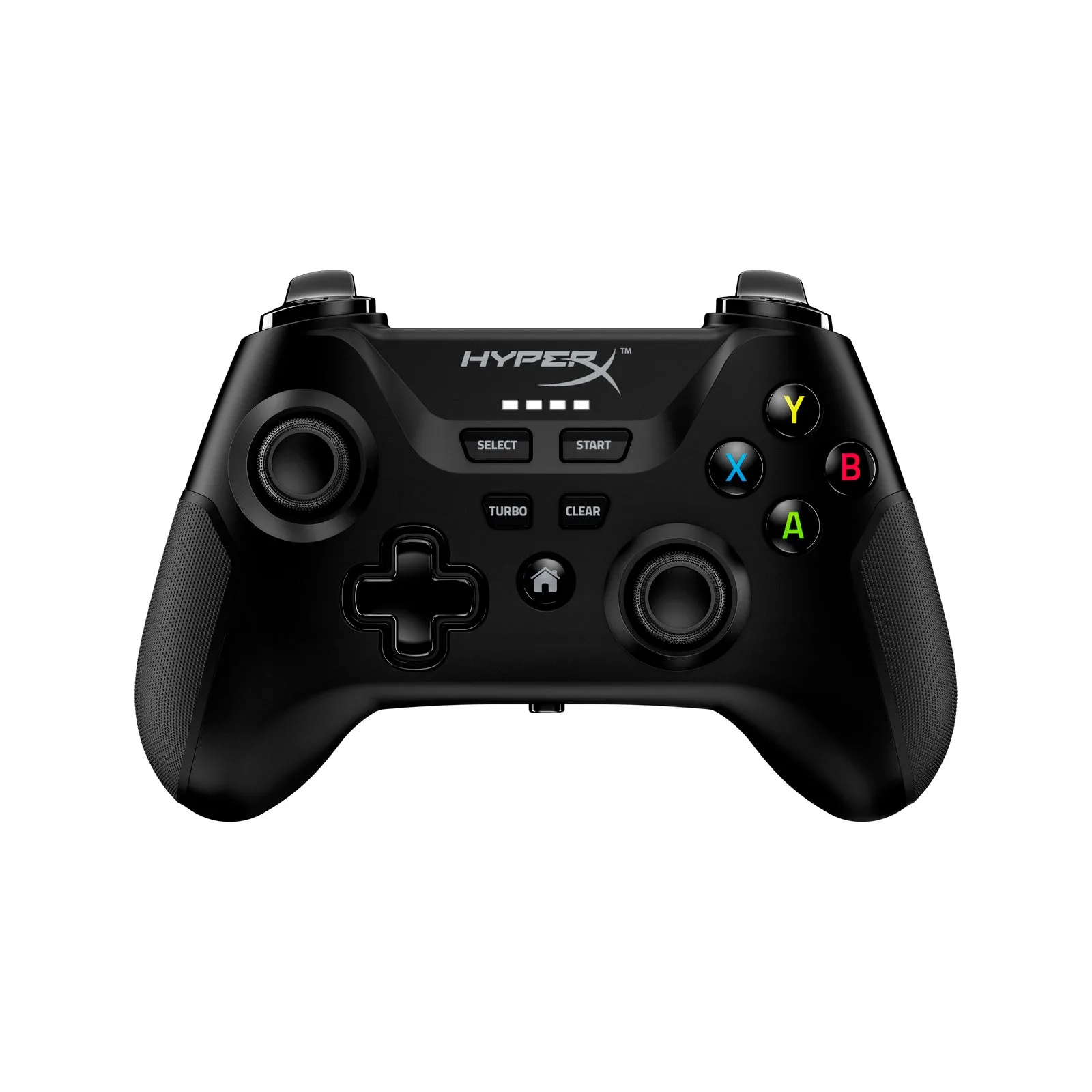
To set up the HyperX Clutch, charge it fully, then put it in pairing mode and connect via Bluetooth for phones and tablets or use the included wireless adapter for PC. The controller supports both, so choose the method that matches your device. If it does not appear, reset the controller and repeat the pairing steps.
Before you start: charge and check compatibility
A dead battery is the most common reason a new controller will not pair. Charge the Clutch fully before your first setup. While it charges, confirm your phone fits the mobile clip: the clip accommodates phones from 41mm to 86mm (about 1.6in to 3.3in) in width. If your phone is outside that range, the clip will not hold it securely, and you may need a different mounting solution. Also decide whether you will connect via Bluetooth or the wireless adapter—Bluetooth works with most phones, tablets, and PCs, while the adapter is often more reliable for desktop gaming.
How to pair the Clutch with your phone or tablet
Turn on the controller and put it into pairing mode. The exact button combination varies by firmware, so check the quick-start guide included in the box. On your phone, open Bluetooth settings, scan for new devices, and select the HyperX Clutch when it appears. Once connected, slide your phone into the clip and adjust the angle for comfort. If the controller does not show up, make sure it is not already connected to another device—the Clutch can only maintain one active Bluetooth connection at a time.
How to connect the Clutch to a PC
For PC, you have two options: Bluetooth or the bundled wireless adapter. The adapter provides a dedicated 2.4GHz connection that avoids interference from other Bluetooth devices, which is helpful in homes with many wireless peripherals. Plug the adapter into a USB port, turn on the controller, and wait for it to connect automatically. If you prefer Bluetooth, follow the same pairing steps as for mobile. After connecting, test the controller in a game or a browser-based gamepad tester to confirm all buttons and sticks register correctly.
Step-by-step setup and troubleshooting
- Charge the controller fully: Plug the Clutch into a USB power source and let it charge until the indicator shows full. A partial charge can cause pairing to fail or the controller to disconnect mid-game. Checkpoint: the controller powers on and stays on for at least a few minutes without shutting off.
- Put the Clutch in pairing mode: Turn on the controller, then press and hold the pairing button (refer to the manual for the exact location) until the LED flashes rapidly. If you are unsure, consult the quick-start guide—the button layout can vary by batch. Mistake to avoid: holding the wrong button and accidentally resetting the controller instead of entering pairing mode.
- Connect via Bluetooth on your phone or tablet: Open your device's Bluetooth settings, scan for new devices, and tap 'HyperX Clutch' when it appears. If it does not appear, turn the controller off and on again, then repeat the pairing step. Checkpoint: the controller appears in your Bluetooth list and shows as connected.
- Connect to PC with the wireless adapter: Plug the included adapter into a free USB port. Turn on the controller—it should connect automatically. If it does not, unplug the adapter, wait 10 seconds, and plug it back in. Mistake to avoid: plugging the adapter into a USB hub that shares bandwidth with other devices; use a direct port on the PC for best results.
- Test buttons and sticks: Open a game or a browser-based gamepad tester. Press every button, move both analog sticks, and check the directional pad. This confirms the connection is stable and all inputs register. If any input fails, try re-pairing or switching between Bluetooth and the adapter to isolate the issue.
- Troubleshoot connection drops: If the controller disconnects during play, move closer to your device, remove obstacles between the controller and the receiver, and avoid USB 3.0 ports next to the adapter—they can cause interference. Also ensure the controller is not paired to another device nearby. Checkpoint: after adjustments, play for 10 minutes without a drop.
Product facts: HyperX Clutch
- HyperX Clutch - Wireless Gaming Controller - Mobile PC: The mobile clip accommodates phones from 41mm to 86mm (about 1.6in to 3.3in) in width. Check your phone's width before buying; if it falls outside this range, the clip may not hold it securely.
- HyperX Clutch - Wireless Gaming Controller - Mobile PC: It connects wirelessly to other devices like tablets and PCs, making it versatile. You can use one controller across multiple devices, but you will need to re-pair when switching between them.