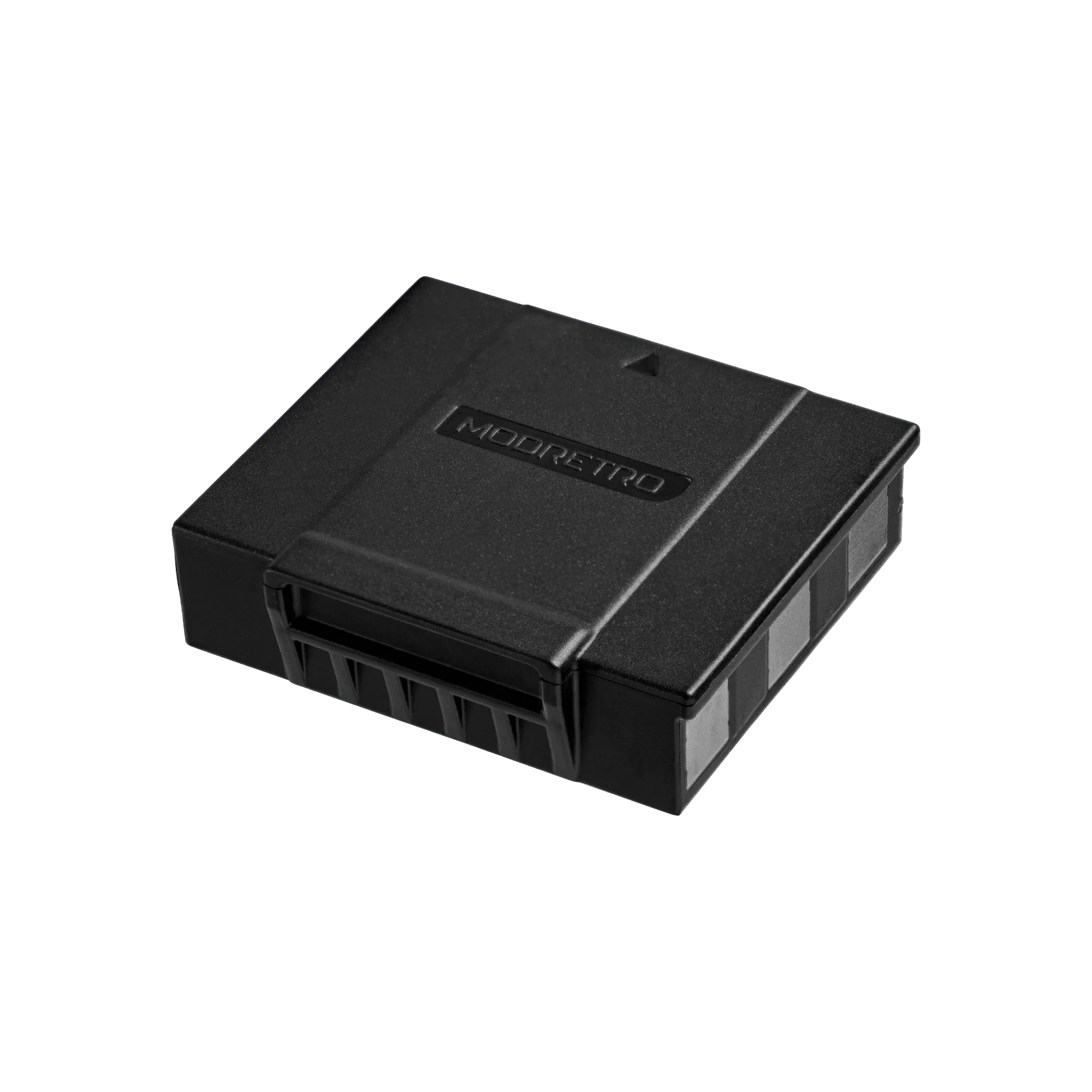
Bringing your M64 console back to life on a modern TV is exciting, but the setup can be confusing if you're not familiar with AV adapters. The M64 AV Adapter is your bridge between the console's unique output and today's displays, ensuring you get the best possible picture without sacrificing authenticity.
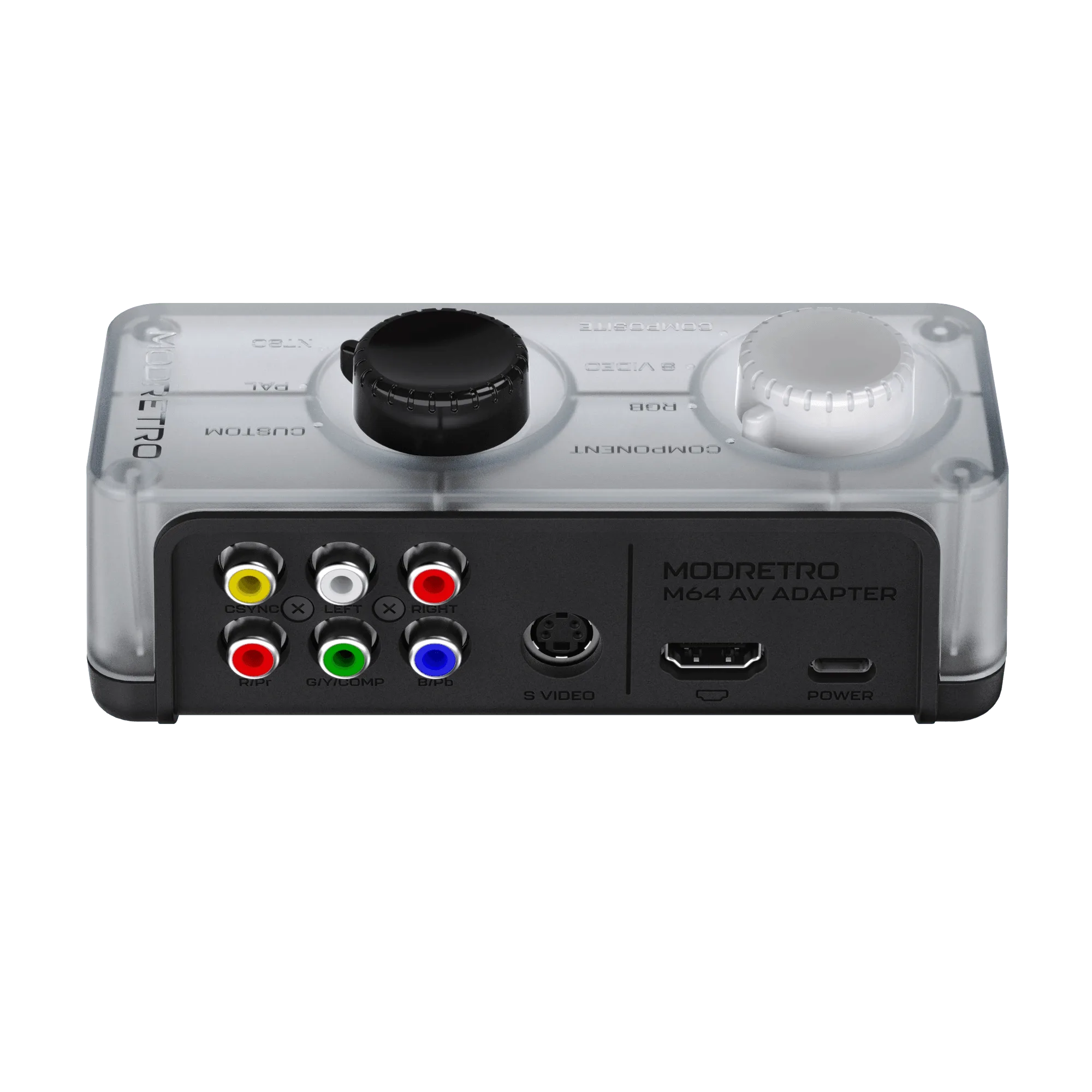
M64 AV Adapter
In this guide, we'll walk you through the entire M64 AV adapter setup process—from unboxing to troubleshooting common issues. Whether you're a seasoned retro gamer or just starting your collection, these steps will have you playing your favorite titles in no time.
What's in the Box and What You'll Need
Before you begin, make sure you have everything ready. The M64 AV Adapter typically comes with the adapter itself and a composite AV cable. You'll also need your M64 console, a TV with composite or component inputs (or an additional converter if your TV lacks them), and the console's power supply.
It's also worth checking the condition of your cables. If you're using a third-party cable, ensure it's compatible with the adapter. For the best experience, consider pairing your setup with the M64 Pro Controller for comfortable gameplay during long sessions.
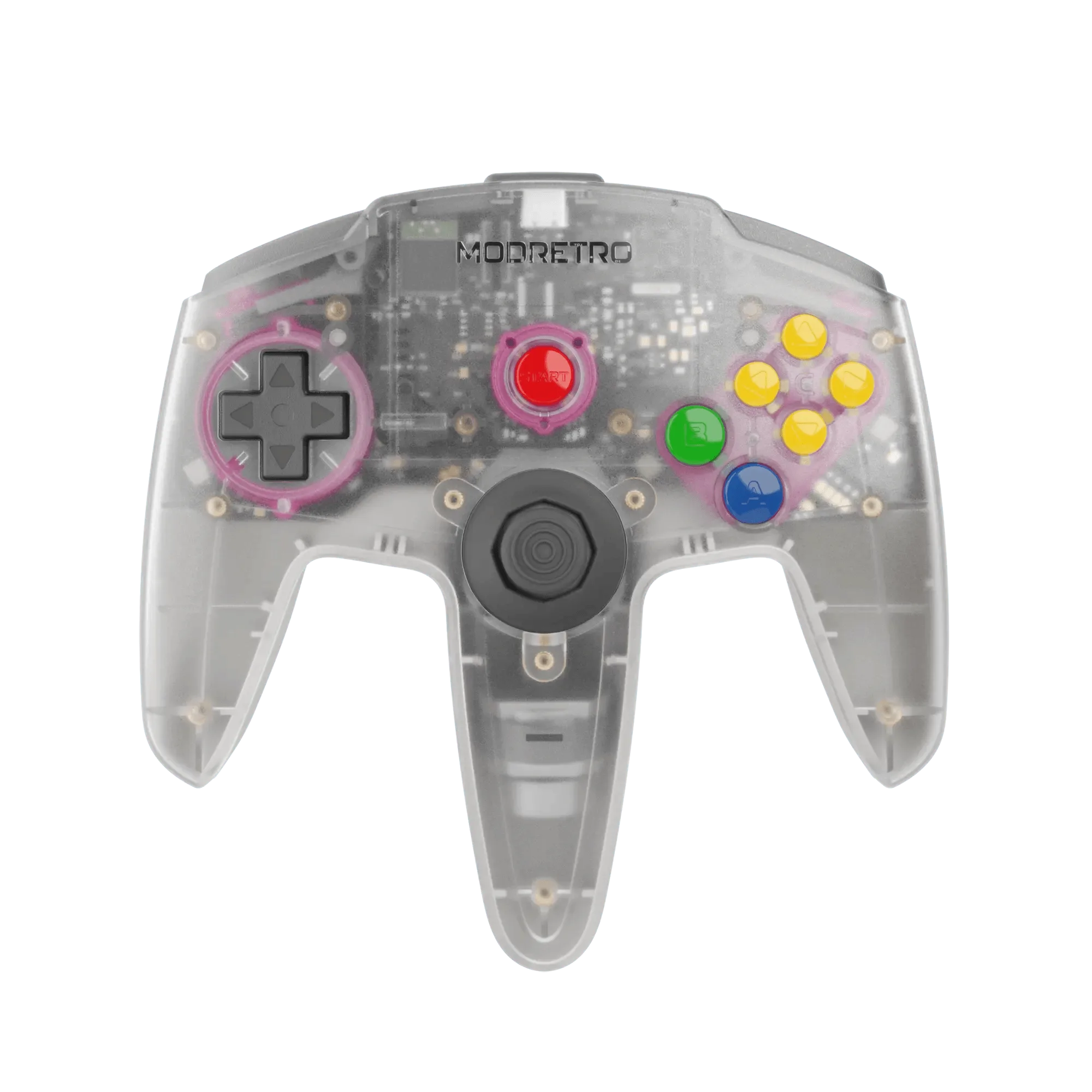
M64 Pro Controller
- M64 AV Adapter and cable
- M64 console and power supply
- TV with composite (RCA) or component inputs
Step-by-Step M64 AV Adapter Installation
Start by turning off your M64 console and unplugging it from power. This prevents any electrical issues during installation. Next, locate the AV output port on the back of the console—it's typically a multi-pin port. Connect the M64 AV Adapter firmly to this port, ensuring it's seated securely.
Once the adapter is attached, plug the AV cable into the adapter. The cable usually has three colored connectors: yellow for video, and red and white for audio. Match these to the corresponding inputs on your TV. If your TV only has component inputs (red, green, blue), you may need a composite-to-component converter, but many modern TVs still include a composite input.
After all connections are made, plug in your console and turn it on. Switch your TV to the correct input source, and you should see the M64 menu screen. If not, double-check your connections and ensure the TV input is set to 'AV' or 'Composite'.
- Always connect the adapter before the cable for a secure fit.
- Label your cables to avoid confusion when plugging them into the TV.
Configuring Video Output Settings on Your M64
Once your console is connected, you may want to adjust the video output settings for the best picture quality. The M64 offers several options, including standard definition (480i) and, in some cases, progressive scan (480p) if your game and TV support it.
To access these settings, navigate to the console's menu (usually by pressing the 'Home' button on your controller). From there, select 'Display Settings' and choose the output mode that matches your TV's capabilities. If you're unsure, start with 480i, which is the most compatible.
Keep in mind that some games have built-in video settings that override the console's defaults. For example, titles like rayman-2-35be2ab6fb57ea4c499d7bc8-591275">Rayman 2 Forever may offer widescreen or progressive scan options within their own menus. Experiment to find the best balance between clarity and compatibility.
- Use 480p if your TV supports it for a sharper image.
- Check individual game settings for additional video options.
Troubleshooting Common M64 AV Connection Issues
If you're not getting a picture, check the simplest things first: ensure the console is powered on and the TV is on the right input. If the screen is black but you hear audio, the video cable might be loose or the TV's composite input could be faulty.
Another common issue is a fuzzy or rolling picture, which often indicates a poor connection or interference. Try reseating the adapter and cable, and keep them away from other power cables. If the problem persists, test with a different AV cable to rule out a faulty one.
For audio issues, confirm that the red and white connectors are plugged into the audio inputs, not the video. Some TVs have a shared input for composite and component, so make sure you're using the correct one.
- Reseat all connections if you see a rolling or distorted image.
- Test with a known-good cable to isolate the issue.
Enhancing Your Setup: Accessories and Games
With your M64 AV adapter setup complete, you might want to enhance your retro gaming experience. Consider investing in a Rechargeable Power Core for your console to eliminate the need for frequent battery changes, especially if you're using wireless controllers.
If you're looking to expand your game library, titles like Wicked Plague and Patchy Matchy offer unique experiences that showcase the M64's capabilities. And for a truly immersive session, pair your setup with the M64 Pro Controller for precise control and comfort.
These additions not only improve your gameplay but also ensure your console remains in top condition for years to come.
- Use a rechargeable battery to keep your console running during long sessions.
- Explore new games to get the most out of your M64.
Setting up your M64 AV adapter is a straightforward process that opens the door to a world of retro gaming. By following these steps, you'll enjoy crisp video and clear audio on your modern TV. If you haven't already, make sure to check out the M64 AV Adapter in our store—it's the essential first step to reviving your console.