Quick answer
Most card reader detection failures come from the reader, cable, or USB port rather than the card itself. Start by testing the card in a different reader or a camera, then swap the cable or port. If the reader still fails with a known-good card on a known-good port, replace the reader instead of chasing software fixes.
Isolate the failure before you change settings
Plug the reader into a different USB port, preferably one directly on the computer rather than a hub or monitor. If the reader appears in your operating system but the card does not, the reader is communicating and the problem is likely the card, the card slot, or the contacts. If nothing appears at all, the reader or the connection is the first suspect. Test one variable at a time so you know which change actually fixed it.
Check the card and its contacts
Remove the card and look at the gold contacts. A soft, dry cloth or a pencil eraser used gently can remove fingerprint oil or oxidation. Let the card dry completely before inserting it. If the card works in a camera but not in the reader, the reader slot is worn or misaligned. If it fails in both, the card may have reached the end of its life.
Software, format, and drive-letter issues
A card that was formatted in a camera, phone, or another computer may not mount automatically on your current system. Open your disk utility or drive management tool and look for the card as an unassigned or unrecognized volume. Assigning a drive letter or running a first-aid check can bring it back without erasing anything. Only format the card when you have already copied everything you need, because formatting erases the card.
When the reader itself is the problem
Readers are inexpensive and their slots wear out. If the card clicks in loosely, if you have to hold it at an angle, or if the reader works only when you press on the card, the slot is failing. A reader that runs hot or disconnects during a transfer is also a poor candidate for important work. At that point, a replacement reader is cheaper than risking a corrupted transfer.
Diagnosis path: symptom, cause, action, stop point
- Reader appears, card does not: The reader is recognized by the computer but no card volume shows up. This points to the card, the card slot, or the contacts rather than the USB connection. Clean the card contacts, try the card in a camera. If it works there, the reader slot is the problem.
- Nothing appears at all: No device, no drive letter, no sound. The reader, cable, or port is not communicating. Swap the cable and try a port directly on the computer. If a second cable and port still show nothing, replace the reader.
- Card shows as unformatted or unreadable: The card mounts but the system cannot read it, or it asks you to format. This can be a format mismatch or a failing card. Do not format until you have tried recovery on another machine. If the card fails on two different readers or computers, stop using it for anything you need to keep.
- Transfers start then fail: The card is detected and copying begins, but the transfer stalls, disconnects, or produces errors. This is often a failing reader, a marginal cable, or a card that is overheating. Try a different reader before you blame the card. If the same card transfers cleanly in a different reader, retire the first reader.
A used-lens note for camera-side testing
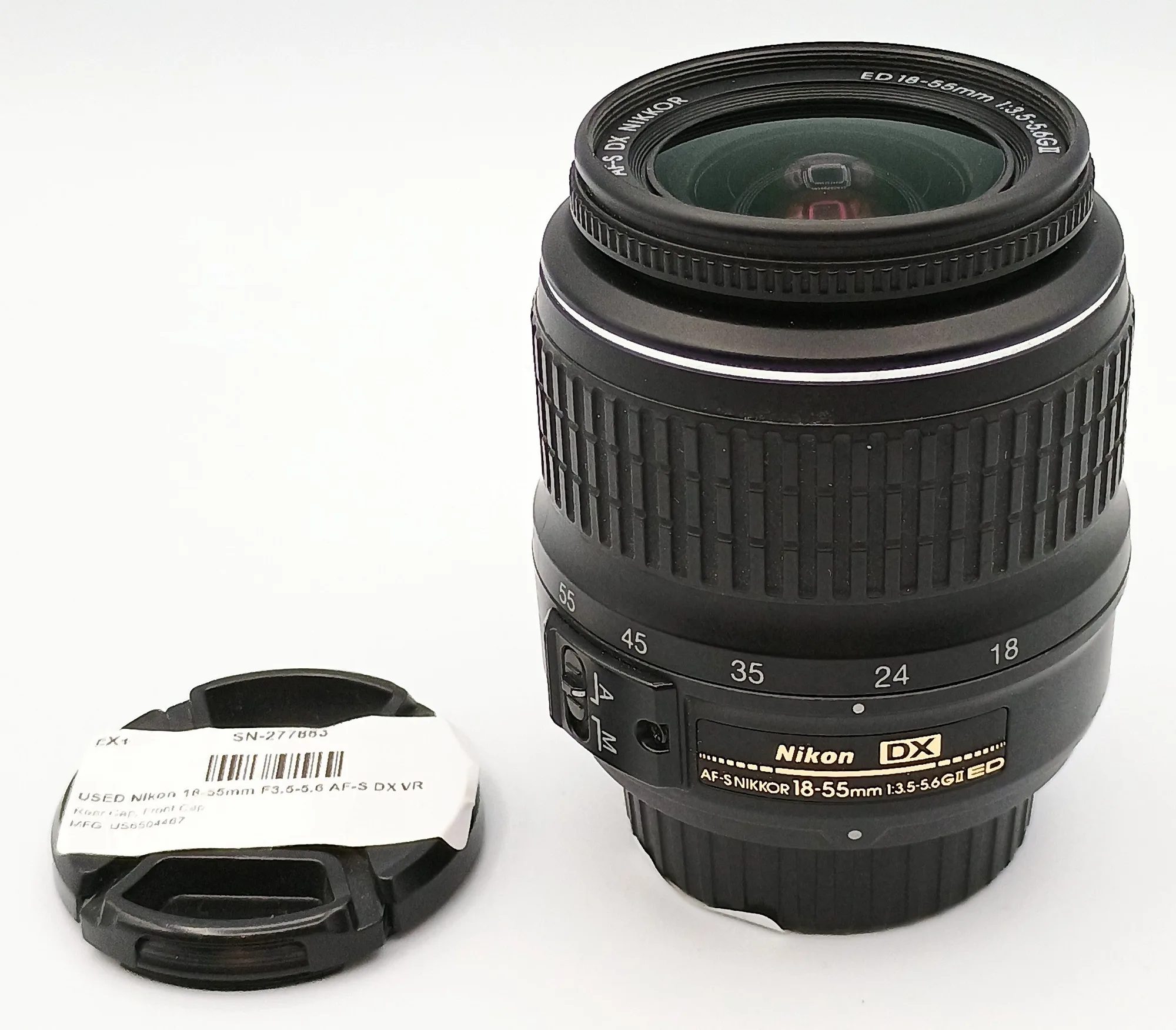
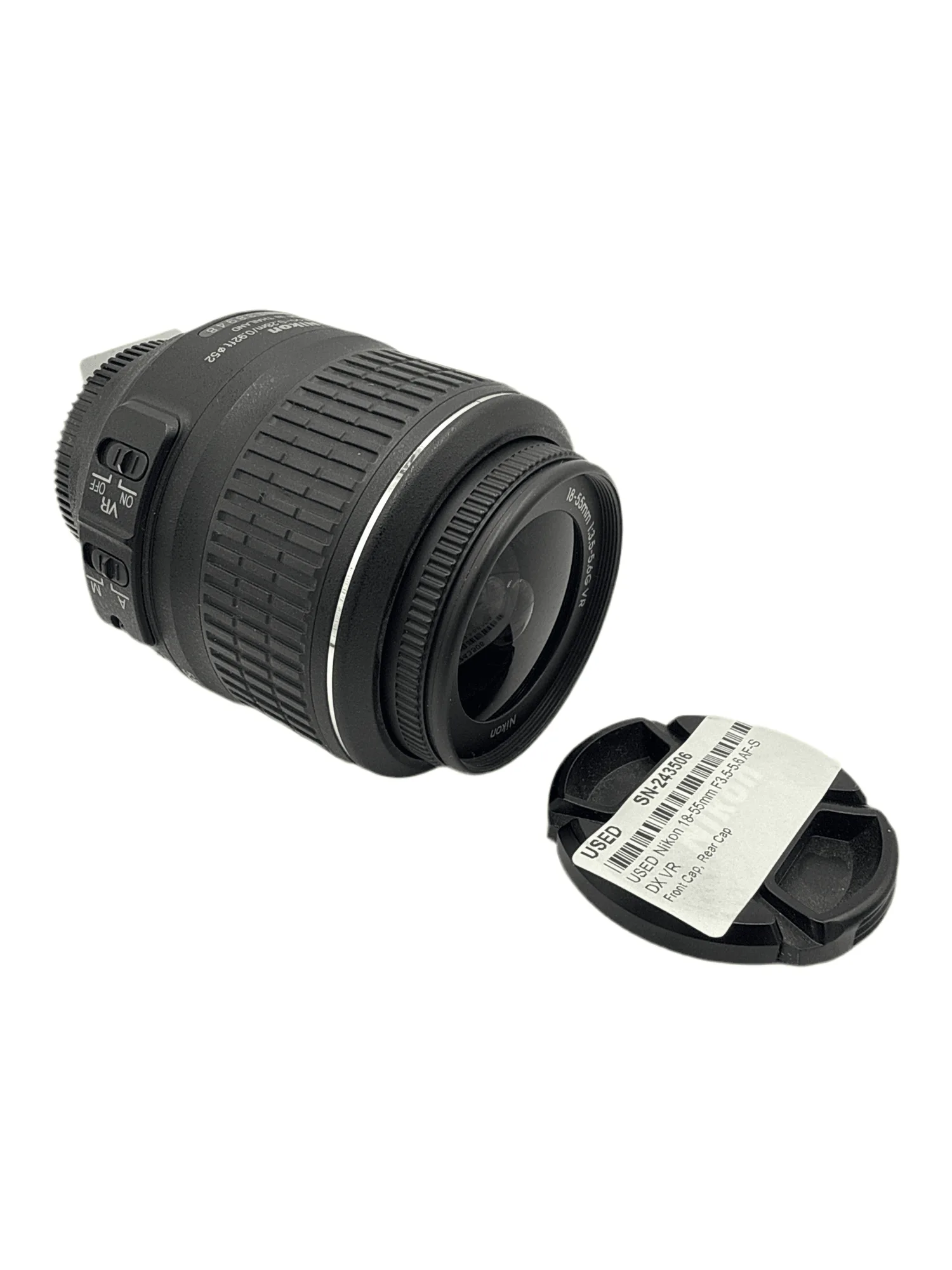
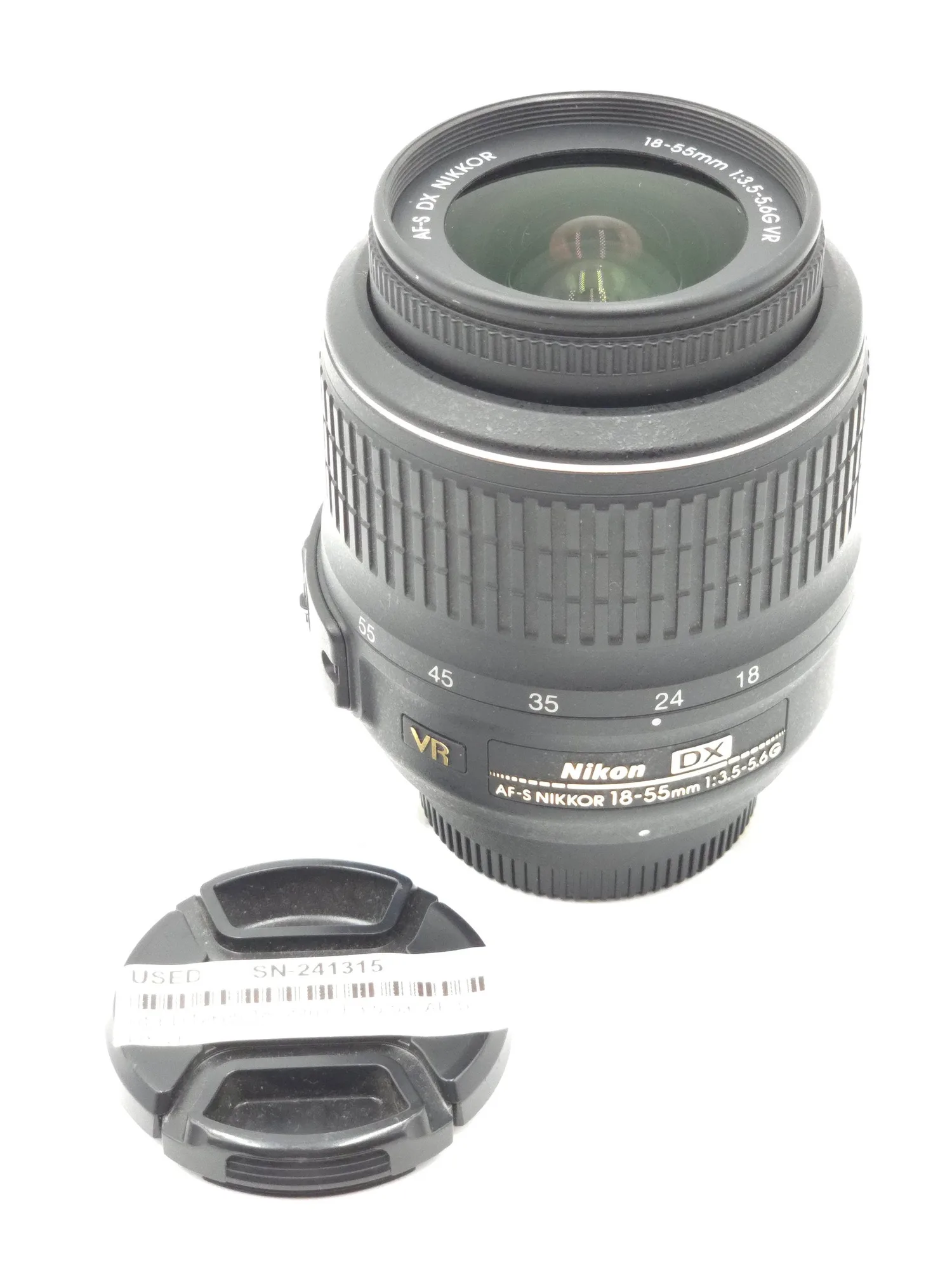
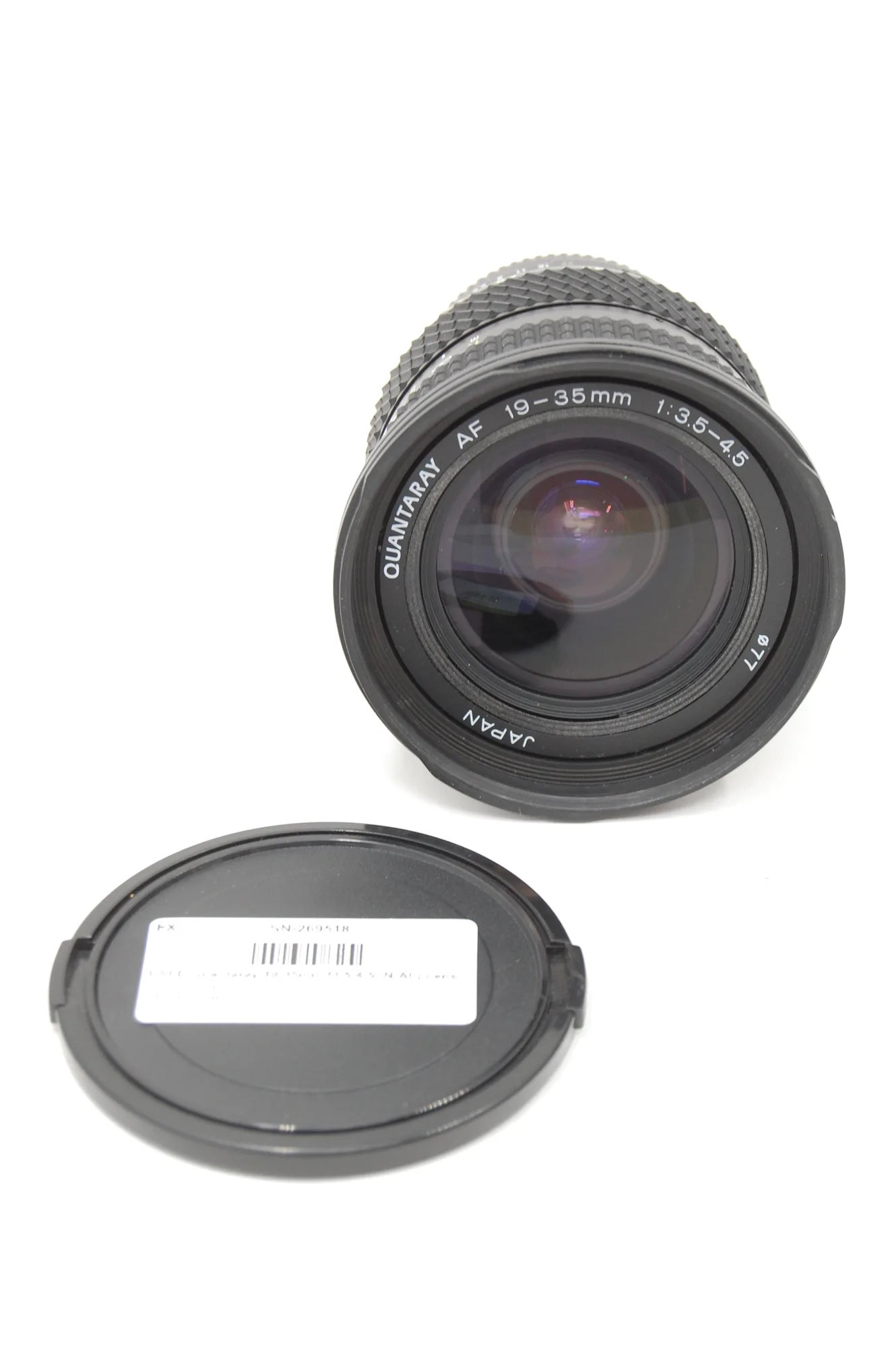
- USED Nikon 18-55mm F3.5-5.6 AF-S DX VR: This https://districtcameratech.com/products/used-nikon-18-55mm-f3-5-5-6-af-s-dx-vr-15-d1f8766b0c41a3c707921b47-1794865https://districtcameratech.com/products/used-nikon-18-55mm-f3-5-5-6-af-s-dx-vr-22-5607afeb1b2b001da0f47ec3-1794946https://districtcameratech.com/products/used-nikon-18-55mm-f3-5-5-6-af-s-dx-vr-24-bf18428dcab617fb560b2048-1795104https://districtcameratech.com/products/used-nikon-18-55mm-f3-5-5-6-af-s-dx-vr-30-e715125bd16f23ba100b4f9d-1795236USED Nikon 18-55mm F3.5-5.6 AF-S DX VR is in Excellent+ condition and includes front cap, rear cap, and a 100 day warranty. A known-good lens like this on a working camera body lets you confirm the camera writes to the card correctly, which separates a card problem from a reader problem.
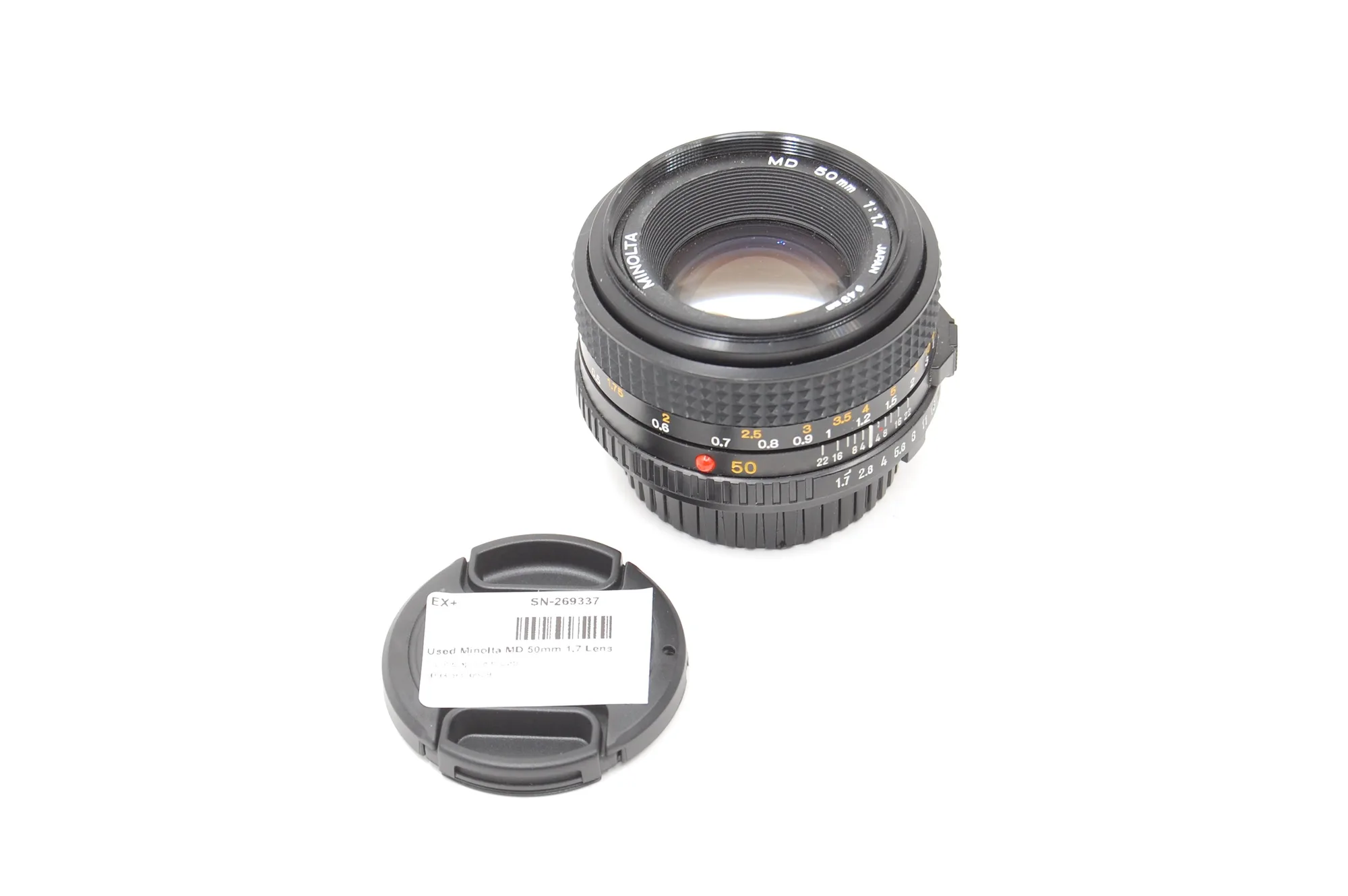
- Used Minolta MD 50mm 1.7 Lens: This Used Minolta MD 50mm 1.7 Lens is in Excellent+ condition and includes front cap, rear cap, and a 100 day warranty. If you shoot adapted lenses, this gives you a second camera-side test path: if the camera writes and reads the card with this lens mounted, the card is not the failure point.