Quick Answer
Use a Micro HDMI Type D cable to connect your Nikon Coolpix camera directly to a TV, monitor, or projector for live view or playback.
Why Micro HDMI Type D?
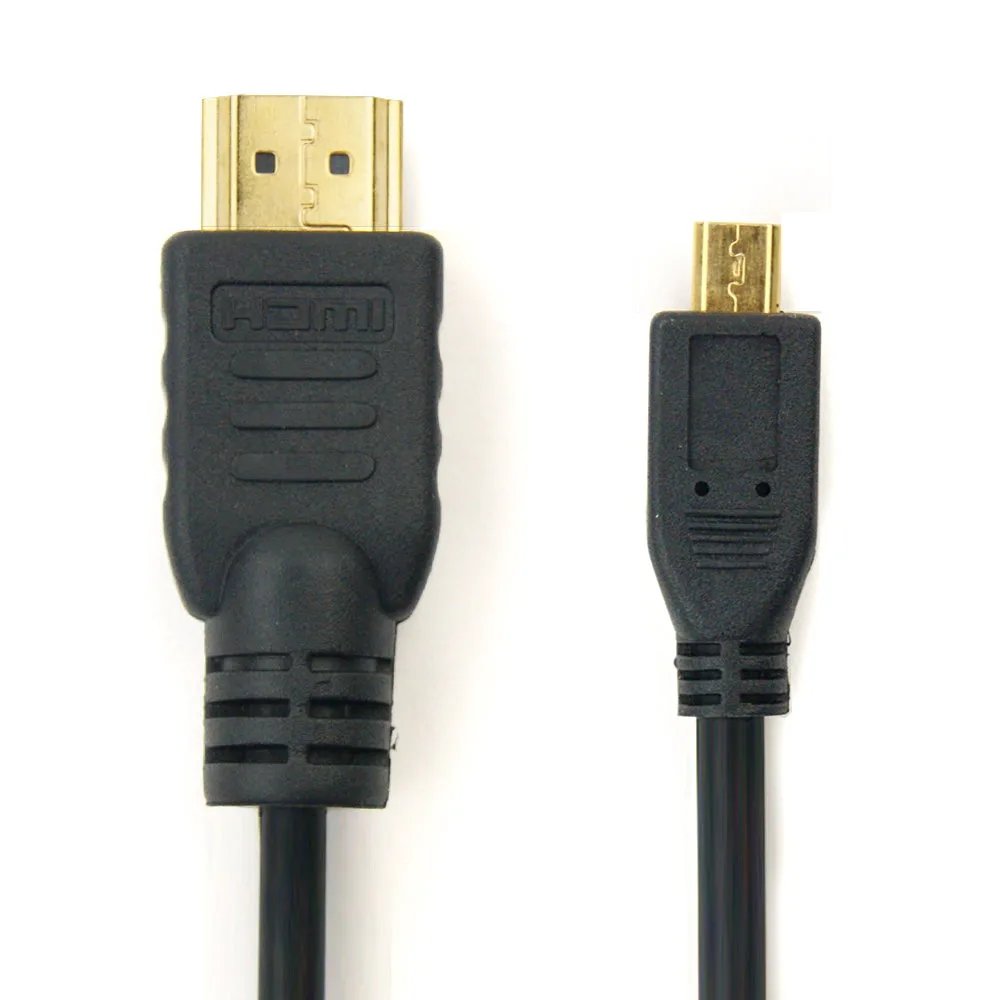
Most Nikon Coolpix cameras (like the P1000, B500, B600, P950, and others) use the Micro HDMI Type D connector. This is the smallest HDMI form factor, so you need a cable with that specific plug on the camera side and a standard Type A plug on the display side. A regular mini or full-size HDMI won't fit.
Common Limitations
Not all Nikon cameras output video over HDMI. Some models only send a still image preview or a slideshow. Check your camera manual to confirm HDMI output capability. Also, the cable does not charge the camera; it only transmits audio and video.
How to Connect Your Nikon Camera to a TV
- 1. Identify the correct port on your camera: Look for a small port labeled HDMI or marked with an HDMI icon. On most Coolpix models, it's under a flap on the side. The port is Micro HDMI Type D – smaller than a micro USB. Common mistake: trying to force a mini HDMI plug into the Micro port. Check the shape and size first.
- 2. Plug the Micro HDMI end into the camera: Insert the smaller Micro HDMI Type D connector gently into the camera port. It should click in without excessive force. Do not bend the cable near the connector. Checkpoint: if it doesn't slide in easily, you may have the wrong orientation or cable type.
- 3. Connect the standard HDMI end to your TV or monitor: Plug the larger Type A HDMI connector into any available HDMI input on your display. Note which input number you use (e.g., HDMI 1). Common mistake: using an input that's already occupied or not switching the TV to that input.
- 4. Turn on the camera and select the correct display input: Power on your Nikon camera. The live view or playback should appear on the TV screen automatically. If not, use the TV remote to select the corresponding HDMI input. Checkpoint: if nothing appears, try a different HDMI input or test the cable with another device.
- 5. Adjust camera settings if needed: Some cameras require you to enable HDMI output in the setup menu. Look for options like 'HDMI output' or 'TV out'. Set the resolution to match your TV (e.g., 1080p). Common mistake: leaving the camera in playback mode when you want live view – switch to shooting mode for live feed.
Cable Recommendation
-
Micro HDMI Type D Kabel voor Nikon CoolPix A1000 A900 Coolpix AW120 AW130 Coolpix B500 B600 CoolPix P1000 P610 P900 P950 S9900 W100 W150 Z 50 TV, DVD,: Micro HDMI Type D to HDMI Standard (Type A) cable for CoolPix A1000, A900, AW120, AW130, B500, B600, P1000, P610, P900, P950, S9900, W100, W150, Z 50. This cable ensures a secure fit and reliable signal for connecting your Nikon camera to a TV, monitor, or projector without adapters.
Micro HDMI Type D Kabel voor Nikon CoolPix A1000 A900 Coolpix AW120 AW130 Coolpix B500 B600 CoolPix P1000 P610 P900 P950 S9900 W100 W150 Z 50 TV, DVD,