Quick answer
To set up the RT100 Smart Mini Display, plug its Type-C connector firmly into the dedicated port on your EPOMAKER RT100 keyboard, ensure it's fully seated, and then arrange it on your desk for a clear view of time, date, and battery status.
Why the RT100 Smart Mini Display is a desk companion
The RT100 Smart Mini Display is designed exclusively for the EPOMAKER RT100 keyboard. Its compact size and pre-set information make it a natural fit for desk setups where you want glanceable data without opening extra apps.
Because it connects through a specialized Type-C port, it isn't a standalone device. Plan for it to live right next to your keyboard, not across the desk, so the cable stays short and tidy.
Common setup mistakes to avoid
The most frequent issue is a loose connection. If the mini display doesn't power on, check that the Type-C plug is fully inserted. A partial connection can cause flickering or no signal.
Another mistake is placing the display where it blocks your view of the keyboard or where the cable bends sharply. Keep the cable path clear to prevent strain on the port.
Step-by-step setup process
- Check compatibility: Confirm you have an EPOMAKER RT100 keyboard. The mini display will not work with other keyboards due to its dedicated Type-C port. If your keyboard isn't an RT100, this accessory won't fit.
- Connect the mini display: Align the Type-C connector with the port on the RT100 and push it in until it clicks or sits flush. A firm connection is essential. After connecting, gently tug to ensure it's secure.
- Power on and verify: Turn on your keyboard (if it has a power switch) and check that the mini display lights up. It should show time, date, and battery level by default. If the screen is blank, unplug and reconnect; a loose fit is the usual cause.
- Position on your desk: Place the keyboard and display so the screen is visible at a glance. Keep the cable free of kinks and away from the keyboard's moving parts. Avoid placing the display under a monitor arm or behind other gear.
- Customize the display: If your RT100 supports it, use the keyboard's configuration software to change what the mini display shows. Refer to the RT100 user manual for specific options. Not all RT100 models may offer full customization; check your manual first.
Product facts
-
RT100 Smart mini Display: The smart mini display is exclusively designed for the EPOMAKER RT100 Mechanical Keyboard and uses a specialized Type-C port. This means you don't need extra software or a separate power source; just ensure the connector is fully plugged in to start using it.
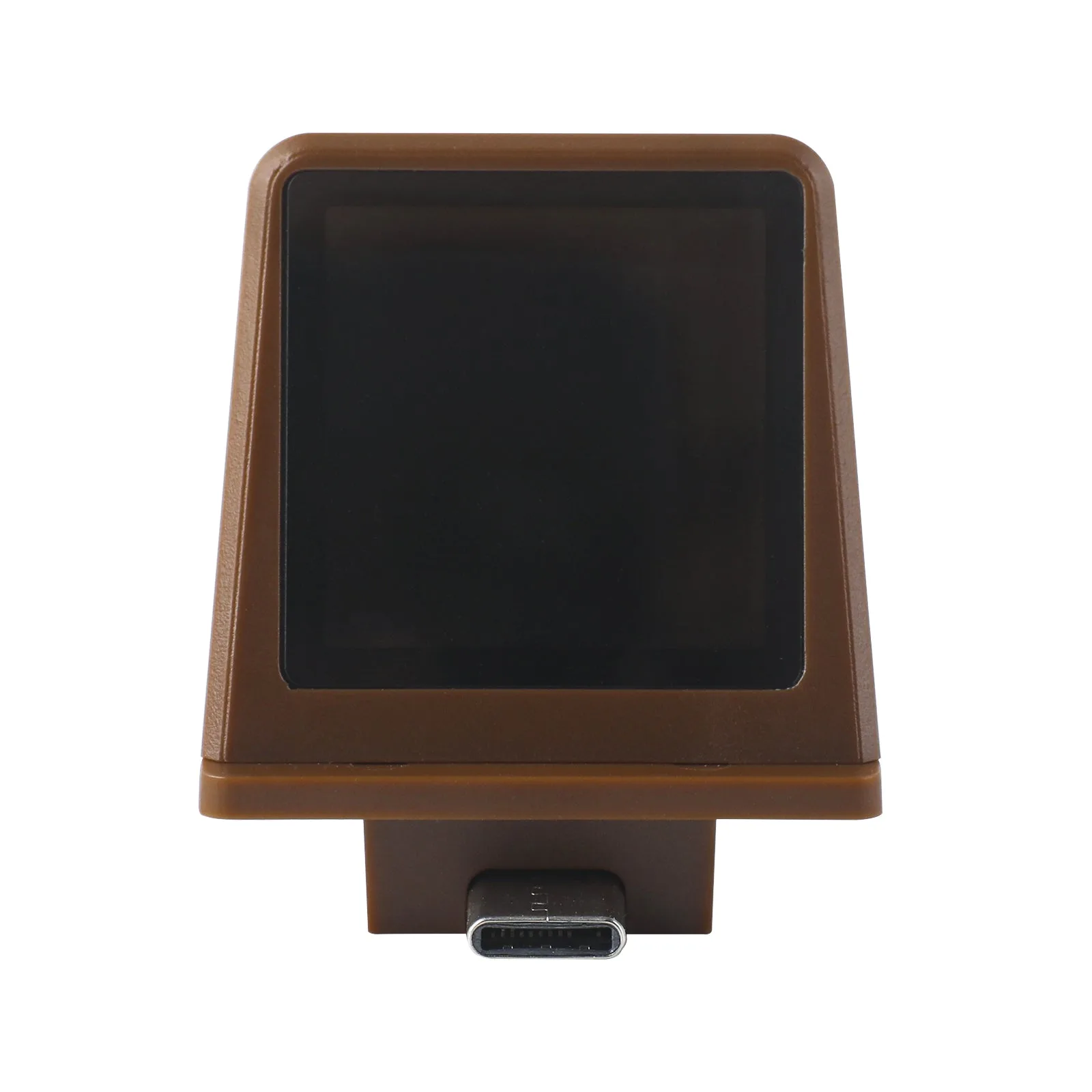
RT100 Smart mini Display