Quick answer
Enable AI person detection in the Defender GO camera settings within the Defender app, then adjust sensitivity and activity zones to filter out false triggers from pets, cars, or shadows.
Why use AI person detection instead of standard motion alerts?
Standard motion sensors on security cameras trigger on any movement—leaves, passing cars, or your dog. The Defender GO 2K's onboard AI can distinguish human shapes from other moving objects, sending you only the alerts that matter. This reduces notification fatigue and helps you review relevant clips faster.
What you need before you start
A Defender GO 2K camera (sold individually or in a 4-pack) must be powered on and connected to your Wi-Fi network. The Defender app should be installed on your phone and logged into your account. If you haven't added the camera to the app yet, scan the QR code on the camera base to pair it.
Step-by-step setup guide
- Open the Defender app and select your camera: Launch the Defender app, then tap on the GO 2K camera you want to configure. If you have multiple cameras, repeat these steps for each one individually.
- Navigate to detection settings: Tap the gear icon (Settings) in the camera view, then select 'Detection Settings' or 'Motion Detection' depending on your app version. This is where you enable AI filtering. If you don't see detection settings, update the Defender app to the latest version.
- Enable AI Person Detection: Toggle 'AI Person Detection' or 'Human Detection' to On. Some app versions label this as 'Smart Detection' or 'AI Filter.' Once enabled, the camera will only alert you when it identifies a human shape. Common mistake: leaving AI detection off after enabling motion detection—double-check that the AI toggle is active.
- Adjust sensitivity and activity zones: Set sensitivity to a medium level (e.g., 60-70%) to avoid false positives from distant objects. Then draw activity zones on the camera's field of view to exclude areas like a busy street or a neighbor's yard where you don't want alerts. If you still get false alerts, lower the sensitivity or shrink the activity zone to cover only entry points.
- Test and fine-tune: Walk in front of the camera to trigger a person alert, then have a pet or a car pass through to confirm they don't trigger a notification. Wait 30 seconds between tests for the camera to process. Adjust sensitivity or zones as needed. After testing, check the Event Log in the app to see which alerts were classified as 'Person' and which were ignored.
Product facts
-
Defender GO 2K AI POWERED WiFi Indoor/Outdoor Home, Business, Pet, Baby Security Camera, 4 Pack: The Defender GO 2K AI Powered WiFi Security Camera features AI-powered detection to identify people, pets, or vehicles. This means you can filter alerts to only humans, cutting down on nuisance notifications from animals or moving foliage.
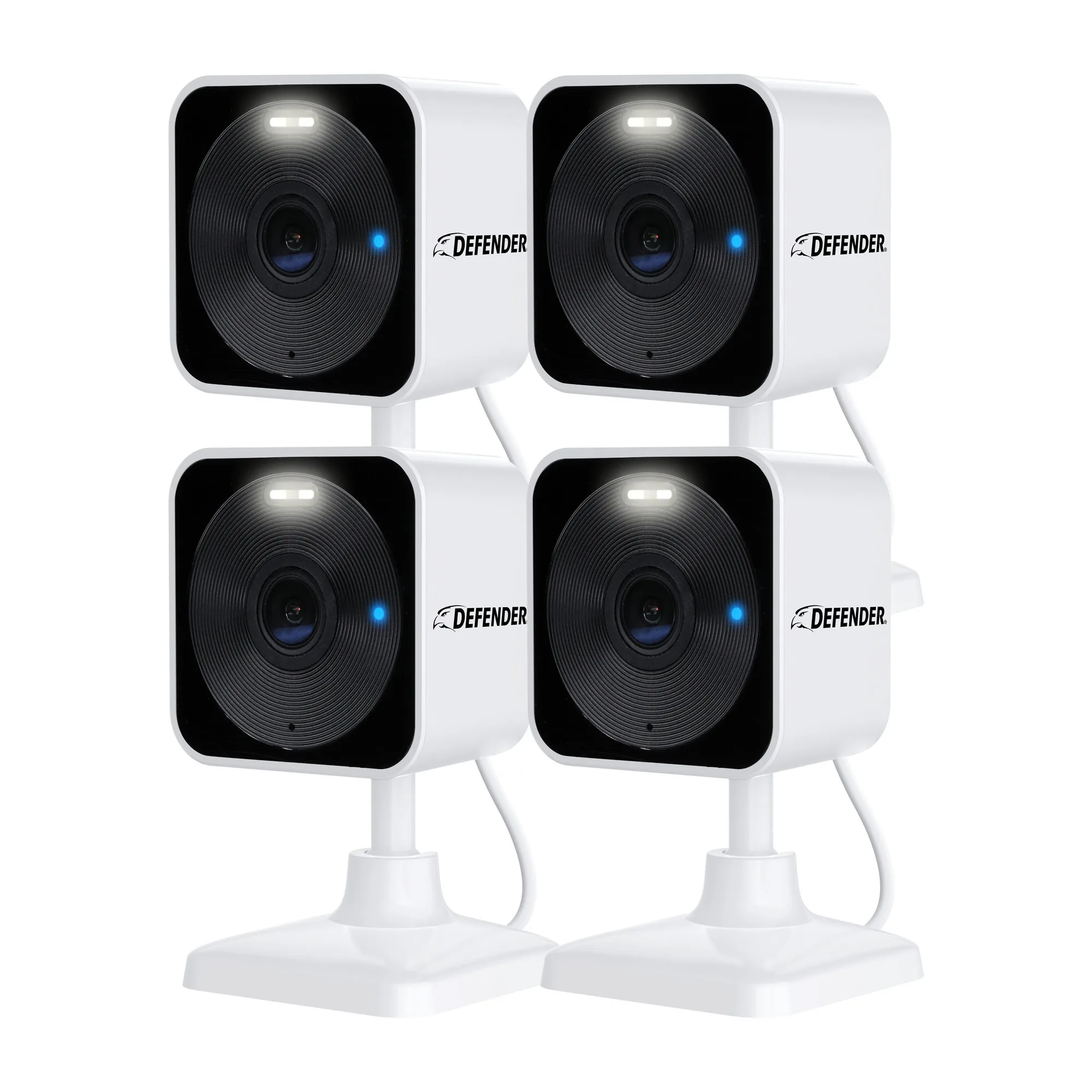
Defender GO 2K AI POWERED WiFi Indoor/Outdoor Home, Business, Pet, Baby Security Camera, 4 Pack