Quick answer
The PURE Color Workflow actions let you apply clean edits, artistic color grading, and instant black & white conversions in just a few clicks—perfect for speeding up your portrait editing without losing control.
Why use a dedicated action set for portraits
Portrait editing often requires repetitive adjustments—exposure, skin smoothing, color balance. A curated action set like PURE Color Workflow bundles over 63 actions into one panel, so you can apply consistent looks across a session without manually tweaking each slider.
The trade-off: actions apply global changes by default. You still need layer masks or opacity adjustments to fine-tune effects on specific areas, like preserving skin tone while boosting background color.
When to choose clean edits vs. artistic looks
Clean edits work best for natural portraits, family sessions, and newborn shoots where you want accurate skin tones and subtle contrast. Artistic looks add richer, more vibrant colors and are ideal for styled shoots, senior portraits, or creative projects.
PURE Color Workflow includes both categories, so you can switch between them depending on the mood you need. Start with a clean base, then layer an artistic effect if the image calls for it.
Step-by-step portrait editing with PURE Color Workflow
- 1. Load the action set in Photoshop: Open Photoshop, go to the Actions panel (Window > Actions), click the panel menu, and choose 'Load Actions'. Navigate to the PURE Color Workflow .atn file and select it. The actions will appear as a new set. Make sure your image layer is unlocked (Background layer) before running any action.
- 2. Start with a clean edit base: Select a clean edit action like 'PURE - Clean Edit' and click the Play button. This adjusts exposure, contrast, and white balance for a natural look. If the effect is too strong, lower the action's layer opacity or use a layer mask to paint back the original. Common mistake: running multiple clean edits on top of each other can over-process the image. Stick to one clean base.
- 3. Apply an artistic color grade (optional): After the clean base, try an artistic action such as 'PURE - Vibrant Pop' or 'PURE - Muted Tones'. This adds a creative color shift. The action creates a new layer group, so you can toggle visibility or mask out parts of the effect. Always check skin tones after applying an artistic action. If they shift unnaturally, reduce the group opacity or mask the effect off the skin area.
- 4. Convert to black & white: For monochrome portraits, run a black & white action like 'PURE - B&W Smooth'. It converts the image and adds contrast without crushing shadows. You can further adjust the black & white mix by double-clicking the adjustment layer thumbnail. Avoid using black & white actions on low-contrast images—they can produce flat results. Boost contrast first with a clean edit if needed.
- 5. Fine-tune with layer adjustments: Each action creates adjustment layers and layer groups. Use the opacity slider to dial back the effect, or add a layer mask and paint with black to hide the effect on specific areas (e.g., eyes or hair). Save your file as a PSD to preserve layers, so you can revisit adjustments later without starting over.
Product facts
-
PURE Color Workflow - Photoshop Portrait Actions: The PURE Color Workflow is a comprehensive collection containing over 63 beautiful, easy to use portrait workflow and creative actions. You get a single panel that covers clean edits, artistic looks, and black & white conversions, so you don't need to buy separate action sets for each style.
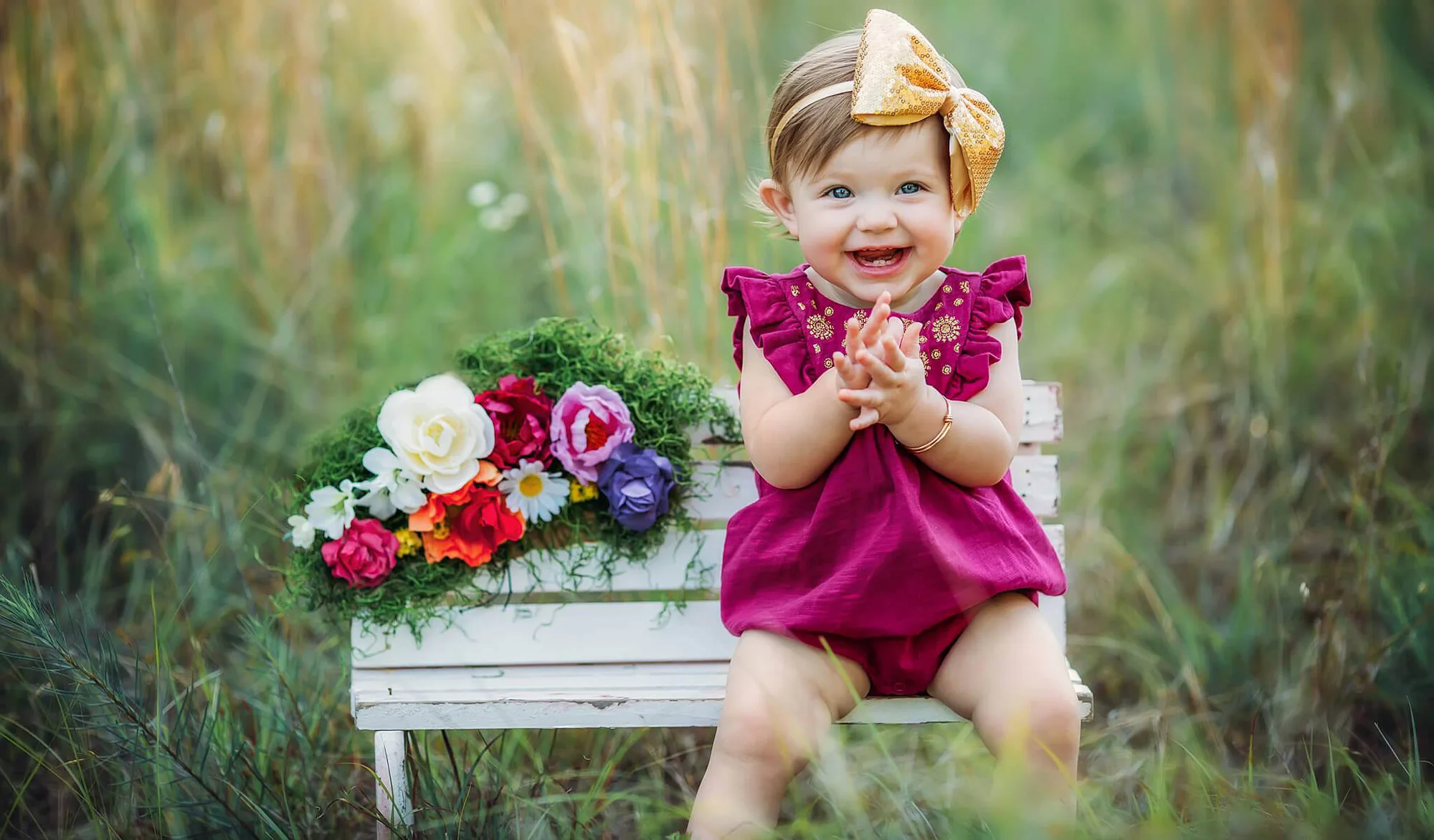
PURE Color Workflow - Photoshop Portrait Actions