Quick Answer
Most 4K HDMI cable problems come down to a loose connection, an outdated cable, or a port issue. Start by reseating both ends, then check your source settings before swapping cables.
Why HDMI 2.0 Matters for 4K
A standard HDMI 1.4 cable can handle 4K at 30 Hz, but for smooth 4K at 60 Hz you need an HDMI 2.0 cable that supports 18 Gbps bandwidth. If your cable is older or not rated for high speed, you'll likely see no signal or intermittent black screens.
Cable Length vs. Signal Integrity
Longer HDMI cables can weaken the signal, especially beyond 15 feet. For runs over 10 feet, a high-quality braided cable with gold-plated connectors helps maintain a stable connection. The RitzGear 4K HDMI Cable 3-Pack uses durable braided nylon and gold plating to keep signal loss minimal at 10 feet.
When to Replace vs. Repair
If you've gone through all the steps and still have issues, the cable itself may be damaged. A cable that's bent sharply, kinked, or has exposed wiring should be replaced. The RitzGear pack gives you three cables for the price of one, so you can test a fresh cable right away.
Step-by-Step Diagnosis
- Symptom: No signal, black screen, flickering, or intermittent picture on your 4K TV or monitor.
- Likely Cause: Loose connection, wrong input selected, incompatible cable version (HDMI 1.4 vs 2.0), or a faulty port.
- Corrective Action 1 – Reseat and Check Inputs: Unplug both ends of the HDMI cable, wait 10 seconds, and plug them back in firmly. Then use your TV remote to cycle through inputs until you see the correct source. If the picture appears, the issue was a loose connection. Stop here.
- Corrective Action 2 – Verify Source Settings: On your streaming device, game console, or PC, go to display or video settings and confirm that the output is set to 4K at 60 Hz (not 4K at 30 Hz or 1080p). Try lowering to 4K @ 30 Hz to test if the cable is the bottleneck. If 4K @ 30 Hz works but 60 Hz does not, you need an HDMI 2.0 cable. Try replacing with a high-speed cable like the RitzGear.
- Corrective Action 3 – Test with a Different Cable: Swap in a known-working HDMI 2.0 cable. If the problem goes away, your original cable is likely damaged or too slow for 4K @ 60 Hz. If a known-good cable also fails, the issue is likely in the source device or TV port. Try a different HDMI port on your TV.
- Stop or Choose Another Option: If none of the above steps restore a stable 4K signal, the problem is probably not the cable. Check your device's HDMI version compatibility, update firmware, or consider a different input device.
Recommended Cable
-
RitzGear 4K HDMI Cables | 3-Pack of 10 Ft. High-Speed 18Gbps HDMI 2.0 Connectors | Durable Braided Nylon, Gold Plating, 4K @ 60Hz Ultra HD, 3D, 2160p, 1080p & Ethernet Support for TV, Laptop & Gaming: Premium HDMI 2.0 with 19-pin gold-plated connectors and 18 Gbps bandwidth, supporting 4K @ 60 Hz, 3D, 2160p, and Ethernet. Gold plating resists corrosion and the braided nylon jacket protects against kinks, making it a reliable choice for 4K setups where signal stability is critical.
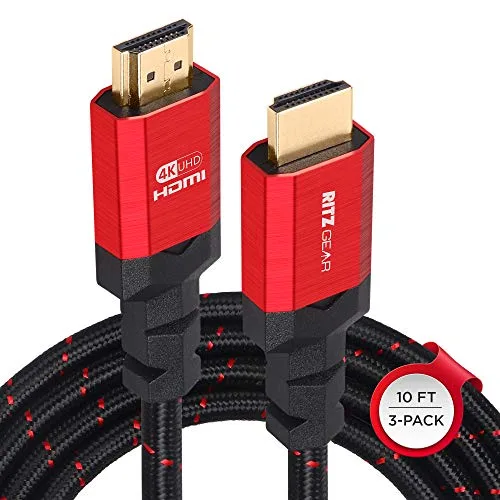
RitzGear 4K HDMI Cables | 3-Pack of 10 Ft. High-Speed 18Gbps HDMI 2.0 Connectors | Durable Braided Nylon, Gold Plating, 4K @ 60Hz Ultra HD, 3D, 2160p, 1080p & Ethernet Support for TV, Laptop & Gaming