Quick Answer
Mount your A320 side stick on a rigid surface at elbow height, align the grip angle to your seated position, and secure the USB cable so it doesn't interfere with movement.
Choosing the Right Mounting Surface
The litnxt A320 side stick needs a solid, flat mounting surface that won't flex during flight. A desk clamp, cockpit frame crossbar, or a custom MDF plate all work, but avoid thin plastic tabletops that can wobble under the stick's industrial-grade switches.
If you're building a dedicated cockpit, mount the stick before adding the center pedestal or throttle quadrant. This gives you room to adjust the lateral position without rebuilding other panels.
CP vs FO Position Differences
The CP (Captain) and FO (First Officer) side sticks are identical in hardware, but their placement matters. The CP stick mounts on the left side of the cockpit, while the FO stick goes on the right. Both use the same 1:1 scale grip and base, so you can swap positions if needed.
For a single-stick setup, mount it on the side that matches your flying role. If you plan to add a second stick later, leave enough clearance on the opposite side for the base and cable routing.
Step-by-Step Installation Guide
- Prepare the Mounting Surface: Drill four mounting holes in a 100mm x 100mm pattern (M6 bolts recommended) on a rigid surface at elbow height when seated. Use a level to ensure the surface is flat. Common mistake: drilling holes too close together. The base needs the full 100mm spacing for stability.
- Attach the Side Stick Base: Place the side stick on the mounting surface and secure it with M6 bolts and washers. Tighten evenly in a cross pattern to avoid warping the base. Do not overtighten. Checkpoint: after tightening, the base should not rock or twist when you apply lateral pressure.
- Connect the USB Cable: Plug the USB cable into your PC or USB hub. Route the cable away from the stick's pivot area and secure it with a cable tie to prevent snagging during flight. Common mistake: leaving the cable loose near the base. It can get caught in the stick mechanism and cause erratic inputs.
- Calibrate in Windows: Open Windows USB Game Controller settings (joy.cpl), select the side stick, and click Properties. Move the stick through its full range of motion, then click Calibrate. If the stick doesn't appear, try a different USB port or a powered hub. Some motherboards don't supply enough power on front-panel ports.
- Test in Your Flight Sim: Launch your flight simulator (MSFS, X-Plane, or Prepar3D) and map the side stick axes to pitch and roll. Verify that the full range of motion is detected and that the center position is neutral. Checkpoint: if the aircraft drifts without input, recalibrate or adjust the deadzone in the sim's control settings.
Product Details
-
A320 1/1 Scale Molded Professional Flight Sim Side Stick - CP Main Pilot/FO Positions: Precisely modeled 1:1 from A320 aircraft scan data, crafted via 3D printing, finished with high-gloss piano paint, and equipped with industrial-grade switches. The 1:1 scale and authentic switch feel mean you can mount it using the same hole pattern as a real A320 sidestick, making integration into a professional cockpit straightforward.
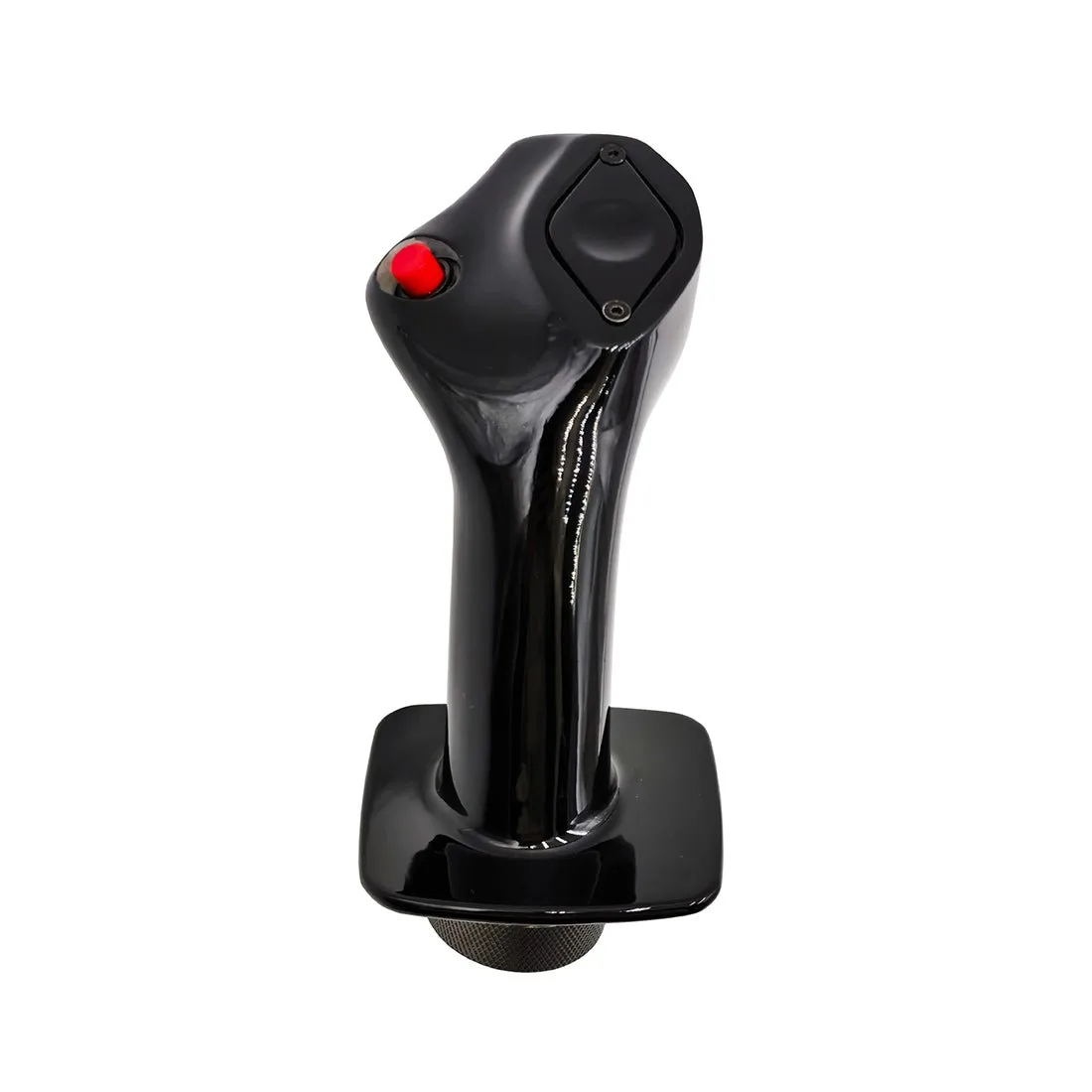
A320 1/1 Scale Molded Professional Flight Sim Side Stick - CP Main Pilot/FO Positions