Quick Answer
To set up your AISLPC R36T MAX WiFi for cloud saves and online retro gaming, first connect to a stable 5G WiFi network, then enable cloud save sync in the EmuEMEC system settings, and finally configure your emulator's netplay options. This guide walks you through each step, including common pitfalls to avoid.
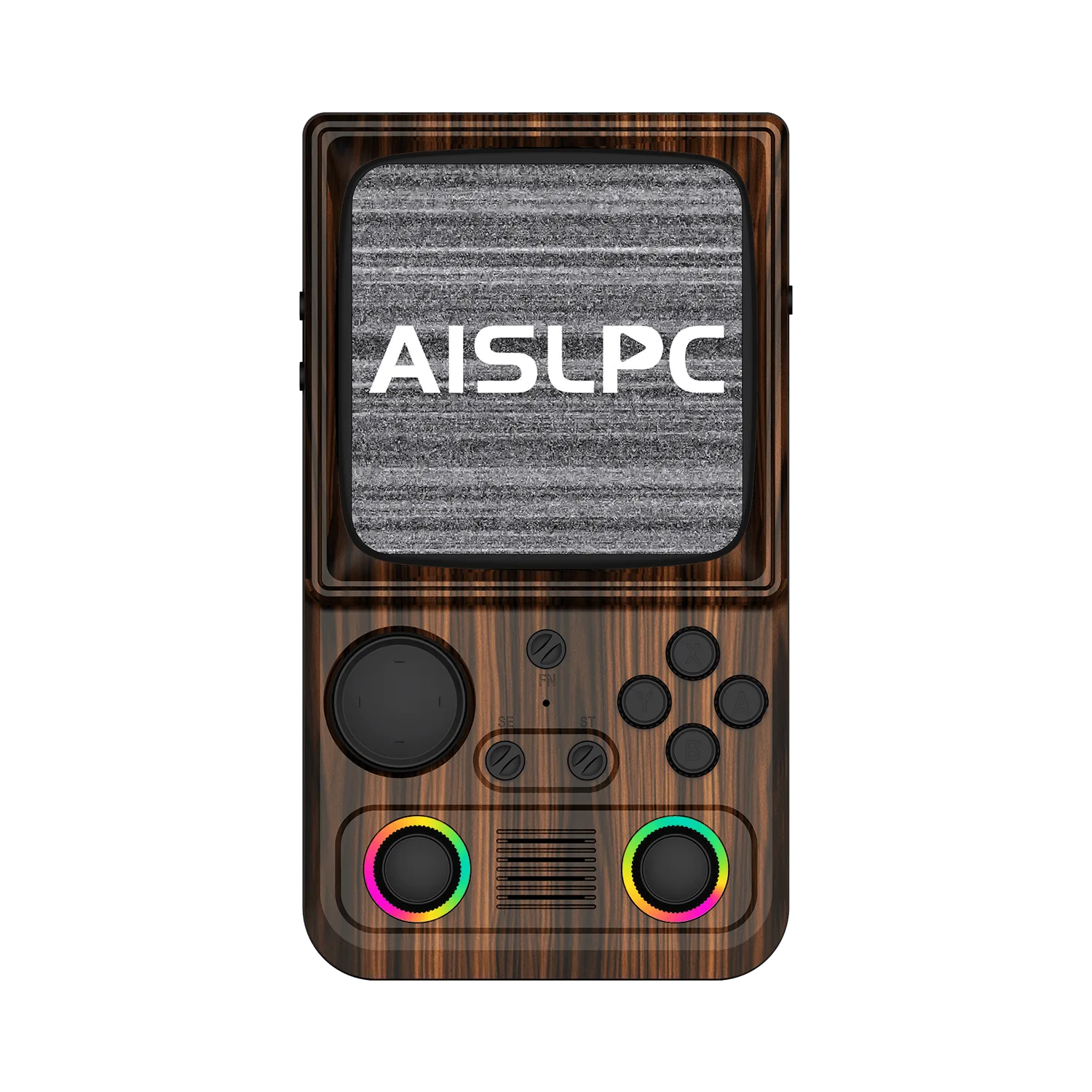
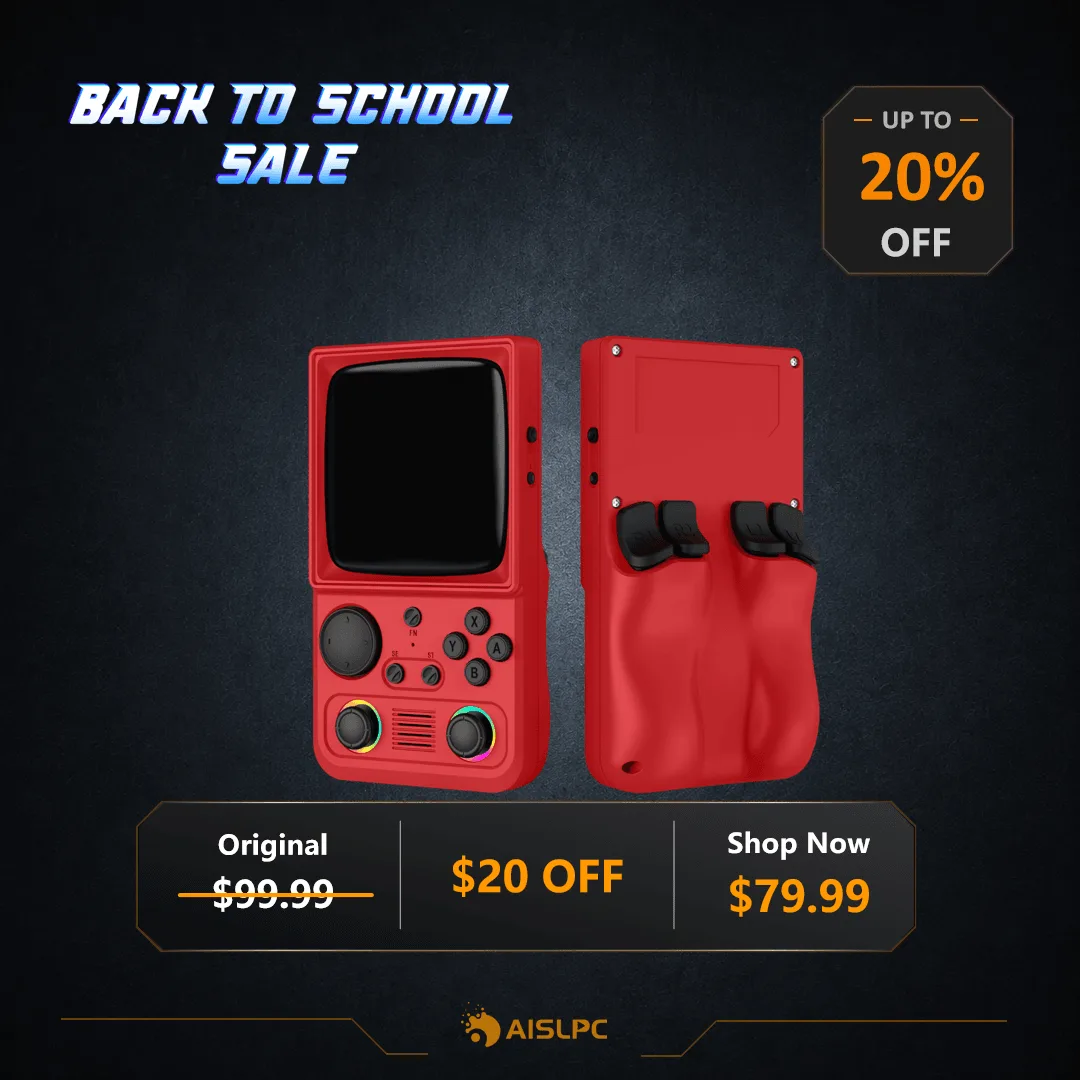
The AISLPC R36T MAX Retro Handheld Game Console comes with 5G WiFi, letting you do more than play preloaded classics. You can back up your progress to the cloud and even play retro games online with friends. This guide covers the setup process from unboxing to your first online match.
We'll focus on the WiFi version of the R36T MAX, which runs the EmuEMEC system. You'll learn how to connect to your network, manage cloud saves, and configure netplay for a smooth experience. Let's get started.
Before You Start: What You Need
Before diving into setup, gather a few essentials. Your AISLPC R36T MAX WiFi version, a stable 5G WiFi network (2.4G can work but may be slower), and a microSD card for additional storage if you plan to expand your game library. A PC or smartphone is helpful for downloading firmware updates or ROMs, though the console can do this directly via WiFi.
Also, ensure your console is fully charged or plugged in during the initial setup. A sudden power loss during configuration can interrupt the process and potentially corrupt system files. It's a simple precaution that saves headaches later.
- Use a 5G WiFi network for the best connection speed and stability.
- Keep your console charged or plugged in during setup.
Connecting Your R36T MAX to WiFi
Power on the console and navigate to the system settings menu. Look for the WiFi or Network option and select it. Your R36T MAX will scan for available networks. Choose your 5G WiFi network and enter the password using the on-screen keyboard. Once connected, you should see a confirmation icon in the status bar.
A common mistake is entering the wrong password or selecting a 2.4G network when a 5G one is available. Double-check your network name and password. If the connection drops frequently, move closer to your router or reduce interference from walls and other devices.
- Verify that you're connecting to a 5G network if available.
- If connection issues persist, restart the console and router.
Enabling Cloud Saves on EmuEMEC
The R36T MAX runs the EmuEMEC system, which supports cloud save synchronization. Go to the system settings and look for 'Cloud Save' or 'Sync' options. You'll likely need to sign in with an account or create one. Follow the on-screen prompts to enable automatic cloud backups for your save files.
Once enabled, your game progress will upload to the cloud after each session. This is especially useful if you switch between devices or want to protect your saves from accidental loss. However, note that cloud save features may require a stable internet connection and could use data, so monitor your usage if you have a limited plan.
- Always exit games properly to ensure saves are synced before powering off.
- Check your cloud storage capacity periodically to avoid sync failures.
Configuring Online Retro Gaming (Netplay)
Online retro gaming, or netplay, lets you play multiplayer games with friends over the internet. In EmuEMEC, this is typically found in the emulator settings for each system. Look for 'Netplay' or 'Multiplayer' options. You'll need to set up a session by hosting or joining a room. Some systems require port forwarding on your router, but many modern setups use peer-to-peer connections that work automatically.
For the best experience, ensure both players have the same game ROM and emulator version. A stable wired connection is ideal, but a strong 5G WiFi signal can work well. Latency can be an issue, so choose games that aren't too fast-paced if your connection is unstable.
- Use the same ROM and emulator version as your opponent to avoid desync.
- Test your connection speed before starting a netplay session.
Step-by-Step Setup Checklist
- Power On and Initial Setup: Charge the console fully, then power it on. Complete the initial language and time settings. Checkpoint: Ensure the battery is above 50% before starting.
- Connect to WiFi: Go to Settings > WiFi, select your 5G network, and enter the password. Common mistake: Choosing a 2.4G network by mistake. Always select 5G if available.
- Enable Cloud Saves: In EmuEMEC settings, find 'Cloud Save' and sign in to your account. Toggle automatic sync on. Checkpoint: Test by playing a game and checking that the save appears in the cloud.
- Set Up Netplay: Open an emulator, go to Netplay options, and host a session. Share the session code with a friend. Common mistake: Using different ROM versions. Confirm both players have identical files.
- Test and Adjust: Play a quick online game to test stability. If lag occurs, reduce the number of active background apps or move closer to the router. Checkpoint: If issues persist, restart the console and try again.
Key Features of the AISLPC R36T MAX WiFi
- https://aislpcexh.com/products/r36t-max-wifi-retro-handheld-game-console-f8c9730f5d74bfbf2caa4bbb-654350AISLPC® - R36T MAX Retro Handheld Game Console - WiFi Version: WiFi Connectivity: Stay connected with WiFi, allowing you to download games and updates seamlessly. This built-in WiFi is what enables cloud saves and online play, so you don't need a separate adapter.
- AISLPC® - R36T MAX Retro Handheld Game Console - WiFi Version: EmuEMEC System: Equipped with the EmuEMEC system, this handheld game player supports... The EmuEMEC system provides the interface for managing cloud saves and netplay settings, making the setup process straightforward.
With your AISLPC R36T MAX WiFi connected and cloud saves enabled, you can enjoy your retro library with the peace of mind that your progress is safe. Online play adds a new dimension to classic games. Follow these steps, and you'll be ready to game anywhere, anytime.