Quick answer
To set up an audio interface for podcast recording, connect your microphones to the interface's combo inputs, install the necessary drivers, configure your recording software to use the interface as the input and output device, then set gain levels so your voice peaks around -12 dB.
Why the interface matters more than the mic
Your microphone captures sound, but the audio interface converts that analog signal into digital data your computer can record. A good interface with quality preamps ensures your voice is clean and free of unwanted noise. For podcasting, you need at least two mic inputs if you have a co-host, and each input should have its own gain control so you can balance levels independently.
Integrated studio vs. separate components
A traditional setup uses a separate audio interface plus a mixer or software for processing. An integrated audio production studio combines the interface, mixer, and often recording and effects in one unit. This simplifies cabling and setup, which is convenient if you're new to podcasting or want a portable rig. The trade-off is that an integrated unit may have fewer inputs or less flexibility than a modular setup. Decide based on your expected number of guests and whether you need to record remotely or on location.
Step-by-step setup process
- Connect your microphones: Plug XLR cables from your mics into the combo inputs on the interface. For dynamic mics, you may not need phantom power, but if you're using condenser mics, enable 48V on the corresponding channels. Double-check that the XLR cable clicks securely into place; a loose connection causes intermittent audio dropouts.
- Install drivers and connect to your computer: Download and install the latest drivers for your interface from the manufacturer's website, then connect the interface to your computer via USB or Thunderbolt. Power on the interface before launching your recording software. Always restart your recording software after installing drivers to ensure the interface is recognized.
- Configure your recording software: In your DAW or podcast recording app, go to audio settings and select the interface as both the input and output device. Set the sample rate to 48 kHz and buffer size to 128 or 256 samples for a good balance between latency and stability. If you hear crackles or pops, increase the buffer size; if you notice delay, decrease it.
- Set gain levels: Speak at your normal podcast volume and adjust each channel's gain so your voice peaks around -12 dB on the meter. Avoid clipping, which occurs when the level hits 0 dB and distorts. Test with a co-host if you have one, and set each person's gain independently to match their speaking volume.
- Set up monitoring: Connect headphones to the interface's headphone output and enable direct monitoring if available, so you hear your voice in real-time without latency. Adjust the headphone volume to a comfortable level. If you hear yourself delayed, use direct monitoring instead of software monitoring to avoid echo.
- Do a test recording: Record a short test clip, play it back, and listen for clarity, background noise, or distortion. Adjust gain or mic placement as needed. Save the test recording and compare it with future sessions to ensure consistent quality.
Product facts
-
Rode RODECaster Pro II Integrated Audio Production Studio: The Rode RODECaster Pro II features four balanced analog inputs with Neutrik combo jacks, designed for microphones or instruments. Combo jacks accept both XLR and 1/4-inch connections, so you can plug in dynamic mics, condenser mics, or even a guitar without needing adapters.
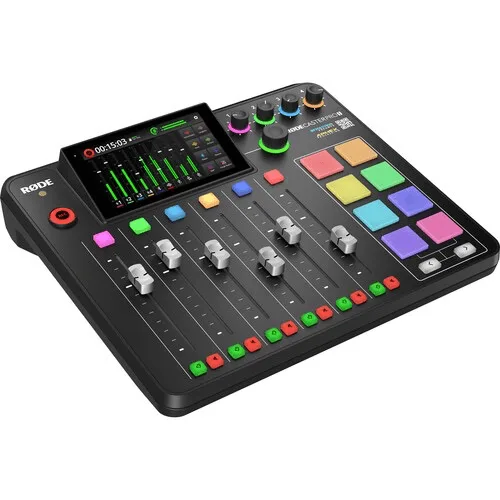
Rode RODECaster Pro II Integrated Audio Production Studio
-
RODE RODECaster Pro II Integrated Audio Production Studio (White): The RODE RODECaster Pro II is offered in a white finish as part of RODE's RODECaster line, positioned as an integrated audio production studio. If you prefer a specific aesthetic or want a unit that matches your studio decor, the white version gives you that option without changing the core functionality.
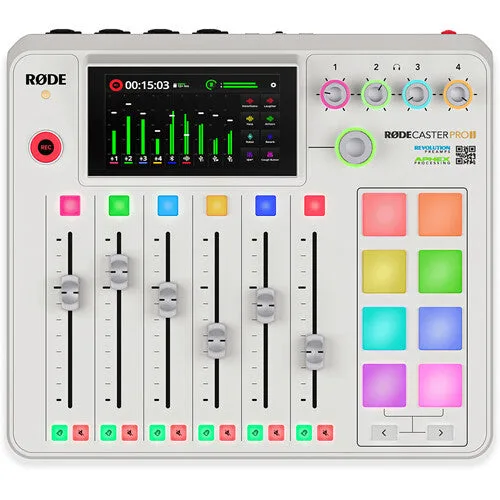
RODE RODECaster Pro II Integrated Audio Production Studio (White)