Quick answer
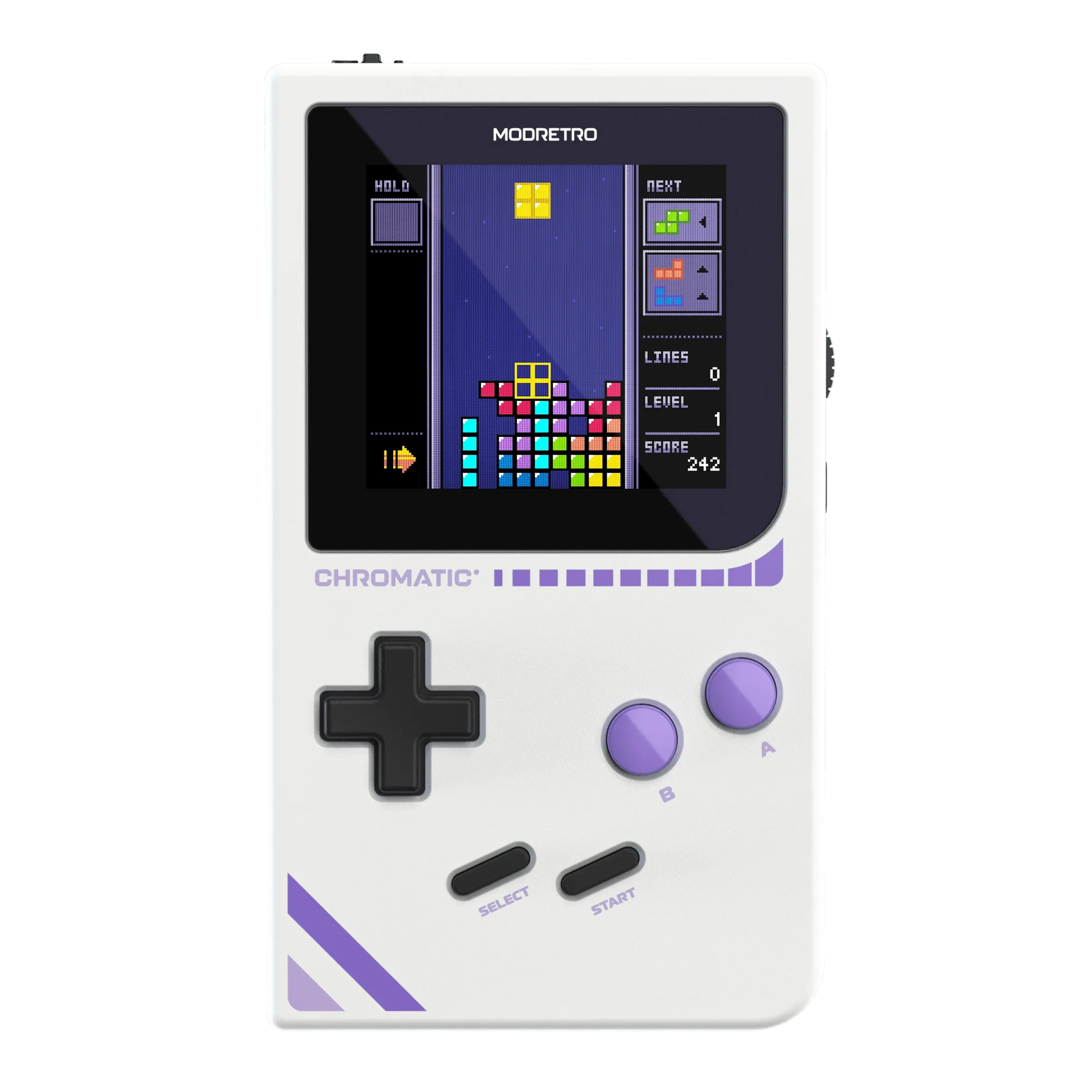
For most Chromatic screen flicker and dimming complaints, start by reseating the cartridge and cleaning the cartridge slot contacts, then verify the display option and brightness settings before assuming a hardware fault. If the flicker persists across multiple cartridges and a full charge, stop troubleshooting at home and contact ModRetro support rather than opening the shell. The Chromatic + Tetris Bundle is the most reliable reference unit for this test because it ships with a known-good cartridge and two display options.
Tetris
Symptom check: flicker, dimming, or both?
Separate the two complaints before you touch anything. Flicker means the image pulses, tears, or blinks while brightness stays roughly constant. Dimming means the backlight drops in steps or fades over minutes, sometimes with a slight color shift. If you see both, note which one appears first: flicker-then-dim points to a power or contact issue, while dim-then-flicker often points to a display or backlight setting.
- Flicker only during movement: likely a cartridge contact or refresh issue, not a failing backlight.
- Dimming only at low battery: normal power-save behavior, not a defect.
- Flicker and dimming together on every cartridge: stop and contact support.
Cause 1: cartridge seating and dirty contacts
The Chromatic is a cartridge console, so the most common cause of screen flicker is a poor cartridge-to-slot connection. Reseat the cartridge firmly until it clicks, then power on. If the flicker stops, the fix is mechanical, not electrical. For recurring flicker, inspect the cartridge edge connector for dust or fingerprints and clean it with a dry, lint-free cloth. Do not use liquid cleaners or metal tools inside the slot.
- Power off before reseating or cleaning any cartridge.
- Test with a second cartridge to confirm the slot is the variable.
- If only one cartridge flickers, the cartridge is the likely cause.
Cause 2: display option and brightness settings
The Chromatic + Tetris Bundle ships with Color and Display options, and the display setting can change how the backlight behaves. If dimming appears after a settings change, cycle through the available display options and set brightness to a fixed level rather than auto. A fixed brightness removes auto-dimming from the equation. If the screen still dims on a fixed setting and a full charge, the backlight is the remaining suspect.
- Set brightness manually before judging flicker or dimming.
- Compare the same game across both display options.
- Note whether dimming follows the setting or the hardware.
Cause 3: power and charge state
Low battery can trigger dimming as a power-saving response, and a weak charge can also cause flicker under load. Charge the Chromatic fully, then test again with the same cartridge and brightness setting. If flicker disappears at full charge and returns as the battery drops, the behavior is power-related rather than a display fault. Do not leave the console on a charger indefinitely while testing; charge, unplug, then test.
- Test at 100 percent, 50 percent, and near-empty to map the pattern.
- Flicker that only appears under load suggests a power issue.
- Dimming at low battery is expected, not a backlight problem.
When to stop and choose another option
Stop home troubleshooting if flicker or dimming persists across multiple cartridges, a full charge, and a fixed brightness setting. At that point the issue is likely internal, and opening the shell can void support options. Contact ModRetro support with your serial number, the cartridges tested, and a short video of the symptom. If the console is your only unit, a second Chromatic or a bundle with a known-good cartridge lets you keep playing while the first unit is serviced.
- Do not open the shell if the unit is under warranty.
- Record the symptom before contacting support.
- Keep a second cartridge on hand to isolate future issues.
Symptom-to-action diagnosis
- Flicker only, one cartridge: Reseat the cartridge, then clean the edge connector with a dry lint-free cloth. Test the same cartridge again. If flicker stops, the cartridge or slot was the cause. If it returns, test a second cartridge.
- Dimming only, low battery: Charge fully and set brightness to a fixed level instead of auto. Re-test at the same brightness. Dimming that disappears at full charge is power-save behavior, not a backlight fault.
- Flicker and dimming, every cartridge: Confirm a full charge and a fixed brightness setting, then stop. Do not open the shell. Contact ModRetro support with your serial number and a video of the symptom.
Products that help with this diagnosis
- Chromatic + Tetris Bundle: Chromatic + Tetris Bundle includes the Chromatic cartridge console plus Tetris, with Color and Display options, and no downloads, logins, or interruptions. A known-good cartridge and selectable display options make it the cleanest reference for separating a cartridge fault from a display or backlight fault.
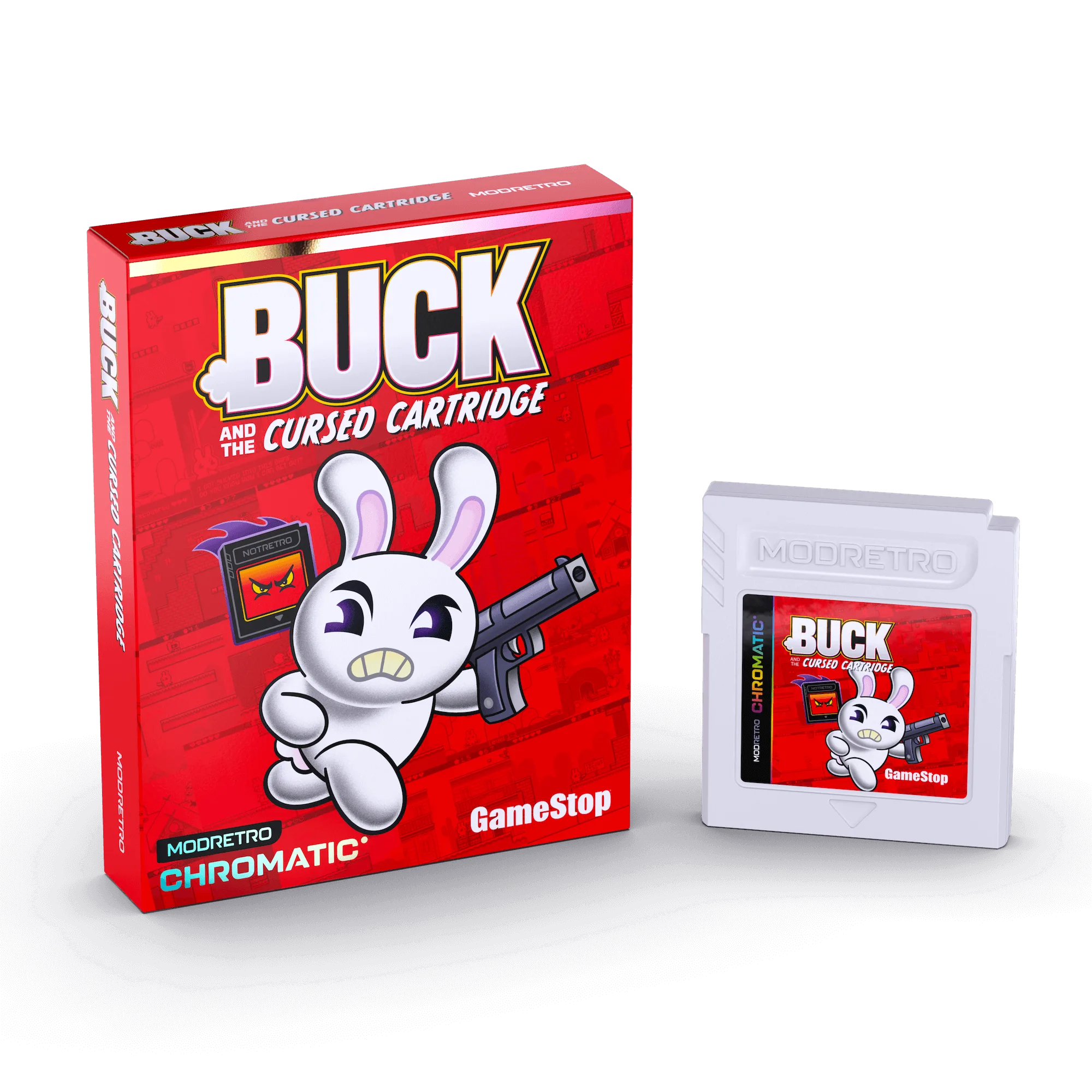
- Buck and the Cursed Cartridge: Buck and the Cursed Cartridge is a Chromatic game about a retro gamer pulled into a cursed cartridge. A second cartridge with different code helps confirm whether flicker follows the cartridge or the console slot.
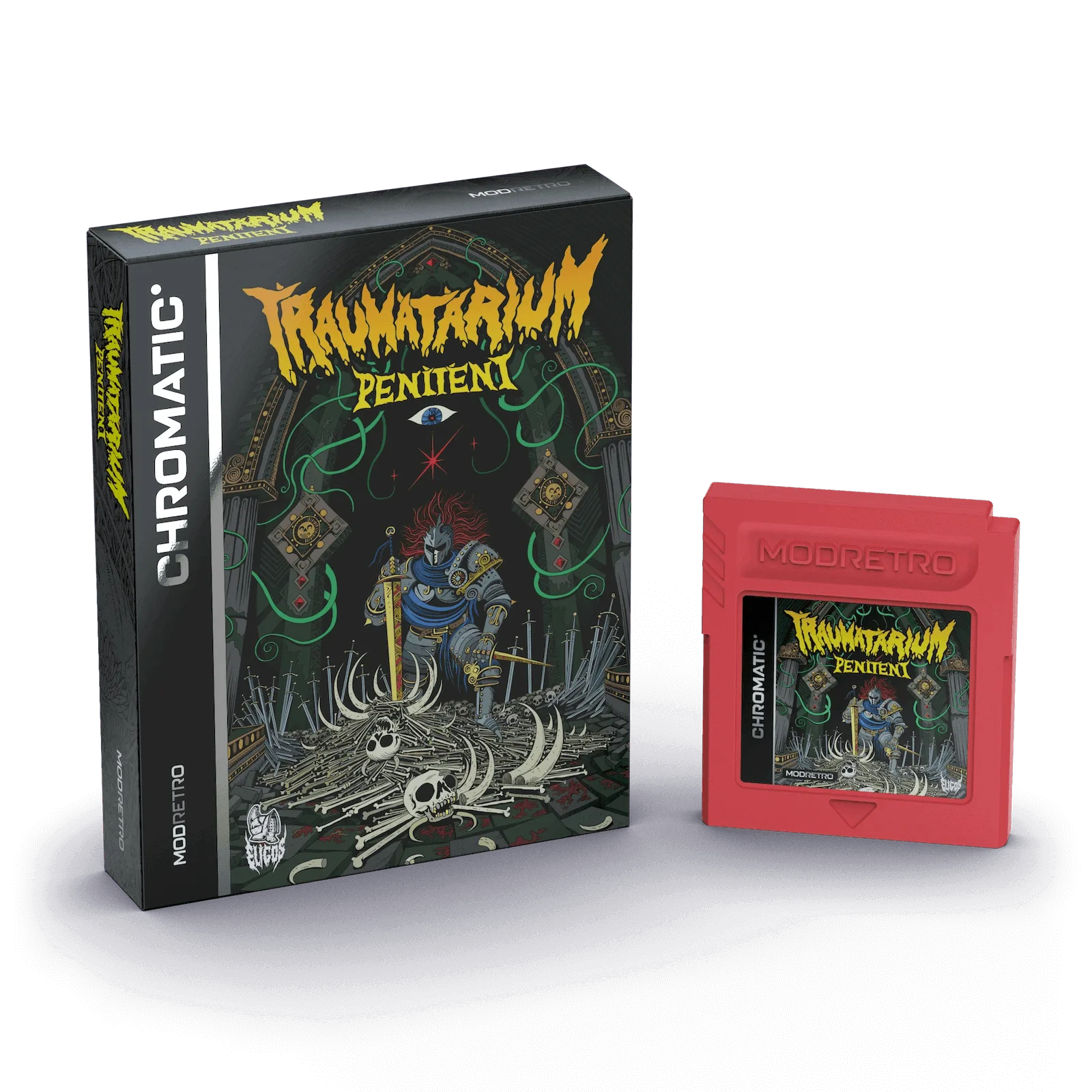
- Traumatarium Penitent: Traumatarium Penitent is a dark fantasy dungeon crawler for Chromatic inspired by classic dungeon crawlers. A third cartridge gives you a broader test set, so you can rule out a single bad cartridge before contacting support.