Quick answer
A GBA screen replacement usually means swapping the original reflective display for a modern IPS panel. The most popular upgrade is a Game Boy Advance IPS screen, which offers brighter colors, better viewing angles, and a crisp image. Before you buy, confirm your console's model (original GBA, SP, or Micro) and decide whether you want a drop-in kit or a soldered install.
If your Game Boy Advance screen is scratched, dim, or just hard to see, a screen replacement is one of the most satisfying upgrades you can do. The original screen was reflective, which means it needed good light to be visible. Modern IPS panels are backlit, so they look great in any lighting and make your games pop.
This guide covers what you need to know before starting a GBA screen replacement, including the difference between IPS and original screens, tools you'll need, and the step-by-step installation process. We'll also point out common mistakes so you can avoid damaging your console.
IPS vs. Original GBA Screen
The original Game Boy Advance screen is a reflective TFT LCD. It has no backlight, so you need a light source to see it clearly. Colors are washed out, and motion blur is noticeable. Many players find it frustrating to play in low light or on the go.
A Game Boy Advance IPS screen is a drop-in replacement that uses a backlit IPS panel. It offers vibrant colors, wide viewing angles, and a much brighter image. Most IPS kits include a ribbon cable that connects to the console's motherboard. Some kits are solder-free, while others require a single wire for brightness control. The tradeoff is battery life: IPS screens draw more power, so you'll need to recharge more often if you use a rechargeable battery mod.
- Consider a solder-free kit if you're not comfortable with a soldering iron.
- IPS screens are brighter and more color-accurate than the original, but they consume more battery.
What You Need for a GBA Screen Install
Before you start, gather the right tools. You'll need a tri-wing screwdriver (for the GBA's screws), a Phillips #00 screwdriver, a plastic spudger or opening tool, and a clean, static-free workspace. If your kit requires soldering, you'll also need a soldering iron, solder, and flux.
You'll also need the replacement screen itself. Most kits come with the IPS panel, a pre-cut shell or adapter bracket, and the necessary ribbon cables. Check the listing to see if it includes a shell or if you need to buy one separately. Some shells are designed specifically for IPS screens and have a larger opening to fit the new display.
- Use a magnetic mat or small container to keep screws organized.
- Watch a teardown video for your specific GBA model before you begin.
Step-by-Step GBA Screen Replacement
Once you have your kit and tools, follow these steps. Always power off the console and remove the batteries before opening it. Work on a soft surface to avoid scratching the shell.
Step 1: Remove the six tri-wing screws on the back of the console. Step 2: Gently separate the front and back halves. Step 3: Disconnect the ribbon cable from the motherboard. Step 4: Remove the old screen and its bracket. Step 5: Install the new IPS screen and bracket, then connect the ribbon cable. Step 6: If your kit has a brightness wire, solder it to the specified pad. Step 7: Reassemble the shell and test the screen before closing it fully.
- Test the screen before fully closing the shell to avoid rework.
- If the screen doesn't turn on, check the ribbon cable connection first.
GBA Screen Replacement Steps
- Confirm your GBA model: Check the model number on the back of your console. The original GBA (AGB-001) has a different screen setup than the SP (AGS-001 or AGS-101). IPS kits are model-specific, so buying the wrong one won't fit. Double-check your model before ordering to avoid a wasted purchase.
- Choose a solder-free or soldered kit: Solder-free kits are easier for beginners but often lack brightness control. Soldered kits let you adjust brightness with a button, but require a steady hand and a soldering iron. If you've never soldered, start with a solder-free kit or practice on a broken board first.
- Prepare your workspace and tools: Clear a clean, well-lit area. Have your tri-wing screwdriver, Phillips screwdriver, and spudger ready. Keep screws in a dish or magnetic mat so they don't roll away. A tidy workspace reduces the chance of losing screws or damaging the shell.
- Open the console carefully: Remove the six back screws and gently pry the shell apart. Use a spudger to release the clips. Be patient—forcing the shell can crack the plastic. If the shell doesn't separate easily, check for missed screws.
- Disconnect the old screen: Locate the ribbon cable connecting the screen to the motherboard. Gently lift the latch and slide the cable out. Do not pull on the cable itself. Always lift the latch, not the cable, to avoid tearing the ribbon.
- Install the new IPS screen: Place the new screen into the bracket, connect the ribbon cable, and secure it. If your kit includes a brightness wire, solder it to the designated pad on the motherboard. Test the screen before reassembling the shell to ensure it works.
Relevant Products from Powr Up Gaming
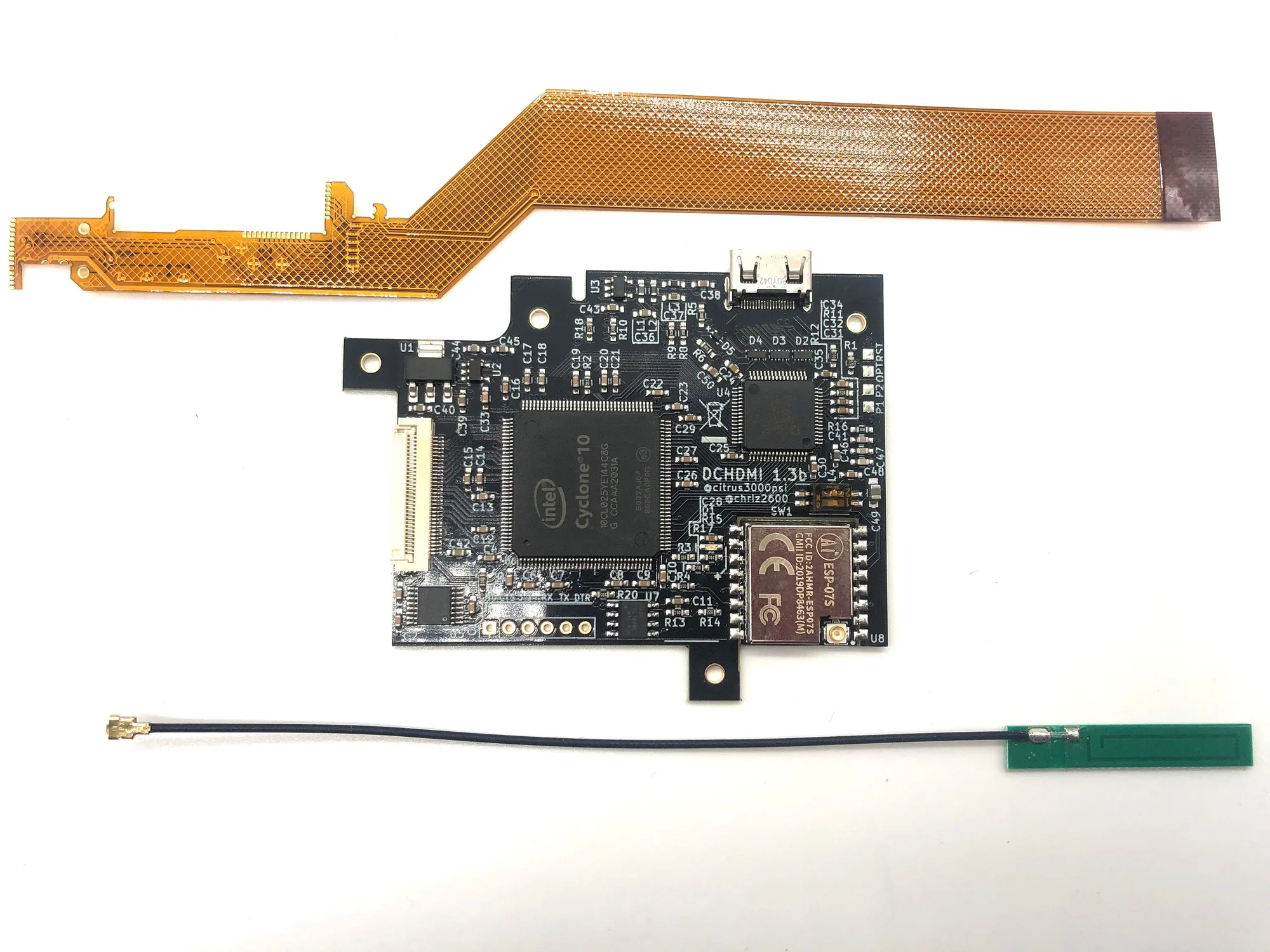
- Dreamcast HDMI Install: Our Dreamcast HDMI Install service provides professional installation of HDMI output for your Sega Dreamcast console. This hidden product is used with the Product Options application to manage your installation choices. Select the option that best fits your needs, whether you are providing your own DCDigital or RetroGEM hardware or requesting that we supply the kit. While this article focuses on GBA screens, the same principle applies: professional installation can save you time and reduce the risk of damaging your console. If you're not confident in your soldering skills, consider a service for your GBA mod as well.
- Xbox 128MB RAM Upgrade: Upgrade your original Xbox console's memory with this 128MB RAM upgrade service from Powr Up Gaming. This hidden product is used with the Product Options application and should not be deleted. Available for Xbox revisions 1.0, 1.5, and 1.6. Choose whether you provide the upgrade kit or we provide it for 1.6 revisions. Similar to a GBA screen install, some mods require choosing between providing your own kit or having the service supply it. Understanding these options helps you plan your upgrade and budget.
A GBA screen replacement is a rewarding project that can breathe new life into your handheld. By choosing the right kit, preparing your tools, and following the steps carefully, you'll enjoy a brighter, clearer display. If you're unsure about soldering or want a professional finish, consider a mod service from Powr Up Gaming to handle the installation for you.