Quick answer
To charge a laptop and phone from one Anker wall charger, plug the laptop into the highest-wattage USB-C port first, then connect your phone to a secondary port. The charger will automatically share wattage between ports, so your laptop gets priority. Use a USB-C cable rated for your laptop's wattage, and expect the phone to charge at a slower rate when both are connected.
Why port order and cable choice matter
When you plug two devices into a multi-port charger, the charger doesn't split power equally. It allocates wattage based on each port's priority and the devices' requests. On the Anker Laptop Charger (140W, 4-Port, PD 3.1), the primary USB-C port delivers the full 140W when used alone. If you connect a phone to a secondary port, the charger may reduce the laptop's share to accommodate both. This is normal and safe, but it can slow down laptop charging if you're running heavy tasks. To minimize impact, always connect your laptop to the port labeled with the highest wattage (often marked 'PD' or '140W'). Also, use a USB-C cable that supports the wattage your laptop needs. A cable rated for 100W will cap your laptop's charging speed even if the charger can output more.
Step-by-step: charging both devices
Follow these steps to get the most out of your Anker wall charger when powering a laptop and phone simultaneously.
- Step 1: Identify the highest-wattage port. On the Anker Laptop Charger (140W, 4-Port, PD 3.1), the top USB-C port typically delivers the full 140W. Check the labels or the manual to confirm.
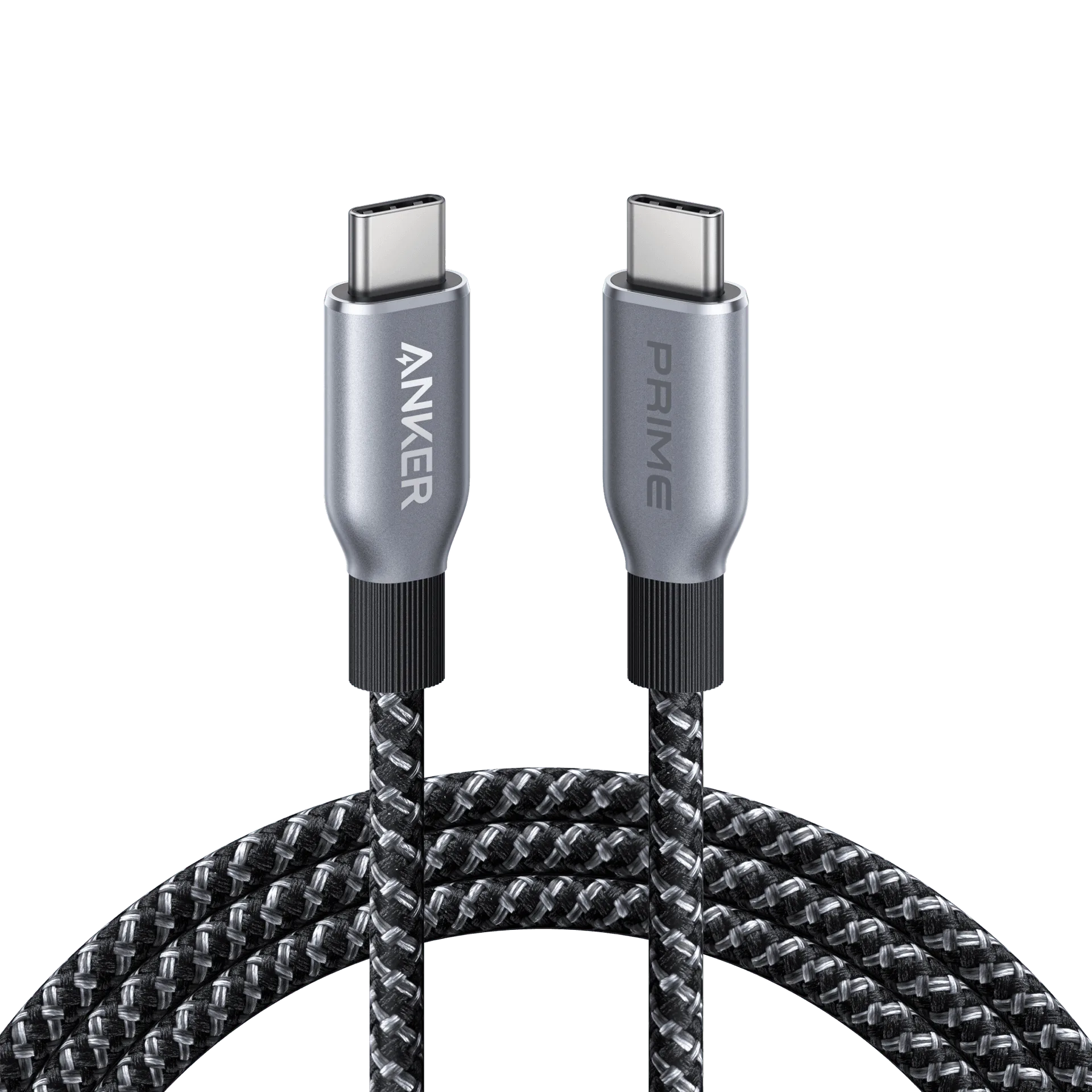
- Step 2: Plug your laptop into that primary port using a USB-C cable rated for at least your laptop's required wattage. For a 140W laptop, use a 140W or higher cable. If you use a lower-rated cable, the charger will default to a lower power profile, slowing charging.
- Step 3: Connect your phone to any remaining port. The charger will automatically adjust power distribution. Your phone will charge, but possibly at a reduced speed compared to charging alone.
- Step 4: Check your laptop's charging status. If it shows 'slow charger' or isn't gaining charge, try unplugging the phone to see if the laptop charges faster. If it does, the charger is prioritizing the phone or the total load exceeds the charger's capacity.
- Step 5: For overnight charging, consider plugging only the laptop into the primary port and using a separate charger for your phone. This ensures your laptop gets maximum power and your phone charges at its optimal speed.
Common mistakes to avoid
Even with a capable charger, small errors can slow you down. Here are the most frequent pitfalls and how to sidestep them.
- Using the wrong cable: A USB-C cable that doesn't support the required wattage will bottleneck charging. Always match the cable's rating to your device's needs. For 140W laptops, use a 140W USB-C cable.
- Plugging into a low-power port first: If you connect your laptop to a secondary port, it may only receive a fraction of the total wattage. Always start with the highest-wattage port.
- Assuming all ports are equal: On many multi-port chargers, only one or two ports deliver full power. The others may share remaining wattage. Check the specs to know which port to use for your laptop.
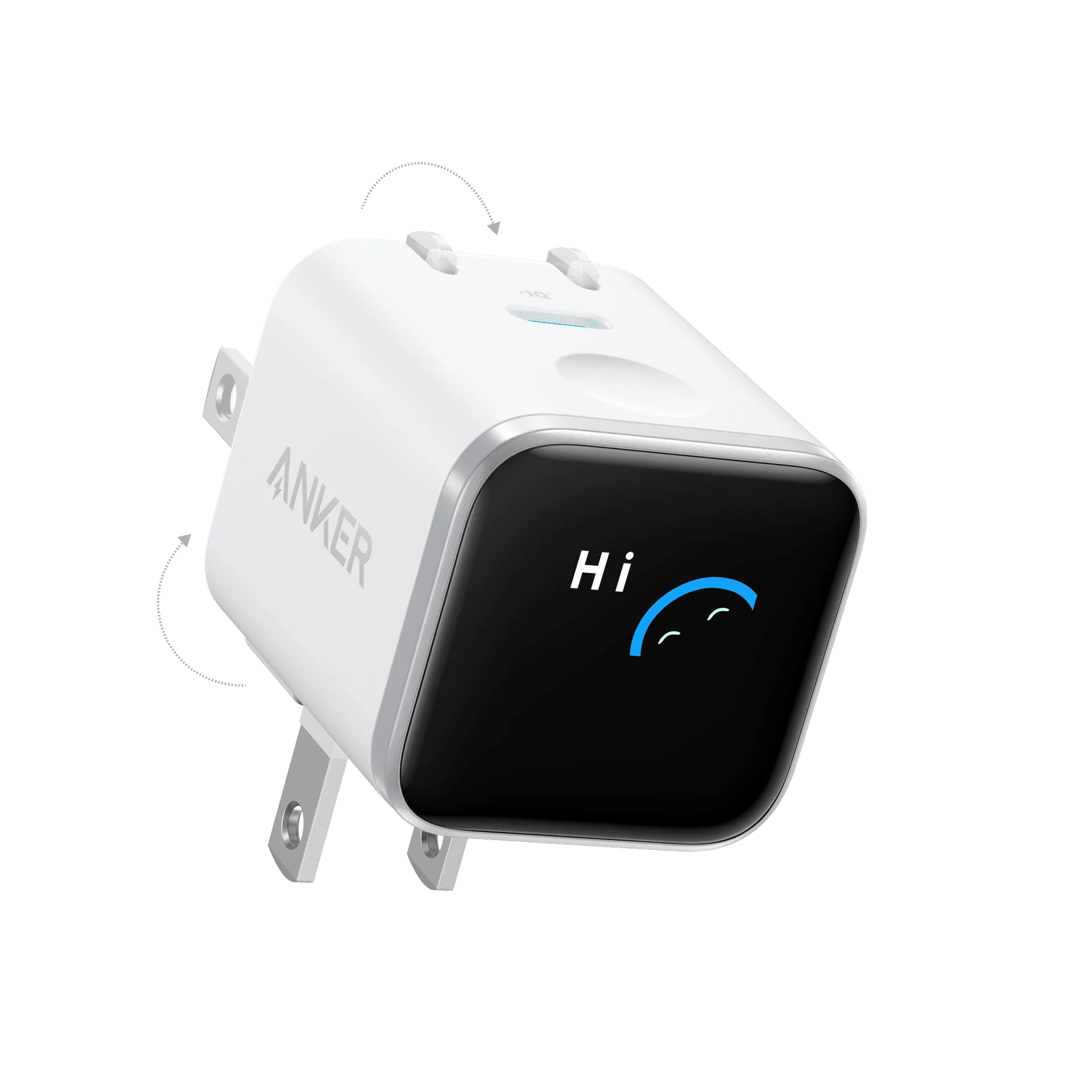
chargers
- Ignoring heat: Chargers can get warm when delivering high wattage. Ensure proper ventilation and avoid covering the charger. If it feels excessively hot, unplug and let it cool.
- Expecting full speed for both devices: When sharing wattage, both devices may charge slower than if charged individually. This is normal. If you need maximum speed for both, use two separate chargers.
Step-by-step: charging both devices
- Identify the highest-wattage port: On the Anker Laptop Charger (140W, 4-Port, PD 3.1), the top USB-C port typically delivers the full 140W. Check the labels or the manual to confirm. Checkpoint: The port may be labeled 'PD' or '140W'.
- Plug your laptop into that primary port: Use a USB-C cable rated for at least your laptop's required wattage. For a 140W laptop, use a 140W or higher cable. If you use a lower-rated cable, the charger will default to a lower power profile, slowing charging. Checkpoint: Your laptop should show 'charging' or a similar status.
- Connect your phone to any remaining port: The charger will automatically adjust power distribution. Your phone will charge, but possibly at a reduced speed compared to charging alone. Checkpoint: Your phone should begin charging immediately.
- Check your laptop's charging status: If it shows 'slow charger' or isn't gaining charge, try unplugging the phone to see if the laptop charges faster. If it does, the charger is prioritizing the phone or the total load exceeds the charger's capacity. Checkpoint: If slow, try a different port or cable.
- For overnight charging, consider plugging only the laptop: Use a separate charger for your phone. This ensures your laptop gets maximum power and your phone charges at its optimal speed. Checkpoint: This is optional but can speed up charging.
Product facts
- Anker Laptop Charger (140W, 4-Port, PD 3.1) with USB-C Cable: 140W total power output delivers fast, efficient charging for compatible devices. Equipped with 4 ports, allowing you to charge multiple devices simultaneously. With 140W total, you can charge a laptop and phone at once, but the laptop will receive the majority of power when connected to the primary port. The 4 ports give you flexibility to add more devices, though total wattage is shared.
- Anker Prime 67W GaN Wall Charger (3 Ports): 67W of total power output for charging multiple devices simultaneously. Three ports to connect your smartphone, tablet, and other USB-powered devices at once. This 67W charger is better suited for a laptop and phone if your laptop requires less than 67W. It's more compact than the 140W model, but you'll need to manage power sharing carefully if both devices demand high wattage.
- MagGo iPhone 17 MagSafe Charger Compatible Stand (Qi2 15W,With Adapter): Qi2 15W fast wireless charging for compatible MagSafe iPhone. The included adapter ensures you have everything you need to start charging right out of the box. If you prefer wireless charging for your phone, this stand frees up a USB-C port on your wall charger for other devices. It's a convenient alternative to plugging your phone into the charger directly.