Quick answer
Connect your podcast interface to your computer with a USB cable, install any required driver, then select the interface as your input and output device in your recording software. For a solo setup like the Vocaster One, use the Easy Start tool to set levels automatically. Always connect directly to a computer port, not a hub, to avoid dropouts.
Before you plug in: check ports and cables
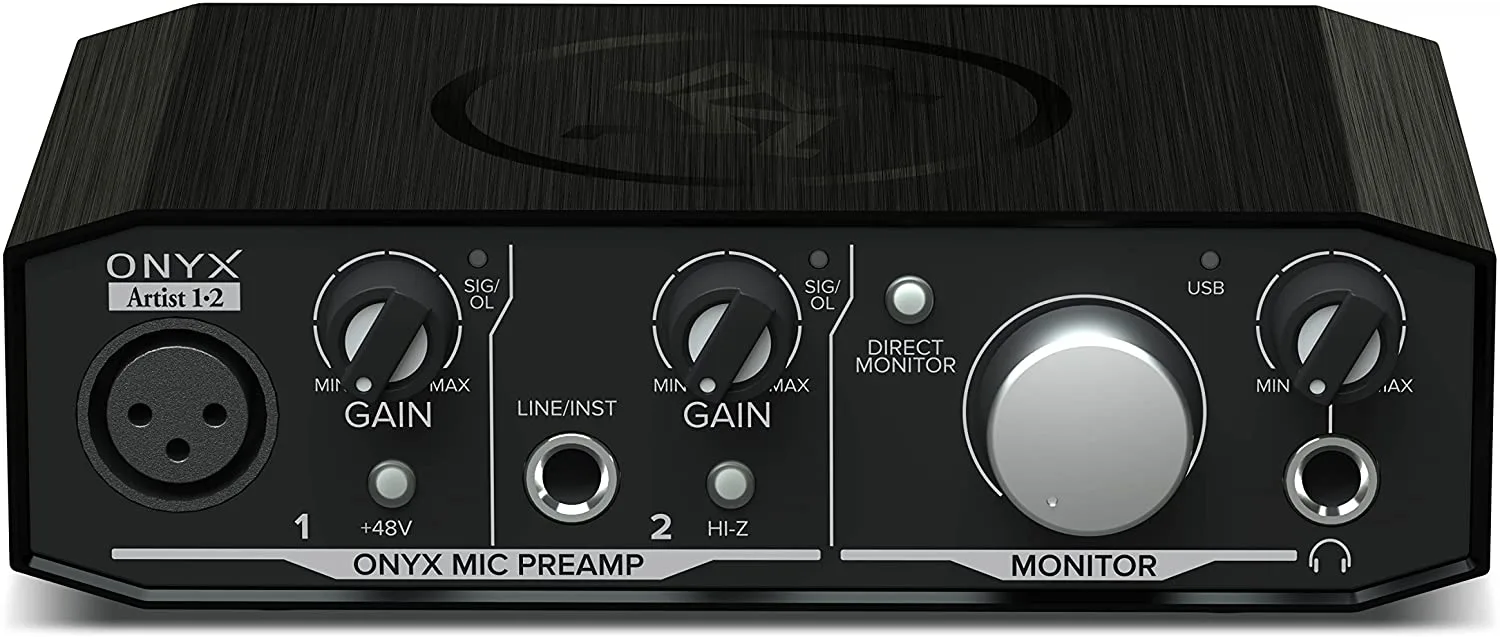
Start by confirming your computer has a free USB-A or USB-C port that can deliver enough power. Bus-powered interfaces like the Mackie Onyx Artist 1X2 draw power from the USB connection, so a weak or unpowered hub can cause dropouts or the device not being recognized. Use the cable that came with your interface or a known data cable; some charging cables carry power only and will not pass audio.
Install drivers or companion software first
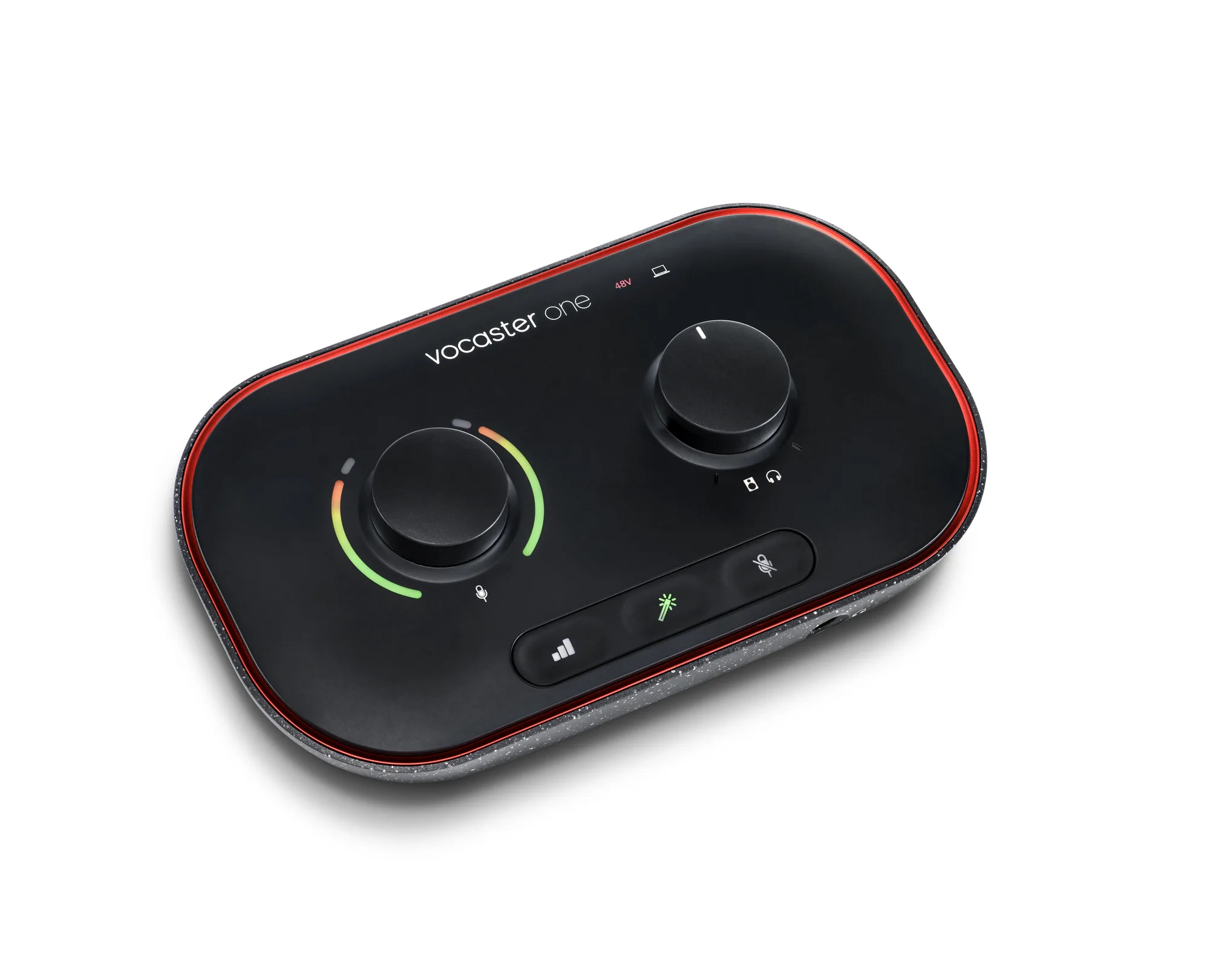
Many modern interfaces are class-compliant and work without extra drivers on macOS and Windows, but some manufacturers provide companion software for updates, routing, or features like Auto Gain and Enhance. Check the product page or manual for your specific model. For the Vocaster One, the Easy Start tool guides you through setup and helps set levels without guesswork. Install any software before connecting the interface so the computer recognizes it correctly.
Connect and confirm the interface is recognized
Plug the USB cable directly into your computer. On macOS, check System Settings > Sound; on Windows, check Settings > System > Sound. Your interface should appear as both an input and output device. If it does not, try a different port or cable, and avoid USB hubs. A common mistake is leaving the interface connected through a hub that does not supply enough power, which can cause intermittent audio or no recognition at all.
Set your recording software input and output
Open your DAW or recording app and go to its audio settings. Select your interface as the input device and, if you want to monitor through it, as the output device. Then create a mono track for a single microphone. If you are using the Mackie Onyx Artist 1X2, plug your mic into the Onyx mic pre input and set the gain knob so your loudest speaking peaks around -12 dB to -6 dB. If you use the Hi-Z instrument input, remember it is for guitars and basses, not microphones.
Test levels and record a short sample
Arm the track, speak at your normal podcast volume, and watch the meter. Adjust gain until you see healthy levels without hitting the red. Record 30 seconds, play it back, and listen for hum, clipping, or room noise. This quick test catches most connection issues before you record a full episode. If you hear nothing, confirm the correct input is selected and that phantom power is on only if your microphone requires it.
Step-by-step connection checklist
- 1. Check your computer ports: Use a direct USB port, not a hub. Confirm you have a data-capable cable. Checkpoint: the interface should power on when plugged in.
- 2. Install any required software: Visit the manufacturer's site for drivers or companion apps like the Vocaster Easy Start tool. Checkpoint: software installation completes without errors.
- 3. Connect the interface: Plug the USB cable into your computer and the interface. Checkpoint: the interface appears in your computer's sound settings.
- 4. Select the interface in your recording app: Set it as both input and output in your DAW or recording software. Checkpoint: the app shows the interface name in its audio preferences.
- 5. Set gain and test: Speak into the mic and adjust gain until peaks are around -12 dB to -6 dB. Checkpoint: record a test clip and listen for clean audio without clipping.
Products that fit this setup
- Mackie Audio Interface, Onyx Artist 1X2 USB Audio Interface (Onyx Artist 1-2): Combining high-resolution 24-bit/192kHz converters with premium Mackie analog circuitry and Built-Like-A-Tank hardware design, the bus-powered Onyx Series USB Audio interfaces give you the power to capture your best performance and experience media with pristine fidelity at home or on the go. Bus-powered means you can connect it directly to your computer without a separate power supply, making it a simple choice for a home podcast setup.
- Vocaster One - podcast interface: The podcast interface for solo content creators. Get incredible sound, with enough gain for any XLR mic. Set levels, enhance your sound with one click, and stand out with Vocaster One in seconds. Create great sounding podcasts more easily than ever with Auto Gain, Enhance, the Easy Start tool and award-winning support. If you want a guided setup, the Easy Start tool and Auto Gain reduce the guesswork when connecting to your computer and setting levels.