Quick answer
Replacing the small LCD screen on your Keydous NJ98 is a straightforward DIY job if you work slowly, keep track of screws, and handle the ribbon cable gently. The process takes about 20 minutes and requires only a screwdriver and a plastic spudger.
Why replace the screen yourself?
The NJ98's built-in screen adds a handy status display, but like any electronic component, it can develop dead pixels, dim backlighting, or stop responding after heavy use. Replacing it yourself saves the cost and wait of a factory repair, and it's a satisfying way to keep your keyboard running like new.
Before you start, know that the replacement screen is a compatible accessory, not an official Keydous part. That means it should work with your NJ98, but it may not have the exact same firmware or brightness curve as the original. If you're a perfectionist about color accuracy, this is a trade-off to accept.
What you'll need
Gather these tools before you begin: a Phillips #0 screwdriver, a plastic spudger or opening pick, a soft cloth, and a clean, well-lit workspace. You might also want a small container or magnetic mat to hold screws so they don't roll away.
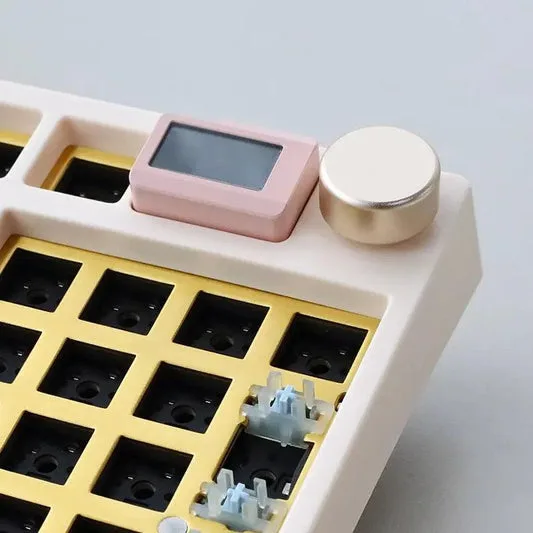
The replacement screen itself is a simple accessory that comes in three subtle colors—Light Pink, Light Green, and Khaki—so you can even give your keyboard a fresh look while fixing it. Just make sure you order the version that matches your NJ98 model.
Step-by-step replacement process
- Power down and disconnect: Turn off your keyboard and unplug the USB cable. Also remove any wireless dongle if you use one. This prevents accidental key presses and protects the electronics while you work. Wait 30 seconds after unplugging to let residual charge dissipate.
- Remove the keycaps and top case: Using a keycap puller, remove the keycaps around the screen area (usually the top-right cluster). Then flip the keyboard over and remove the screws that hold the top case. Keep screws in a labeled container. Check that all screws are removed before prying; a hidden screw can crack the case.
- Disconnect the display cable: Locate the ribbon cable connecting the screen to the main PCB. Use a plastic spudger to gently flip up the locking latch on the connector, then slide the cable out. Do not pull on the wires themselves. If the latch feels stiff, stop and inspect; forcing it can break the connector.
- Remove the old screen: The screen is usually held in place by adhesive or small clips. Gently pry it up with the spudger, working from one corner. Avoid bending the screen, as it can crack and make removal harder. If adhesive resists, apply gentle heat from a hairdryer for a few seconds to soften it.
- Install the new screen: Align the new screen in the same orientation as the old one, press it into place, and reconnect the ribbon cable. Ensure the cable is fully inserted before closing the latch. Double-check the cable is not twisted or folded; this is a common cause of display failure after replacement.
- Reassemble and test: Replace the top case and screws, then reattach the keycaps. Plug the keyboard in and power it on. Test the screen for brightness, responsiveness, and any dead pixels. If the screen doesn't light up, unplug and recheck the cable connection before assuming the part is faulty.
Product facts
-
Screen for NJ98 Keyboard: This Screen for NJ98 Keyboard is a compatible accessory from the Keydous Store, available in Light Pink, Light Green, or Khaki finishes. You can replace a faulty display and personalize your keyboard at the same time, but remember it's a compatible part, so verify it matches your NJ98 model before ordering.
Screen for NJ98 Keyboard