Quick answer
Run a classroom robotics competition in one 90-minute block with four to six teams, two events, and a fixed time limit per run. Start with a Sphero racing activity on a taped course, then add a short student coding challenge where teams program a route instead of driving it. Score both events on completion and accuracy, not speed alone, so slower builders still have a path to win.
Pick a format that fits your actual class period
The most common failure in a school robotics tournament is a bracket that assumes more time than you have. Count your real minutes first: a 45-minute class supports one event and a debrief, a 90-minute block supports two events, and an after-school session can run three. Build backward from dismissal, not forward from your ideal schedule.
For most classrooms, a round-robin with short heats beats a single-elimination bracket. Every team gets multiple runs, which matters when a robot drifts or a program fails on the first attempt. If you have more than eight teams, split into two pools and run pools simultaneously on separate courses.
- 45 minutes: one event, three to four teams, two runs each
- 90 minutes: two events, four to six teams, two runs each
- After school: three events, six to eight teams, plus a build break
Set the course and the rules before students arrive
Tape your course the day before and photograph it. Students will move cones and pins during practice, and a photo settles any dispute about whether a gate was in bounds. Mark start and finish lines with contrasting tape so a robot crossing at an angle is still clearly scored.
Write the scoring rules on one visible sheet: what counts as a completed run, how many attempts per team, and how ties break. Announce penalties for touching a robot mid-run in advance. Handing out rules after the first heat is the fastest way to lose a class's trust in the results.
Assign roles so every student has a job
Teams of three work better than pairs for a classroom robotics competition. Give each student a rotating role: driver or programmer, spotter who watches for boundary violations, and timekeeper or scorekeeper. Rotate roles between events so the same student is not always holding the tablet.
For a student coding challenge, the programmer role should include writing or editing the block sequence, not just pressing go. If your class uses the Sphero Edu App, teams can build a program that drives a set route, which turns a driving contest into a coding contest with the same hardware.
Run the heats with a visible clock
Put a countdown timer where all teams can see it. A fixed 60- or 90-second run limit keeps the event moving and forces teams to prioritize a working program over a perfect one. Call the next two teams to the staging area while the current team runs, so there is no dead time between heats.
Keep a simple scoresheet with columns for team, run one, run two, best time, and completion. Record completion before time. A team that finishes the course in 40 seconds but knocks over three gates should not outrank a clean 55-second run.
Close with a short debrief and a next step
Reserve the last five minutes for one question: what would you change in your program? This turns a competition into a lesson and gives you material for the next session. Ask each team for one specific change, such as a slower turn or a longer straight, rather than a general comment.
If you plan to repeat the event, save the scoresheet and the course photo. Next time you can compare results, adjust the course difficulty, and give returning students a harder challenge without rebuilding the format from scratch.
Competition day steps
- Set the date and lock the room layout: Choose a day with no assembly or testing conflict, then measure the floor space and tape the course before the event. Common mistake: assuming you can move desks during the period, which eats 10 minutes you do not have. Checkpoint: photograph the finished course and keep the photo for rule disputes.
- Form teams and assign rotating roles: Create teams of three and assign driver, spotter, and timekeeper, then rotate roles for the second event. Common mistake: letting students pick teams, which leaves quieter students without a job. Checkpoint: every student should be able to name their role before the first heat.
- Run the racing event first: Give each team two timed runs on the taped course with a visible countdown clock. Common mistake: allowing unlimited practice runs, which pushes the schedule past the bell. Checkpoint: record completion before time on the scoresheet.
- Run the coding challenge second: Ask teams to program a set route rather than drive it manually, using the Sphero Edu App or your class platform. Common mistake: changing the route between teams, which makes scores impossible to compare. Checkpoint: the same route and the same start position for every team.
- Score both events and announce results: Combine completion points and accuracy points from both events, then post the scoresheet where students can read it. Common mistake: weighting speed so heavily that a clean, slower program cannot place. Checkpoint: publish the scoring formula before the first heat, not after.
- Debrief and save your materials: Spend five minutes asking each team for one specific program change, then file the scoresheet and course photo. Common mistake: skipping the debrief, which turns the event into a game instead of a lesson. Next step: use the saved scores to set a harder course for the next competition.
Gear that supports a classroom competition
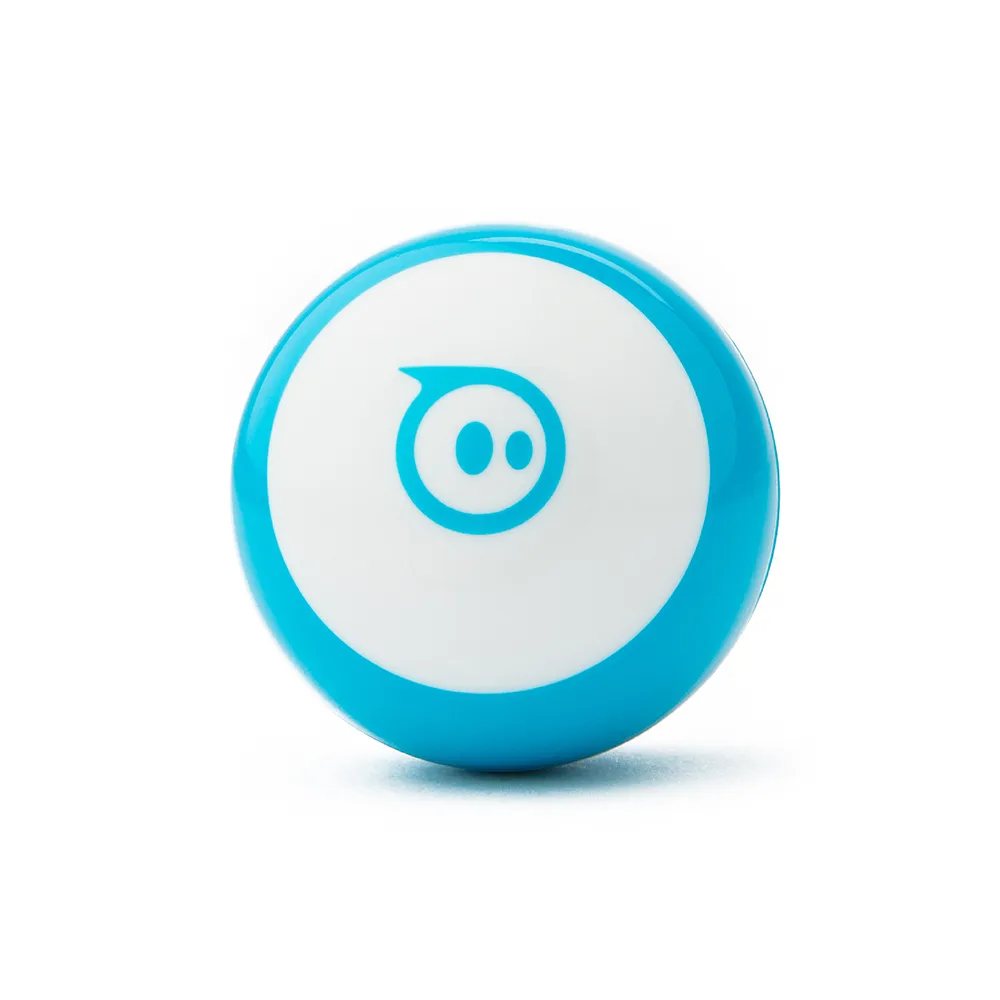
- Mini Activity Kit - Kids Coding Activity Kit: The Sphero Mini Activity Kit includes a clear-shelled Sphero Mini, a construction set, 15 STEM-inspired activity cards, bowling pins, and cones for building mazes. The pins and cones double as course obstacles and scoring gates, so you can set up a Sphero racing activity without buying separate props.
Mini
- littleBits i16 pulse: The littleBits pulse Bit makes other Bits turn on and off in a steady rhythm and is useful for making LEDs blink. If your competition includes a build station, a pulse Bit adds a timed, repeating element that students can wire into a start-light or scoreboard indicator.
- littleBits w15 NOR: The littleBits NOR Bit is a logic gate with two inputs that sends an ON signal only when neither input is receiving an ON signal. A NOR Bit lets students build a simple condition into a build station, such as a light that stays on until a sensor is triggered, which mirrors the if-then logic used in coding challenges.