Quick Answer
To set up a wireless printer for home use, unbox and place it near your router, power it on, connect it to your Wi-Fi network using the printer's control panel or WPS button, then install the drivers on your computer or mobile device.
Why Wireless Setup Matters
Wireless printers let you print from anywhere in your home without cable clutter. Once connected to your Wi-Fi, you can send print jobs from laptops, smartphones, and tablets. This convenience is especially useful in shared households or home offices where multiple devices need access to the same printer.
Placement and Network Considerations
Position the printer within range of your Wi-Fi router. Walls and floors can weaken the signal, so keep the printer in an open area if possible. For initial setup, place the printer closer to the router to ensure a stable connection, then move it to its final spot once configured.
If your router supports WPS (Wi-Fi Protected Setup), you can connect the printer to your network by pressing the WPS button on the router and the corresponding button on the printer. This method is often faster than entering the Wi-Fi password manually.
Step-by-Step Wireless Printer Setup
- Unbox and prepare the printer: Remove all packaging materials, including tape and protective foam. Install the ink cartridges or fill the ink tanks if your printer uses a refillable system, then load paper into the tray. Ensure the printer is placed on a flat, stable surface. Check that all protective materials are removed to prevent paper jams or ink flow issues.
- Power on and connect to Wi-Fi: Plug in the printer and turn it on. Use the printer's control panel to navigate to network settings, select your Wi-Fi network, and enter the password. Alternatively, press the WPS button on your router and the WPS button on the printer to connect automatically. If the Wi-Fi network is hidden, you may need to manually enter the SSID and password.
- Install drivers and software: On your computer, download the latest drivers from the printer manufacturer's website. Run the installer and choose 'Wireless' connection when prompted. The installer will detect your printer on the network and complete the setup. Always download drivers from the official manufacturer site to avoid outdated or malicious software.
- Add printer to your devices: On Windows, go to Settings > Devices > Printers & scanners and click 'Add a printer'. On macOS, go to System Preferences > Printers & Scanners and click '+'. For mobile devices, use the manufacturer's app or enable AirPrint (for iOS) or Google Cloud Print (for Android) if supported. Ensure your device is on the same Wi-Fi network as the printer; otherwise, it won't be detected.
- Test and troubleshoot: Print a test page from your computer or mobile device to confirm the connection. If the printer doesn't respond, restart both the printer and your router, check for firmware updates, and verify that the printer is not in sleep mode. Common issues include network interference, outdated firmware, or the printer being set to offline mode.
Featured Product
-
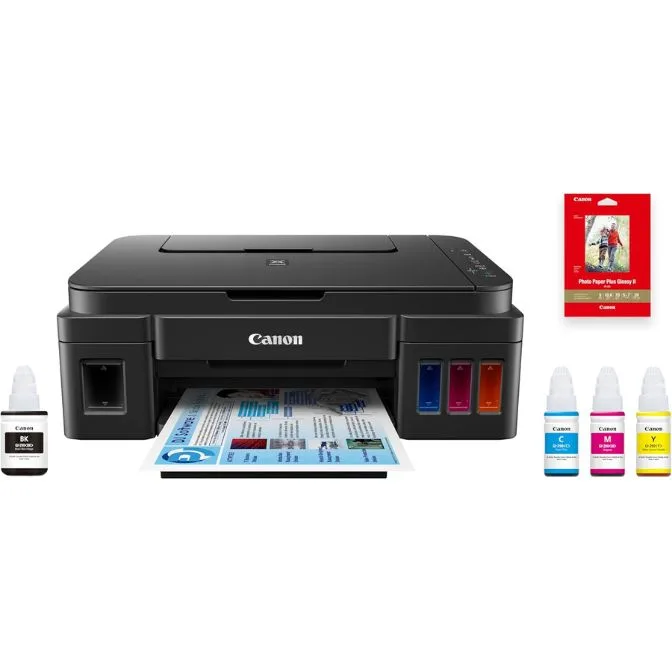
PIXMA G3202 wireless megatank all in one printer with copier and scanner REF A: The PIXMA G3202 is a wireless Megatank all-in-one printer that combines printing, copying, and scanning in a compact unit, with wireless connectivity for direct printing from computers, smartphones, and tablets. Its wireless capability and all-in-one functionality make it a versatile choice for home offices, allowing you to print, copy, and scan without needing multiple devices or cables.
PIXMA G3202 wireless megatank all in one printer with copier and scanner REF A