Quick Answer
To set up the Rode Streamer X for game streaming, connect your microphone and console to the device, install the necessary drivers, and configure the audio and video inputs in your streaming software.
Why the Streamer X simplifies your streaming rig
The Rode Streamer X combines a video capture card, audio interface, and control surface into one compact unit. This reduces cable clutter and lets you manage both audio and video from a single device, which is especially useful for streamers with limited desk space.
One trade-off to consider: because the Streamer X is an all-in-one device, you cannot upgrade its capture or audio components separately. If you plan to move to 4K streaming later, you will need a different capture solution.
What you need before you start
Before you begin, make sure you have the following: the Rode Streamer X, a USB-C cable to connect it to your PC, an XLR microphone or a RØDE wireless microphone, your gaming console (if you plan to capture console gameplay), and a camera for your face cam.
You will also need streaming software such as OBS Studio or Streamlabs Desktop. The Streamer X appears as a standard capture device and audio interface in these programs, so no special plugins are required.
Step-by-Step Setup Guide
- Connect your microphone and headphones: Plug your XLR microphone into the XLR input on the Streamer X, and connect your headphones to the headphone jack. If you are using a RØDE wireless microphone, pair it with the device according to the wireless system instructions. Check that the microphone is securely connected and that the cable is not damaged before powering on.
- Connect your console and camera: Use an HDMI cable to connect your gaming console to the HDMI input on the Streamer X. Then, connect your camera (webcam or mirrorless) via HDMI to the second HDMI input. If your camera does not have HDMI out, use a USB capture device instead. Make sure your camera is set to output a clean HDMI signal (no overlays) to avoid capturing menus or battery indicators.
- Connect the Streamer X to your PC: Use the included USB-C cable to connect the Streamer X to your computer. The device will be recognized as a USB audio interface and video capture device. If prompted, install any required drivers from the Rode website. Use a USB 3.0 or higher port for stable video capture; avoid USB hubs that may not provide enough bandwidth.
- Configure audio settings in your streaming software: In OBS or Streamlabs, add the Streamer X as an audio input source. Set the microphone gain on the device to a level where your voice is clear without clipping. Enable APHEX audio processing (if available) to enhance sound quality. Monitor your audio levels in the software; aim for peaks around -12 dB to -6 dB to leave headroom.
- Add video sources and start streaming: In your streaming software, add a Video Capture Device source and select the Streamer X. This will show your console or camera feed. Arrange your scenes with the game capture, webcam, and overlays as desired. Then, press 'Start Streaming' to go live. Do a quick test recording before going live to confirm both audio and video are working correctly.
Product Spotlight
-
Rode Streamer X 2-in-1 Audio Interface and Capture Card for Livestreaming Gaming Content Creator: The Rode Streamer X is a professional video capture card, audio interface, and control surface integrated in one compact device. This all-in-one design means you can connect your microphone, console, and camera to a single device, simplifying your setup and reducing the number of separate components you need to manage.
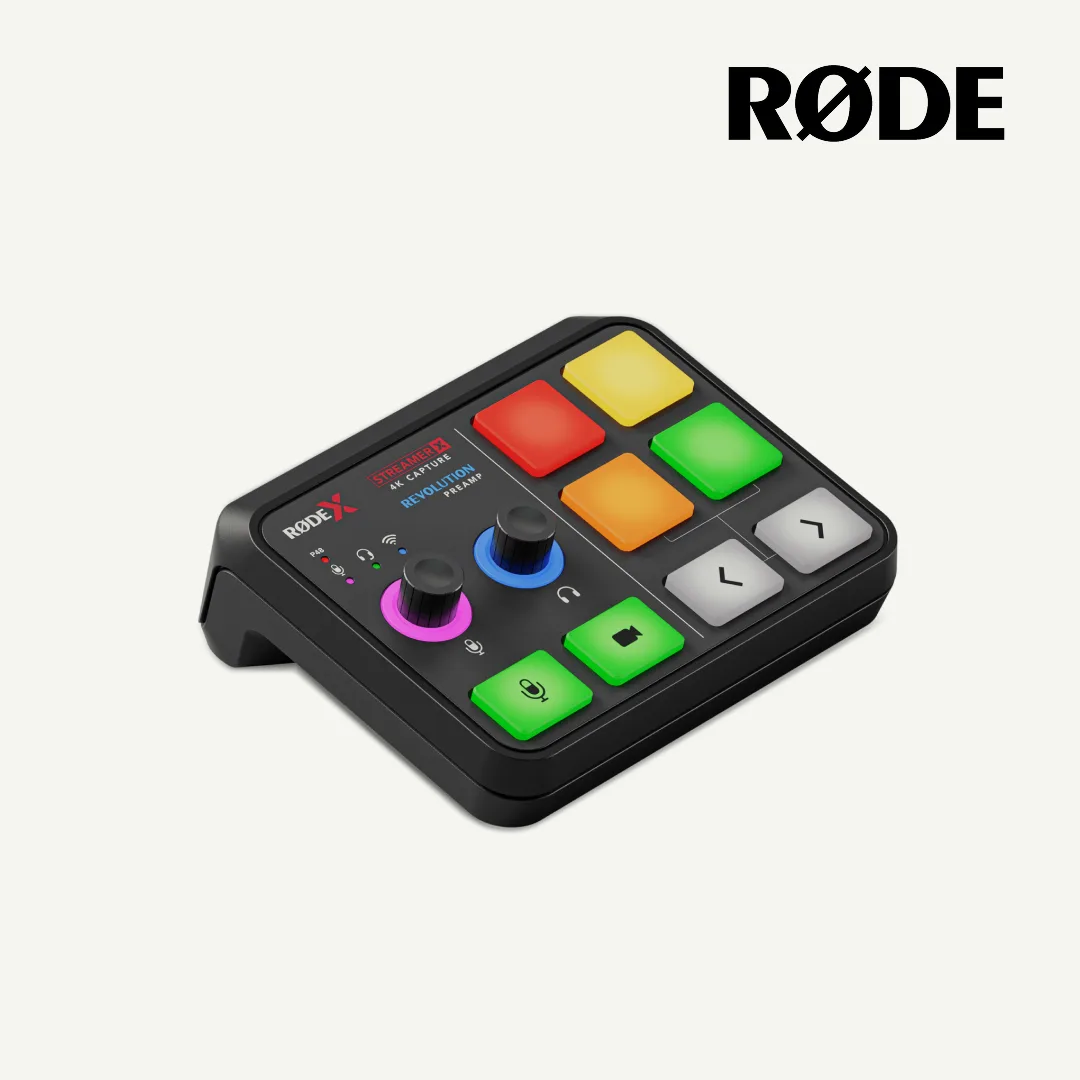
Rode Streamer X 2-in-1 Audio Interface and Capture Card for Livestreaming Gaming Content Creator