Quick answer
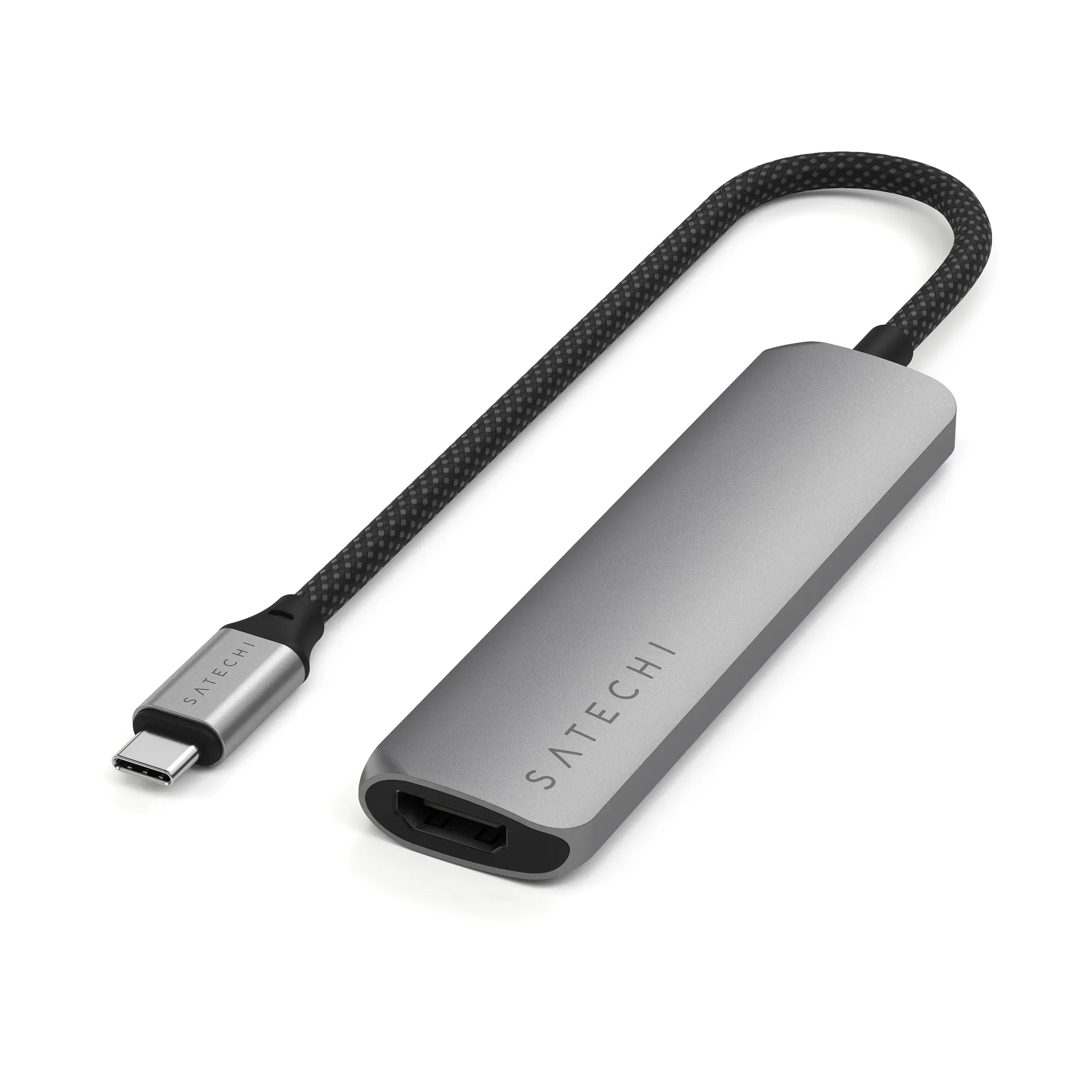
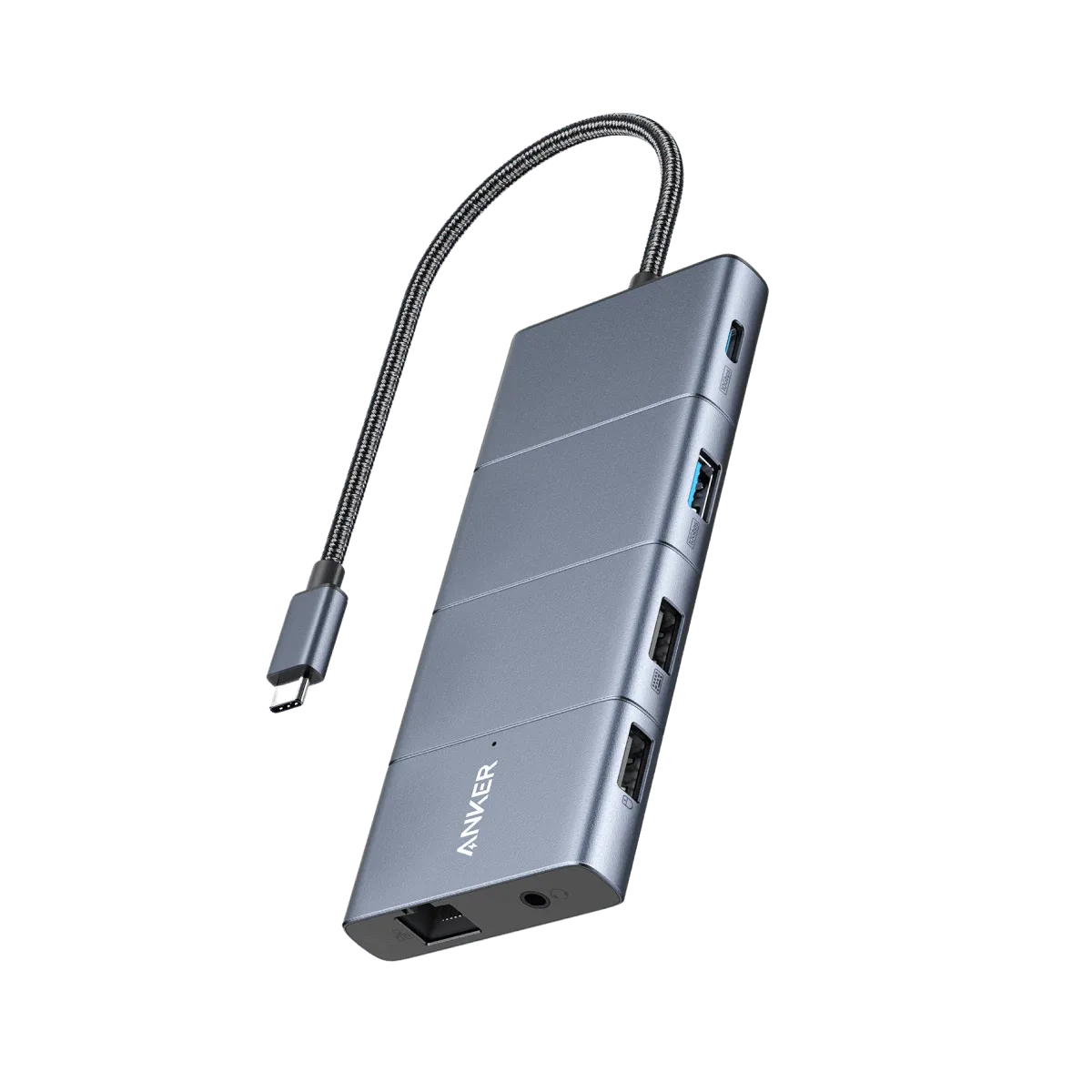
Connect your dock to one of the iMac’s rear USB-C or Thunderbolt ports using the dock’s built-in cable, then plug in power, displays, and peripherals in this order: power first, then display, then data devices. For most 24-inch iMac desks, a slim multi-port adapter like the Satechi 4-in-1 USB-C Slim Multiport Adapter 4K is enough; if you need dual displays and Ethernet, step up to the Satechi USB-C Multiport MX Adapter.
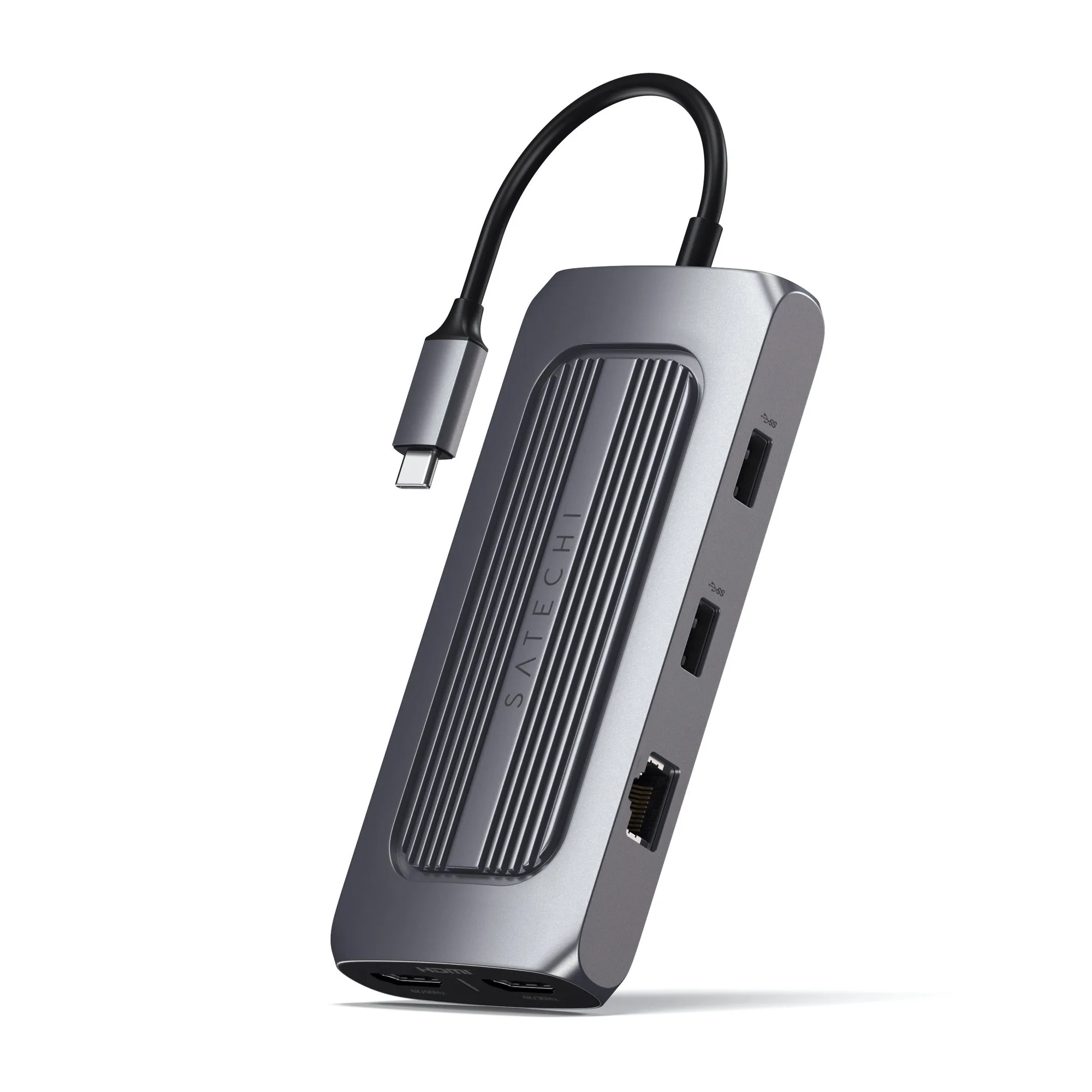
USB-C Multiport MX Adapter
A USB-C slim dock turns the back of your 24-inch iMac into a single-cable hub for monitors, drives, and chargers. The setup is straightforward, but the order you connect things and how you route the cable decide whether you get a clean desk or a daily troubleshooting session.
This guide walks through a reliable imac dock installation in seven steps, using real Satechi products as examples. You will also find checkpoints for common mistakes—like plugging power into the wrong port or daisy-chaining too many bus-powered drives—so your usb-c slim dock imac setup works the first time.
Before you start: what your 24-inch iMac needs
The 24-inch iMac has two or four USB-C ports on the back depending on configuration, and all of them support Thunderbolt. Any of those ports can host a USB-C slim dock, but you should reserve one port for the dock and leave the others free for direct connections when possible. A slim dock is ideal when you want to keep the iMac’s native ports accessible rather than buried behind a tangle of cables.
Decide what you will connect before you buy: a single 4K monitor, a wired keyboard, an external SSD, and occasional SD cards is a typical mix. If you also need dual displays or Gigabit Ethernet, choose a dock that explicitly supports those features. The Satechi USB-C Multiport MX Adapter lists dual 4K HDMI, Gigabit Ethernet, USB-C PD charging, USB-C data, USB-A data, SD card readers, and an audio jack port—all through a single USB-C connection—so it covers a fuller desk than a basic 4-in-1 adapter.
- Checkpoint: confirm your dock’s cable is USB-C, not USB-A. The 24-inch iMac has no USB-A ports.
- Common mistake: buying a dock that only mirrors displays when you need dual independent screens. Match the spec sheet to your monitor count.
Step 1: Position the dock and plan the cable route
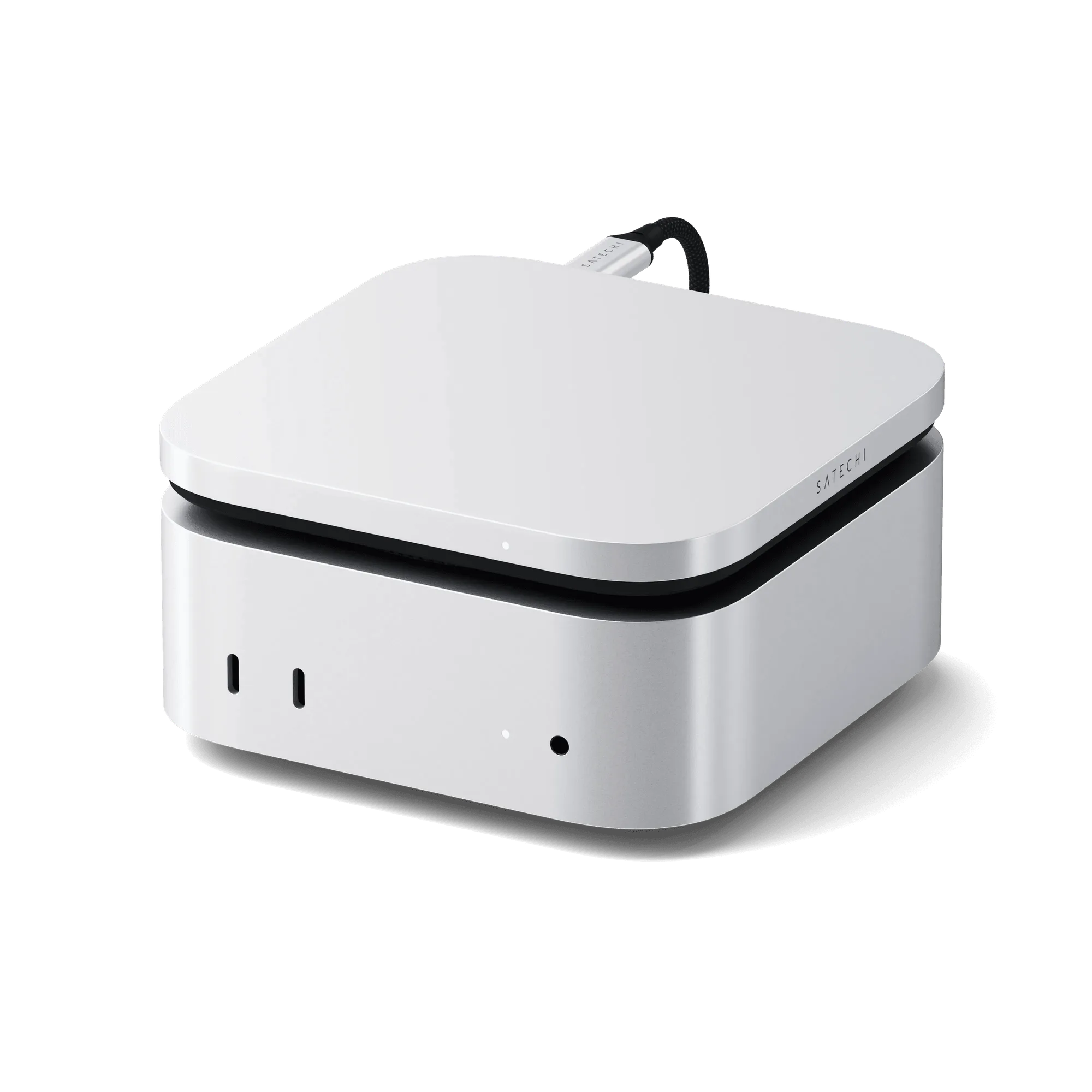
Place the dock where its cable can reach the iMac without pulling tight. A slim dock often sits under the iMac’s stand or just behind the base, which keeps the rear ports clear and hides the cable. If your desk has a cable tray, route the dock’s cable through it before connecting anything, so you are not threading cables later.
Measure the distance from the iMac’s rear port to the dock. The built-in cable on a slim adapter is short by design, so the dock needs to live close to the iMac. If you need more reach, use a USB4 or USB-C extension cable rated for data and power rather than a generic charging cable.
- Checkpoint: the dock’s cable should have slack, not tension. A tight cable strains the iMac’s port over time.
- Common mistake: placing the dock on top of the iMac’s stand base where it can slide. Use the stand’s footprint or a small adhesive pad.
Step 2: Connect power to the dock first
If your dock supports USB-C Power Delivery pass-through, connect the iMac’s power adapter or a compatible USB-C charger to the dock’s PD input before connecting the dock to the iMac. This order lets the dock negotiate power and avoids a brief under-power state that can cause a display to blink or a drive to disconnect. The Satechi 4-in-1 USB-C Slim Multiport Adapter 4K supports 100W USB-C PD charging, so it can pass power through to the iMac while still running its other ports.
Not every slim dock includes a power input. If yours is bus-powered only, skip this step and keep your total power draw modest—bus-powered docks have a limited budget for drives and accessories.
- Checkpoint: use the power adapter that came with your iMac or a charger that meets the dock’s PD requirement. Underpowered chargers cause slow charging or dropped devices.
- Common mistake: plugging the power adapter into the iMac and the dock into a separate charger at the same time. Pick one power path to avoid confusion.
Step 3: Connect the dock to the iMac’s USB-C port
Plug the dock’s cable into one of the iMac’s rear USB-C ports. On a 24-inch iMac, all rear USB-C ports are equal for data and display, so choose the one that gives the cleanest cable route. Avoid front-facing USB-C ports on other devices; the dock should connect directly to the iMac for the most reliable link.
After connecting, give macOS a few seconds to recognize the dock. You can check under System Settings > General > About > System Report > USB or Thunderbolt to confirm the dock appears. If nothing shows up, unplug the dock, wait ten seconds, and reconnect.
- Checkpoint: the dock should appear in System Report. If it does not, try a different rear port before assuming the dock is faulty.
- Common mistake: using a USB-C hub or dongle between the iMac and the dock. Daisy-chaining hubs adds failure points and can limit bandwidth.
Step 4: Add your display, then your data devices
Connect your monitor to the dock’s HDMI or DisplayPort output next. The Satechi 4-in-1 USB-C Slim Multiport Adapter 4K supports 4K HDMI at 60Hz, which is the right target for a 24-inch iMac’s external display—30Hz feels sluggish for everyday work. If you use the Satechi USB-C Multiport MX Adapter, it offers dual 4K HDMI, so you can run two external monitors if your iMac configuration supports it.
Once the display is stable, add data devices: external SSDs, SD cards, keyboards, and mice. Add one at a time and confirm each appears. This makes it obvious which device causes a problem if one does not mount.
- Checkpoint: confirm the display resolution and refresh rate in System Settings > Displays. If you see 30Hz, check the cable and the dock’s HDMI spec.
- Common mistake: connecting a high-power bus-powered SSD alongside several other devices on a bus-powered dock. Move the SSD to its own port or use a powered dock.
Step 5: Tidy the cables and label the ports
With everything working, secure the cables. Use velcro ties or a cable tray to bundle the dock’s cable with the display and power cables running to the iMac. Leave a service loop—about 15 cm of slack—so you can pull the iMac forward without unplugging anything. For a clean imac cable management dock setup, route cables down the iMac’s stand and along the back edge of the desk.
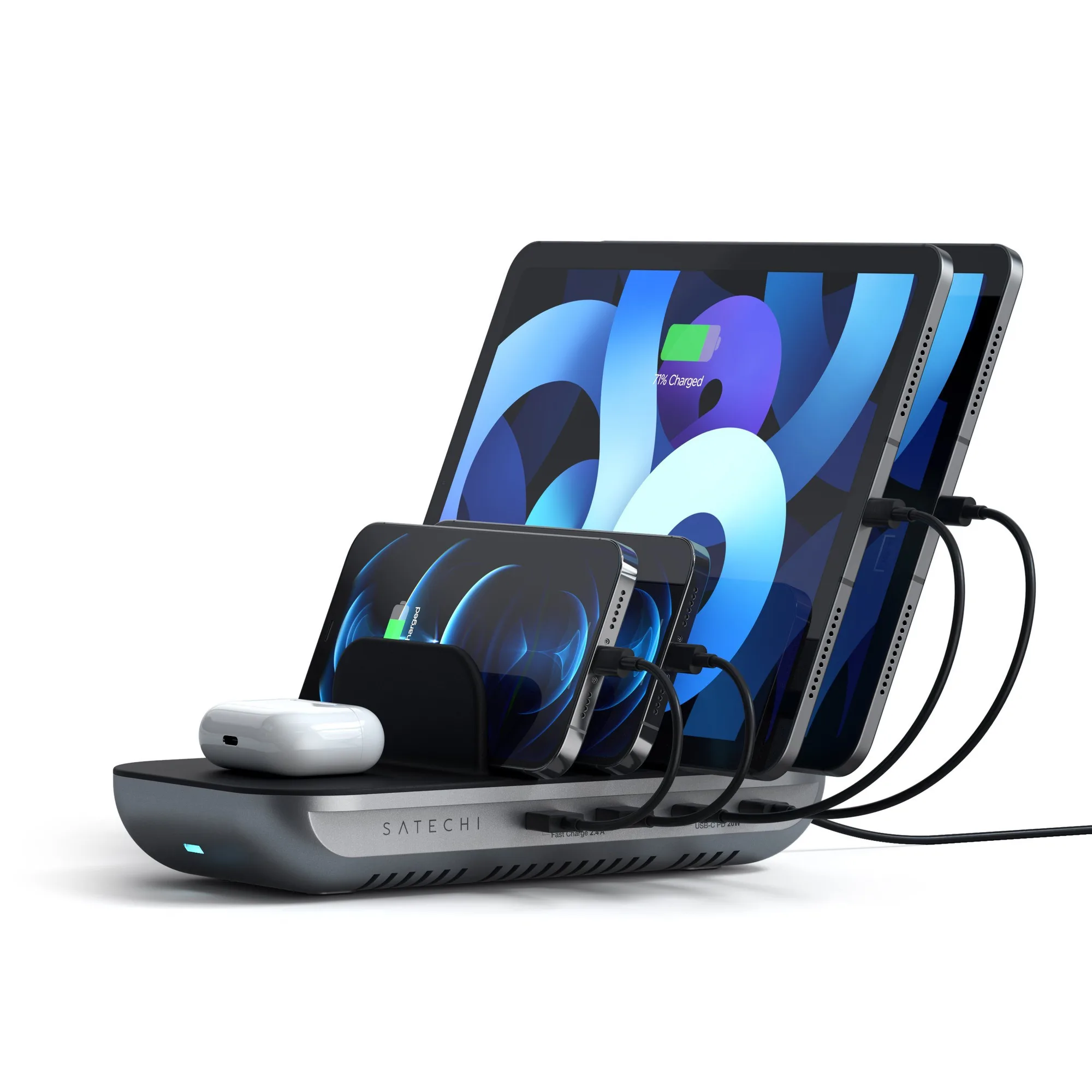
Label the dock’s ports with small stickers if you swap devices often. Knowing which USB-A port holds your SSD and which USB-C port charges your phone saves time later. If your dock has a designated wireless charging pad, like the Satechi Dock5 Multi-Device Charging Station, keep that area clear of metal objects and thick cases.
- Checkpoint: tug each cable gently. If a cable pulls out easily, it is not fully seated.
- Common mistake: bundling power and data cables so tightly that heat cannot escape. Leave a little air around the dock and charger.
Step 6: Test sleep, wake, and hot-swap behavior
Put the iMac to sleep and wake it. Your external display should wake with it, and drives should remount. If the display does not wake, try waking with the keyboard first, then check the dock’s power connection. Some docks need a moment after wake before data devices appear.
Hot-swapping is where slim docks differ. Unplug a USB drive while the iMac is running and confirm macOS ejects it cleanly. For SSDs, always eject from the desktop before unplugging. If you use the Satechi USB4 Slim NVMe SSD Enclosure, remember it supports USB4 speeds up to 40Gbps (3840MB/s) and SSD sizes 2230, 2242, 2260, and 2280—so it is a good match for a dock that can pass through high bandwidth, but it will not reach those speeds through a slower USB-C hub.
- Checkpoint: after wake, open System Report and confirm the dock and drives are listed. If not, reconnect the dock.
- Common mistake: unplugging a bus-powered SSD without ejecting. This can corrupt data and force a repair.
Step 7: Keep the setup reliable over time
Once your usb-c slim dock imac setup is stable, leave the dock connected. Repeatedly unplugging and replugging the dock wears the iMac’s port and can confuse macOS display settings. If you need to move the iMac, disconnect at the dock end if possible, or use a short USB-C extension so the iMac’s port stays untouched.
Update macOS when prompted, and check the dock maker’s support page for firmware if your dock offers it. If you notice intermittent dropouts, the usual causes are an underpowered charger, a marginal cable, or too many bus-powered devices. Swap one variable at a time—charger first, then cable, then device load—to isolate the issue.
- Checkpoint: if dropouts continue after swapping the charger and cable, test the dock on another computer to rule out the iMac port.
- Common mistake: assuming a dock is broken when the real issue is a 30W phone charger trying to power a full desk.
Your 7-step iMac dock setup checklist
- Plan the layout: Place the dock within reach of the iMac’s rear USB-C port and route its cable through a tray or behind the stand before connecting anything. Checkpoint: the dock’s cable should have slack, not tension.
- Connect power first: If the dock supports USB-C PD, plug the iMac’s power adapter or a compatible charger into the dock’s PD input before connecting the dock to the iMac. Common mistake: using an underpowered phone charger for a full desk.
- Plug the dock into the iMac: Use one of the rear USB-C ports and confirm the dock appears in System Settings > General > About > System Report. If it does not appear, try another rear port before troubleshooting the dock.
- Add the display: Connect your monitor to the dock’s HDMI output and verify 4K at 60Hz in System Settings > Displays. 30Hz means a cable or dock limitation—check the HDMI spec.
- Add data devices one at a time: Connect SSDs, SD cards, keyboards, and mice individually so you can identify any device that fails to mount. Avoid stacking many bus-powered drives on a bus-powered dock.
- Tidy and label: Bundle cables with velcro ties, leave a 15 cm service loop, and label ports you use often. Keep the wireless charging pad clear of metal objects and thick cases.
- Test sleep, wake, and hot-swap: Sleep the iMac, wake it, and confirm the display and drives return. Eject SSDs before unplugging. If dropouts persist, swap the charger, then the cable, then test the dock on another computer.
Products that fit this setup
- 4-in-1 USB-C Slim Multiport Adapter 4K: Combines 4K HDMI (60Hz), 100W USB-C PD charging, and two USB-A 3.2 Gen 2 ports in a compact aluminum enclosure with a braided cable and reinforced neck. A single-cable upgrade for a 24-inch iMac desk that needs one external 4K monitor, charging, and a couple of USB-A accessories without a full dock.
- USB-C Multiport MX Adapter: Provides dual 4K HDMI, Gigabit Ethernet, USB-C PD charging, USB-C data, USB-A data, SD card readers, and an audio jack port through a single USB-C connection. The better pick when your iMac setup includes two monitors, wired networking, or frequent SD card imports—features a 4-in-1 adapter does not cover.
- USB4 Slim NVMe SSD Enclosure: Uses USB4 technology for transfer speeds up to 40Gbps (3840MB/s), supports SSD sizes 2230, 2242, 2260, and 2280, and offers expandable capacity up to 8TB. Pairs well with a USB4-capable dock for fast external storage, but it will only reach its rated speed if the dock and cable support the same bandwidth.
A USB-C slim dock is one of the simplest upgrades for a 24-inch iMac: one cable, a cleaner desk, and ports you can actually reach. Follow the order above—power, then dock, then display, then data—and your setup will be stable from day one. If you are still choosing a dock, match the port list to your real devices rather than buying for a hypothetical future desk.