Quick Answer
To set up the VFA MetroPro Pendant for remote operation, connect it to your interferometer system via the standard interface, install the required drivers, and configure the MetroPro software to recognize the pendant as an input device.
Before You Begin: Check Compatibility and Cabling
The VFA MetroPro Pendant is designed for use with Zygo interferometer systems running MetroPro software. Before starting, verify that your system has an available USB or serial port that matches the pendant's connector. The pendant uses a standard interface cable, so no special adapters are required for most modern setups.
A common oversight is using a damaged or low-quality cable, which can cause intermittent connection drops. Always use the cable supplied with the pendant or a shielded replacement of the same specification.
Step-by-Step Setup Process
- 1. Connect the Pendant to Your System: Plug the pendant's cable into an available USB or serial port on your interferometer controller. Use the port recommended in your system's documentation to avoid conflicts. Common mistake: Plugging into a hub or extension cable can cause latency or power issues. Connect directly to the controller.
- 2. Install or Update Pendant Drivers: If your operating system does not automatically recognize the pendant, download the latest driver from the Zygo support site. Run the installer and restart the controller if prompted. Checkpoint: After installation, verify the pendant appears in your system's Device Manager (Windows) or System Information (macOS/Linux) without error flags.
- 3. Configure MetroPro Software to Enable Pendant Input: Open MetroPro and navigate to the 'Input Devices' or 'Peripherals' settings menu. Select 'VFA MetroPro Pendant' from the list of available devices and enable it. Save the configuration. Common mistake: Forgetting to save the configuration after enabling the pendant. Unsaved changes are lost on software restart.
- 4. Map Pendant Buttons to Desired Functions: In the same settings menu, assign each pendant button to a specific MetroPro command (e.g., 'Start Measurement', 'Stop', 'Focus +/-'). Refer to your workflow to choose the most frequently used actions. Checkpoint: Test each button after mapping to confirm it triggers the correct command. Re-map any that behave unexpectedly.
- 5. Test Remote Operation in a Safe Environment: Place the pendant at the intended remote location (e.g., across the lab bench) and perform a series of basic operations such as starting and stopping a measurement. Verify that the pendant responds reliably at that distance. Common mistake: Assuming the cable length is sufficient without testing. If the pendant stops responding, move closer to the controller or use a powered USB extension.
Product Facts
-
VFA MetroPro Pendant: The VFA MetroPro Pendant is offered by Zygo under the Standard option and is identified by SKU 6450-8504-03. Knowing the exact SKU ensures you order the correct pendant for your system and simplifies support inquiries.
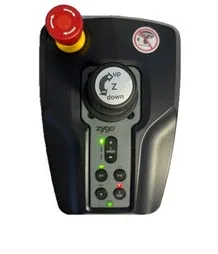
VFA MetroPro Pendant