Quick answer
To get the most out of a Hall Effect gaming keyboard, adjust the actuation point to a shorter distance (e.g., 1.0 mm) for faster key registration, enable Rapid Trigger for instant repeated inputs, and set the polling rate to 8,000 Hz for near-zero latency.
Why Hall Effect settings matter for competitive play
Traditional mechanical keyboards have a fixed actuation point, meaning you have to press a key to a specific depth before it registers. Hall Effect switches, like those in the CLIPPER PRO MINI 60, use magnetic sensors to detect position continuously. This allows you to change the actuation point on the fly, set multiple actions per key press, and even enable features like Rapid Trigger that reset the key without a full release. These adjustments can shave milliseconds off your reaction time, which is critical in fast-paced FPS games where every frame counts.
The downside is that too short an actuation point can lead to accidental presses, especially if you rest your fingers on the keys. You'll need to find a balance that works for your playstyle and hand size.
Step-by-step: Optimizing your Hall Effect keyboard settings
- 1. Install the keyboard software and update firmware: Download the official software for your keyboard (e.g., iCUE for the CLIPPER PRO MINI 60). Connect the keyboard and check for firmware updates. Outdated firmware can limit available features or cause instability. Always run the latest firmware to access all Hall Effect tuning options.
- 2. Set the actuation point for primary keys: In the software, locate the actuation point slider. For movement keys (WASD) and action keys (space, shift), set the actuation point to 1.0 mm–1.5 mm. This reduces the distance your finger must travel, speeding up response. For less critical keys (e.g., numbers, function row), keep the default 2.0 mm to avoid accidental presses. Common mistake: Setting all keys to the shortest actuation point increases accidental inputs. Prioritize only the keys you press rapidly.
- 3. Enable Rapid Trigger for repetitive actions: Find the Rapid Trigger option (may be called 'Rapid Trigger' or 'Continuous Input'). Enable it for keys used in rapid sequences like strafing, building, or tapping. This allows the key to reset as soon as you start releasing it, without waiting for full release. Checkpoint: Test Rapid Trigger in a practice range or training mode. If you experience double inputs, increase the reset distance slightly.
- 4. Adjust polling rate to maximum: Set the keyboard's polling rate to 8,000 Hz (if supported) in the software. This sends key data to your PC 8 times per millisecond, reducing input lag. Note that 8,000 Hz can increase CPU usage slightly; if you notice performance issues in older games, drop to 4,000 Hz. Common mistake: Forgetting to also set your mouse polling rate to match. Mismatched rates can cause inconsistent feel.
- 5. Save a profile and test in-game: Save your settings as a new profile (e.g., 'FPS Competitive'). Launch your game and play a few rounds. Pay attention to how quickly actions register and whether you get accidental presses. Adjust actuation points and Rapid Trigger sensitivity as needed. Fine-tune over several sessions. What feels fast initially may cause fatigue or errors after extended play.
Product facts
-
Teclado gaming con efecto Hall CLIPPER PRO MINI 60: The CLIPPER PRO MINI 60 uses MGX HYPERDRIVE CORE magnetic switches with Hall Effect technology, enabling Rapid Trigger, Multi Action, and an 8,000 Hz hyper-polling rate. This means you can set the actuation point anywhere along the key travel, get instant key repetition without full release, and experience lower input latency than standard 1,000 Hz keyboards.
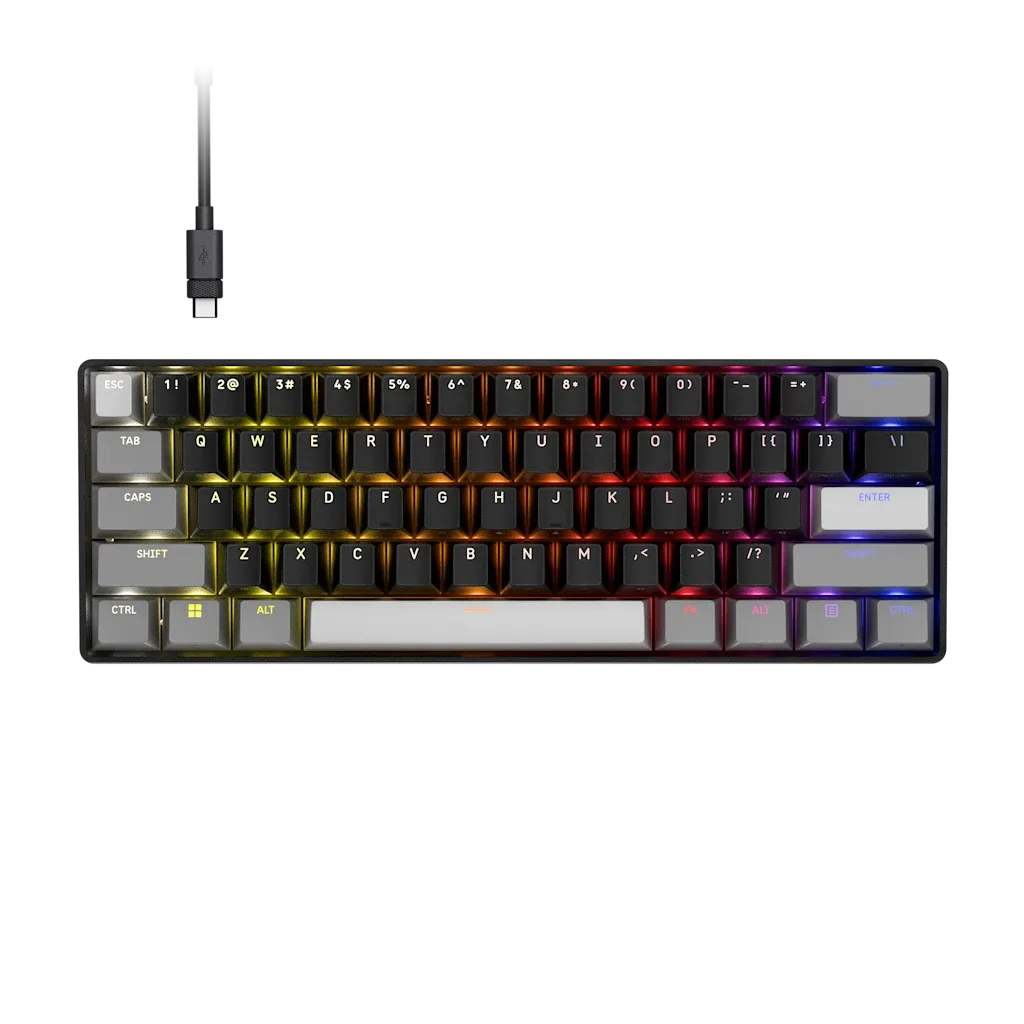
Teclado gaming con efecto Hall CLIPPER PRO MINI 60