Quick answer
Set up the RCC-1 in this order: charge it fully, plug the 2.4 GHz receiver into a front or top USB port, pair it, update firmware if the maker provides it, then tune DPI, polling rate, and lift-off in the software. After that, replace the stock feet if the glide feels rough and add grip tape if the shell slips. The biggest setup wins are receiver placement and glide, not more DPI.
Most RCC-1 problems people blame on the mouse are actually setup problems: a receiver buried behind a metal case, a half-charged battery, or worn stock feet dragging on the pad. Work through the steps below in order and you will know within an hour whether the mouse is right for you.
This guide covers the RCC-1 wireless gaming mouse from unboxing to a finished, tuned setup. It also flags the upgrades that genuinely change how the mouse feels, using parts we stock at Lethal Gaming Gear, so you are not guessing about compatibility.
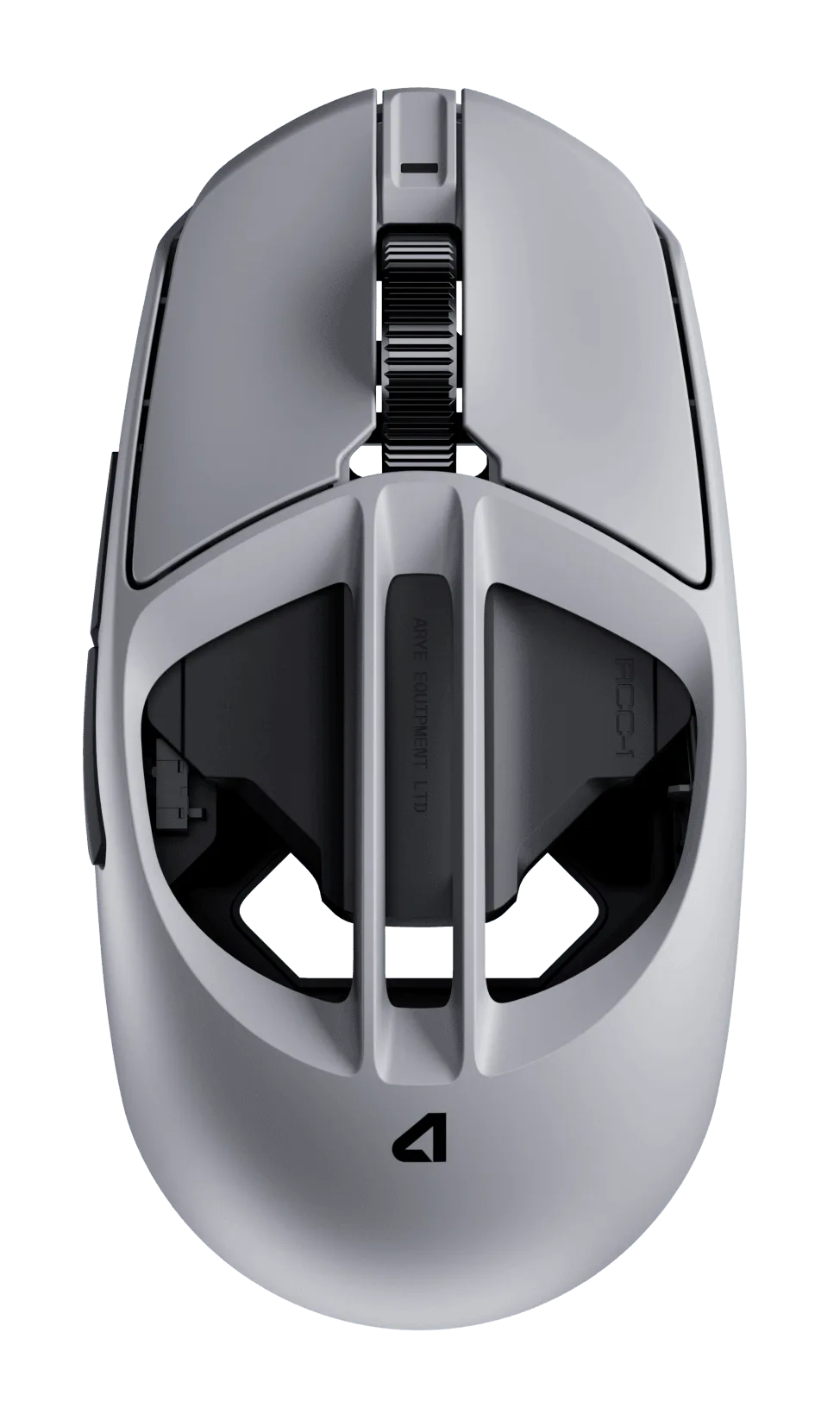
RCC-1 wireless gaming mouse
What the RCC-1 gives you before you change anything
The RCC-1 is a wireless gaming mouse built around the usual modern formula: a 2.4 GHz connection for low-latency play, a rechargeable battery, and onboard buttons you can rebind. Treat the stock configuration as the baseline. Play a few deathmatch rounds before you touch the software so you have a real reference point for what you are changing.
One honest limitation: the manufacturer does not publish full RCC-1 mouse specs in our catalog, so we cannot quote sensor model, maximum DPI, or exact battery hours here. Check the box or the maker's product page for those numbers before you buy. What we can tell you is how to get the most out of whatever the hardware offers.
- Write down your current DPI and in-game sensitivity before changing anything.
- Test the stock glide on your normal pad first; it tells you whether you need new feet.
Step 1: Charge fully and place the receiver properly
Charge the RCC-1 to full before your first session. A partially charged battery can behave like a connection fault, and you will waste time troubleshooting the wrong thing. While it charges, plan where the receiver goes: a front-panel or top-mounted USB port, or a short extension cable that puts the receiver on your desk near the mousepad.
The common mistake is plugging the dongle into a rear I/O port behind a metal case or a monitor hub. That adds interference and distance, which shows up as stutter and missed inputs. Keep the receiver within about 20 cm of the mouse and in line of sight, and keep it away from USB 3.0 hubs, Wi-Fi routers, and phone chargers.
- Checkpoint: move the mouse in slow circles at the edge of your pad. Any cursor jump means the receiver placement is wrong.
- If your desk is metal, raise the receiver off the surface.
Step 2: Pair the mouse and confirm the connection mode
Power the RCC-1 on and let it pair with the 2.4 GHz receiver. If it does not connect within a few seconds, use the pairing button or the maker's pairing utility rather than repeatedly power-cycling the mouse. Once connected, confirm in the software which mode is active: 2.4 GHz for gaming, Bluetooth for laptops and travel, or wired while charging.
This is where RCC-1 connectivity questions usually get answered. If the mouse drops only in Bluetooth mode, that is expected behavior, not a defect, because Bluetooth prioritizes compatibility over latency. For competitive play, stay on 2.4 GHz and keep the cable connected only when charging.
- Mistake to avoid: leaving the mouse in Bluetooth mode and wondering why flicks feel delayed.
- Label your receiver so you do not mix it up with another wireless mouse dongle.
Step 3: Update firmware, then set DPI, polling rate, and lift-off
Install the RCC-1 software and check for a firmware update before you tune anything. Firmware fixes often address exactly the connection and wake-from-sleep issues people report in the first weeks. After updating, set your DPI to a value you can actually control, usually 400 to 1600, and set the polling rate to the highest stable option your PC handles.
Then adjust lift-off distance and debounce if the software exposes them. Lower lift-off helps if you reposition the mouse often; a slightly higher value helps if the sensor cuts out during fast swipes. Save the profile to onboard memory so your settings survive a move to another PC.
- Checkpoint: open a browser and drag a window in circles. The cursor should track smoothly with no stutter or spin-out.
- Keep one profile for shooters and one for desktop work if the software allows it.
Step 4: Fix the glide and the grip
Stock feet on a new mouse are rarely the best the mouse can feel. If the RCC-1 scrapes, catches on the pad, or feels inconsistent in slow tracking, replacement skates are the cheapest meaningful upgrade you can make. If your hand slips on the shell during long sessions, grip tape solves that without changing the shape of the mouse.
Replace feet on a clean, hard surface with the original adhesive fully removed. Press each skate down firmly for a few seconds, then let the mouse sit for a few minutes before playing. For grips, clean the shell with the included wipe and give the adhesive time to cure before a heavy session.
- Mistake to avoid: stacking new skates on top of old adhesive, which raises the mouse and can cause sensor issues.
- Do one change at a time so you know what actually improved the feel.
Step 5: Test, then decide what to keep
Play three short sessions rather than one long one: a tracking-heavy game, a flick-heavy game, and normal desktop use. Note what felt off, then change one variable at a time. If the mouse still feels wrong after receiver placement, firmware, DPI, and glide are sorted, the shape or weight is the likely mismatch, and no setting will fix that.
Keep a simple log of DPI, polling rate, and skate type. When you eventually change pads or mice, that log saves you from re-testing everything from scratch.
- Checkpoint: if the mouse disconnects only when your phone is charging next to it, move the phone, not the mouse.
- Give any new skate setup a full day of play before judging it.
RCC-1 setup checklist, in order
- Charge to full and place the receiver in line of sight: Use a front or top USB port, or an extension cable that puts the dongle on the desk within about 20 cm of the mouse. Checkpoint: slow circles at the pad edge should track with no cursor jumps.
- Pair on 2.4 GHz and confirm the active mode: Use the pairing button or utility once instead of power-cycling. Keep Bluetooth for travel, not for competitive play. Checkpoint: the software should show 2.4 GHz as the active connection.
- Update firmware before tuning: Install the RCC-1 software, apply any firmware update, then set DPI, polling rate, and lift-off distance. Checkpoint: save the profile to onboard memory so it survives a PC change.
- Fix glide and grip, one change at a time: Replace worn or rough stock feet with compatible skates, and add grip tape only if the shell slips. Checkpoint: remove all old adhesive before installing new feet.
- Test across three short sessions: Play a tracking game, a flick game, and normal desktop use, changing one variable per session. If it still feels wrong after all five steps, the shape or weight is the mismatch.
Parts that pair well with an RCC-1 setup
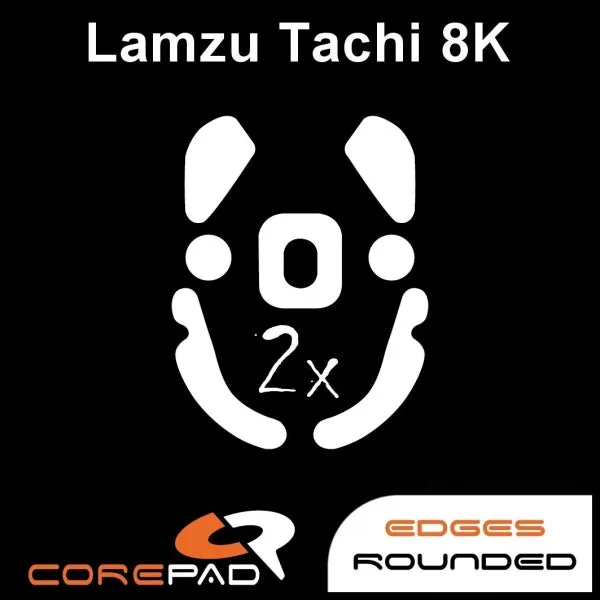
- Corepad Skatez - Lamzu Tachi 8K: Corepad Skatez are precision-made replacement mouse feet sold in 2 sets at 0.75 mm thickness, made for the Lamzu Tachi 8K. A good reference point for what replacement feet look like: two sets, a stated thickness, and exact model compatibility. Check that a skate set lists your exact mouse before buying, because feet are cut to shape.
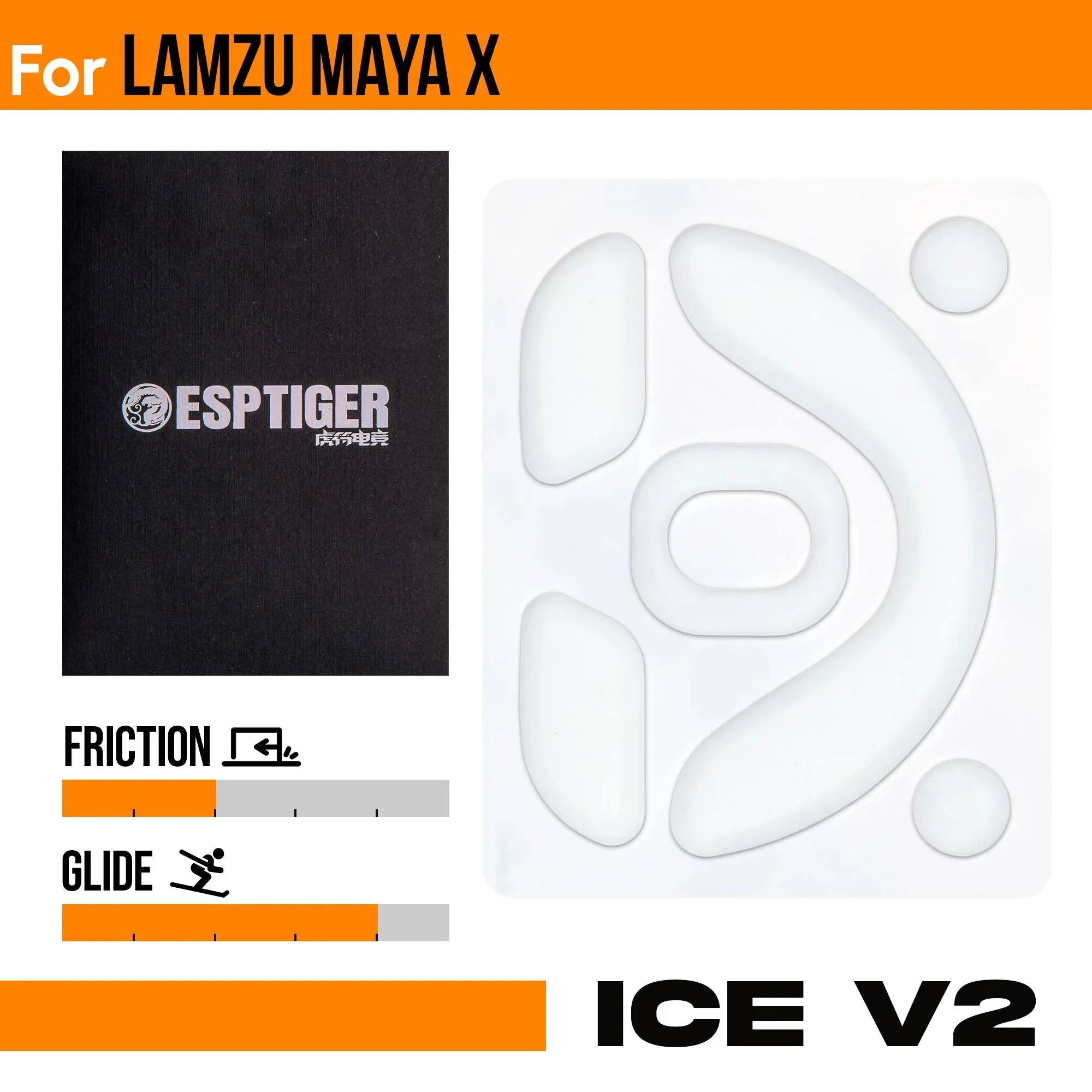
- https://lethalepo.com/products/esports-tiger-ice-v2-lamzu-maya-x-d208b353beb53da0700668d2-1742839Esports Tiger ICE V2 - Lamzu MAYA X: These skates are crafted from premium PTFE and use a 2.5D edge treatment to reduce drag on the skate edge. Edge treatment is what stops a skate from catching on cloth pads. If your RCC-1 scrapes at the edges, this is the feature to look for in a compatible set.
- Corepad Grips - Pulsar X2 / X2V2: Corepad grips address sweaty hands, glossy or slippery mouse surfaces, and loss of grip; the maker recommends replacing grips every 3-5 months to avoid adhesive issues on removal. Grip tape is the fix for a shell that slips during flicks. The 3-5 month replacement window is a real maintenance cost, so factor it in if you sweat heavily.
- Aero Base Mod - Endgame Gear XM2 8k: This base plate replaces the original base on the XM2 8k, cutting weight from 11.3 g to 2.8 g, a reduction of 8.5 g. Shows what a weight-reduction mod looks like when the numbers are published. Do not assume a similar mod exists for the RCC-1; check compatibility before buying anything.
The RCC-1 rewards a methodical setup more than a pile of settings. Get the receiver in line of sight, confirm 2.4 GHz, update firmware, then fix glide and grip only if the mouse actually needs it. If you want help matching skates or grips to your mouse, our team at Lethal Gaming Gear can point you to the right set.