Quick answer
Install the GSI TR-1 Thumb Rotary Knob by removing the existing blank or knob, aligning the new knob's set screw holes, and tightening evenly. Then map it in your sim's control settings as a rotary encoder for precise analog-style adjustments.
Why the TR-1 Knob Needs Careful Installation
The TR-1 is machined from a solid block of 6061 aluminum, so it's durable but not flexible. Overtightening or cross-threading the set screws can strip the threads or crack the knob. Go slow, use the correct hex key, and stop when the knob is snug against the wheel base.
Mapping vs. Standard Button Assignment
The TR-1 is a thumb rotary knob, not a push button. Most sims recognize it as a continuous rotary encoder, not a discrete button press. In your sim's control settings, look for an axis or analog input binding, not a button bind. If your sim only offers button binds, you may need third-party software like JoyToKey or FreePIE to convert rotary movement to key presses.
How to install and map the TR-1 Thumb Rotary Knob
- 1. Remove the existing blank or knob: Use a hex key (usually 2.5mm) to unscrew the set screws holding the current blank or knob in place. Keep the screws in a safe spot. Common mistake: losing the small set screws. Place them in a magnetic tray or cup.
- 2. Align the TR-1 knob: Position the TR-1 over the mounting holes. The knob's set screw holes must align perfectly with the wheel base holes. Do not force the knob into place. If the holes don't align, rotate the knob 180 degrees. The TR-1 is symmetrical, so one orientation will fit.
- 3. Insert and tighten the set screws evenly: Hand-tighten each screw a few turns, then alternate between screws to ensure even pressure. Use the hex key to snug them firmly, but do not overtighten. Checkpoint: The knob should rotate freely without wobble. If it binds, loosen screws slightly and re-tighten evenly.
- 4. Connect the wire (if applicable): If your wheel base has a removable connector, plug the TR-1's wire into the corresponding port. Ensure the connector clicks fully into place. Common mistake: partial connection causes intermittent or no response. Gently tug the wire to confirm it's locked.
- 5. Map the knob in your sim software: Open your sim's control settings. Find the axis or analog input section (not button binds). Bind the TR-1 to a function like 'Menu Scroll', 'Volume', or 'In-Car Multi-Function Switch'. If your sim only shows button binds, use a tool like JoyToKey to map rotary movement to keyboard keys.
- 6. Test and calibrate: Rotate the knob fully in both directions. Check that the sim registers smooth, proportional movement. Adjust dead zones or sensitivity in the sim's controller settings if needed. Checkpoint: If the knob jumps or skips values, increase the dead zone setting slightly to filter out noise.
Product facts
-
"TR-1" Thumb Rotary Knob: Meticulously machined from a solid block of 6061 aluminum, each knob boasts unparalleled durability and precise engineering, ensuring smooth, flawless rotations every time you use it. The smooth rotation is critical for fine adjustments like volume, menu scrolling, or in-car settings without unwanted clicks or stutter.
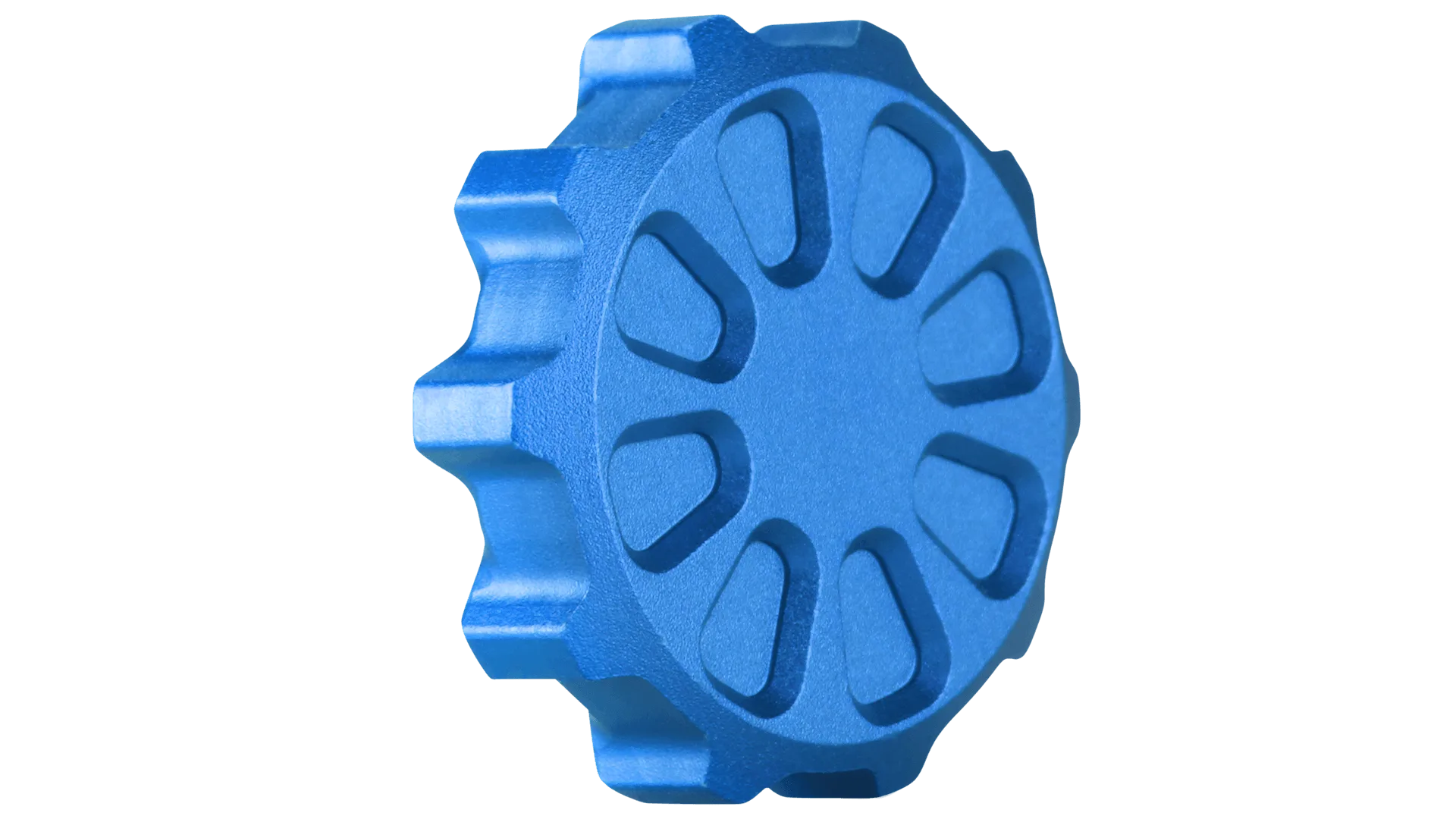
"TR-1" Thumb Rotary Knob